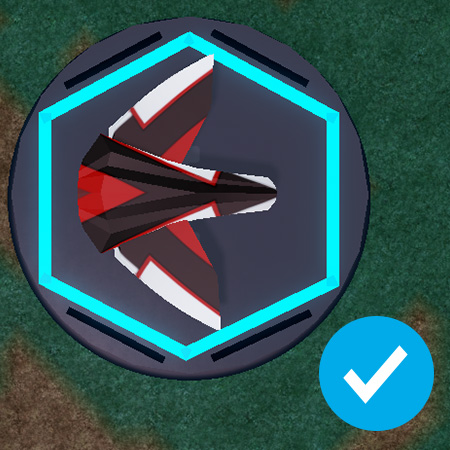
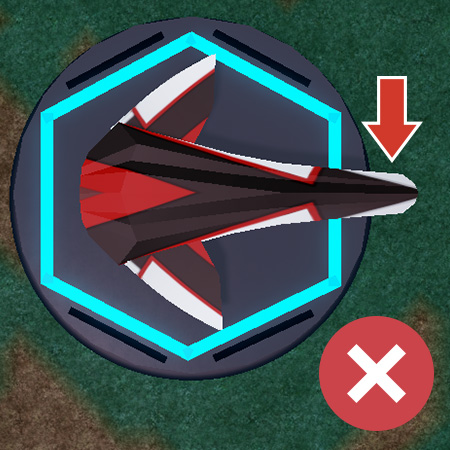
Add wings
Learn how to use the Roblox Studio Move and Rotate tools to add wings to your spaceship in the Build It Play It Galactic Speedway challenge.
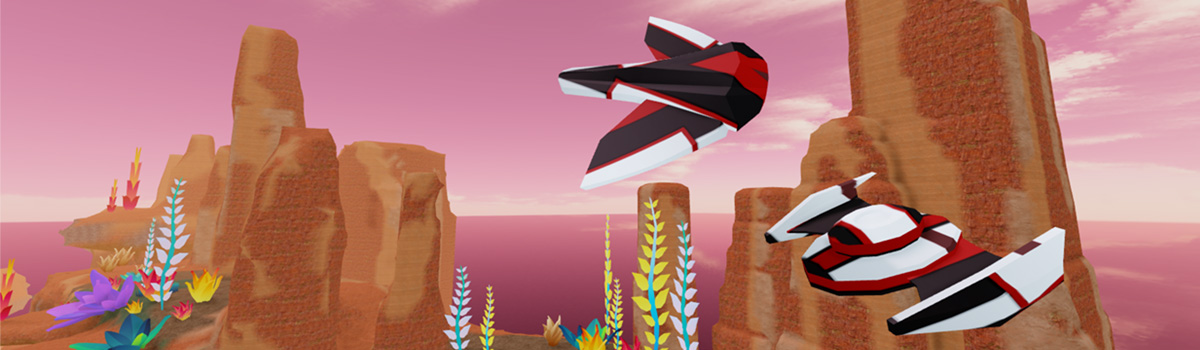
To work correctly in a race, the driftspeeder can only have one body. But, it can have as many wings and other parts as you'd like.
Change snapping#
Before adding wings, set rotate snapping to make it easier to position your wings. Snapping rotates parts a set amount a time.
In the toolbar, make sure Rotate snapping is enabled.
Set it to
45°.
Place the first wing#
In the 3D viewport, click a wing from the second section of the scrapyard, then use the Move tool to drag it into the work area.

Trouble moving the wing?
In the toolbar, make sure Move snapping is turned off.
In the toolbar, select the Rotate tool, then drag the handles in the 3D viewport to rotate the wings. Each handle rotates in a different direction.

Rotate quickly with a hotkey
To rotate an object 90 degrees, select that part and press CtrlR or ⌘R.
In the toolbar, select the Scale tool and drag the handles to scale the wings to a desired size.

If you want, use the matching wing in the scrapyard for the other side of the driftspeeder.
Keep the driftspeeder in the work area
Make sure the speeder can fit through the canyon while racing by keeping all of the parts within the blue lines.