Set up a classroom
For teachers and educators, learn how to set up Roblox in the classroom. This article covers getting student accounts and finding lessons.
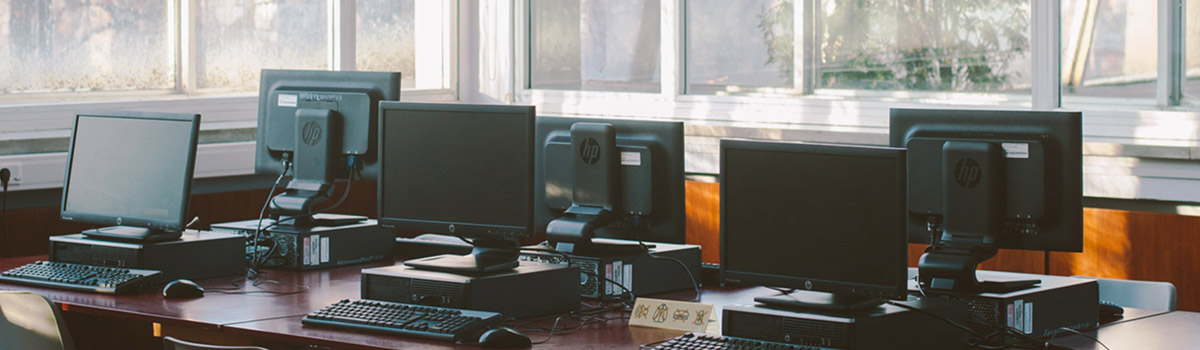
Setting up a Roblox classroom is a quick process that includes tasks like getting accounts and software ready. Note, while this article overviews these topics, an in-depth, guided checklist is at the end of the course.
By the end of this article, you will:
- Know the steps needed to create accounts and install Roblox on desired devices.
- Understand how to find and share content relevant to learning objectives.
Accounts and software#
All Roblox accounts and software are free.
Get accounts#
Account registration is through a form that asks for basic information like a birthday. Names are not needed for sign-up. While emails aren't requested at signup, it's recommended to add one since forgotten passwords can only be recovered through email.
Each account grants that user full access to:
- Play games with the Roblox client.
- Code and create games with Roblox Studio.
Accounts for students under 13
If students list their age under 13, that account will have some restrictions. For instance, that student can only see curated games deemed appropriate by Roblox. For more information, see Account Restrictions.
Accounts in the class#
Every student and educator needs their own account. Compared to other educational tools, accounts are individual and not managed by an institution or person. Since Roblox is used for both home and school, we believe this system respects the privacy of our students.
When starting a Roblox class, keep in mind that accounts cannot be created in a batch. It's recommended students create accounts outside class. Also, plan to manage passwords, such as by using password manager software.
Managing passwords for younger students
We understand that password management can be a challenge for younger students. To help, an educator can use software like LastPass (offered free) to keep a central database of student account logins and passwords. Students can provide account information to you, where you store them to use if a student forgets.
Install software#
Roblox is two software packages (client and Studio), each installed separately.
Software can be installed in two ways:
- Individual installations per computer: Install Roblox by downloading the software from a web browser on each device. Ideal for small classrooms, workshops, or small summer camps.
- Batch Installers: Create a packaged installer that can be deployed on multiple computers using a USB drive or image. Ideal for schools or larger educational institutions.
For more information, see How to Install and Play Roblox. These instructions will also be summarized at the end of the course.
File storage
Storing files is only relevant for students using Roblox Studio to develop games. In Roblox Studio, files can be saved locally (using the .RBXL format), or stored online on an account. Projects saved to a student's account can be accessed from any computer. There are no limitations in the number of projects or file size that can be stored online.
Find educational content#
With accounts and software ready, the next step is to find relevant content. Whether it's playing games or designing projects, there are many options that align to educator needs.
Virtual learning games#
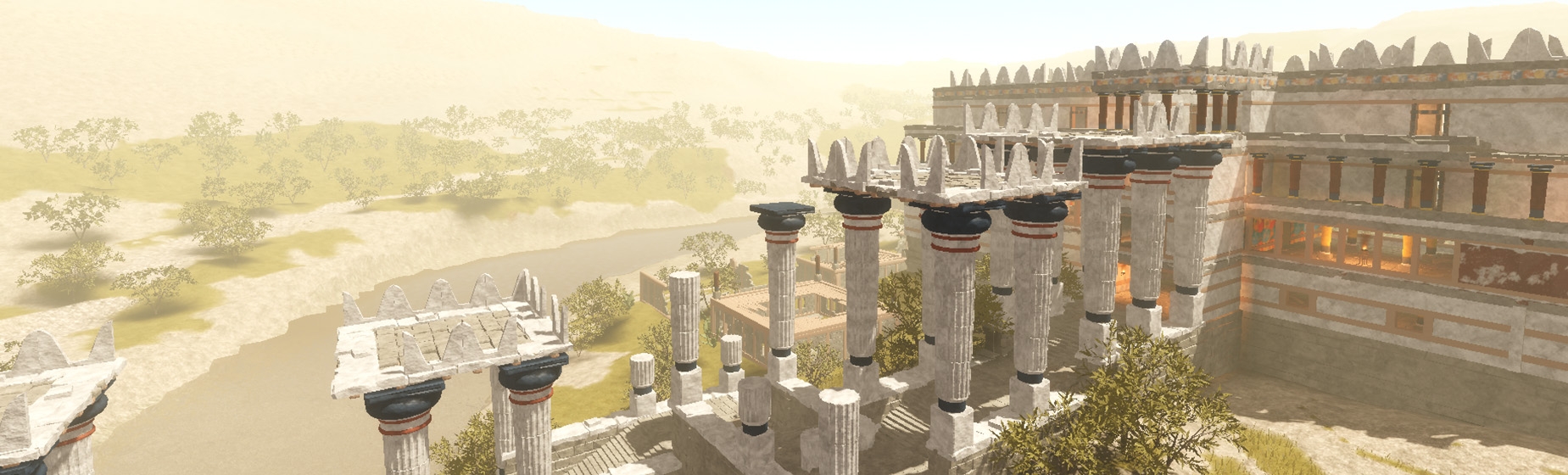
The Roblox platform hosts millions of pre-made games created by the community. In the Learn and Explore sort, curated by educators at Roblox, students can find historical roleplays, physics simulations, or creative building games.
Code and creation#
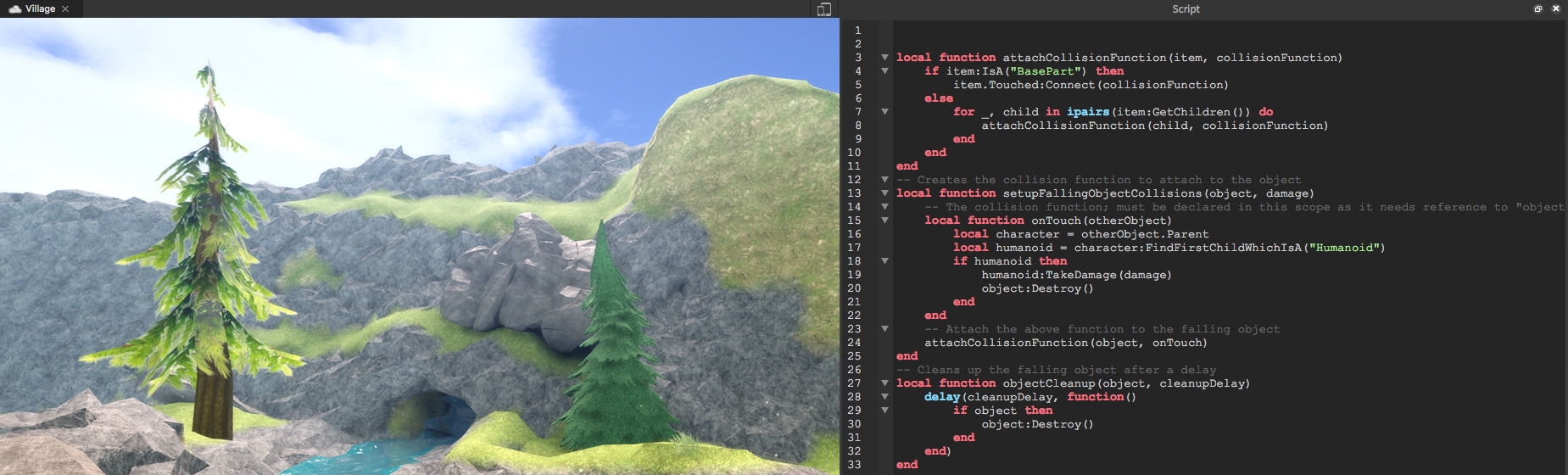
For educators interested in creation, students can build and code using Roblox Studio. Our content is developed for a variety of ages and subjects, such as digital citizenship or teaching computer science.
Share content with students#
Virtual learning games#
Once you have a game, students can access it using a unique hyperlink. Links are sharable through email or a learning management system (e.g. Google Classroom).
Additionally, when playing a game, we recommend using a private server. Normally, playing Roblox means interacting with players across the world. Private servers are spaces that only include those you've permitted to join, like students. Each private server has its own shareable hyperlink that can be provided to students.
Some private servers may have a monthly fee paid in Robux. That price is set by the developer of that game and not Roblox. That fee often averages about 100 Robux ($1 USD) per month. Most educational games, though, include one free private server per user.
Code and creation#
Students using Roblox Studio for projects are instructed by educators. Most of the assets, such as templates and 3D models, are already built into Studio. For teachers with specific needs, such as if you have a premade template to share, files can be shared locally to students.
Communicate about Roblox#
Before beginning a Roblox class, you may have questions from different people such as parents or administrators. Resources and printable brochures are included below.
Parents#
Resources and handouts are available about the safety and educational benefits of Roblox.
IT departments#
There may be considerations unique to your school, such as port-forwarding or domain-filtering. For a comprehensive guide, we have our networking guide.