Colors and textures
Learn how to add custom textures to your spaceship parts in Roblox Studio as part of the Build It Play It Galactic Speedway challenge.
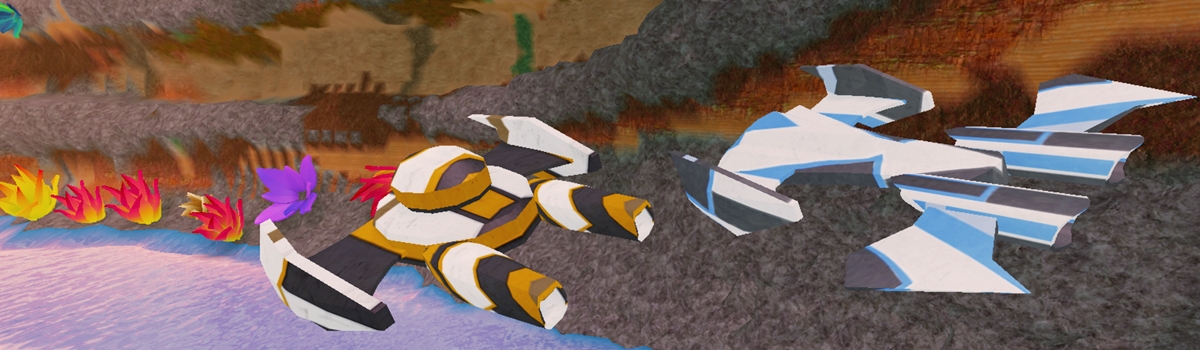
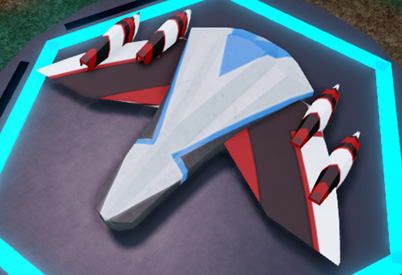
Give your driftspeeders a new paint job with updated texture files. Your speeders can now be stylishly jade, rusty orange, or even a classic blue.
Download a texture#
To change the texture of your driftspeeder, start by downloading one or more of the textures below.
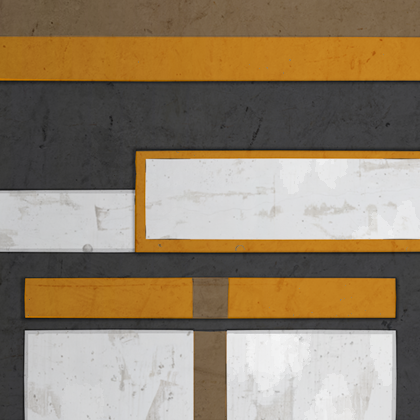
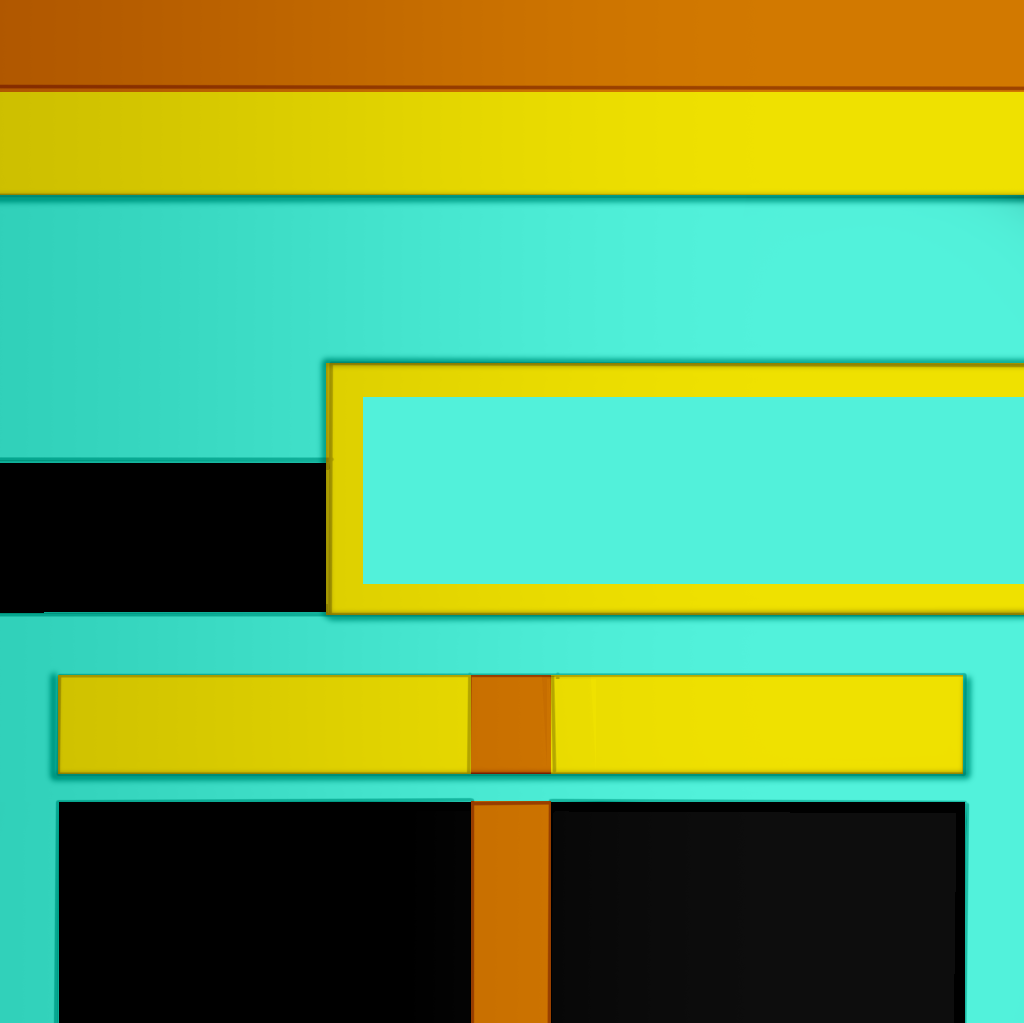
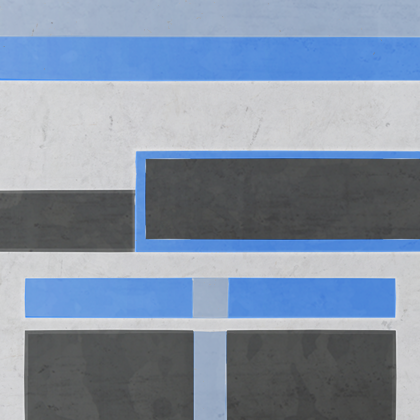
Import a texture#
To use textures, they must be imported into your game. Make sure your game has been published before moving on.
To find the texture import option, select a part in your driftspeeder model. Do this by selecting the speeder and expanding it in the Explorer.
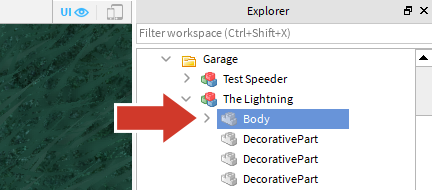
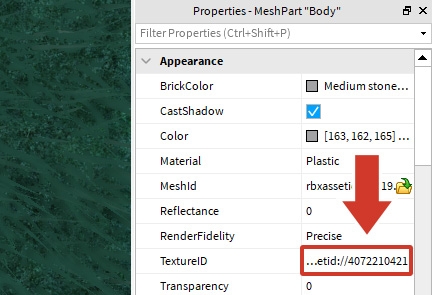
In the Properties, click the box next to TextureID.
To upload a new texture, click Add Image.
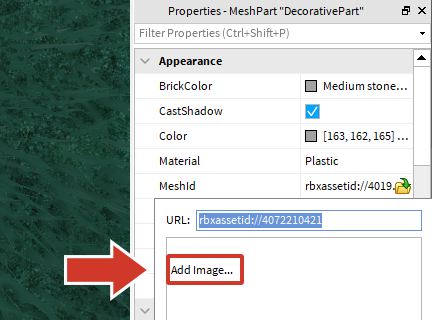
If you can't see the Add Image button, make sure that your game has been published.
Click Choose File and pick a downloaded texture.

Finish by clicking Create.
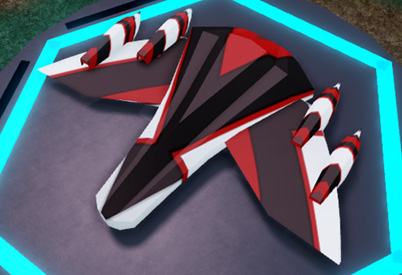
 You should see the updated texture on the ship. Continue to customize your speeder by adding more textures.
Changing multiple textures at a time
Select multiple parts in the Explorer and follow the same process of changing a single part's texture.
Select Individual Parts: Ctrl‑click or ⌘‑click
Selecting Groups: Click on one part. Then, Shift‑click on a part below to select all parts between them.
Take the challenge#
Test your knowledge to earn the Scrappers Backpack avatar item and As Many Colors as Stars badge by clicking the button below to open a Roblox quiz game.
Play Quiz GameOnce you're done, be sure to follow the game to get updates on when new prizes and lessons come out!