Play background music
The process for creating background music in your game.
Audio in Roblox is created with a Sound object. Sounds can be positional, such as the sound of a waterfall, or universal for all players. This tutorial will show you how to create a universal sound to play background music.
Play music#
You can upload music or obtain it from the marketplace, which contains thousands of free-to-use tracks. For this tutorial, you need the asset ID of a track.
The basic steps are to copy an asset ID, create a Sound object, and use a script to play the music.
Sound setup#
If a sound object is parented to a part, sound will emit from its position. If a sound object is parented to SoundService, it will play at the same volume at every point in the 3D world. This makes SoundService ideal for storing background music.
In SoundService, insert a Sound object named BackgroundMusic.
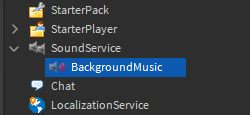
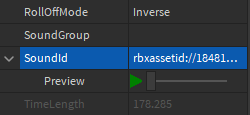
In the newly created sound, find the SoundId property. Paste in the previously copied sound ID (or use one below) and press Enter.
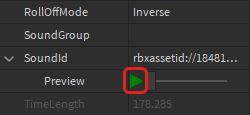
Test that the sound works by clicking the Preview button.
Here are some sample music IDs you can use:
- Creepy Organ/Dungeon -
rbxassetid://1843463175 - Upbeat Electronica -
rbxassetid://1837849285 - Grandiose Fantasy -
rbxassetid://1848183670
Play the song#
Background music can be played through a script.
In StarterPlayer ⟩ StarterPlayerScripts, create a LocalScript named MusicPlayer.
In the script, create variables to store SoundService and the BackgroundMusic object.
local SoundService = game:GetService("SoundService")
local backgroundMusic = SoundService.BackgroundMusic
Sounds are played using the
Playfunction. In a new line, call it on thebackgroundMusicvariable.local SoundService = game:GetService("SoundService") local backgroundMusic = SoundService.BackgroundMusic backgroundMusic:Play()Playtest the game and confirm that the music is audible.
Audio properties#
Currently, the music doesn't loop. Additionally, the original sound file may be too loud for background music. These settings can be changed through two properties.
In the BackgroundMusic properties, toggle Looped to be on.
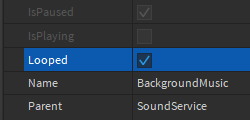
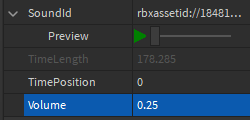
Lower the Volume to around 0.25.
With this project done, explore using scripts to implement other features in music. For instance, try using a script to shuffle songs in a soundtrack or play songs in different areas of your 3D world.
For more on sounds and background music, see Audio.