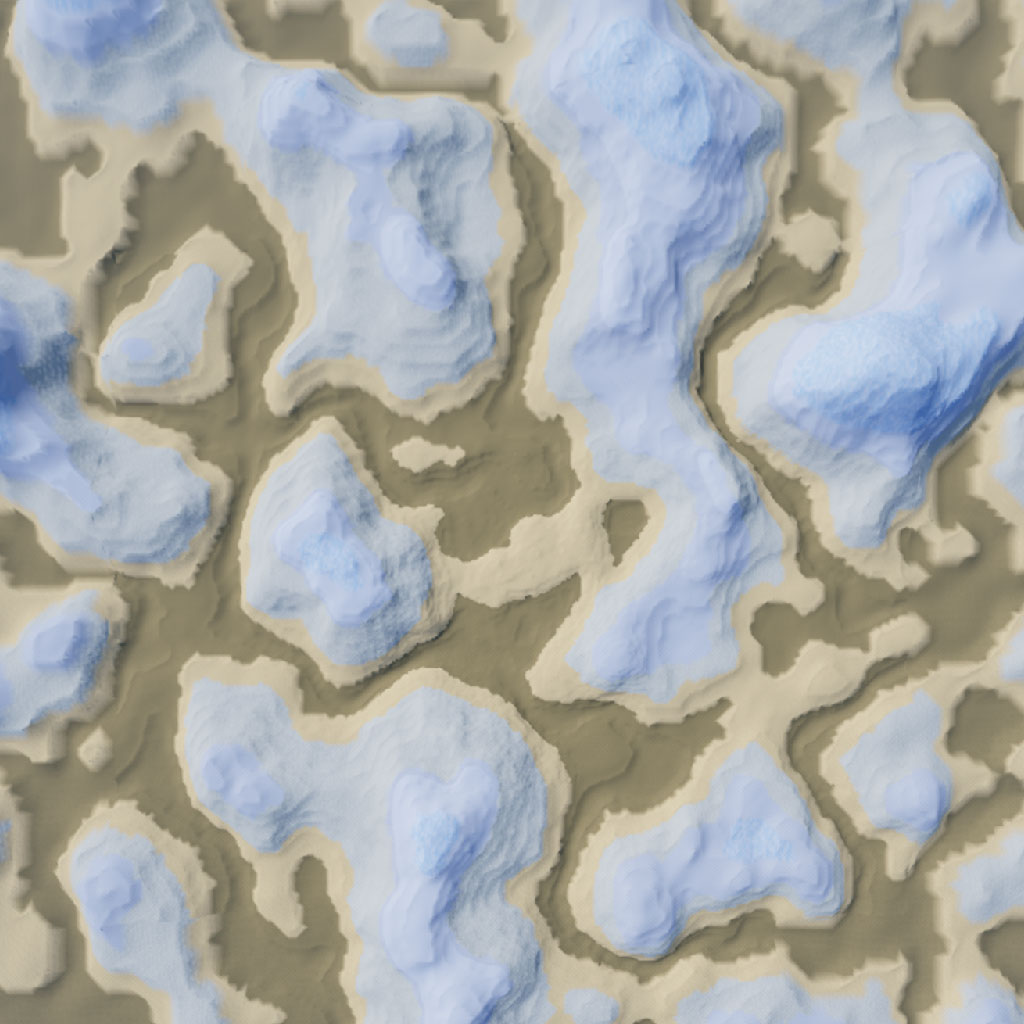
The Terrain Editor tools generate and sculpt realistic terrain environments such as mountains, bodies of water, grass-covered hills, or a flat desert.
The Terrain Editor, accessible from Studio's Home tab or Window ⟩ 3D menu, lets you generate and manipulate environmental terrain through its Create and Edit toolsets.
For detailed instructions on working with terrain, see the environmental terrain guide.
The Generate tool procedurally generates terrain within a selected region. This is useful if you want to create a large map and then fine-tune terrain details using the Edit tab tools.
Selection settings
Size, position, and snapping options as outlined for the Select tool.
Biome settings
Biomes
Includes the selected biomes in the generated terrain.
Blending
Adjusts how the biomes blend into one another, with higher values a bit smoother.
Caves
Includes caves in the generated terrain.
Biome Size
Sets the size of the biomes within the overall terrain size.
Seed
A number that Studio generates to determine the shape of the terrain. When you change this number, Studio generates a new terrain with the same settings.
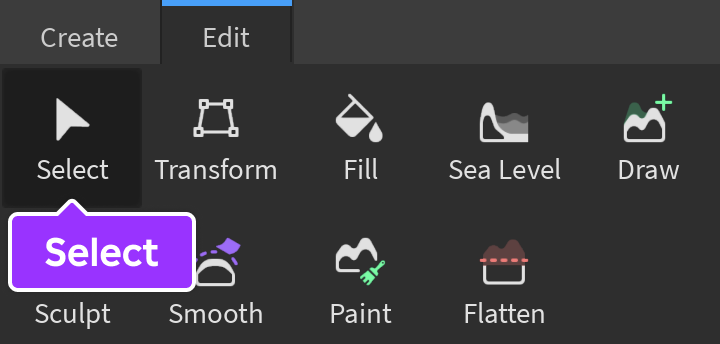
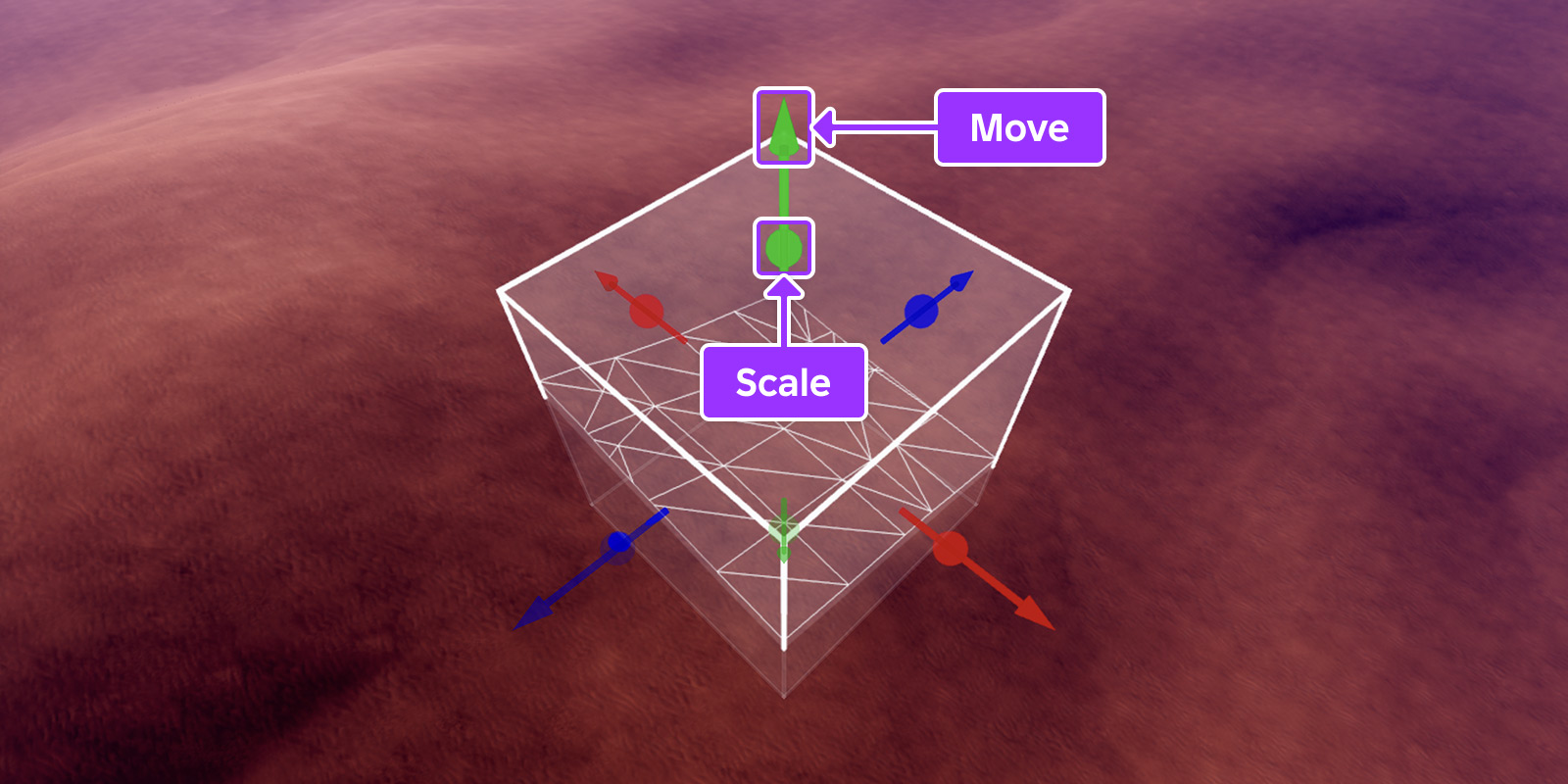
The Select tool is a universal tool for selecting rectangular regions of terrain. With the tool enabled, select a region by clicking and dragging in the 3D viewport, reposition it with the move draggers, and edit its size with the scale handles. Alternatively, enter values into the tool's X/Y/Z inputs to set a specific position and size.
Selection settings
Size
Sets specific X/Y/Z values for the selection's size, in studs.
Position
Sets specific X/Y/Z values for the selection's position.
Snap to Voxels
Snaps the selection bounds to the nearest voxel.
Move draggers and scale handles on a selected region
Studio also supports the following keyboard and mouse shortcuts, assuming the Select tool is active and nothing is selected in the Explorer hierarchy.
Windows
Mac
Action
CtrlC
⌘C
Copy terrain within the selected region to the clipboard.
CtrlV
⌘V
Paste terrain that has been copied to the clipboard and swap to the Transform tool so that the new terrain can be transformed.
CtrlX
⌘X
Cut terrain within the selected region to the clipboard.
CtrlD
⌘D
Duplicate terrain within the selected region and swap to the Transform tool so that the new terrain can be transformed.
Delete
Delete
Delete terrain within the selected region.
Shift
Shift
When held down while dragging any scale handle, scales the region proportionally across all other axes.
Ctrl
⌘
When held down while dragging any scale handle, scales the region equally in both the positive and negative direction along that axis.
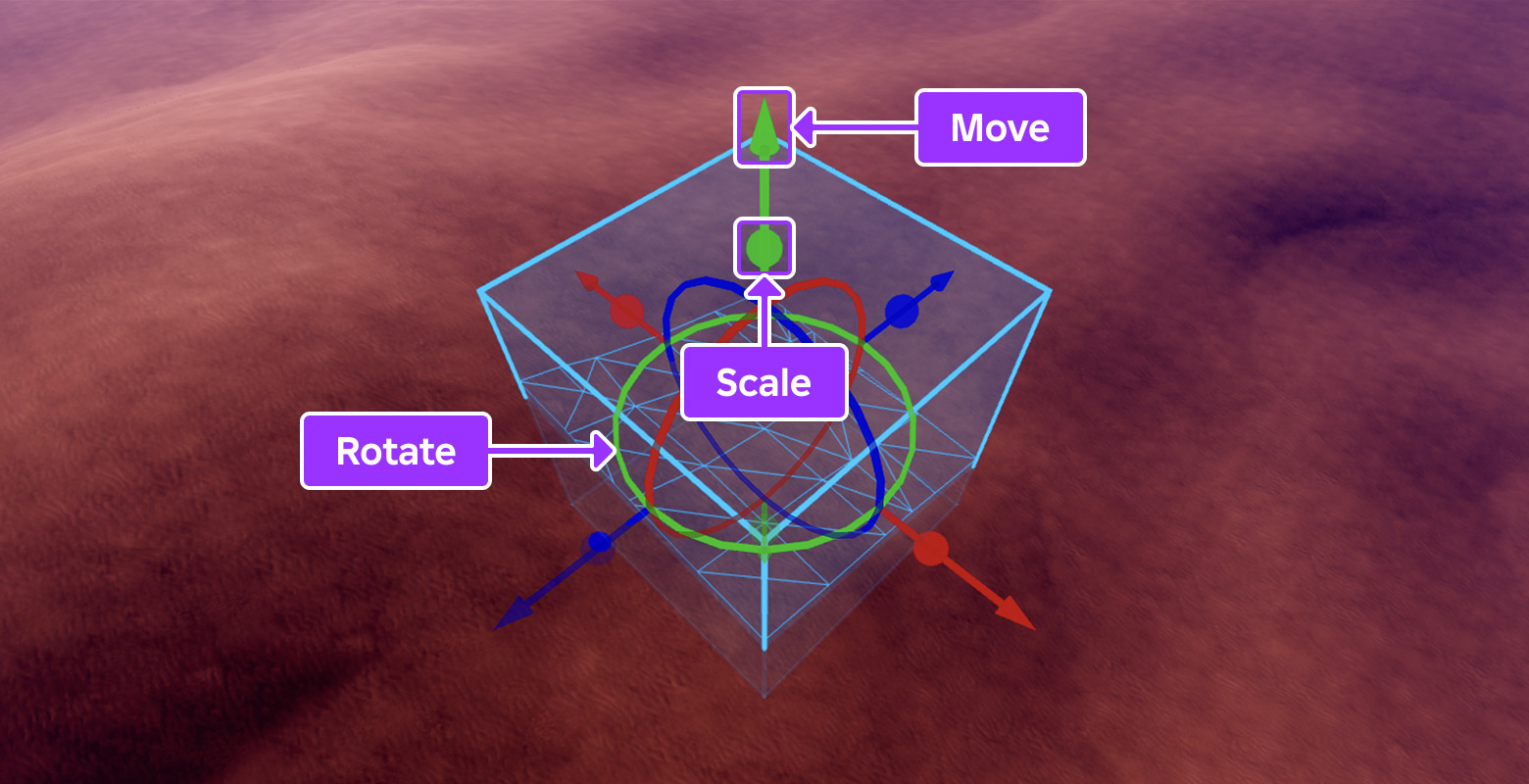
The Transform tool manipulates entire selected regions to a new position, size, or orientation. With the tool enabled, transform a selected region with the move draggers, rotate rings, and scale handles. Alternatively, enter values into the tool's X/Y/Z inputs to set a specific position, size, and rotation.
Transform settings
Size
Sets specific X/Y/Z values for the selection's size in studs.
Position
Sets specific X/Y/Z values for the selection's position.
Rotation
Sets specific X/Y/Z values for the selection's rotation in degrees.
Merge Empty
When enabled, air voxels in the selection will overwrite existing voxels at the destination.
Live Edit
When enabled, terrain is constantly updated while being transformed. To view only a wireframe preview of the transformation, disable live edit mode and then, while transforming, press Enter/Return or click the Apply button to apply the changes.
Snap to Voxels
Snaps the selection bounds to the nearest voxel.
Move draggers, rotate rings, and scale handles on a selected region
Before rotating a region with the visual rotate rings, check the rotation snapping setting in Studio's toolbar. Disable rotation snapping entirely for free-form rotation.
Similar to selecting a region, holding Shift while dragging any scale handle scales the region proportionally across all other axes, and holding Ctrl or ⌘ while dragging scales the region equally in both the positive and negative direction along that axis.
The Draw tool adds or subtracts terrain using the brush. This tool functions in a dual mode where holding down Ctrl or ⌘ toggles on "subtract" mode instead of the default "add" mode. Additionally, holding down Shift temporarily activates the Smooth tool.
Brush settings
Brush Mode
Toggles the tool between Add and Subtract mode. Also toggled by holding down Ctrl or ⌘.
Brush Shape
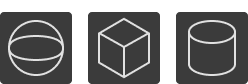
Sets the brush shape to either a sphere, box, or cylinder.
Brush Size
Sets the brush size from 1 to 64. If you choose a brush shape of box or cylinder, a Height slider/input also appears to adjust the brush height proportionally or independently of the base size.
Pivot Position
Sets the vertical pivot point of the brush to either the bottom, center, or top of where the brush connects with existing terrain.
Snapping
Whether snapping is off or to the nearest voxel.
Plane Lock
Toggles whether to enable a visual plane which the brush locks to. In Auto mode, the plane tilts and rotates with the camera. In Manual mode, the Edit Plane option appears, letting you set a specific position/orientation through the visual draggers or X/Y/Z inputs.
Ignore Water
Ignores water when adding or subtracting terrain.
Ignore Parts
Ignores parts in regards to brush placement while moving the mouse pointer across part surfaces.
Material settings
Auto Material
Uses the same terrain material in the brush's vicinity when adding new terrain.
The Sculpt tool adds or subtracts terrain using the brush. Unlike the Draw tool, this tool includes a strength slider/input to allow for more gentle manipulation of terrain. This tool functions in a dual mode where holding down Ctrl or ⌘ toggles on "subtract" mode instead of the default "add" mode, and holding down Shift temporarily activates the Smooth tool.
Option
Description
Brush Mode
Toggles the tool between Add and Subtract mode. Also toggled by holding down Ctrl or ⌘.
Brush Shape
Sets the brush shape to either a sphere, box, or cylinder.
Brush Size
Sets the brush size from 1 to 64. If you choose a brush shape of box or cylinder, a Height slider/input also appears to adjust the brush height proportionally or independently of the base size.
Strength
Sets the brush strength from 0.1 to 1.
Plane Lock
Toggles whether to enable a visual plane which the brush locks to. In Auto mode, the plane tilts and rotates with the camera. In Manual mode, the Edit Plane option appears, letting you set a specific position/orientation through the visual draggers or X/Y/Z inputs.
Ignore Water
Ignores water when adding or subtracting terrain.
Ignore Parts
Ignores parts in regards to brush placement while moving the mouse pointer across part surfaces.
Auto Material
Uses the same terrain material in the brush's vicinity when adding new terrain.
The Smooth tool smoothes out abrupt edges in terrain using the brush. This tool can be used in standalone mode, or you can toggle it on by holding Shift while using the Draw or Sculpt tools.
Option
Description
Brush Shape
Sets the brush shape to either a sphere, box, or cylinder.
Brush Size
Sets the brush size from 1 to 64. If you choose a brush shape of box or cylinder, a Height slider/input also appears to adjust the brush height proportionally or independently of the base size.
Strength
Sets the brush strength from 0.1 to 1.
Pivot Position
Sets the vertical pivot point of the brush to either the bottom, center, or top of where the brush connects with existing terrain.
Snapping
Whether snapping is off or to the nearest voxel.
Plane Lock
Toggles whether to enable a visual plane which the brush locks to. In Auto mode, the plane tilts and rotates with the camera. In Manual mode, the Edit Plane option appears, letting you set a specific position/orientation through the visual draggers or X/Y/Z inputs.
Ignore Water
Ignores water when smoothing terrain.
Ignore Parts
Ignores parts in regards to brush placement while moving the mouse pointer across part surfaces.
The Paint tool, using the brush, paints a terrain material over an existing material or replaces one material with another material.
Option
Description
Brush Shape
Sets the brush shape to either a sphere, box, or cylinder.
Brush Size
Sets the brush size from 1 to 64. If you choose a brush shape of box or cylinder, a Height slider/input also appears to adjust the brush height proportionally or independently of the base size.
Pivot Position
Sets the vertical pivot point of the brush to either the bottom, center, or top of where the brush connects with existing terrain.
Snapping
Whether snapping is off or to the nearest voxel.
Plane Lock
Toggles whether to enable a visual plane which the brush locks to. In Auto mode, the plane tilts and rotates with the camera. In Manual mode, the Edit Plane option appears, letting you set a specific position/orientation through the visual draggers or X/Y/Z inputs.
Ignore Water
Ignores water when flattening terrain.
Ignore Parts
Ignores parts in regards to brush placement while moving the mouse pointer across part surfaces.
Material Mode
Toggles the tool between Paint and Replace mode. In Paint mode, choose the desired painting material from the tool's picker tiles. In Replace mode, choose both the source material to replace and the target material to replace it with.
The Flatten tool flattens terrain to a consistent level across a visualized plane. By default, the tool lowers terrain above the plane and raises terrain below to the plane, but you can opt to selectively lower or raise through the tool's Flatten Mode option.
Option
Description
Brush Shape
Sets the brush shape to either a sphere, box, or cylinder.
Flatten Mode
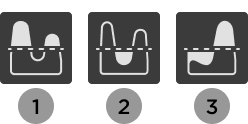
Erode to Flat¹ flattens terrain above the plane. Grow to Flat² fills in terrain below the plane. Flatten All³ removes terrain above the plane and fills in terrain below the plane.
Brush Size
Sets the brush size from 1 to 64. If you choose a brush shape of box or cylinder, a Height slider/input also appears to adjust the brush height proportionally or independently of the base size.
Strength
Sets the brush strength from 0.1 to 1.
Pivot Position
Sets the vertical pivot point of the brush to either the bottom, center, or top of where the brush connects with existing terrain.
Snapping
Whether snapping is off or to the nearest voxel.
Flatten Plane
If set to Fixed, flattens terrain to a fixed visual plane in Y world space.
Ignore Water
Ignores water when flattening terrain.
Ignore Parts
Ignores parts in regards to brush placement while moving the mouse pointer across part surfaces.
For tools which use the brush (Draw, Sculpt, Smooth, Flatten, Paint), Studio supports the following keyboard and mouse shortcuts.
Windows
Mac
Action
Ctrl
⌘
When held down while using the Draw and Sculpt tools, toggles on the alternate brush mode. For example, toggles on "subtract" mode instead of the default "add" mode.
Shift
Shift
When held down while using the Draw and Sculpt tools, temporarily activates the Smooth tool.
B
B
When held down while dragging the mouse or using the scroll wheel, adjusts the brush's base size.
CtrlB
⌘B
When held down while dragging the mouse or using the scroll wheel, adjusts the brush's height. Only applies if the brush's shape is set to box or cylinder.
ShiftB
ShiftB
When held down while dragging the mouse or using the scroll wheel, adjusts the brush's strength. Only applies when using the Sculpt, Smooth, or Flatten tool.
Alt
⌥
When held down on mouse click, shows the material picker.