Engagement rewards
Learn about the engagement rewards feature package.
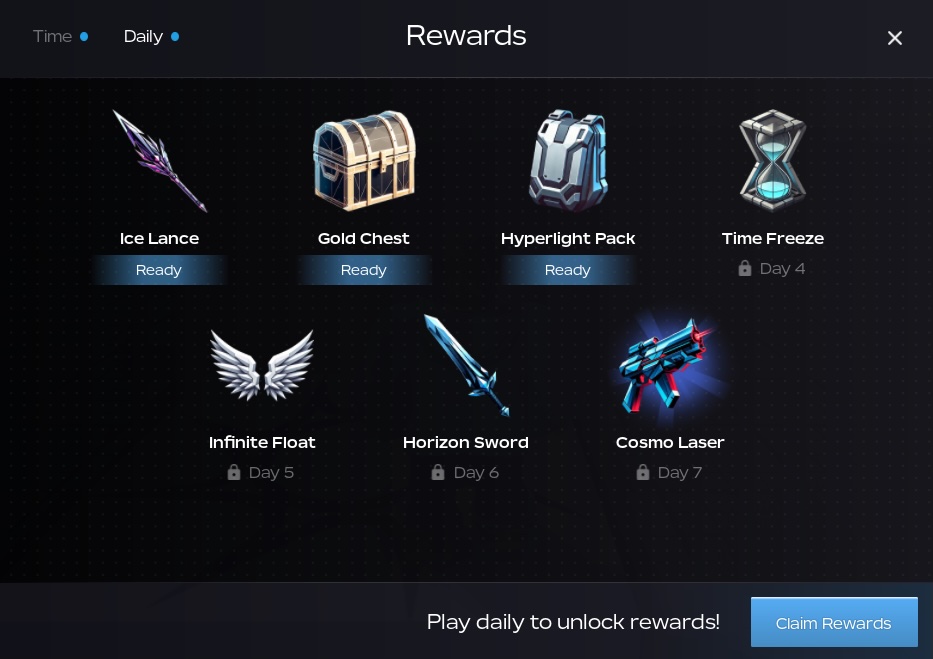
The Engagement Rewards feature package is a customizable framework for offering in-game rewards for certain player activities, including daily login streaks and play session time. In addition to client and server logic, the package includes a default UI for viewing reward progress, reward status, and claiming rewards.
Get the package#
- Add the Core and Engagement Rewards packages to your inventory within Studio by clicking the Add to Inventory links here:
From Studio's Window menu or Home tab toolbar, open the Toolbox.
In the Toolbox window, click the Inventory tab. The My Models sort displays.
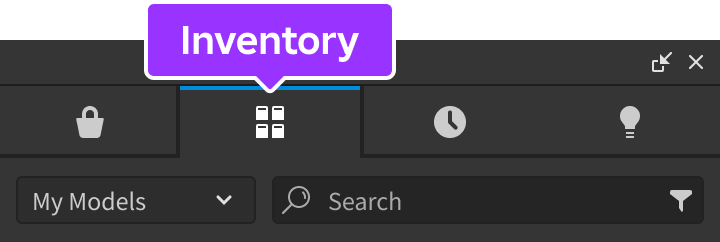
Click the Feature Package Core tile, then the Engagement Rewards Feature Package tile. Both package folders display in the Explorer window.
Drag the folders into
ReplicatedStorage.
Initialize the package#
Moving the packages to ReplicatedStorage and testing your game runs the EngagementRewardsExample script in ReplicatedStorage.EngagementRewards.Server.Examples.
This script shows how to initialize the package for use in your game, which involves requiring several module scripts and defining a rewardClaimedHandlerFunction() function that ultimately gives the reward(s) to the player.
This function must return a boolean. In the example script, you can see that it doesn't give any rewards to the player; it just prints the player, reward, and quantity being claimed.
local ReplicatedStorage = game:GetService("ReplicatedStorage")

local EngagementRewardsConfig = require(ReplicatedStorage.EngagementRewards.Configs.EngagementRewardsConfig)
local EngagementRewards = require(ReplicatedStorage.EngagementRewards.Server.EngagementRewards)
local EngagementRewardsUtils = require(ReplicatedStorage.EngagementRewards.Utils.EngagementRewardsUtils)
local Types = require(ReplicatedStorage.EngagementRewards.Configs.Types)

-- Replace this handler function with your own reward claimed handler function
-- This function should handle the reward claimed event for the rewardId passed in
local function rewardClaimedHandlerFunction(player: Player, rewardId: RewardId, quantity: number): (boolean, string?)
   print(`Reward {rewardId} claimed by {player} with quantity {quantity}`)
   return true
end
-- more
You can either modify this script directly or move it to ServerScriptService if that's your preferred location for server code. As-is, the script is only useful for testing purposes.
Giving the reward to the player varies by game. In some games, you might confer a game boost or just increment the player's gold count. In other games, you might have a custom inventory system, whereas others might place an item into player backpacks. In all cases, however, you must replace rewardClaimedHandlerFunction() with your own function.
Add rewards and criteria#
Most rewards customization occurs within ReplicatedStorage.EngagementRewards.Configs.EngagementRewardsConfig. This module script defines the reward and the requirements for unlocking it.
You can see the full type declarations (or add new ones) in ReplicatedStorage.EngagementRewards.Configs.Types, but you probably only need to work with EngagementRewardsConfig. The feature package includes two reward types: Time and Daily.
local engagementRewardsConfig: Types.EngagementRewardsConfig = {
   [Types.RewardType.Time] = {
      tabDisplayName = "Time",
      tabOrder = 1,
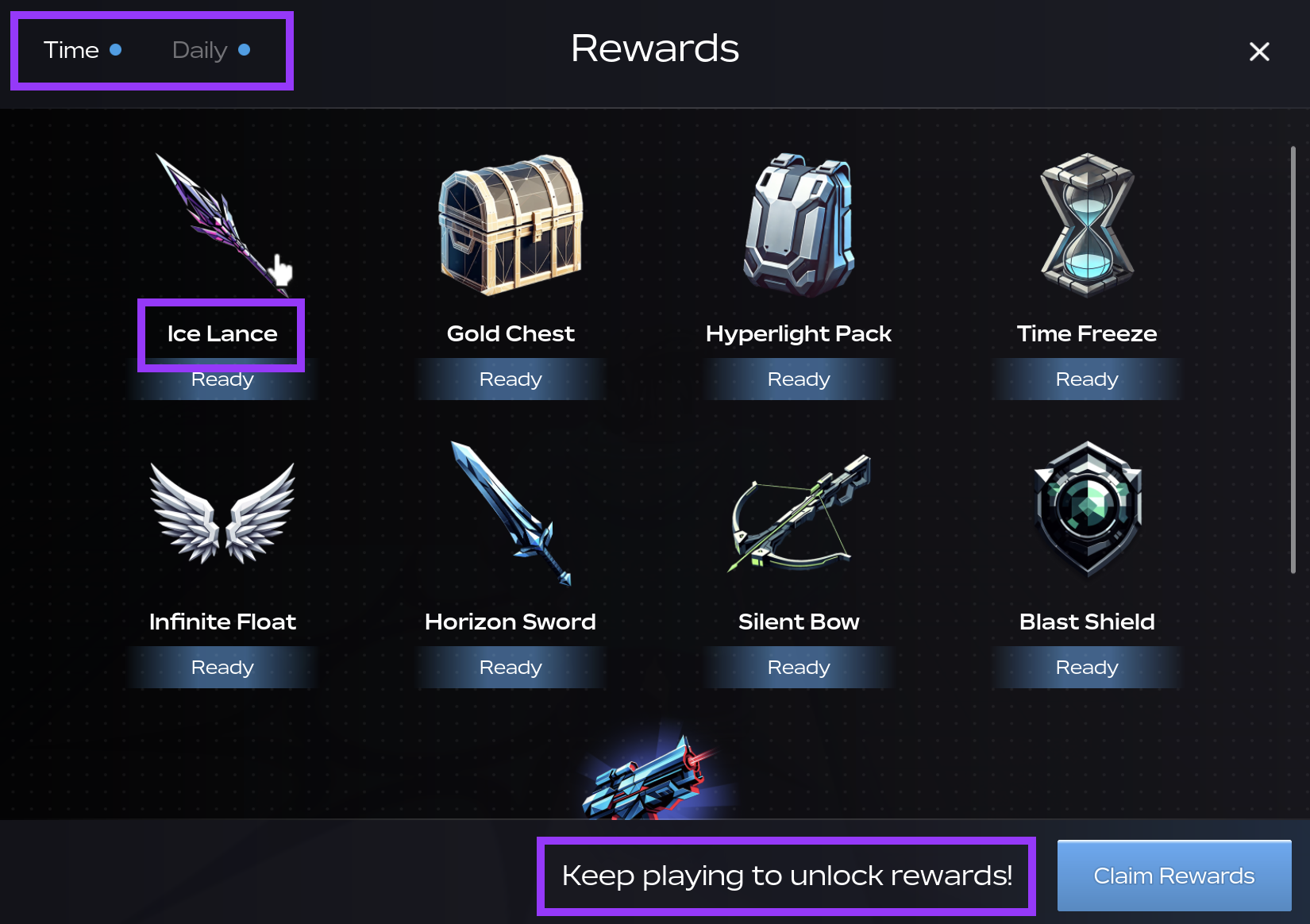
      description = "Keep playing to unlock rewards!",
      rewards = {
         MinutesPlayed1 = {
            icon = 116913478160966,
            displayName = "Ice Lance",
            requiredSecondsInGame = 1 * 5,
         },
         -- more
   [Types.RewardType.Daily] = {
      tabDisplayName = "Daily",
      tabOrder = 2,
      description = "Play daily to unlock rewards!",
      rewards = {
         DailyStreak1 = {
            icon = 116913478160966,
            displayName = "Ice Lance",
            requiredDaysVisitedStreak = 1,
            effect = Types.RewardEffect.Valuable,
         },
         -- more
Both reward types require an icon, which is a Roblox asset ID for an image (not a decal). You likely also want a display name for use in the UI. Specify quantity for values other than 1. You can also optionally designate a reward as valuable (effect = Types.RewardEffect.Valuable) to give it a different background frame in the UI.
| Variable | Type | Description | Default | Required |
|---|---|---|---|---|
| icon | Number | A Roblox asset ID for the UI icon. | N/A | Yes |
| displayName | String | A name for the rewards for use in the UI. | The RewardId |
No |
| quantity | Number | The number of items to reward. | 1 | No |
| effect | RewardEffect | The visual effect to use in the UI. See Customize the UI. | Types.RewardEffect.Default |
No |
Time rewards#
Time rewards unlock after a certain number of seconds in-game. Customize these numbers to meet your needs. You might use small numbers for easy testing, and in the published game, confer a reward after 10 minutes, another after 30 minutes, another after an hour, and so on.
Time tracking starts at 0 for each session, so players lose all progress towards Time rewards when they leave the game.
Multiplication makes numbers in seconds easier for humans to work with, so for two hours, you might prefer to specify 2 * 60 * 60 rather than 7200.
| Variable | Type | Description | Default | Required |
|---|---|---|---|---|
| requiredSecondsInGame | Number | The number of seconds (a positive integer) the player must spend in-game to earn the reward. | N/A | Yes |
Daily rewards#
Daily rewards unlock after a certain number of consecutive daily logins. For example, the first day that a player logs in, you might give them three potions or a cinnamon roll. Subsequent days, you might reward more valuable consumables, followed by a durable item, like a new fishing rod, after seven straight days.
| Variable | Type | Description | Default | Required |
|---|---|---|---|---|
| requiredDaysVisitedStreak | Number | The number of consecutive days the player must connect to the game to earn the reward. | N/A | Yes |
Two additional daily reward configuration options are available in the DailyRewardTabConfig.
[Types.RewardType.Daily] = {
    tabDisplayName = "Daily",
    tabOrder = 2,
    description = "Play daily to unlock rewards!",
    isHiddenOnJoin = true,
    isAlignedToStreakResetTime = true,
    rewards = {
        DailyStreak1 = {
            icon = 116913478160966,
            displayName = "Ice Lance",
            requiredDaysVisitedStreak = 1,
        },
-- more| Variable | Type | Description | Default | Required |
|---|---|---|---|---|
| isHiddenOnJoin | Boolean | When true, rewards don't pop up automatically when joining the game. When false, rewards automatically pop up when joining the game if the player has a new daily reward to claim. | False | No |
| isAlignedToStreakResetTime | Boolean | When true, rewards for day 2 can be claimed 24 hours after the initial day 1 claimable time. When false, day 2 rewards can be claimed at the first midnight after the day 1 claimable time. For example, if a player logs in at 11:00 PM (23:00) and claims their day 1 reward, true means they can't claim the day 2 reward until 11:00 PM the next day. False means they can claim the day 2 reward at 12:00 AM (00:00), one hour later. Rewards for day 3 and beyond are always available 24 hours after the previous day's claimable time. | False | No |
Customize the UI#
In the previous section, you might have noticed the tabDisplayName, tabOrder, and description fields, which allow for basic customization of the user interface. You can also find some UI strings in ReplicatedStorage.FeaturePackagesCore.Configs.TranslationStrings.
To specify a new reward background using the
effectvariable, add a frame toReplicatedStorage.EngagementRewards.Objects.RewardItemFrames. Then add the name of the frame to theTypes.RewardEffecttable inReplicatedStorage.EngagementRewards.Configs.Types.For more comprehensive customization, modify the objects in
ReplicatedStorage.EngagementRewards.Objects. For example, you might modify theBackgroundColor3of theRewardsHudButton.Backgroundframe or theColorofFooterContentFrame.ClaimableUIGradient.
Be careful if you modify ReplicatedStorage.FeaturePackagesCore.Objects; changes to Core affect all feature packages.
- The entry point for the user interface is the
ReplicatedStorage.EngagementRewards.Client.UIControllerscript, which gets the necessary objects and initializes the UI. If you add or rename top-level objects (as opposed to only adding children or modifying properties), you likely need to update the code in this folder to handle them.