Event Sequencer
Event Sequencer is a powerful framework for building live, cross-server events and cutscenes.
EventSequencer is a powerful framework that enables you to build live, cross-server events and cutscenes on a structured sequence of actions and triggers. More specifically, this module helps you:
- Build an event or cutscene on a structured framework through scheduled configurations of audio, animations, and tweens.
- Transition between multiple scenes across multiple servers, synchronizing complex animations and visuals to a timeline.
- Seek through an event and preview the game for testing and development purposes.
This framework has been battle tested in Roblox events like the Twenty One Pilots and 24kGoldn concerts, as well as many highly visited games.
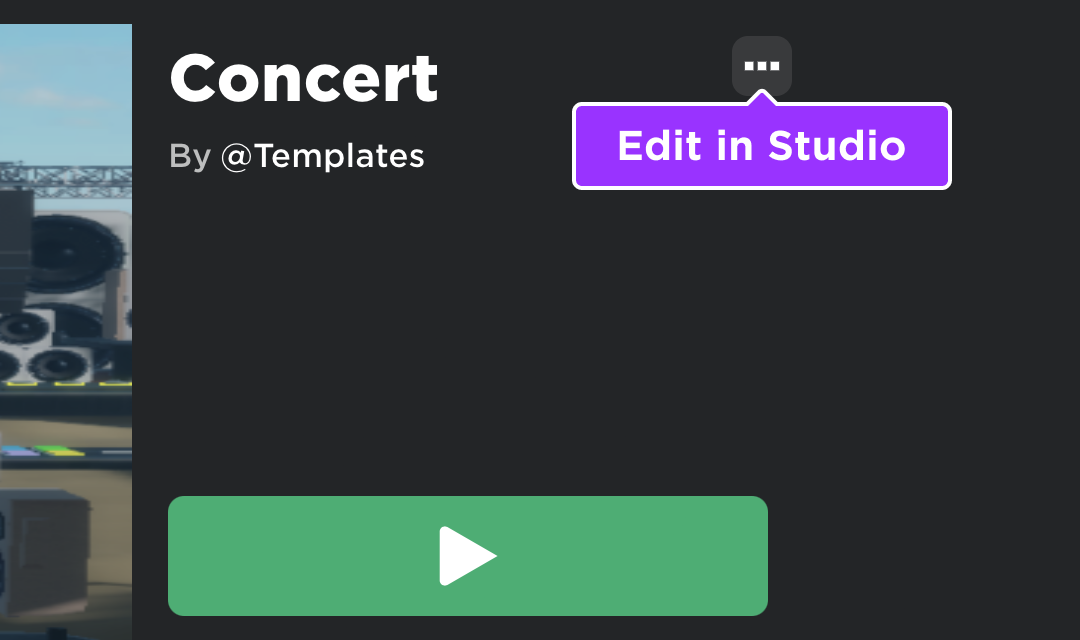
To see EventSequencer in action within an editable place, check out the Concert template in Roblox Studio. This template is a comprehensive starting point for developers to create events/concerts and familiarize themselves with the various features and components involved.
Module usage#
Installation#
To use the EventSequencer framework in a game:
From Studio's Window menu or Home tab toolbar, open the Toolbox and select the Creator Store tab.
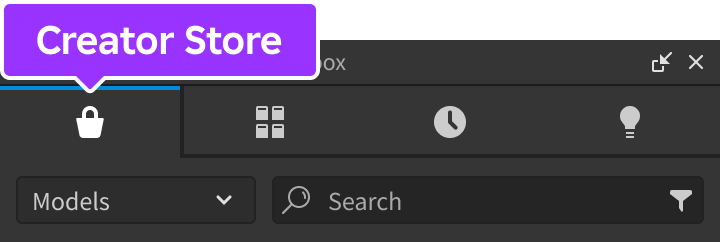
Make sure the Models sorting is selected, then click the See All button for Categories.
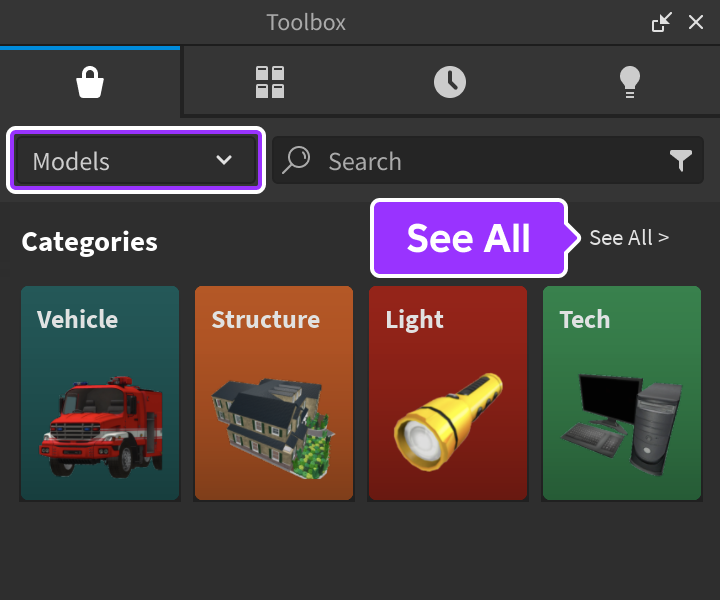
Locate and click the Packages tile.
Locate the Event Sequencer module and click it, or drag-and-drop it into the 3D view.

In the Explorer window, move the entire EventSequencer model into
ServerScriptService. Upon running the game the module will begin running.
Framework modes#
Replace mode#
The default framework mode is replace mode in which you design unique scenes by placing 3D objects, terrain, lighting properties, environmental effects, and user interface objects into that scene's Environment folder. When a scene loads, those objects and properties get distributed into Workspace, Terrain, and Lighting, replacing existing objects/properties to form a cloned space.
This mode is best for new event games consisting of multiple sequential scenes, such as a pre-show venue to the main concert to a post-show party.
Inline mode#
An alternate framework mode is inline mode in which you similarly design unique scenes with scripting logic for their flow/events, but the framework will not destroy existing 3D objects, terrain, lighting properties, environmental effects, and user interface objects in order to clone assets/properties from a scene's Environment folder upon loading.
This mode is best for existing games, as it preserves the design and layout of your place while letting you orchestrate events such as cutscenes.
To enable inline mode:
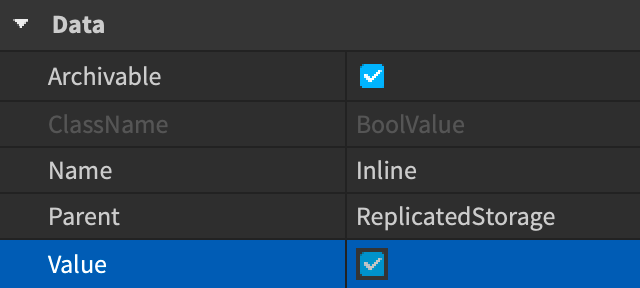
Inside the EventSequencer model that you placed in ServerScriptService, drill down and select the Inline value inside the ReplicatedStorage folder.
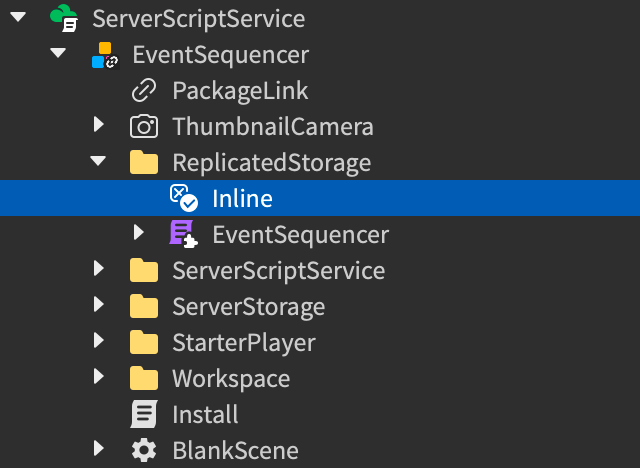
In the Properties window, toggle on its Value checkbox.
Create scenes#
A scene is essentially part of an overall event or a cutscene wrapped up in a series of folders. Each scene contains scripting logic that defines its flow/events, and a scene can store its own 3D objects, terrain, lighting properties, environmental effects, and user interface objects.
To get started quickly, you can find an empty scene inside the module's main folder:
Expand the EventSequencer folder and locate the BlankScene folder.
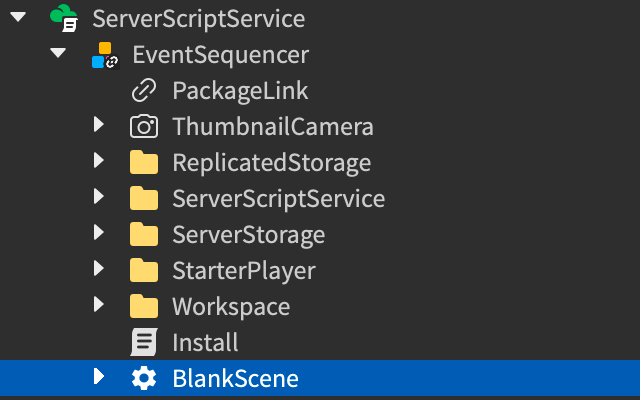
Move or copy the entire BlankScene folder into ReplicatedStorage.
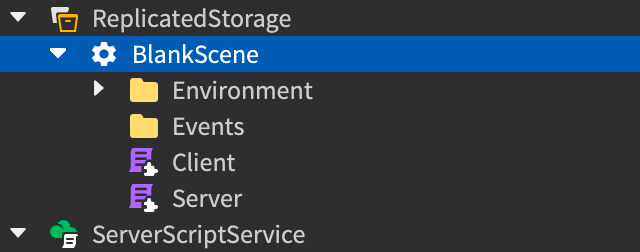
While developing an event, you can alternatively place scenes elsewhere in the Explorer hierarchy and tag them with SequencerScene using the Tags section of their properties (BlankScene is already tagged as such). However, you'll need to move all event-ready scenes to ReplicatedStorage in order for them to work within the overall event flow.
Time length#
Each scene should have a time length, in seconds, defining its duration — just like a movie or concert has a set duration. Time length is defined as a numeric attribute on the scene's folder named TimeLength which you can set directly in Studio or programmatically through Instance:SetAttribute().

Environment#
A scene's Environment folder contains everything that users see and hear, including 3D objects, terrain, lighting properties and environmental effects, and user interface objects. When a scene loads, those objects and properties get distributed into Workspace, Terrain, and Lighting, replacing existing objects/properties to form a cloned space.
This folder is not intended for usage with Inline Mode, as that mode expects you to use existing assets and global property settings for the place, not load in scene-specific assets/properties.
The Environment folder contains the following containers:
| Container | Description |
|---|---|
| Client | Contains all assets to load when any user (client) joins the event, such as user interface objects or an animation rig. |
| PlayerSpawns | Contains parts where users spawn upon joining. Any part in this folder behaves similar to a SpawnLocation. |
| Server | Contains all assets to load when a scene is first created on a server. It's recommended that most visual assets go here. |
| Terrain | Contains scene terrain. |
| Lighting | Contains global lighting properties as attributes, as well as modifiers like atmospheric effects and post-processing effects. |
Events#
A scene's Events folder is purely a placeholder for RemoteEvents that communicate between the Client and Server modules. It's not a requirement to place anything in this folder.
Client#
This script executes schema logic on the client.
Server#
This script executes schema logic on the server.
Scene schemas#
A scene's schema defines what happens at what point in the scene's timeline. You should define a scene's schema in both its Client and Server modules and include lifecycle hooks to manage when configurations occur.
Lifecycle hooks#
Schema lifecycle hooks let you manage when scene operations occur. A scene in production will typically run in the most simple flow:
- OnSetup → OnRun → OnEndScene
OnRun may be interrupted when seeking:
- OnSetup → OnRun… seek → OnRun… seek → OnRun → OnEndScene
All three hooks can also repeat if the scene is replayed:
- OnSetup → OnRun → OnEndScene… replay → OnSetup → OnRun → OnEndScene
Configurations#
Schema configurations define the core operations of a scene, for example playing audio at 00:32, queuing an animation to sync with that audio, scheduling a scene event like a fireworks show, and more. Every configuration supports certain callback functions where the first parameter (self) is the configuration instance.
You can use configurations in both the Client and Server module schemas, but it's recommended that you perform operations like audio and animations on the client side, just like in a typical game.
Seek scenes#
A unique feature of EventSequencer is the ability to "seek" around scenes as you might seek through a video. In Replace Mode, you can also switch between scenes to preview an entire multi-scene event before deploying it to production.
Scene seeking is not accessible to everybody since users simply enjoying the event should not have the ability to control its time flow. Instead, you must grant seeking permission based on the event's PlaceId as well as specific UserIds and/or groups and roles within them.
Create a new
ScriptwithinServerScriptService.Paste the following code into the new script.
local ReplicatedStorage = game:GetService("ReplicatedStorage")

local EventSequencer = require(ReplicatedStorage:WaitForChild("EventSequencer"))

EventSequencer.setSeekingPermissions({
    placeIDs = {},
    userIDs = {},
    groups = {
        {GroupID = , MinimumRankID = },
    }
})
Fill in the following tables within the setSeekingPermissions call as follows:
placeIDsComma-delimited list of PlaceIdvalues to support seeking within.userIDsComma-delimited list of UserIdsfor those who can seek within the supported places.groupsComma-delimited list of tables, each containing a group ID and the minimum rank of that group's members who can seek within the supported places.
Scene manager plugin#
The Scene Manager plugin is a useful tool for loading and unloading scenes, lighting, and terrain. Unless you're using Inline Mode, it's highly recommended that you use this plugin instead of manually placing/editing scene objects and properties.
This plugin is not intended for usage with Inline Mode, as that mode expects you to use existing assets and global property settings for the place, not load in scene-specific assets/properties from the scene's Environment folder.
To install the plugin:
From Studio's Window menu or Home tab toolbar, open the Toolbox.
With the Creator Store tab selected, select Plugins from the dropdown menu.
In the search field, type Scene Manager and press Enter to locate the plugin.
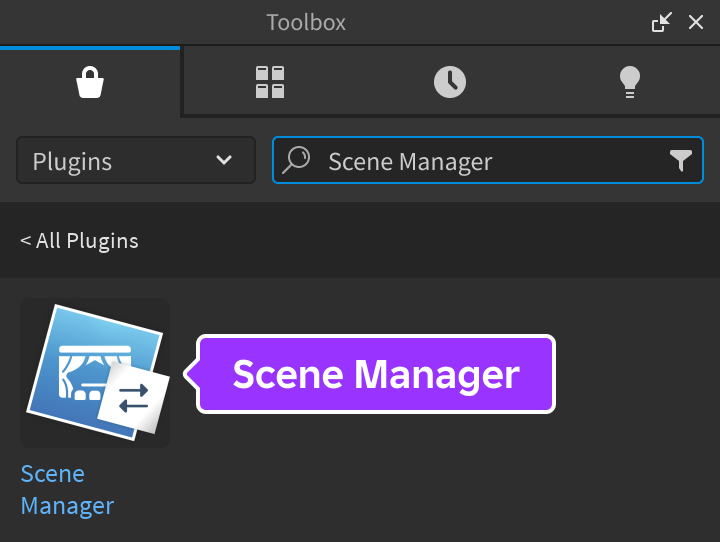
Click the plugin's icon to view its details and then click the Install button.
Once the plugin is installed, it appears in Studio's Plugins tab.
Load and unload scenes#
As outlined in creating scenes, a scene's Environment folder contains everything that users see and hear, including 3D objects. The plugin helps you quickly load a scene's assets into or out of organized folders within the workspace.
Scenes must be tagged with SequencerScene for the plugin to recognize them (BlankScene is already tagged as such). If you've created a scene but it doesn't appear in the plugin, make sure that it's tagged, then save and reopen the place.
| Plugin action | Description |
|---|---|
| Load Client | If the scene's client content is unloaded, moves its Environment/Client folder into the Workspace/ScenesClient folder. |
| Load Server | If the scene's server content is unloaded, moves its Environment/Server folder into the Workspace/ScenesServer folder. |
| Unload Client | If the scene's client content is loaded, moves its Client folder from Workspace/ScenesClient back to the [Scene]/Environment folder. |
| Unload Server | If the scene's server content is loaded, moves its Server folder from Workspace/ScenesServer back to the [Scene]/Environment folder. |
| Unload All Scenes | Moves every loaded scene's Client and Server folder back to its Environment folder. |
Save and load lighting#
The top-level Lighting service stores all of a place's lighting properties and visual effects. Since it's a top-level service, you cannot manually move it to a particular scene's Environment/Server or Environment/Client folder. Instead, you can utilize the plugin to copy its properties and children to the scene's Environment/Lighting folder.
Configure the scene's lighting properties, post-processing effects, atmospheric effects, and skyboxes through the top-level
Lightingservice.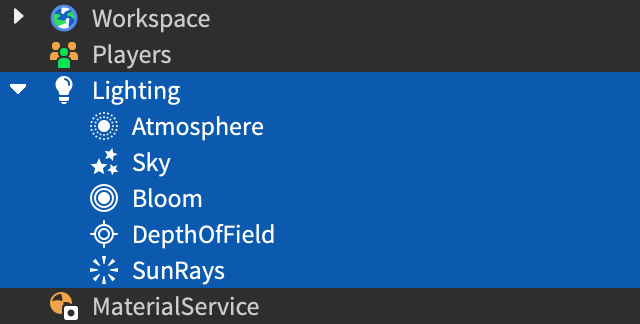
In the Scene Manager plugin window, click Save Lighting for the desired scene.
Select and expand that scene's Environment/Lighting configuration and you'll see the same lighting properties as attributes of the folder, as well as cloned children of the top-level
Lightingservice.
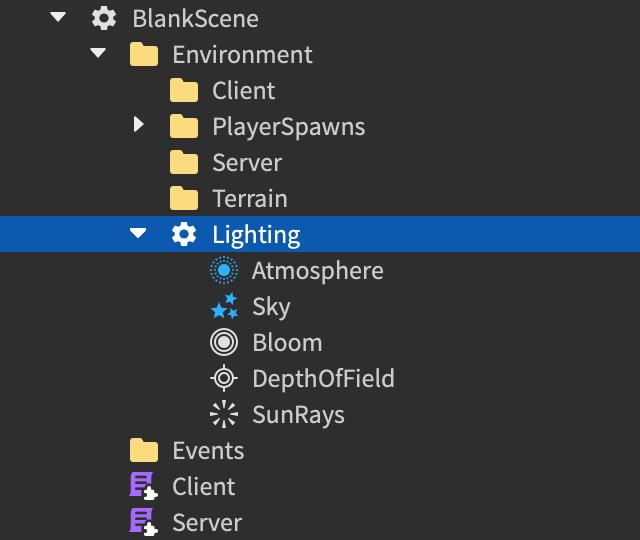
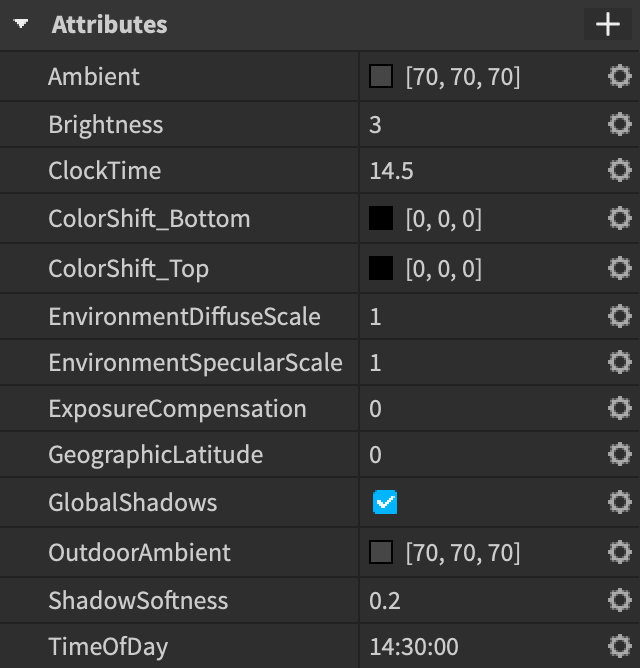
Once lighting properties and children are saved for a scene, you can quickly load them back into the top-level Lighting service by clicking Load Lighting from the plugin window.
If you want an environmental lighting effect like Atmosphere to persist between scenes of a multi-scene event, place it in the top-level Lighting service and assign it a boolean attribute of SceneFrameworkIgnore set to true.
The framework also applies a UseCurrentLighting attribute to the top-level Lighting service with a default of false. If set to true, the service's lighting overrides all scene-specific lighting during playtesting — however, scene lighting always takes precedence in a published event. As a real world analogy, this lets you stage a concert in full light before "turning down the lights" as the show begins.
Save and load terrain#
Since Terrain is a top-level class within Workspace, you cannot manually move generated or sculpted terrain to a particular scene's Environment/Server or Environment/Client folder. Instead, you can utilize the plugin to copy it to the scene's Environment/Terrain folder.
Configure the scene's terrain through the top-level Terrain service.
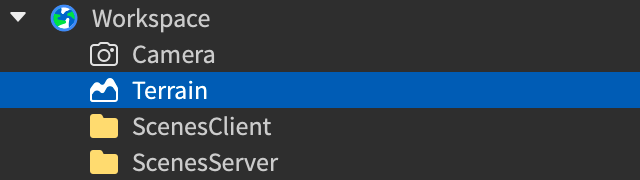
In the Scene Manager plugin window, click Save Terrain for the desired scene.
Select and expand that scene's Environment/Terrain folder and you'll see a TerrainRegion object which represents the saved terrain.
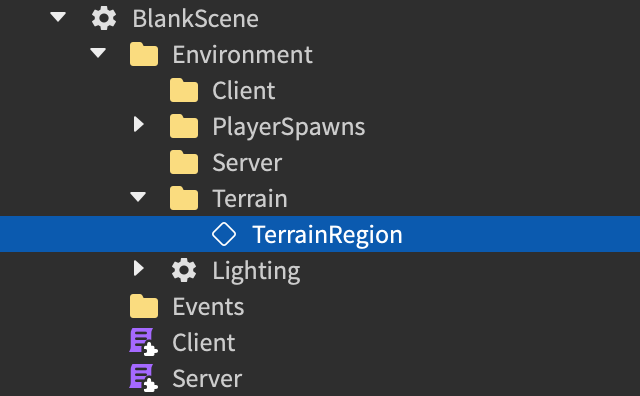
Once terrain is saved for a scene, you can quickly load it back into the top-level
Terrainservice by clicking Load Terrain from the plugin window.
If a scene contains absolutely no terrain, you should still click Save Terrain for it. This saves an "empty" terrain region for the scene and effectively clears all terrain from any scene shown before it.
API reference#
Schema lifecycle hooks#
OnSetup#
The OnSetup lifecycle hook is intended for initializing assets and variables that will be referenced in OnRun or OnEndScene, setting up connections that are intended to last for the duration of the scene, etc. This hook receives the timePositionObject parameter which lets you read the current time at setup.
It's recommended that you do not call RobloxGlobals.wait() or task.wait() within OnSetup, as it will delay the OnRun start while the scene's timer continues to count up.
local ReplicatedStorage = game:GetService("ReplicatedStorage")

local EventSequencer = require(ReplicatedStorage:WaitForChild("EventSequencer"))

local Schema = EventSequencer.createSchema()

local clientEnvironment
local serverEnvironment
local dummy

Schema.OnSetup = function(timePositionObject)
	print("OnSetup (Client)")

	-- Access scene environments; does not apply to Inline Mode
	clientEnvironment = EventSequencer.getCurrentSceneEnvironment()
	serverEnvironment = EventSequencer.getCurrentServerEnvironmentFromClient()
	-- Wait for assets
	dummy = clientEnvironment:WaitForChild("Dummy")

	print("Current time is:", timePositionObject.Value)
endlocal ReplicatedStorage = game:GetService("ReplicatedStorage")
local EventSequencer = require(ReplicatedStorage:WaitForChild("EventSequencer"))
local Schema = EventSequencer.createSchema()
local serverEnvironment
local partColorConnection
local changePartColorEvent = script.Parent.Events.ChangePartColor
Schema.OnSetup = function(timePositionObject)
print("OnSetup (Server)")
-- Access scene environment; does not apply to Inline Mode
serverEnvironment = EventSequencer.getCurrentSceneEnvironment()
partColorConnection = changePartColorEvent.OnServerEvent:Connect(function(player, changedPart, newColor)
serverEnvironment.changedPart.Color = newColor
end)
print("Current time is:", timePositionObject.Value)
endOnRun#
OnRun is the main operational lifecycle hook within a schema. It should contain all timed configurations for the scene, from playing audio or an animation to scheduling an event like a fireworks display.
It's recommended that you do not call RobloxGlobals.wait() or task.wait() within OnRun, as it will delay the scene's orchestration while the scene's timer continues to count up.
Schema.OnRun = function()
	print("OnRun (Client)")

	local MainAudio = Schema:audio({
		StartTime = 1,
		SoundId = "rbxassetid://1838673350",
	 class="tok-k">function(self)
			print("Audio playing")
		end,
	 class="tok-k">function(self)
			print("Audio ended")
		end
	})
endOnEndScene#
The OnEndScene lifecycle hook is useful for cleaning up anything outstanding in the scene, such as disconnecting connections created in OnSetup or OnRun that remain for the duration of the scene.
Schema.OnEndScene = function()
	print("OnEndScene (Server)")

	if partColorConnection then
		partColorConnection:Disconnect()
		partColorConnection = nil
	end
end
In cases like a post-show venue which may be considered "endless," omit the OnEndScene lifecycle event and make the TimeLength value as long as needed to accommodate all of your schema configurations. Also, do not inform anything to the schema, as those things will be cleaned up when the scene reaches its time length.
Schema configurations#
audio#
Creates a Sound object in the workspace which plays at a certain time. The sound is then deleted after the scene is over or after the Sound object finishes playing.
| Configuration Key | Description |
|---|---|
StartTime |
When to play the audio in relation to the scene duration, in seconds. |
SoundId |
Asset ID of the audio to play. |
OnStart |
Custom function to fire when the audio begins playing. |
OnEnd |
Custom function to fire when the audio finishes playing. |
Volume |
Volume of the Sound object; default is 0.5. |
Schema.OnRun = function()
	print("OnRun (Client)")

	local MainAudio = Schema:audio({
		StartTime = 1,
		SoundId = "rbxassetid://1838673350",
	 class="tok-k">function(self)
			print("Audio playing")
		end,
	 class="tok-k">function(self)
			print("Audio ended")
		end
	})
end
You can access [audio].CurrentSoundIntensityRatio as the sound intensity ratio of an audio configuration for use in your intervals. This acts like a pseudo pulse/tempo of a song based on how loud it has been so far.
animate#
Creates an Animation which plays at a certain time.
| Configuration Key | Description |
|---|---|
StartTime |
When to play the animation in relation to the scene duration, in seconds. |
EndTime |
Optional time when to end the animation in relation to the scene duration, in seconds. |
Rig |
The animation rig to play the animation on. |
AnimationId |
Asset ID of the animation to play. |
Speed |
Playback speed of the animation; default is 1. |
FadeInTime |
Amount of time to fade in the animation, in seconds; default is 0.2 (seconds). |
FadeOutTime |
Amount of time to fade out the animation, in seconds; default is 0.2 (seconds). |
OnStart |
Custom function to fire when the animation begins playing. |
OnEnd |
Custom function to fire when the animation finishes playing. |
Looped |
Whether to loop the animation; default is false. |
SyncToAudio |
Table defining whether to sync the animation to an audio configuration. Accepts the following keys:
|
Schema.OnRun = function()
	print("OnRun (Client)")

	local MainAudio = Schema:audio({
		StartTime = 1,
		SoundId = "rbxassetid://1838673350",
	})

	local DanceAnimation = Schema:animate({
		AnimationId = "rbxassetid://3695333486",
		Rig = Dummy,
		Speed = 1,
		FadeInTime = 0.1,
		FadeOutTime = 0.3,
		SyncToAudio = {
			Audio = MainAudio,
			StartAtAudioTime = 5,
		},
	 class="tok-k">function(self)
			print("Animation playing")
		end,
	 class="tok-k">function(self)
			print("Animation stopped")
		end
	})
endtween#
Creates a configurable Tween which is preserved in seeking and in dynamic join, meaning you can chain tweens at separate points in time and everything should play and sync as expected.
| Configuration Key | Description |
|---|---|
StartTimes |
Table of start times in relation to the scene duration, in seconds. |
Tween |
Table defining the object and properties to tween. Accepts the following keys:
|
OnStart |
Custom function to fire when the tween begins playing. |
OnHeartbeat |
Custom function to fire on every Heartbeat; receives the tween alpha as its second parameter. |
OnEnd |
Custom function to fire when the tween finishes playing. |
SyncToAudio |
Table defining whether to sync the tween to an audio configuration. Accepts the following keys:
|
Schema.OnRun = function()
	print("OnRun (Client)")

	local MainAudio = Schema:audio({
		StartTime = 1,
		SoundId = "rbxassetid://1838673350",
	})

	local LightFadeOut = Schema:tween({
		StartTimes = {29.884},
		Tween = {
			Object = game:GetService("Lighting"),
			Info = TweenInfo.new(2, Enum.EasingStyle.Sine, Enum.EasingDirection.Out),
			Properties = {
				Brightness = 0,
			}
		},
		SyncToAudio = {
			Audio = MainAudio,
			StartAtAudioTimes = {5, 7.2, 9.4, 11.6},
		},
	 class="tok-k">function(self)
			print("Tween playing")
		end,
	 class="tok-k">function(self, alpha)
			print("Tween alpha", alpha)
		end,
	 class="tok-k">function(self)
			print("Tween completed")
		end,
	})
endinterval#
Executes a custom callback function over a specified duration on a specified frequency, in seconds. Useful for repeating events like flashing lights, pulsing an audio's intensity, etc. The lowest possible frequency is 0 seconds, but technically the minimum frequency is always clamped to Heartbeat.
| Configuration Key | Description |
|---|---|
StartTime |
Beginning of the interval duration in relation to the scene duration, in seconds. |
EndTime |
End of the interval duration in relation to the scene duration, in seconds. |
Frequency |
How often the OnInterval function should fire, in seconds, with the first execution being at StartTime. |
OnStart |
Custom function to fire when the series of intervals begins. |
OnInterval |
Custom function to fire at every interval within the specified duration (StartTime to EndTime). |
OnEnd |
Custom function to fire when the series of intervals ends. |
SyncToAudio |
Table defining whether to sync the interval duration to an audio configuration. Accepts the following keys:
|
Schema.OnRun = function()
	print("OnRun (Client)")

	local MainAudio = Schema:audio({
		StartTime = 1,
		SoundId = "rbxassetid://1838673350",
	})

	local ClientTimerUpdate = Schema:interval({
		Frequency = 1,
		SyncToAudio = {
			StartAtAudioTime = 2.5,
			EndAtAudioTime = 10,
			Audio = MainAudio
		},
	 class="tok-k">function(self)
			print(MainAudio.Sound.TimePosition, MainAudio.CurrentSoundIntensityRatio)
		end,
	})
endschedule#
Similar to interval except that you can define multiple specific starting times for the same event, such as scheduling a fireworks display twice in a scene.
| Configuration Key | Description |
|---|---|
StartTimes |
Table of start times in relation to the scene duration, in seconds. |
OnStart |
Custom function to fire at every specified time in the StartTimes table. |
Skippable |
Boolean defining whether the scheduled event can be skipped for users who join late, or for when seeking ahead of a scheduled start time. If set to false, all event start times scheduled before the join/seek time will occur at that join/seek time. If set to true, only the start times scheduled after join/seek will occur. Default is false. |
SyncToAudio |
Table defining whether to sync the schedule to an audio configuration. Accepts the following keys:
|
Schema.OnRun = function()
	print("OnRun (Client)")

	Schema:schedule({
		StartTimes = {5, 27.25},
	 class="tok-k">function(self)
			-- Initialize temporary heartbeat connection
			local tempConnection = RunService.Heartbeat:Connect(function()

			end)
			-- Inform framework of connection
			Schema:inform(tempConnection)
		end
	})
endinform#
Informs the framework of any modules, UI objects, connections, etc. which are created in the OnRun lifecycle hook, ensuring they are properly cleaned up when seeking. Use cases include:
Informing the framework of a temporary ad-hoc connection such as
RunService.Heartbeatso that the connection is cleaned up when seeking to an earlier point in the scene's duration.Schema.OnRun = function() print("OnRun (Server)") Schema:schedule({ StartTimes = {5}, class="tok-k">function(self) -- Initialize temporary heartbeat connection local tempConnection = RunService.Heartbeat:Connect(function() end) -- Inform framework of connection Schema:inform(tempConnection) end }) endCalling a custom "cleanup" function in a
ModuleScriptthat initializes a connection or other reference during the OnRun lifecycle hook.local ReplicatedStorage = game:GetService("ReplicatedStorage") local RunService = game:GetService("RunService") local customModule = require(ReplicatedStorage:WaitForChild("CustomModule")) local EventSequencer = require(ReplicatedStorage:WaitForChild("EventSequencer")) local Schema = EventSequencer.createSchema() Schema.OnRun = function() print("OnRun (Server)") Schema:schedule({ StartTimes = {5}, class="tok-k">function(self) -- Call "init" function in custom module customModule.init() -- Call "clean" function in custom module on scene cleanup Schema:inform(customModule, customModule.clean) end, }) endlocal RunService = game:GetService("RunService") local CustomModule = {} CustomModule.init = function() -- Initialize heartbeat connection CustomModule.connection = RunService.Heartbeat:Connect(function() end) end CustomModule.clean = function() -- Disconnect and clear heartbeat connection if CustomModule.connection then CustomModule.connection:Disconnect() CustomModule.connection = nil end end return CustomModule
While inform is critical for seeking support, you should only use it to inform the framework of any module, UI object, connection, etc. that is created/initialized during the OnRun lifecycle hook. If you want to reference something throughout the entirety of the scene, simply initialize it in OnSetup and clean it up in OnEndScene.
Functions#
loadScene#
string, startTime: number ?)
Programmatically loads a scene by sceneName and starts it at startTime from its beginning. There will be a 5 second "grace period" for the scene to load from the server before the seek occurs and the scene starts playing. This means that if you call loadScene("[SceneName]", 20) at exactly 4:15:00 PM, the framework will wait 5 seconds in addition to the requested 20, kicking off the scene at 4:15:25 PM.
local ReplicatedStorage = game:GetService("ReplicatedStorage")

local EventSequencer = require(ReplicatedStorage:WaitForChild("EventSequencer"))

-- Figure out next scene to load when current scene finishes
EventSequencer.onOrchestrationFinished:Connect(function(endedSceneName)
	if endedSceneName == "PreShow" then
		-- "PreShow" ended; load the first scene in the concert
		EventSequencer.loadScene("Track1")
	elseif endedSceneName == "Track1" then
		-- "Track1" ended; load the second scene in the concert
		EventSequencer.loadScene("Track2")
	else
		-- Loop back to the pre-show scene
		EventSequencer.loadScene("PreShow")
	end
end)
Do not call loadScene from within a schema lifecycle hook, as EventSequencer expects that scene transitions and the overall sequence of multi-scene events is handled outside of individual scenes.
createSchema#
table
Returns an instance of the scene schema to create logic for the scene.
local ReplicatedStorage = game:GetService("ReplicatedStorage")

local EventSequencer = require(ReplicatedStorage:WaitForChild("EventSequencer"))

local Schema = EventSequencer.createSchema()

Schema.OnSetup = function(timePositionObject)
	print("OnSetup (Client)")
endseek#
number)
Seeks to the time value, in seconds, from the currently loaded scene's beginning.
local ReplicatedStorage = game:GetService("ReplicatedStorage")

local EventSequencer = require(ReplicatedStorage:WaitForChild("EventSequencer"))

EventSequencer.seek(95.58)
Do not call seek from within a schema lifecycle hook, as EventSequencer expects that scene seeking and loading is handled outside of individual scenes.
setSceneWarningTime#
number)
Sets the amount of time from the end of all scenes at which a warning is dispatched. You can detect the warning either client-side through onSceneEndingWarningForClient or server-side through onSceneEndingWarningForServer.
local ReplicatedStorage = game:GetService("ReplicatedStorage")

local EventSequencer = require(ReplicatedStorage:WaitForChild("EventSequencer"))

-- Load scene
EventSequencer.loadScene("BeautifulScene")

-- Set warning time to 5 seconds before the scene ends
EventSequencer.setSceneWarningTime(5)

-- Detect when scene is about to end
EventSequencer.onSceneEndingWarningForServer:Connect(function()
	warn("Scene is about to end!")
end)setSeekingPermissions#
table)
Grants seeking permission based on the event's PlaceId as well as specific UserIds and/or groups and roles within them. See seek and switch scenes for more information.
getCurrentSceneEnvironment#
Folder (YIELDS)
Returns the current scene's client-side or server-side Environment folder, depending on whether it's called from the Client schema script or Server schema script respectively.
Do not use this function with Inline Mode, as that mode expects you to use existing assets and global property settings for the place, not load in scene-specific assets/properties from the scene's Environment folder. This function will infinitely yield if the folder doesn't exist.
local ReplicatedStorage = game:GetService("ReplicatedStorage")

local EventSequencer = require(ReplicatedStorage:WaitForChild("EventSequencer"))

local Schema = EventSequencer.createSchema()

local clientEnvironment
local serverEnvironment

Schema.OnSetup = function(timePositionObject)
	print("OnSetup (Client)")

	-- Access scene environments; does not apply to Inline Mode
	clientEnvironment = EventSequencer.getCurrentSceneEnvironment()
	serverEnvironment = EventSequencer.getCurrentServerEnvironmentFromClient()

	print("Current time is:", timePositionObject.Value)
endlocal ReplicatedStorage = game:GetService("ReplicatedStorage")
local EventSequencer = require(ReplicatedStorage:WaitForChild("EventSequencer"))
local Schema = EventSequencer.createSchema()
local serverEnvironment
local partColorConnection
local changePartColorEvent = script.Parent.Events.ChangePartColor
Schema.OnSetup = function(timePositionObject)
print("OnSetup (Server)")
serverEnvironment = EventSequencer.getCurrentSceneEnvironment()
partColorConnection = changePartColorEvent.OnServerEvent:Connect(function(player, changedPart, newColor)
serverEnvironment.changedPart.Color = newColor
end)
endgetCurrentServerEnvironmentFromClient#
Folder (YIELDS)
Returns the current scene's server-side Environment folder. Unlike getCurrentSceneEnvironment, you can call this from the Client schema script.
Do not use this function with Inline Mode, as that mode expects you to use existing assets and global property settings for the place, not load in scene-specific assets/properties from the scene's Environment folder. This function will infinitely yield if the folder doesn't exist.
local ReplicatedStorage = game:GetService("ReplicatedStorage")

local EventSequencer = require(ReplicatedStorage:WaitForChild("EventSequencer"))

local Schema = EventSequencer.createSchema()

local clientEnvironment
local serverEnvironment

Schema.OnSetup = function(timePositionObject)
	print("OnSetup (Client)")

	-- Access scene environments; does not apply to Inline Mode
	clientEnvironment = EventSequencer.getCurrentSceneEnvironment()
	serverEnvironment = EventSequencer.getCurrentServerEnvironmentFromClient()

	print("Current time is:", timePositionObject.Value)
endisLoadingScene#
boolean
Called from the server to know if a scene is currently loading.
Do not use this function with Inline Mode, as that mode expects you to use existing assets and global property settings for the place, not load in scene-specific assets/properties from the scene's Environment folder.
local ReplicatedStorage = game:GetService("ReplicatedStorage")

local EventSequencer = require(ReplicatedStorage:WaitForChild("EventSequencer"))

print(EventSequencer.isLoadingScene())

while EventSequencer.isLoadingScene() do
	task.wait()
end
print("Scene loaded")Events#
onSceneEndingWarningForClient#
Fires on the client before the scene is about to end. The default time is 3 seconds, but you can configure it through setSceneWarningTime. This event can only be connected in a LocalScript.
local ReplicatedStorage = game:GetService("ReplicatedStorage")

local EventSequencer = require(ReplicatedStorage:WaitForChild("EventSequencer"))

-- Detect when scene is about to end (client-side)
EventSequencer.onSceneEndingWarningForClient:Connect(function()
	warn("Scene is about to end!")
end)onSceneEndingWarningForServer#
Fires on the server before the scene is about to end. The default time is 3 seconds, but you can configure it through setSceneWarningTime. This event can only be connected in a Script.
local ReplicatedStorage = game:GetService("ReplicatedStorage")

local EventSequencer = require(ReplicatedStorage:WaitForChild("EventSequencer"))

-- Detect when scene is about to end (server-side)
EventSequencer.onSceneEndingWarningForServer:Connect(function()
	warn("Scene is about to end!")
end)onSceneLoadedForClient#
Fires on the client when the scene is starting. This event can only be connected in a LocalScript.
Don't use this event for Inline Mode because that mode expects you to use existing assets and global property settings for the place, not load in scene-specific assets/properties from the scene's Environment folder.
local ReplicatedStorage = game:GetService("ReplicatedStorage")

local EventSequencer = require(ReplicatedStorage:WaitForChild("EventSequencer"))

-- Detect when scene is starting (client-side)
EventSequencer.onSceneLoadedForClient:Connect(function()
	warn("Scene is starting!")
end)onOrchestrationFinished#
Fires on the server when a scene has reached its time length and has effectively ended. This event receives an endedSceneName string name argument for the scene that just finished and you can chain off this event to conditionally load another scene. Can only be connected in a Script.
local ReplicatedStorage = game:GetService("ReplicatedStorage")

local EventSequencer = require(ReplicatedStorage:WaitForChild("EventSequencer"))

-- Figure out next scene to load when current scene finishes
EventSequencer.onOrchestrationFinished:Connect(function(endedSceneName)
	if endedSceneName == "PreShow" then
		-- "PreShow" ended; load the first scene in the concert
		EventSequencer.loadScene("Track1")
	elseif endedSceneName == "Track1" then
		-- "Track1" ended; load the second scene in the concert
		EventSequencer.loadScene("Track2")
	else
		-- Loop back to the pre-show scene
		EventSequencer.loadScene("PreShow")
	end
end)