Global lighting
Explains how to customize the global lighting with the Lighting service.
The Lighting service contains properties that you can adjust to update
and customize the global lighting in a game. There are five categories of
lighting properties:
- Color — Configures hue within the game.
- Intensity — Configures the intensity or amount of light hitting the camera.
- Shadows — Configures how a user experiences shadows within the game.
- Appearance — Properties that determine the lighting style and lighting/shading quality or view distance prioritization.
- Environment — Configures the conditions of the game's world, such as the time of day and geographic latitude.
Color#
Ambient#
The Ambient property sets a hue for the entirety of a game. This property affects the lighting for both outdoor and indoor environments.
[0, 0, 0]
![Lighting.Ambient property of [0, 0, 0]](/docs-assets/lighting-and-effects/lighting-properties/Ambient-0-0-0.jpg)
[160, 80, 0]
![Lighting.Ambient property of [160, 80, 0]](/docs-assets/lighting-and-effects/lighting-properties/Ambient-160-80-0.jpg)
[25, 0, 125]
![Lighting.Ambient property of [25, 0, 125]](/docs-assets/lighting-and-effects/lighting-properties/Ambient-25-0-125.jpg)
OutdoorAmbient#
The OutdoorAmbient
property sets a hue for outdoor areas of a game. This can
help simulate how the ambient color of real-life lighting changes
throughout the day. For example, sunlight in the early morning or late
afternoon is usually warmer and more pink and orange in tone, while late
evening is usually cooler and more blue and purple in tone.
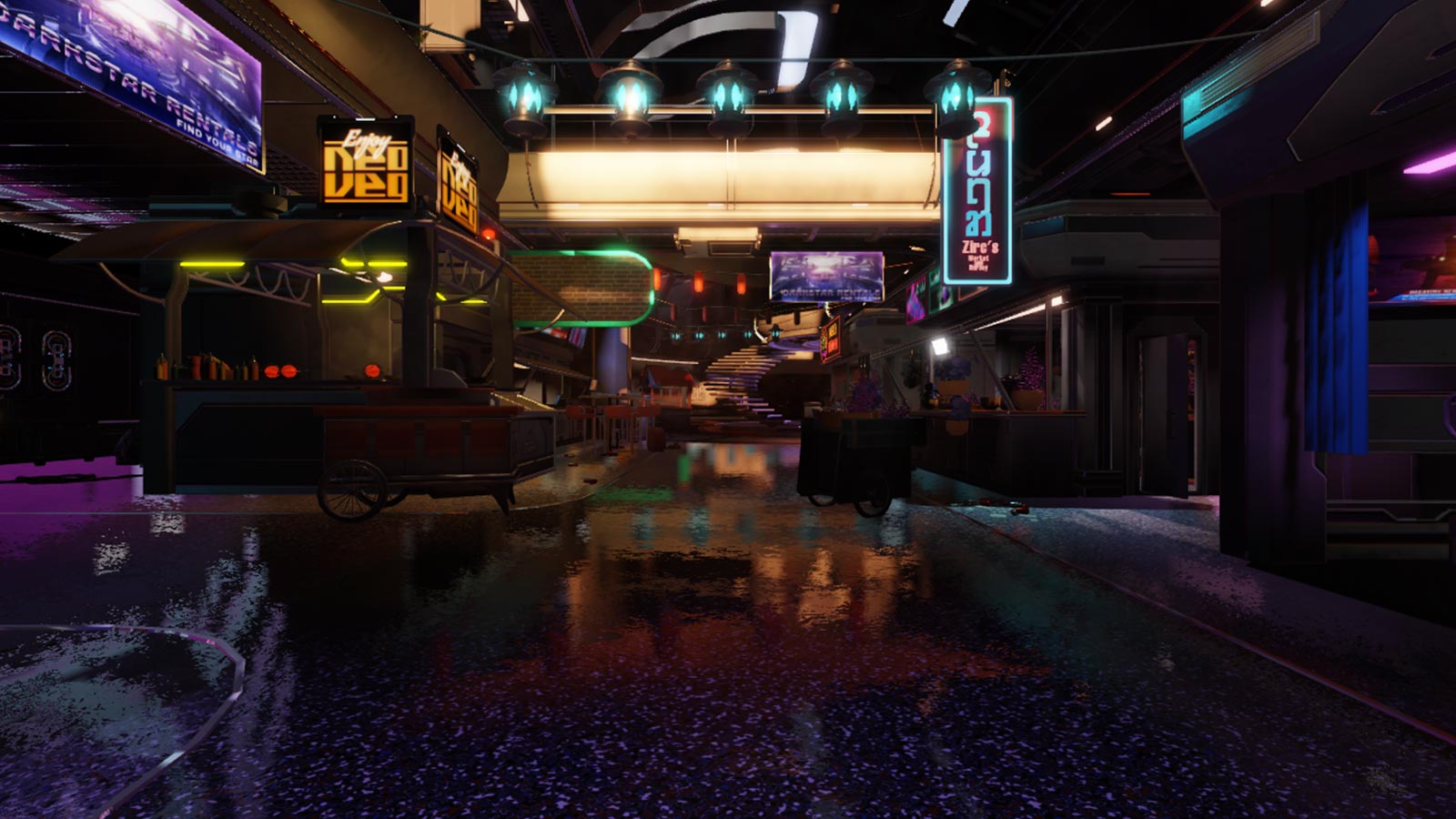
In the following images, note that the lighting inside the garage and cafe doesn't change like it would if you were changing the Ambient property.
[255, 150, 50]
![Lighting.OutdoorAmbient property of [255, 150, 50]](/docs-assets/lighting-and-effects/lighting-properties/OutdoorAmbient-255-150-50.jpg)
[200, 150, 240]
![Lighting.OutdoorAmbient property of [200, 150, 240]](/docs-assets/lighting-and-effects/lighting-properties/OutdoorAmbient-200-150-240.jpg)
[0, 175, 255]
![Lighting.OutdoorAmbient property of [0, 175, 255]](/docs-assets/lighting-and-effects/lighting-properties/OutdoorAmbient-0-175-255.jpg)
ColorShift_Top#
The ColorShift_Top property sets a hue that reflects from surfaces facing the sun or moon.
[0, 100, 255]
![Lighting.ColorShift_Top property of [0, 100, 255]](/docs-assets/lighting-and-effects/lighting-properties/ColorShift-Top-0-100-255.jpg)
[255, 60, 0]
![Lighting.ColorShift_Top property of [255, 60, 0]](/docs-assets/lighting-and-effects/lighting-properties/ColorShift-Top-255-60-0.jpg)
ColorShift_Bottom#
The ColorShift_Bottom property sets a hue that reflects from surfaces that are facing away from the sun or moon.
In the following images, note the hue change on the sandstone wall facing away from the sun.
[255, 0, 220]
![Lighting.ColorShift_Bottom property of [255, 0, 220]](/docs-assets/lighting-and-effects/lighting-properties/ColorShift-Bottom-255-0-220.jpg)
[0, 255, 190]
![Lighting.ColorShift_Bottom property of [0, 255, 190]](/docs-assets/lighting-and-effects/lighting-properties/ColorShift-Bottom-0-255-190.jpg)
Intensity#
Brightness#
The Brightness property sets the intensity of illumination. This can help increase the contrast between brightly illuminated areas and shadows, simulating bright sunshine and warmer weather.
0.5
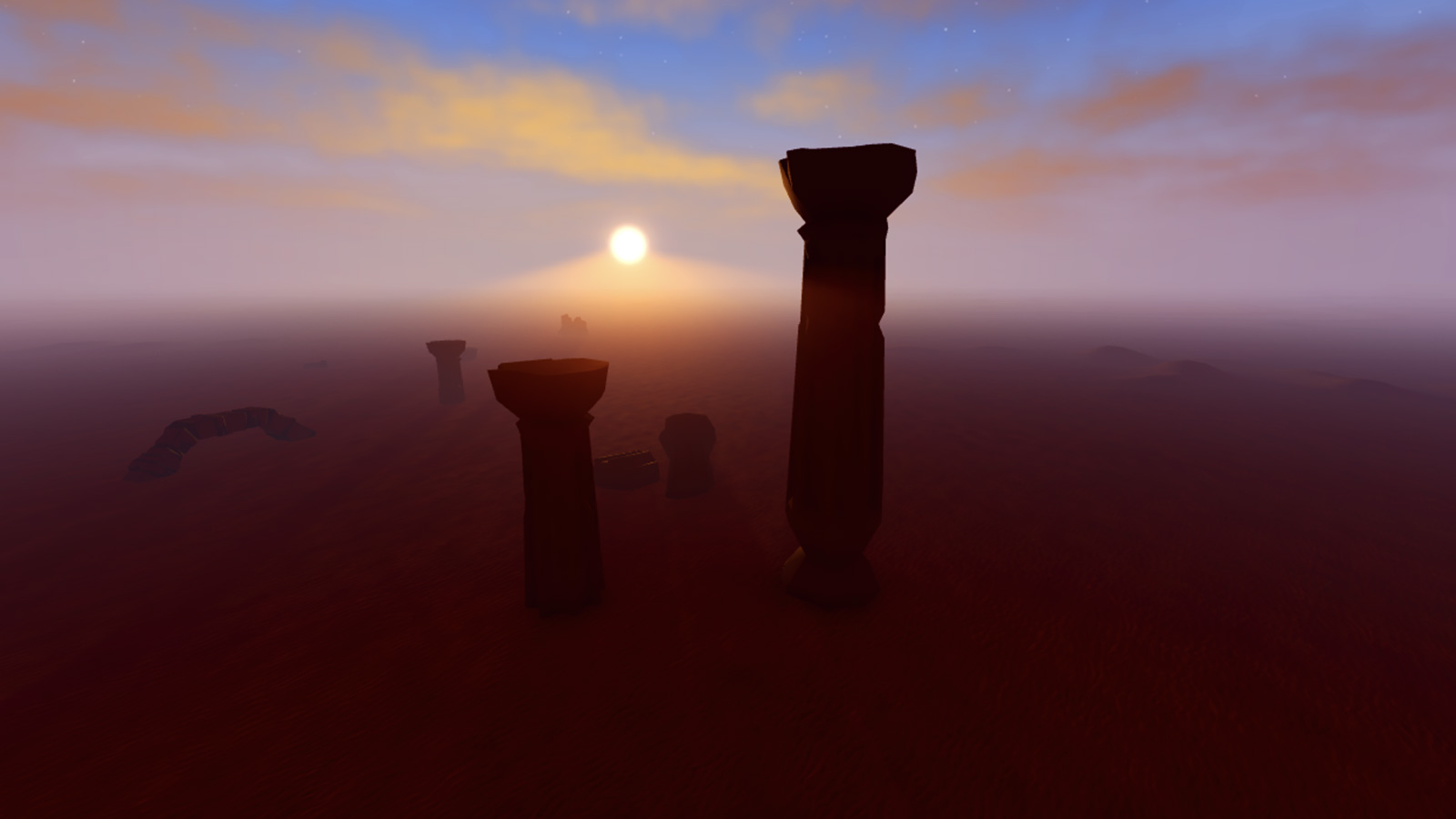
1.5
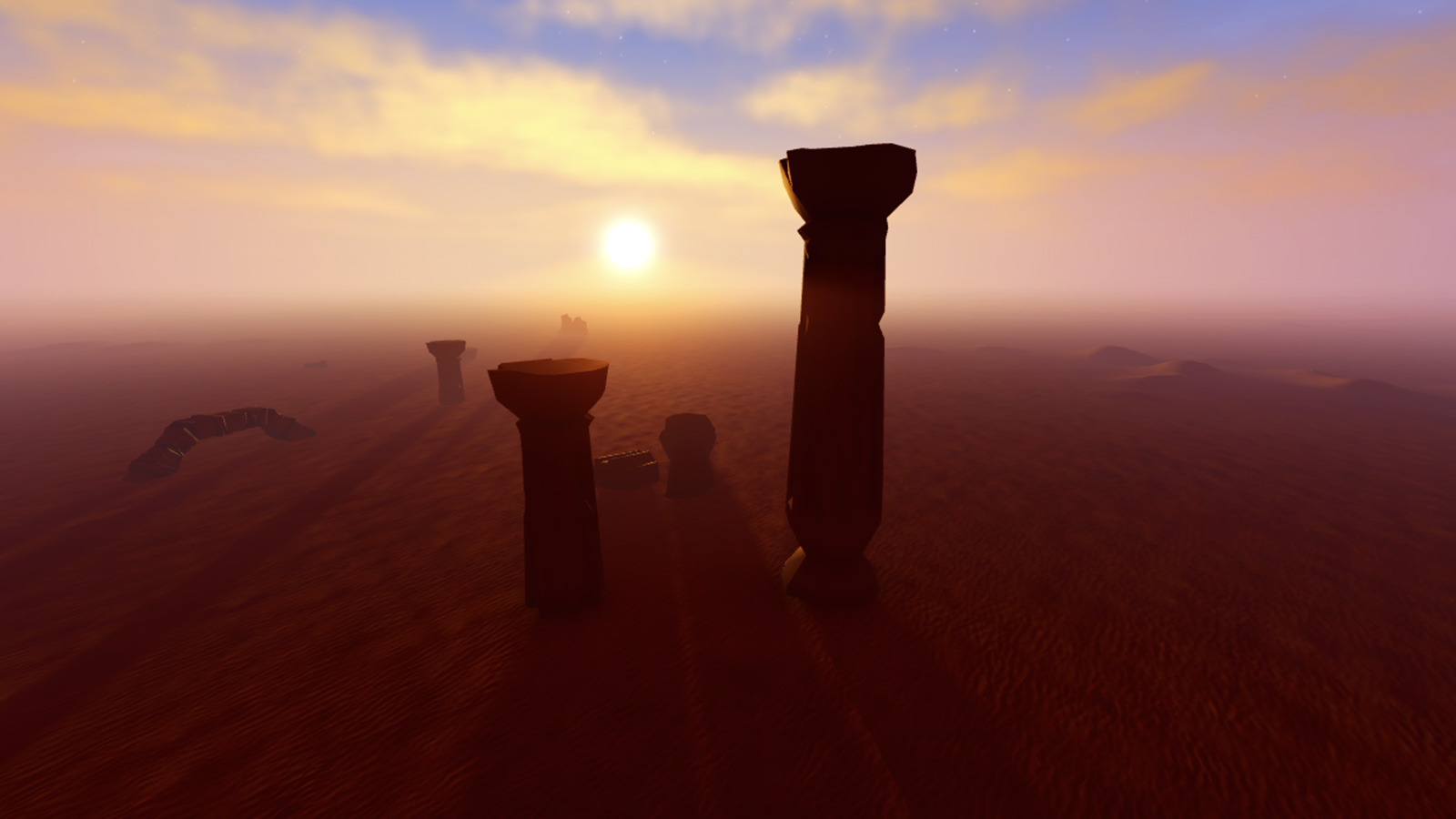
3.75
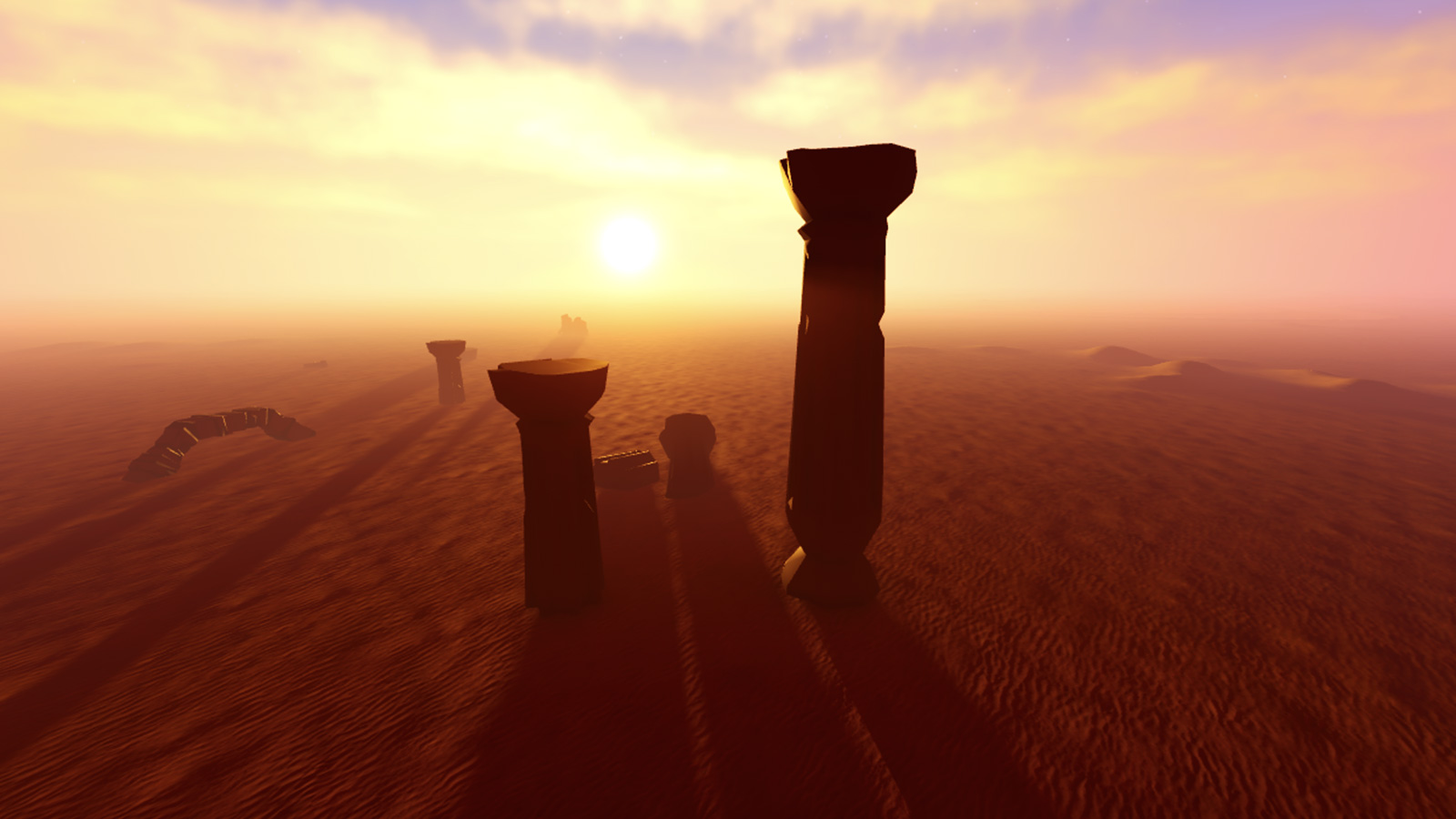
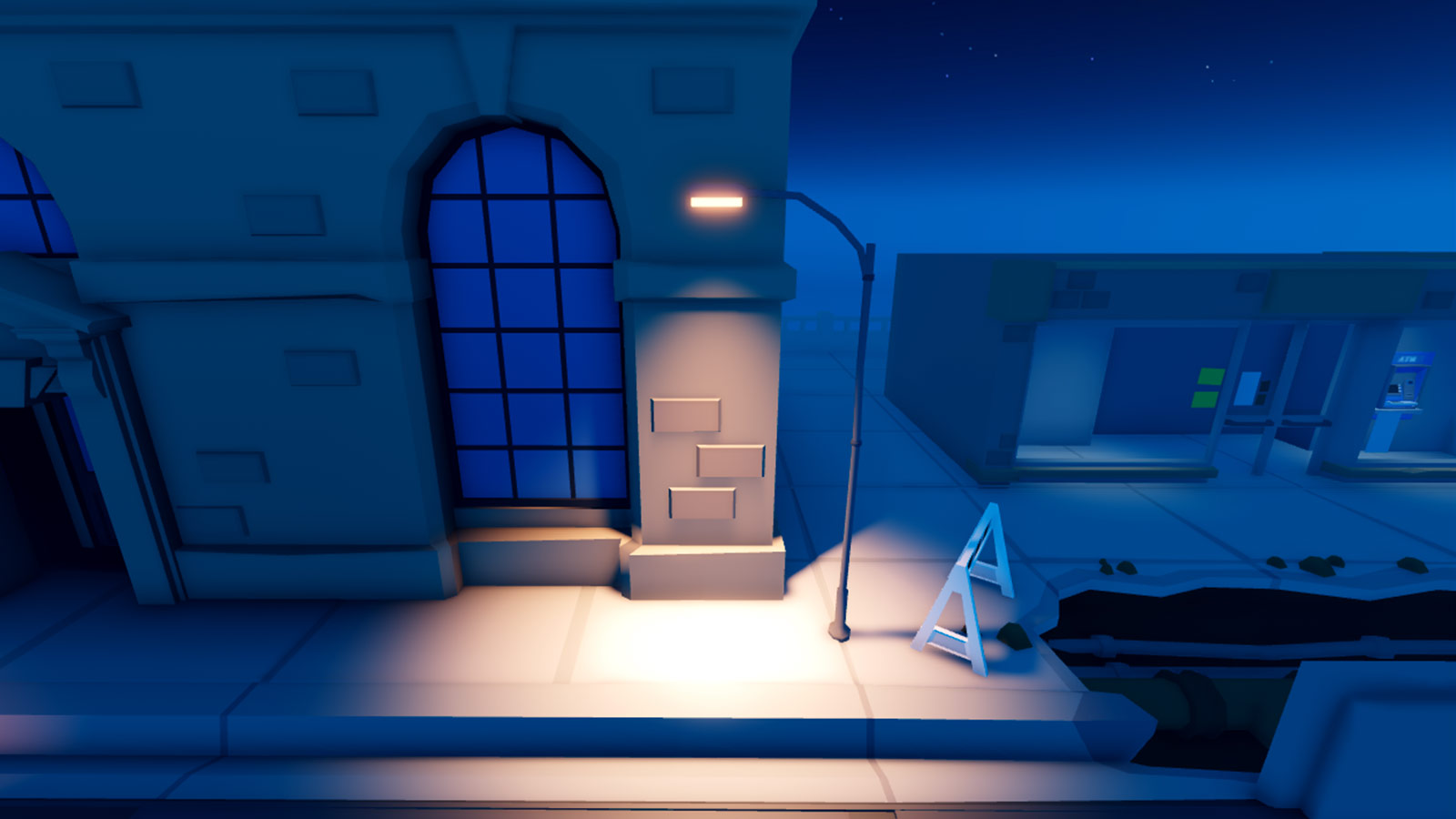
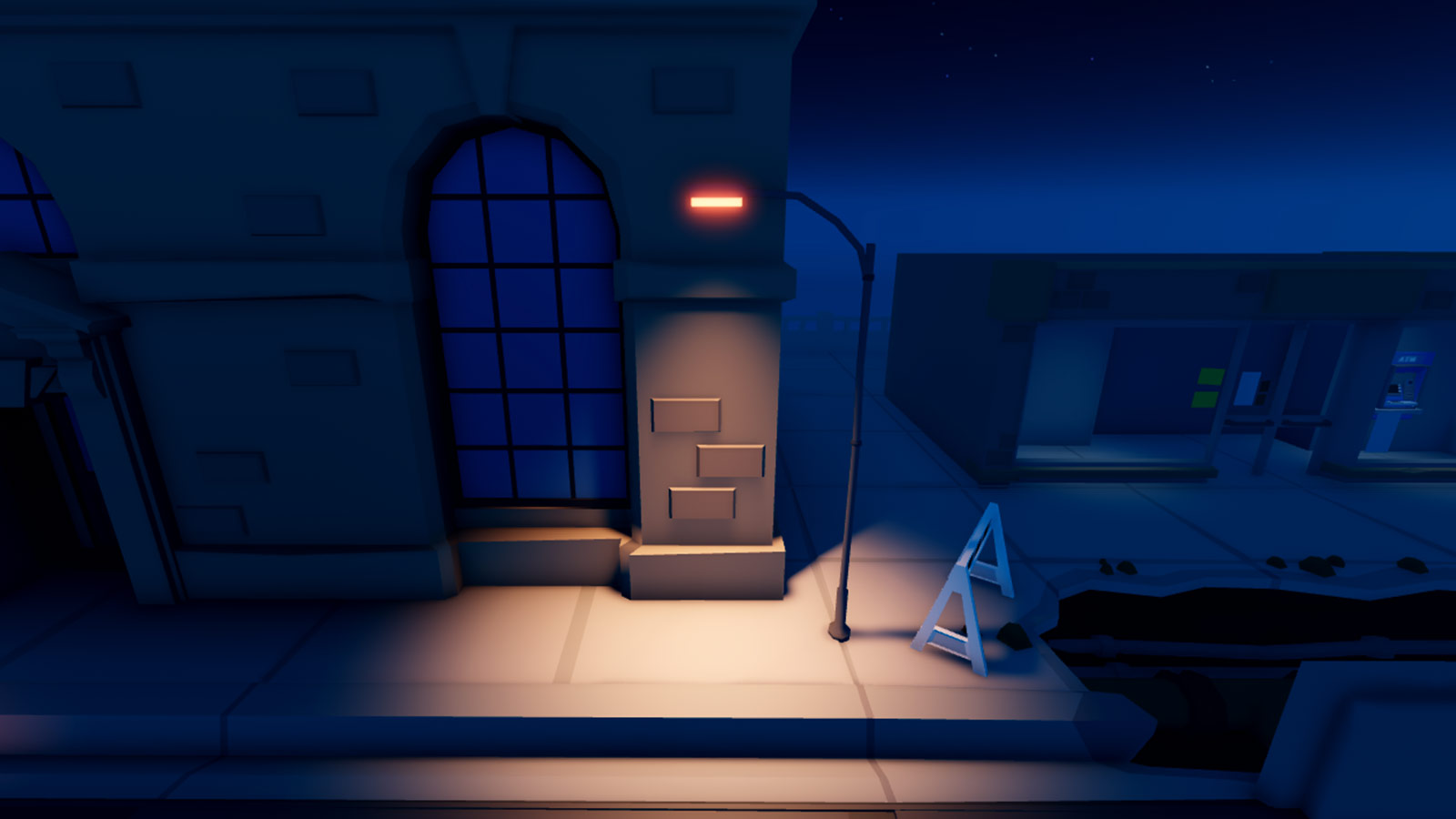
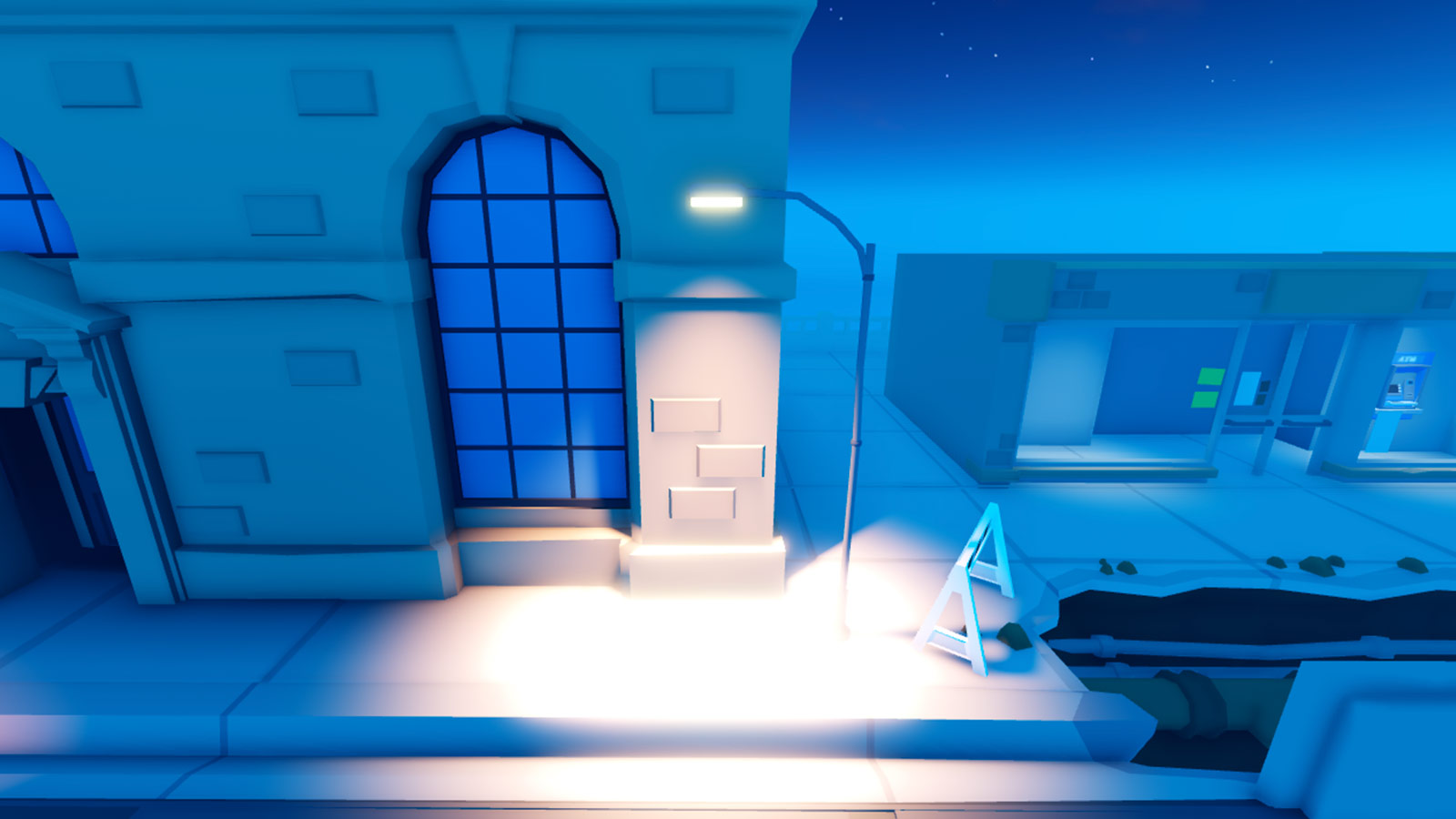
ExposureCompensation#
The ExposureCompensation property applies exposure to a game. Exposure is the amount of light that reaches the camera.
A lower value is similar to under-exposure in photography, while a higher value is similar to over-exposure.
0
-1
1.25
Shadows#
GlobalShadows#
When enabled, the GlobalShadows property renders shadows.
Enabled
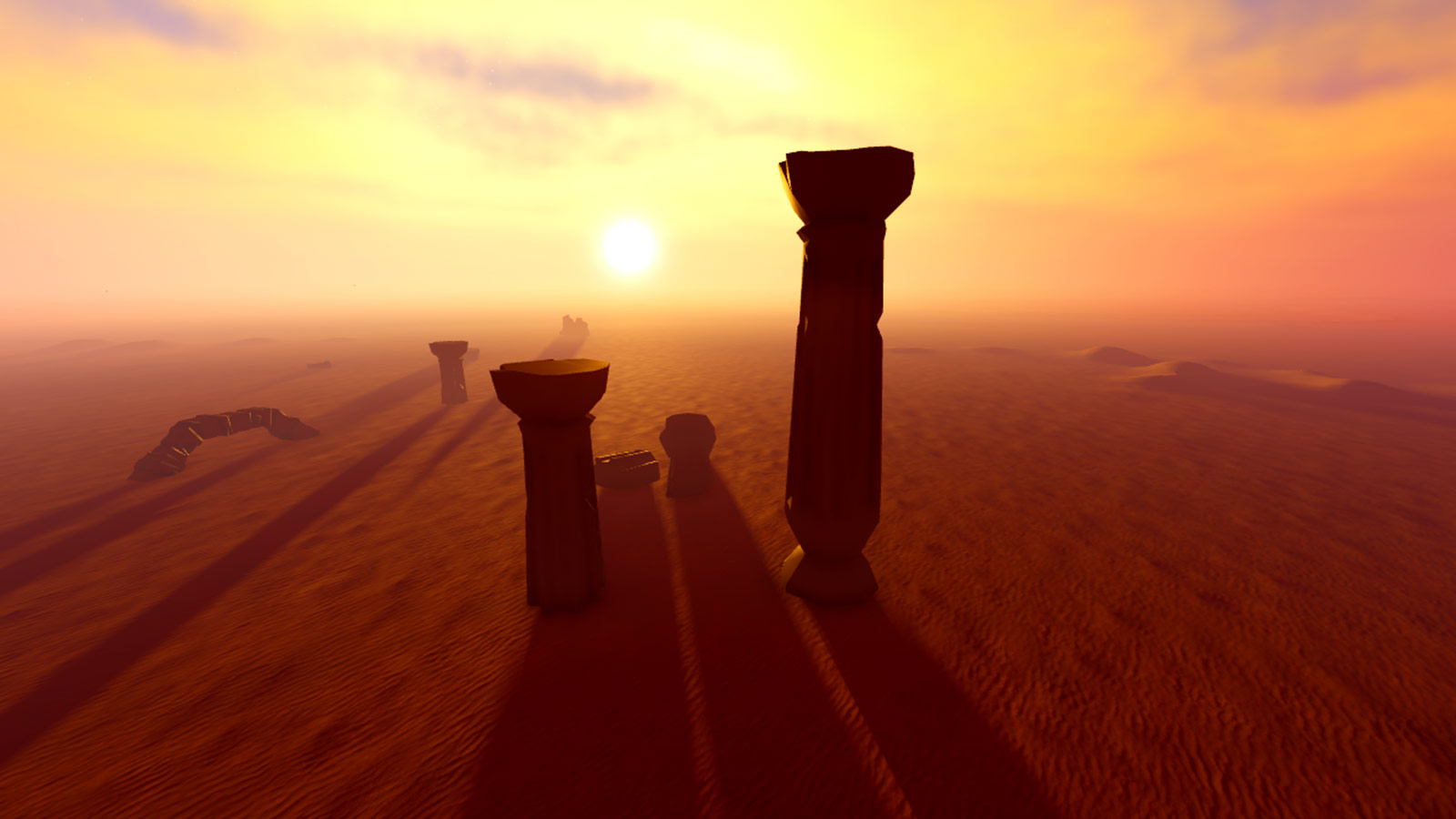
Disabled
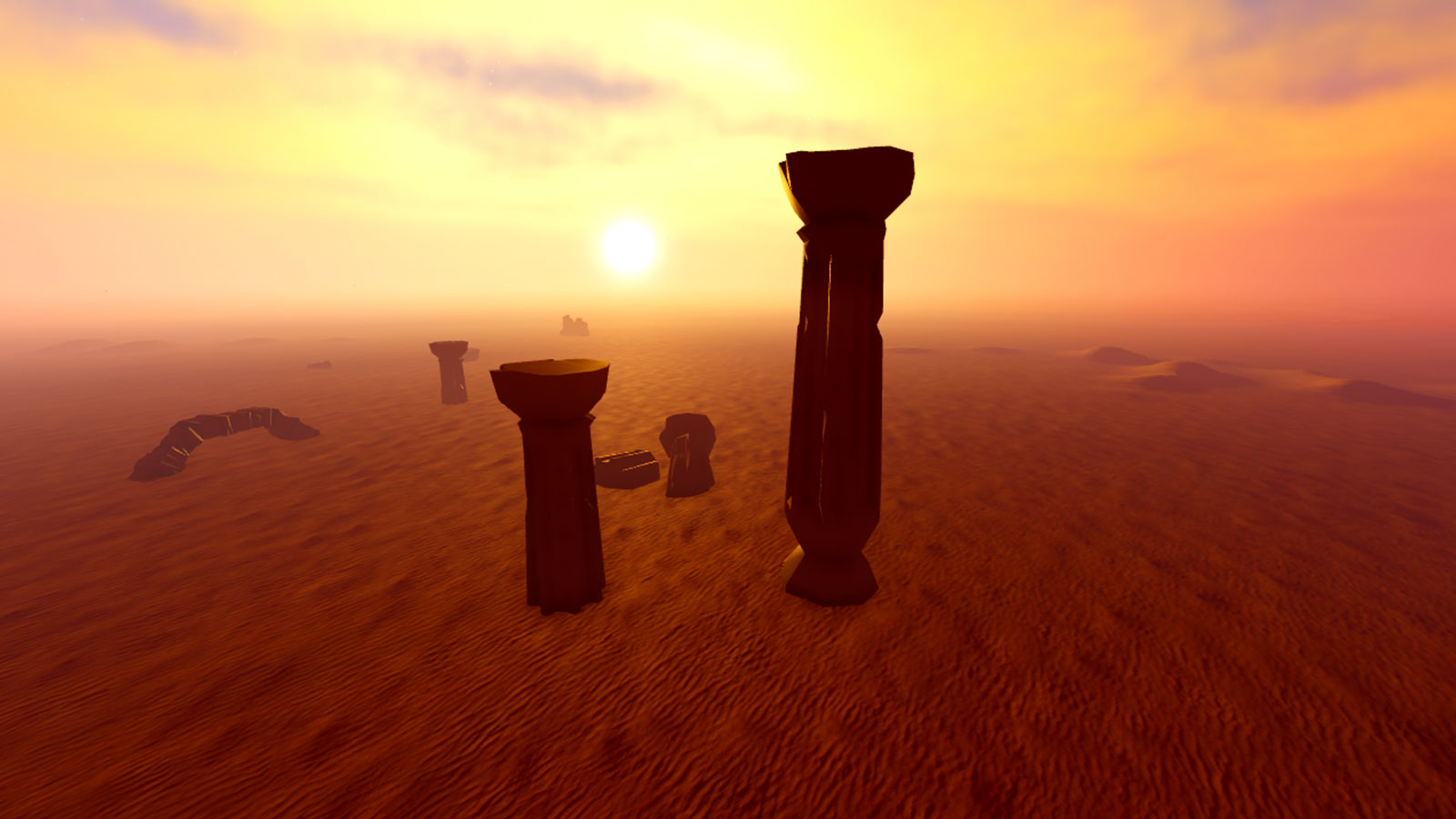
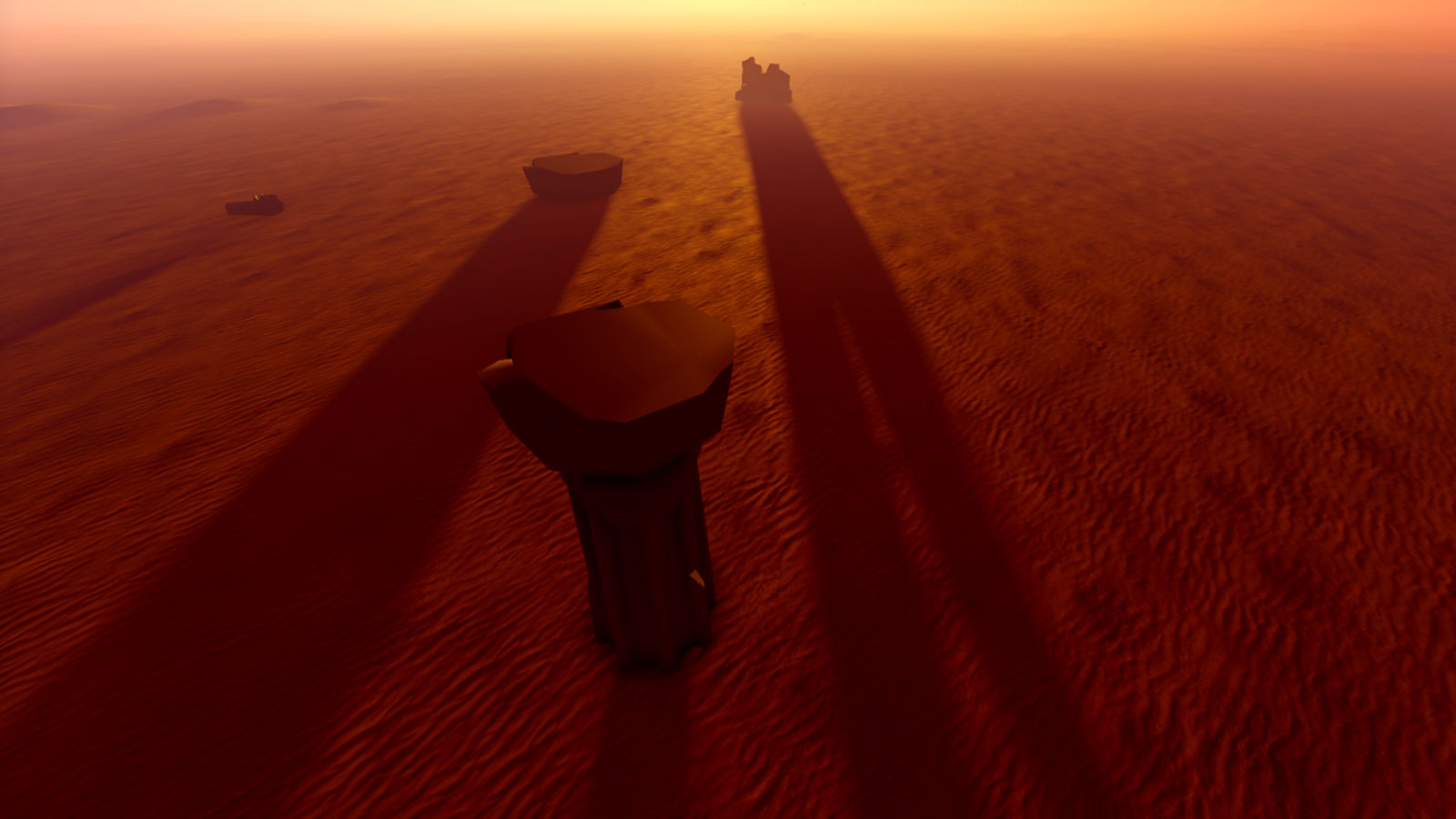
ShadowSoftness#
The ShadowSoftness property adjusts how blurry shadows are from a value of 0 (hard edges) to 1 (soft edges). This property is only valid when LightingStyle is set to Realistic.
0
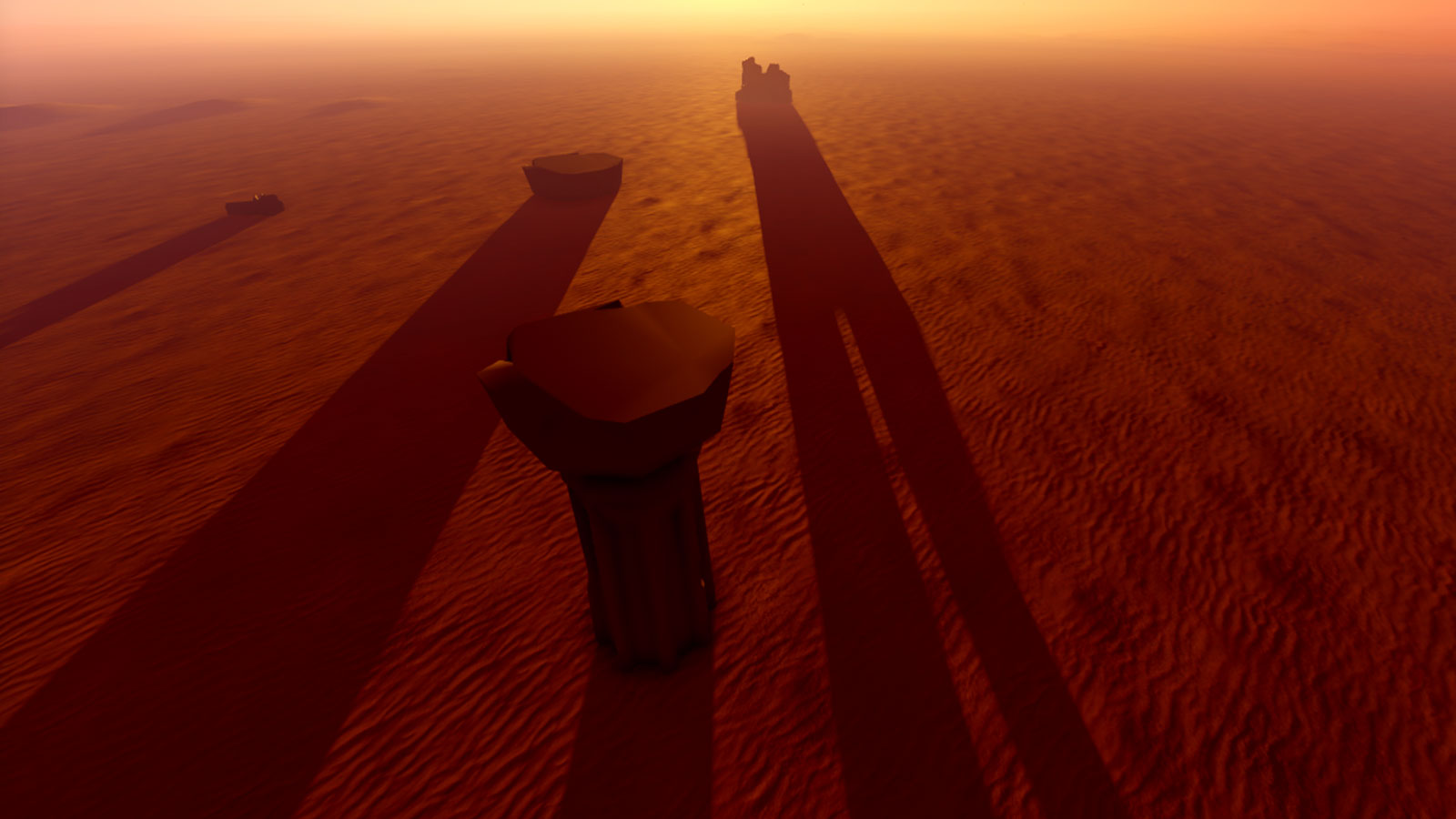
1
Appearance#
LightingStyle#
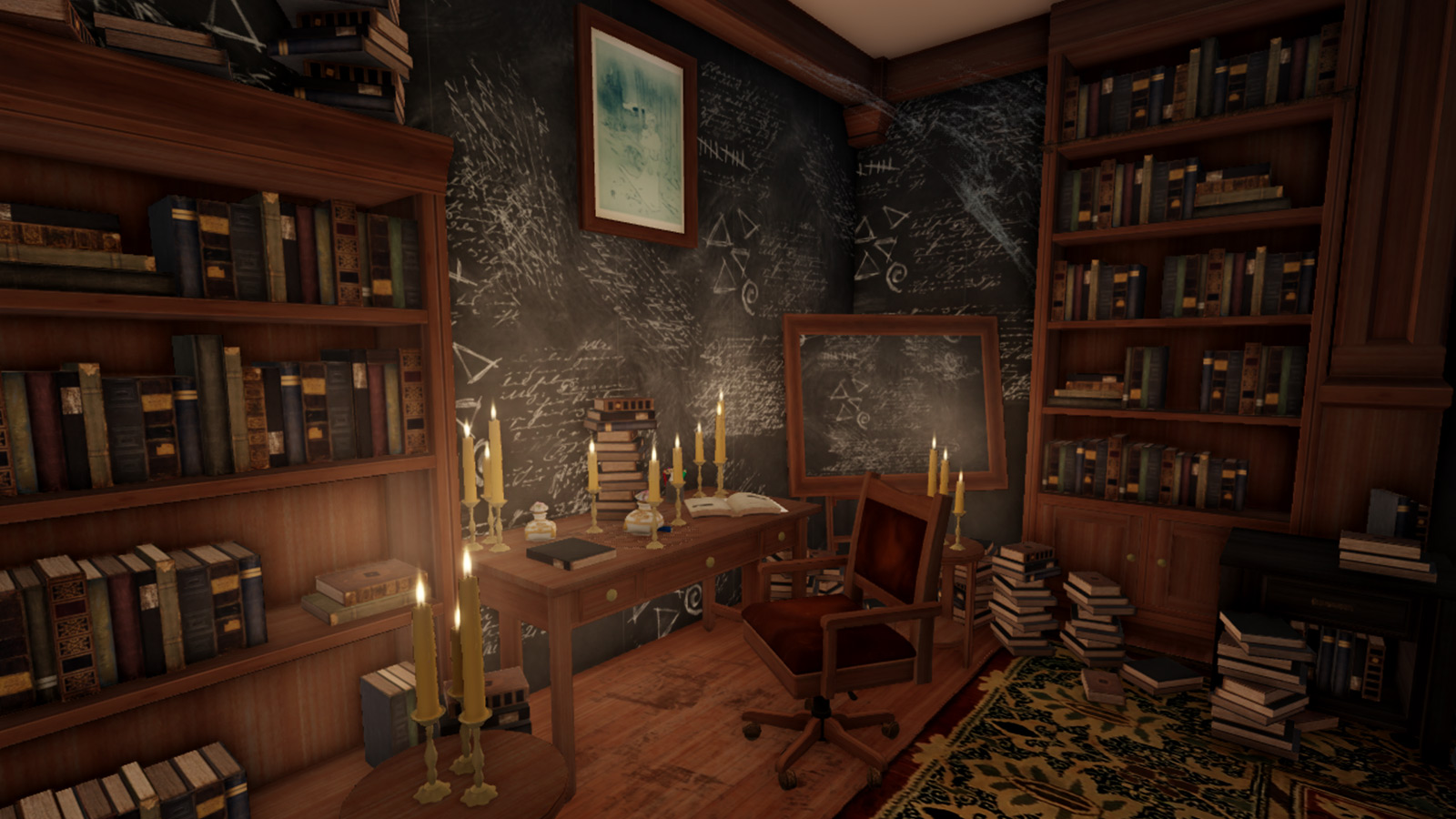
LightingStyle indicates the artistic intent behind lighting in the game, as an LightingStyle option. Realistic provides the most advanced and realistic lighting and shadows Roblox can deliver, while Soft produces a flat, retro‑Roblox look with softer lights and shadows.
Realistic
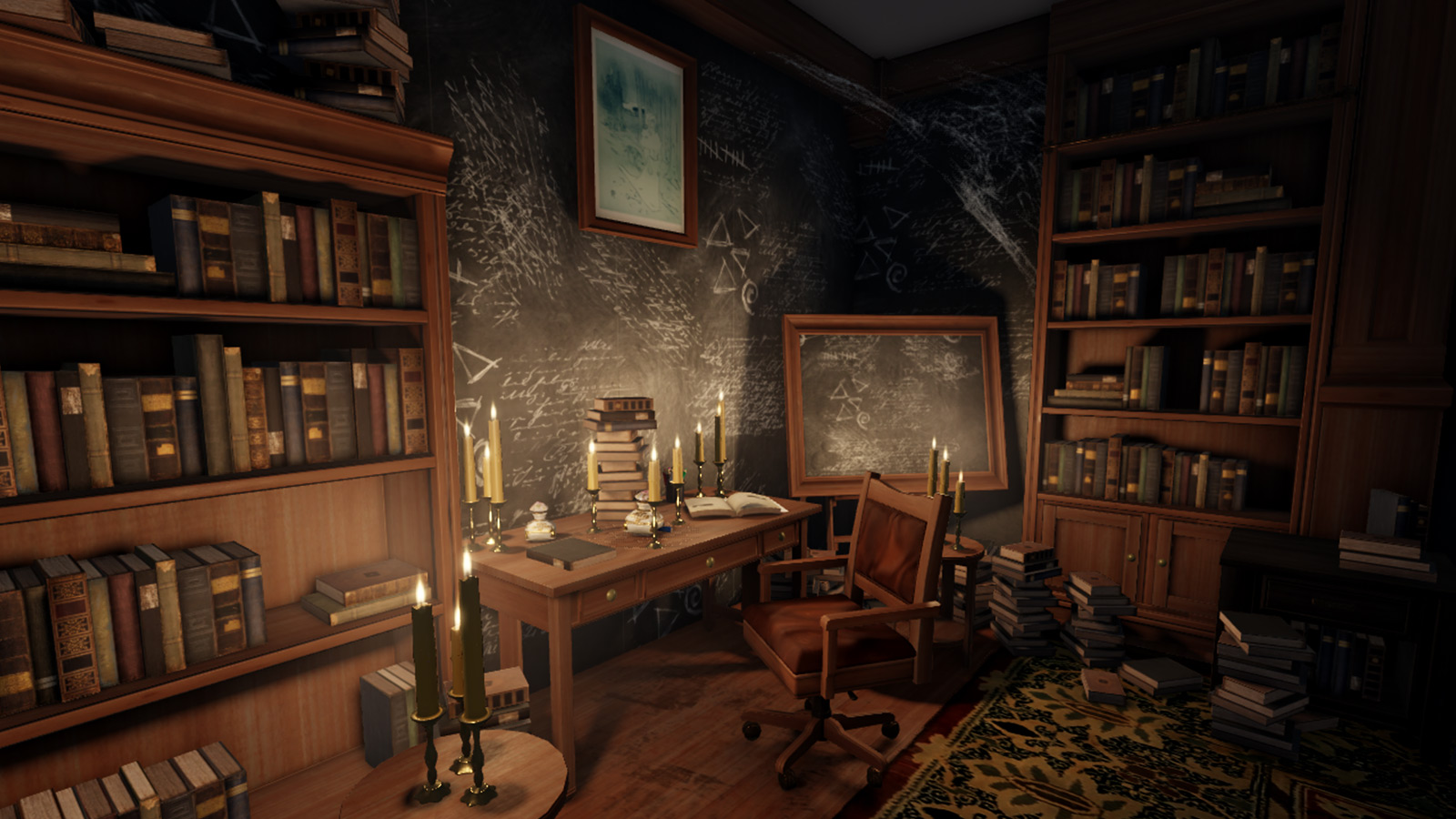
Soft
PrioritizeLightingQuality#
The PrioritizeLightingQuality property indicates whether you prefer lighting/shading quality or view distance to scale down first. As the rendering quality level reduces, a setting of true prioritizes features such as advanced shadows and high‑quality shaders at closer distances, while a setting of false prioritizes view distance. If lighting and shadows are very important to the artistic feel of your game, set this to true.
Environment#
ClockTime and TimeOfDay#
The ClockTime and TimeOfDay property both represent the current time of day in hours, and they are directly related; if you change one property, the other also changes.
The only difference between these properties is their numeric value; ClockTime represents time from hour 0 through 24 while
TimeOfDay represents time through a 24 hour string.
0 = 00:00:00
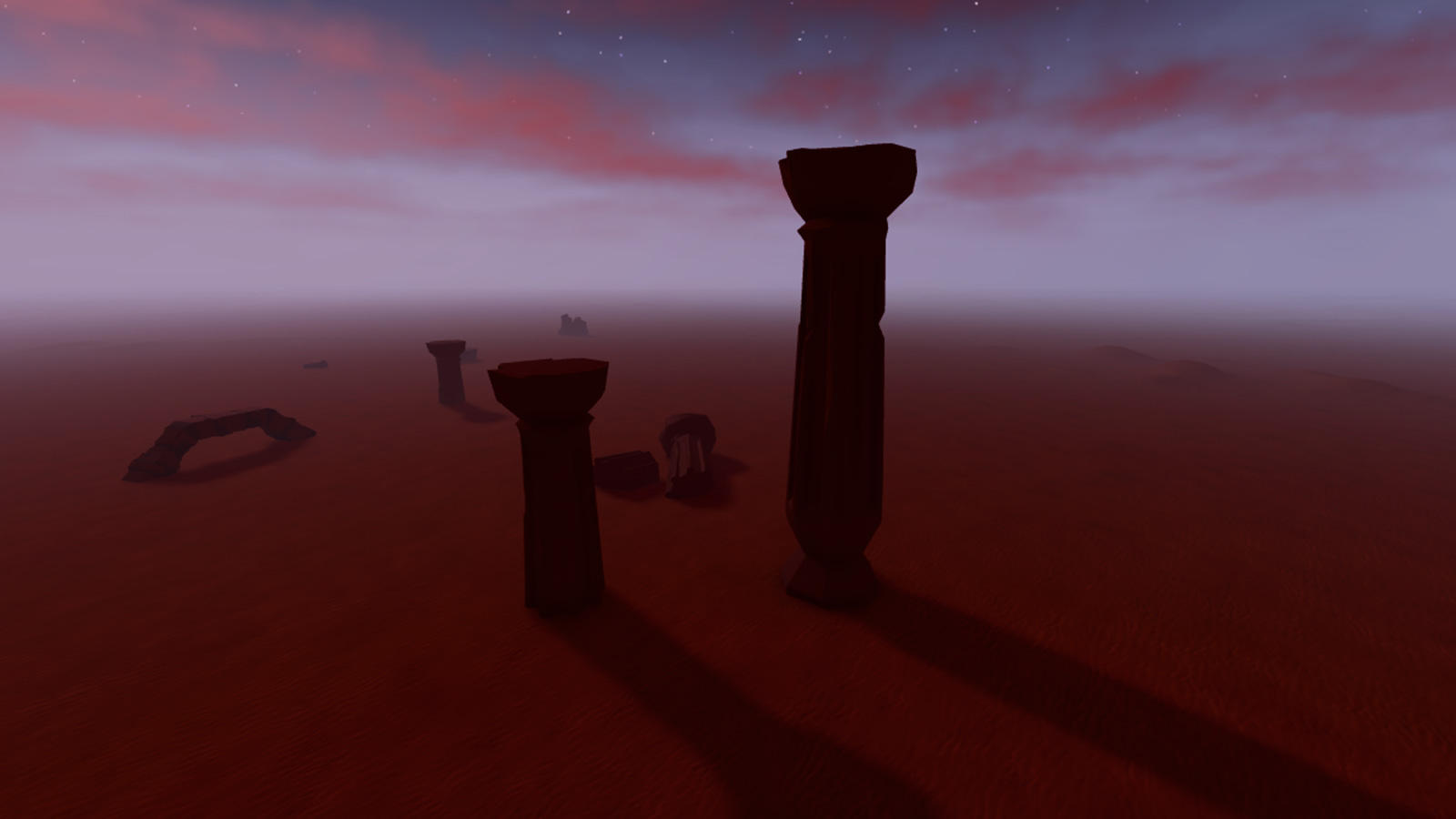
6.3 = 06:18:00
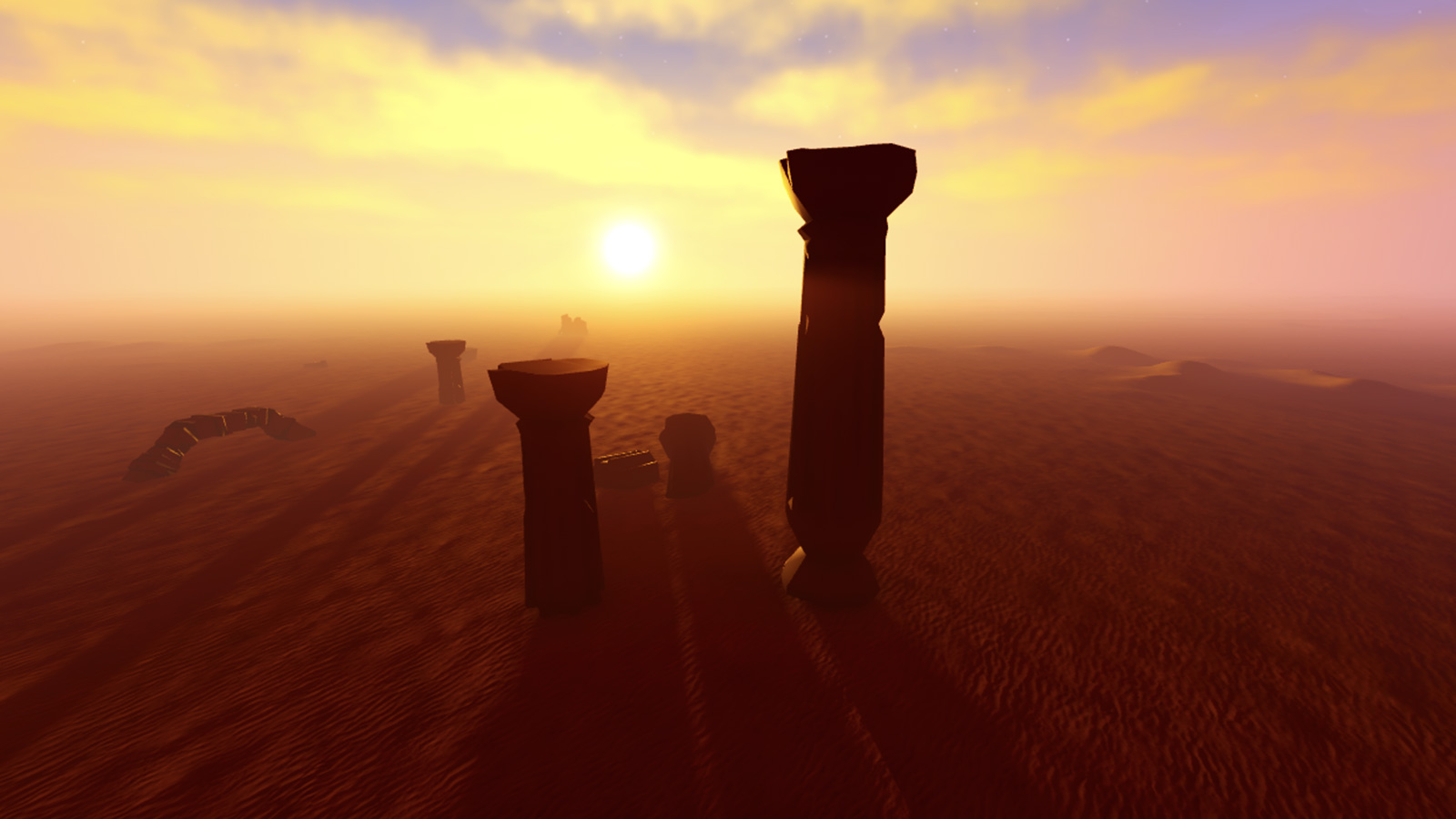
17 = 17:00:00
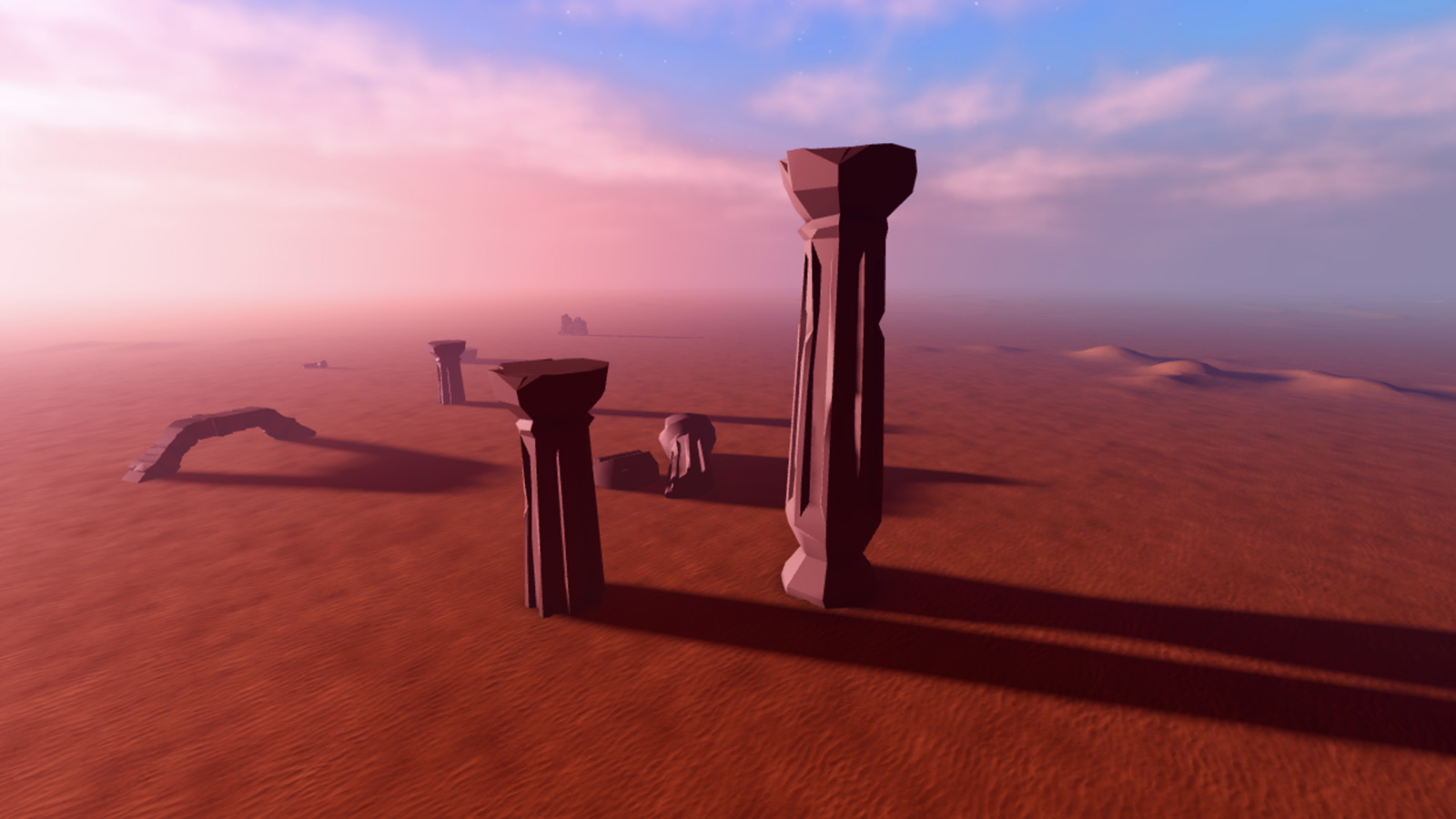
Note that each property doesn't follow the actual time of day, and they will not change during a game unless changed through a script.
GeographicLatitude#
The GeographicLatitude property represents the geographic latitude in degrees. Note that while this property changes the position of the sun and moon, it does not change the ClockTime and TimeOfDay properties.
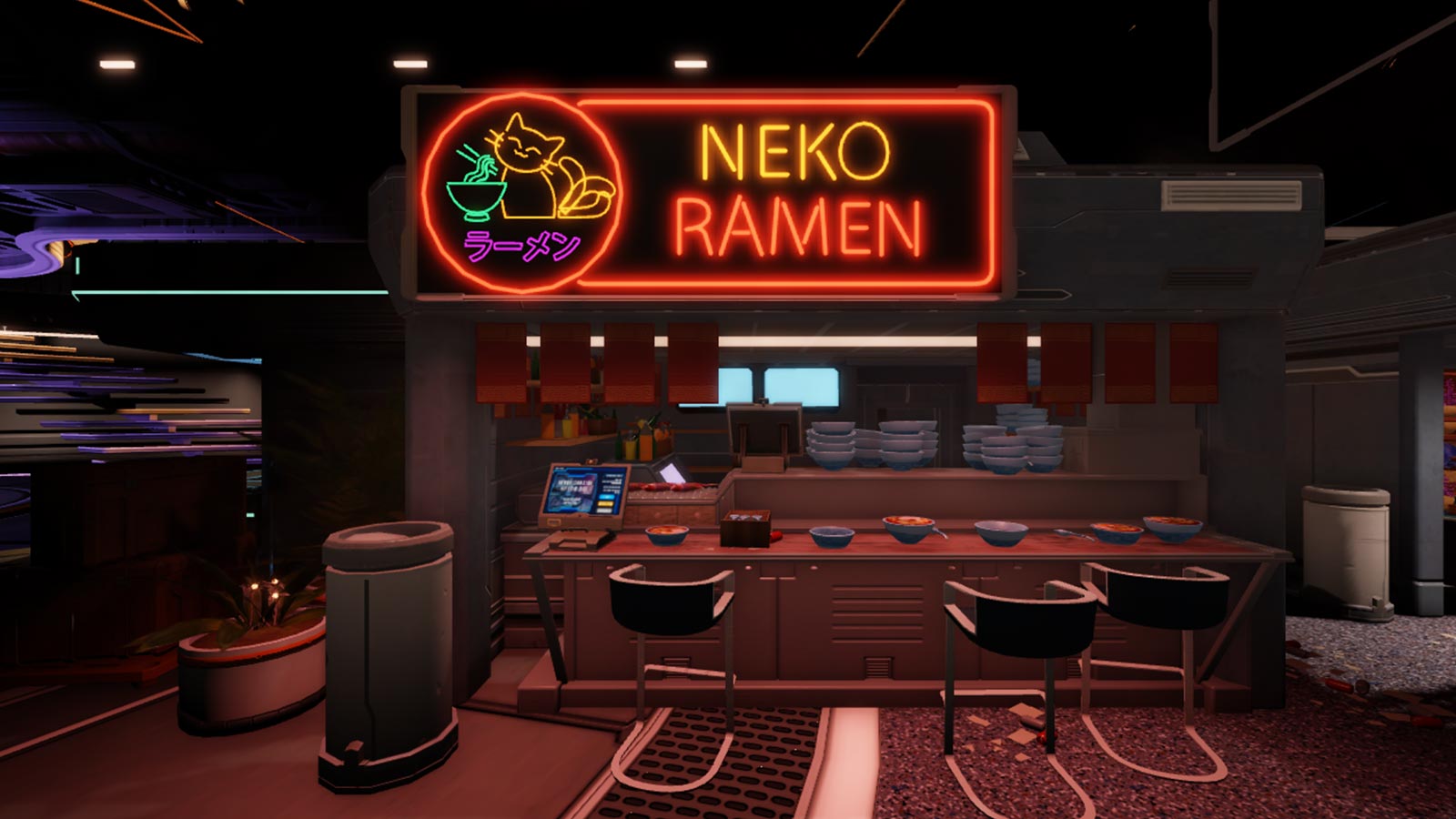
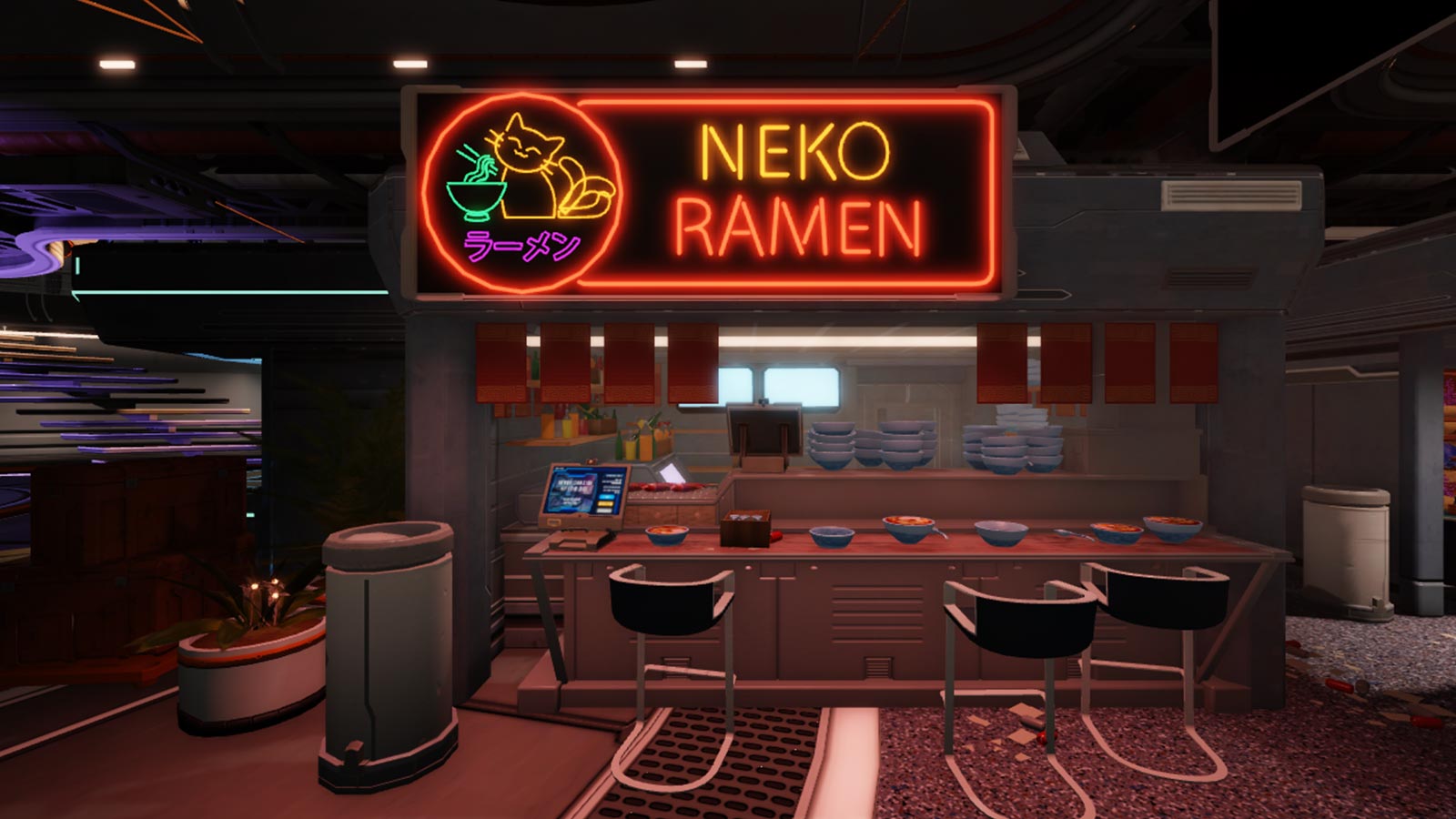
EnvironmentDiffuseScale#
The EnvironmentDiffuseScale property determines how much ambient light is derived from the environment.
In the following images, note how the ambient light changes, particularly inside the kitchen of the ramen shop.
0
1
EnvironmentSpecularScale#
The EnvironmentSpecularScale
property determines how much specular light is derived from the
environment. When set near a value of 1, smooth objects better reflect
the environment and metal appears more realistic.
0
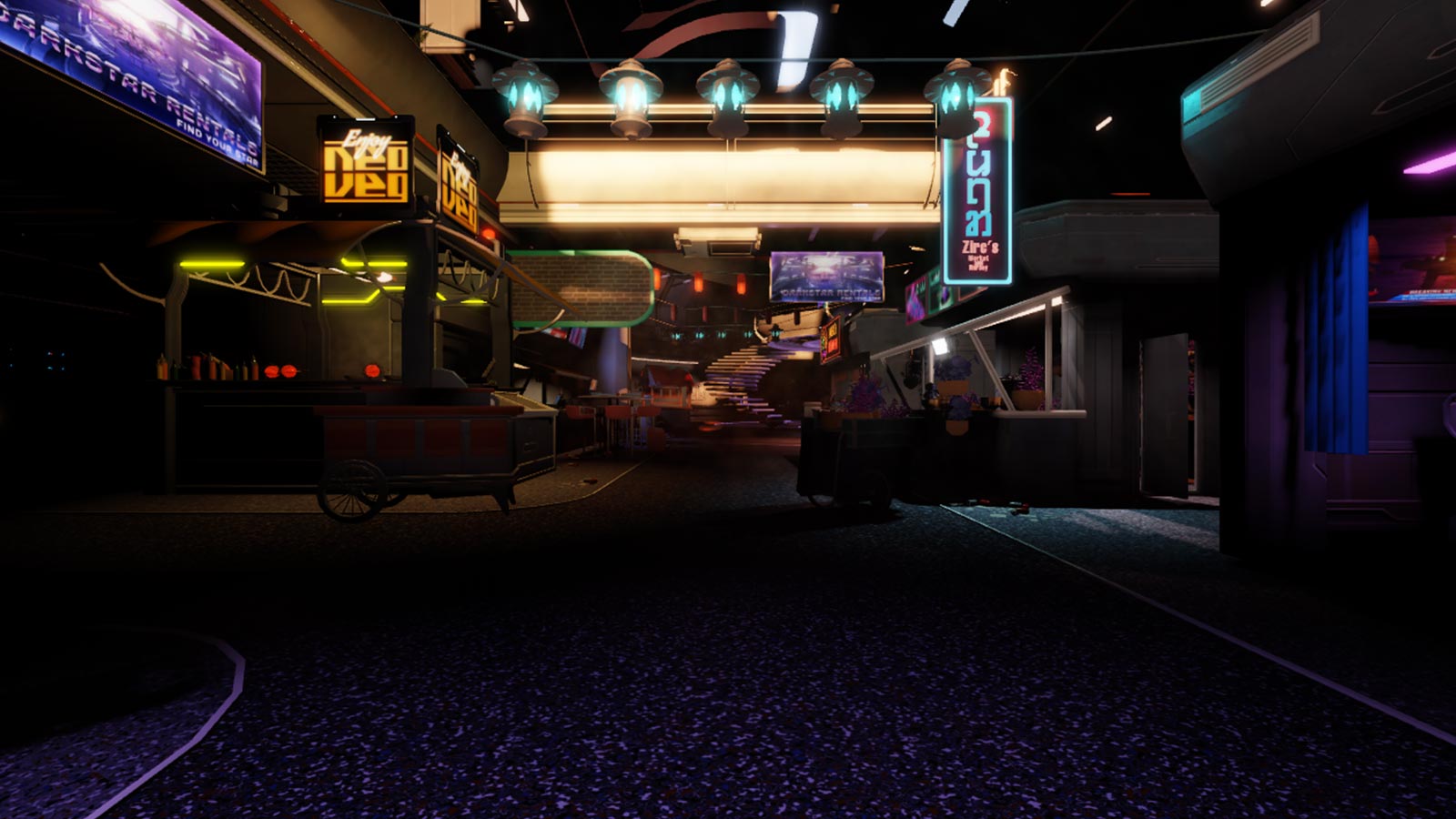
1