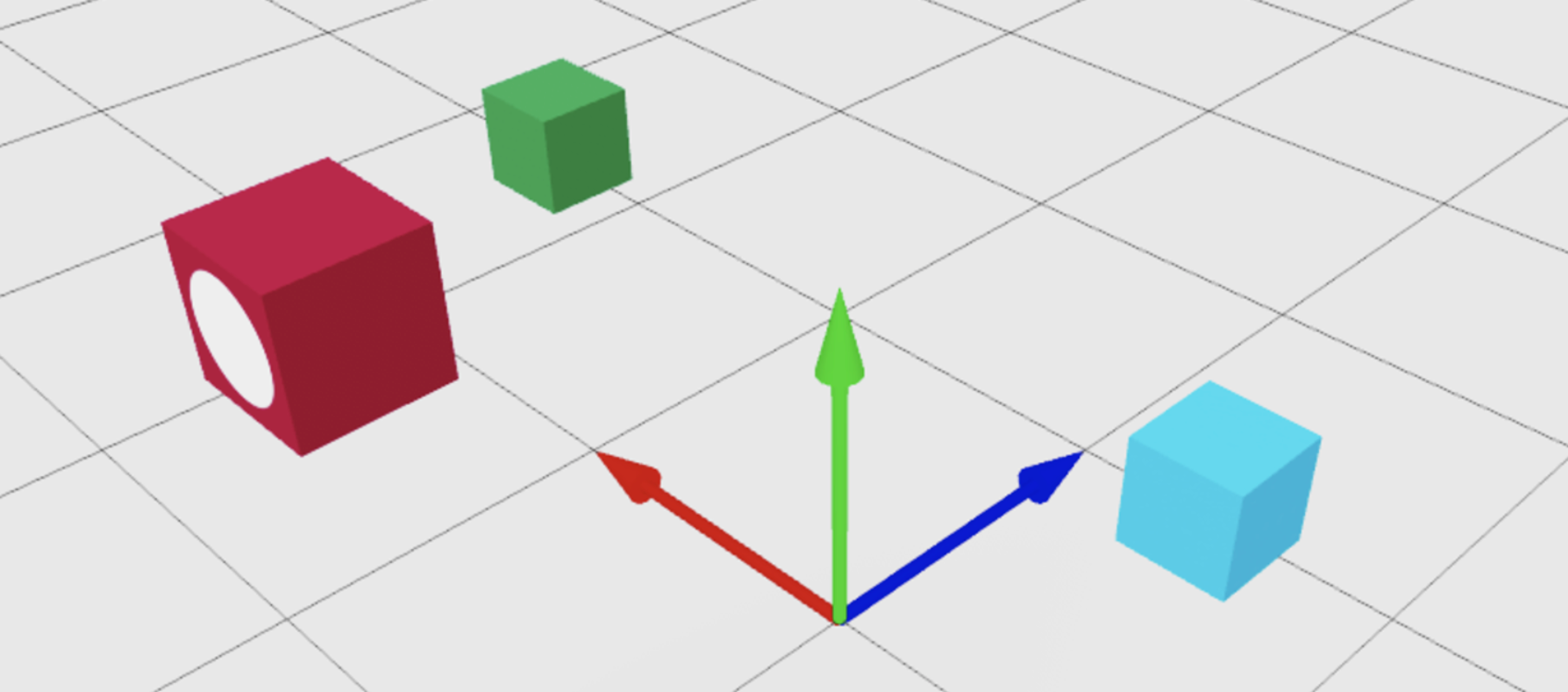
CFrames
CFrames, or Coordinate Frames, are a data type that you can use to rotate and position objects in the 3D space.
A CFrame, short for Coordinate Frame, is a data type used to rotate and position 3D objects. As either an object property or a standalone unit, a CFrame contains global X, Y, and Z coordinates as well as rotation data for each axis. In addition, CFrames contain helpful functions for working with objects in the 3D space.
Position a CFrame#
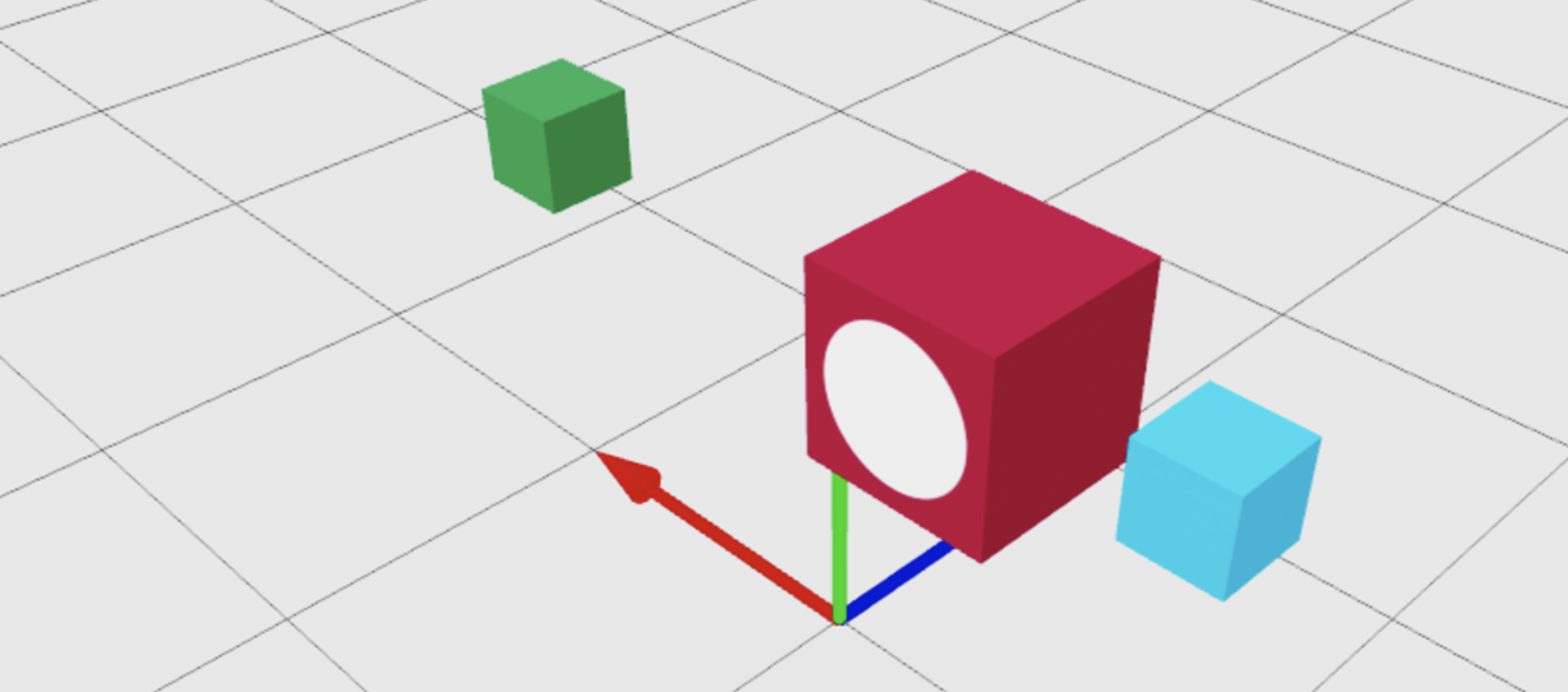
You can create an empty CFrame at the default position of (0, 0, 0) by using CFrame.new(). To position a CFrame at a specific point, provide X, Y, and Z coordinates as arguments to CFrame.new(). In the following example, the redBlock part's CFrame property changes to newCFrame, repositioning it to (-2, 2, 4).
local Workspace = game:GetService("Workspace")

local redBlock = Workspace.RedBlock

-- Create new CFrame
local newCFrame = CFrame.new(-2, 2, 4)

-- Overwrite the red block's current CFrame with the new CFrame
redBlock.CFrame = newCFrame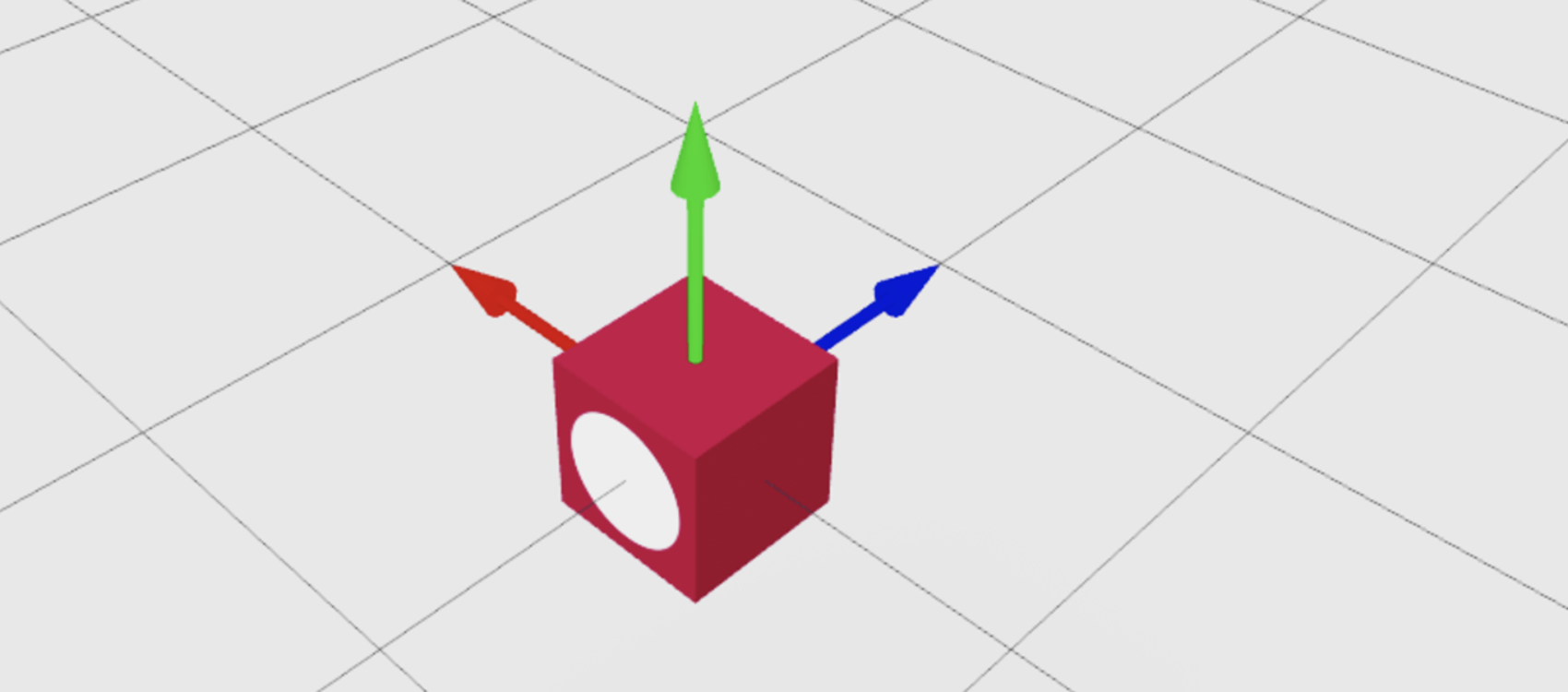
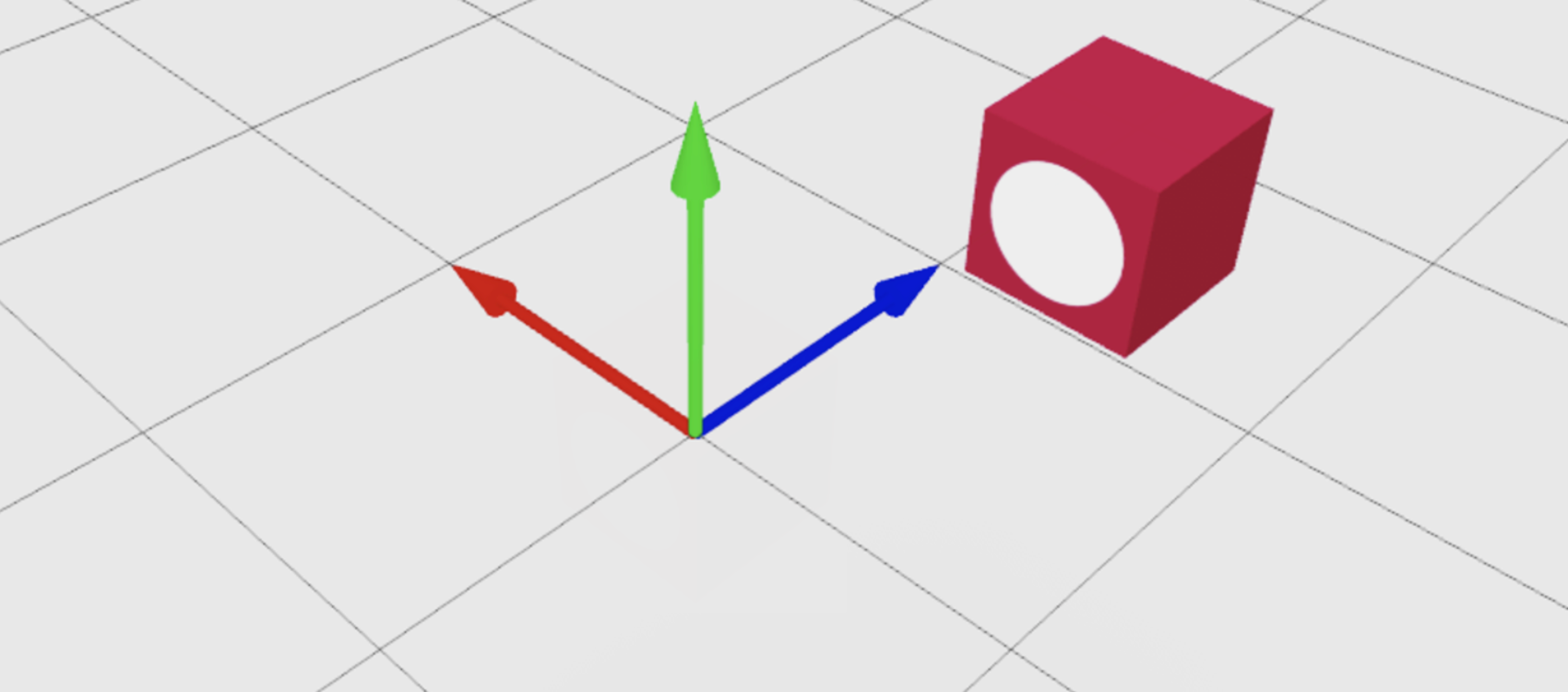
Alternatively, you can provide a new Vector3 position to CFrame.new() and achieve the same result:
local Workspace = game:GetService("Workspace")

local redBlock = Workspace.RedBlock

-- Create new CFrame
local newVector3 = Vector3.new(-2, 2, 4)
local newCFrame = CFrame.new(newVector3)

-- Overwrite the red block's current CFrame with the new CFrame
redBlock.CFrame = newCFrame
Rotate a CFrame#
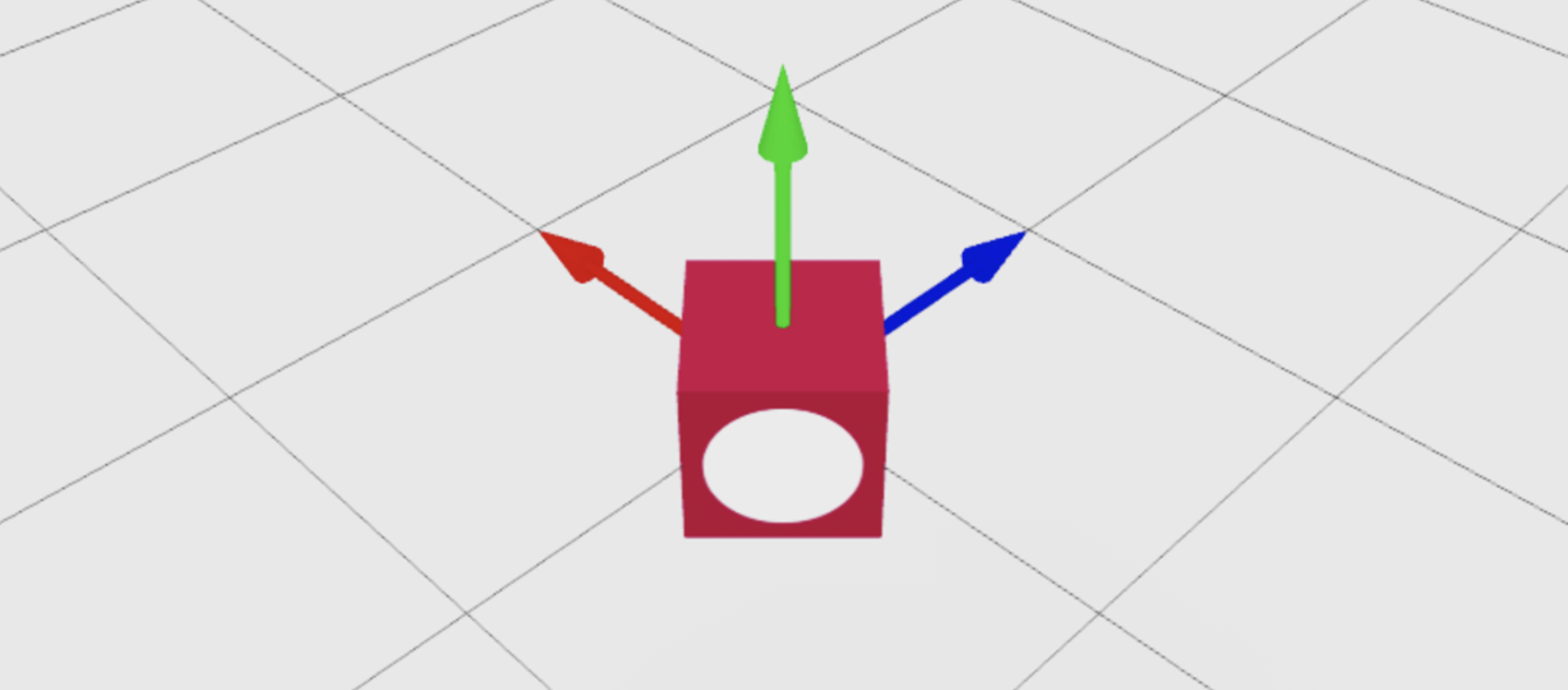
To create a rotated CFrame, use the CFrame.fromEulerAnglesXYZ() constructor, providing a rotation angle in radians for the desired axes. The parameters to CFrame.fromEulerAnglesXYZ() are in radians, not degrees; if you prefer degrees, use math.rad() to convert degrees to radians. In the following example, the redBlock part rotates 45 degrees counterclockwise on its Y axis.
local Workspace = game:GetService("Workspace")

local redBlock = Workspace.RedBlock

-- Create new rotated CFrame
local newCFrame = CFrame.fromEulerAnglesXYZ(0, math.rad(45), 0)

-- Overwrite the red block's current CFrame with the new CFrame
redBlock.CFrame = newCFrame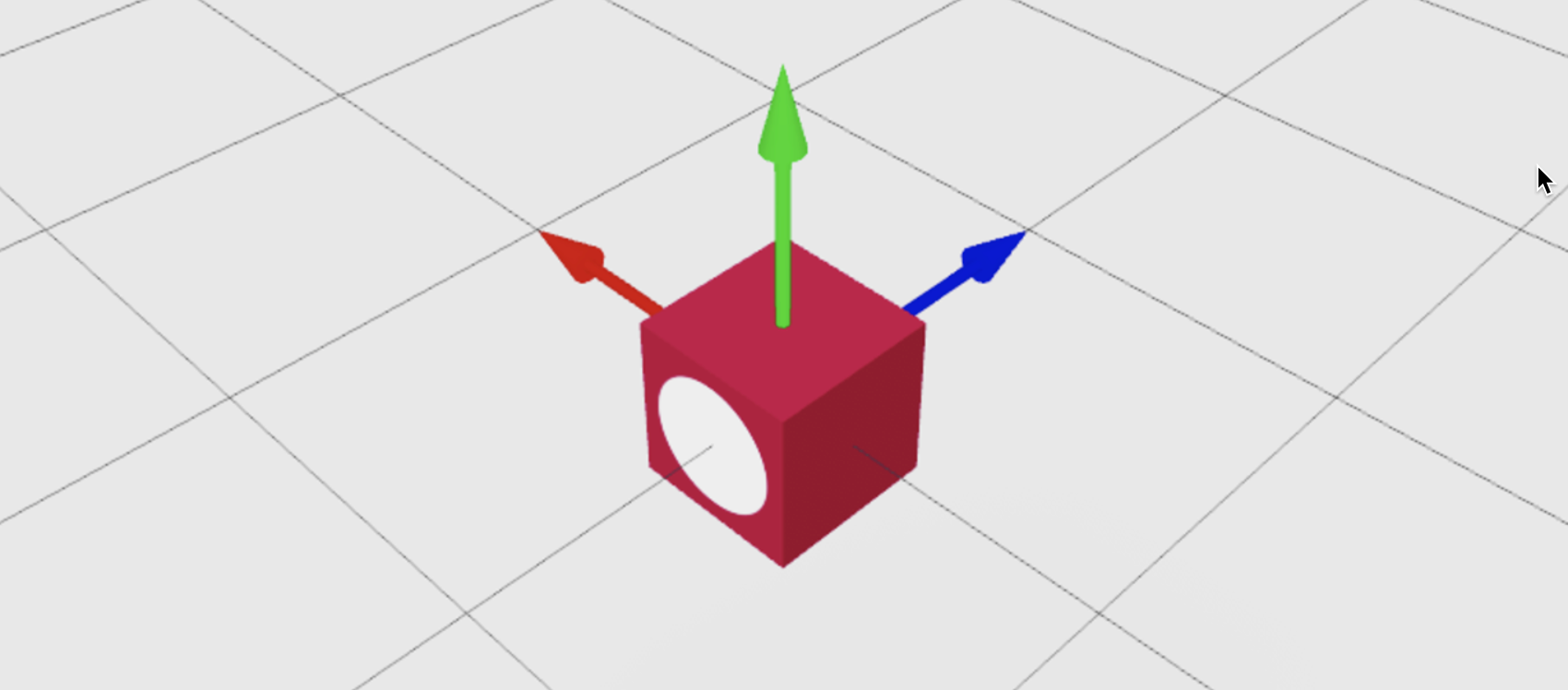
Face a CFrame toward a point#
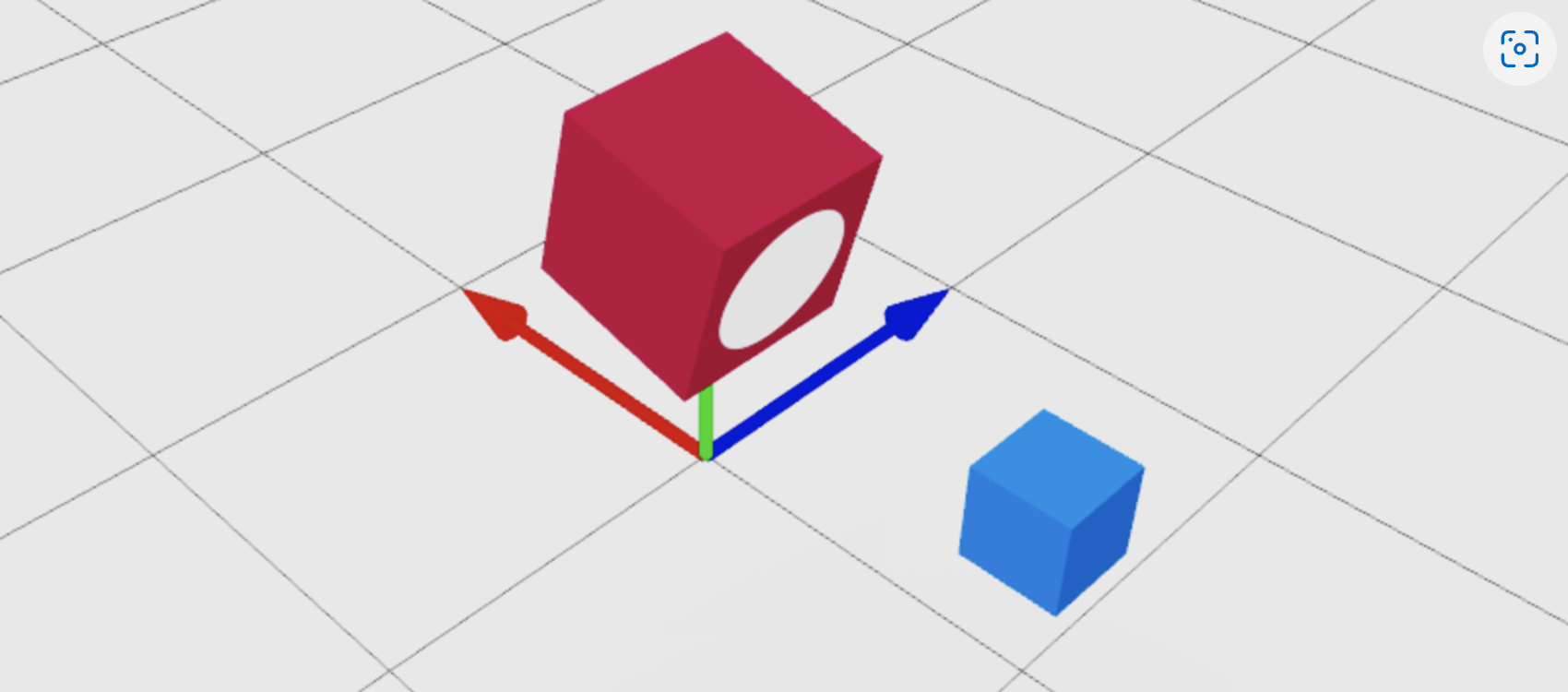
You can use CFrame.lookAt() to point the front surface of a CFrame at a specific point in the world. The following example positions redBlock at (0, 3, 0) and points its front surface, marked by the white circle, at the blueCube part.
local Workspace = game:GetService("Workspace")

local redBlock = Workspace.RedBlock
local blueCube = Workspace.BlueCube

redBlock.Position = Vector3.new(0, 3, 0)

-- Point the front surface of the red block at the blue cube
redBlock.CFrame = CFrame.lookAt(redBlock.Position, blueCube.Position)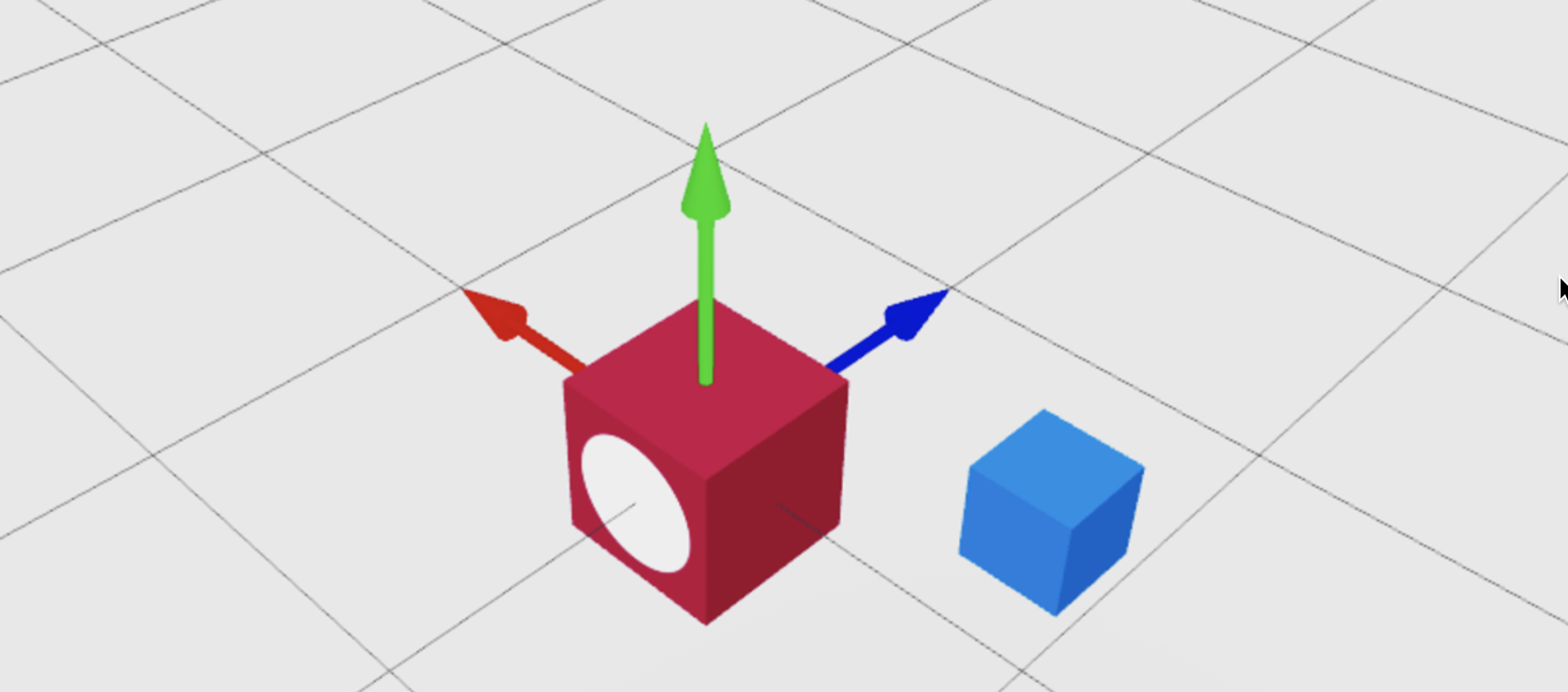
Offset a CFrame#
To offset an object by a specific number of studs from its current position, add or subtract a Vector3 to or from a new CFrame at the object's position. To get a properly-formatted Vector3 position of an object to use with CFrame.new(), as seen here, its Position property (redBlock.Position) is a convenient shortcut.
local Workspace = game:GetService("Workspace")

local redBlock = Workspace.RedBlock

redBlock.CFrame = CFrame.new(redBlock.Position) + Vector3.new(0, 1.25, 0)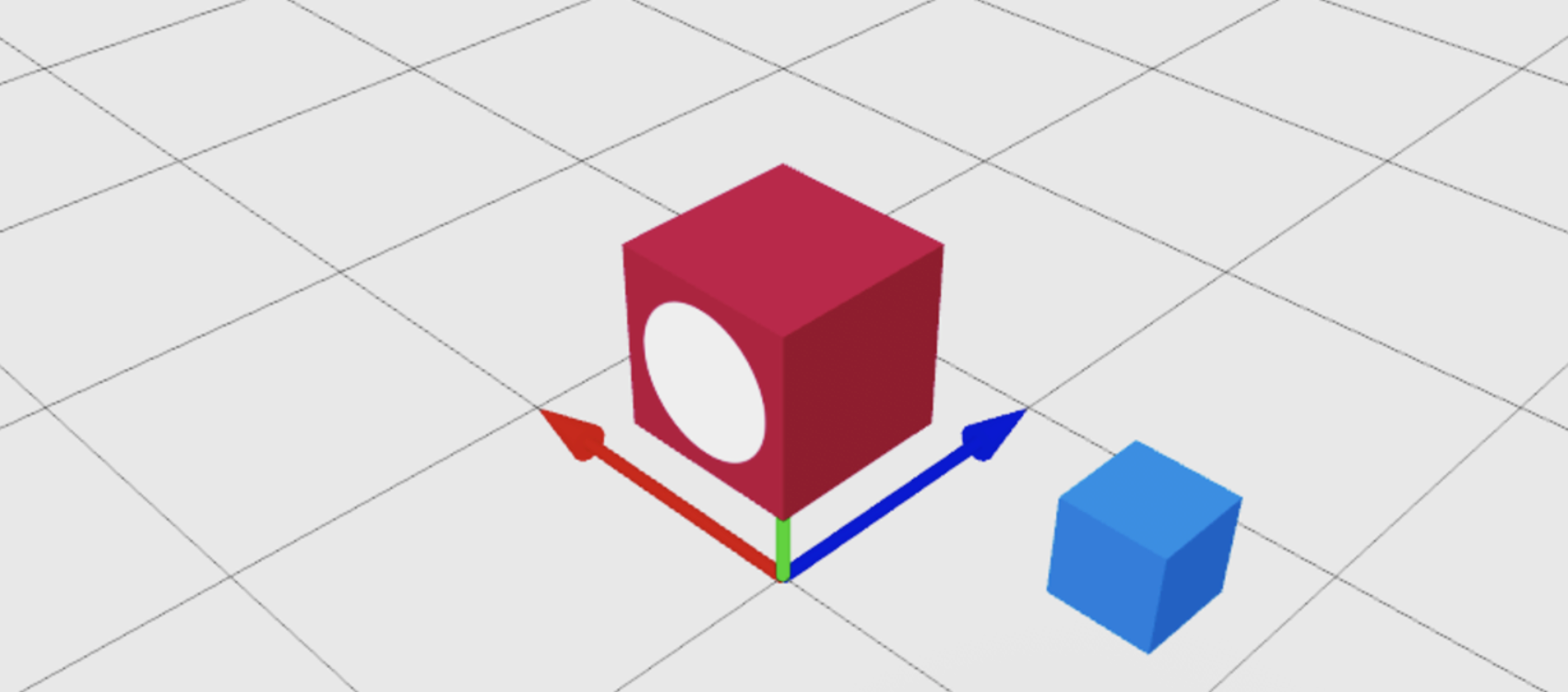
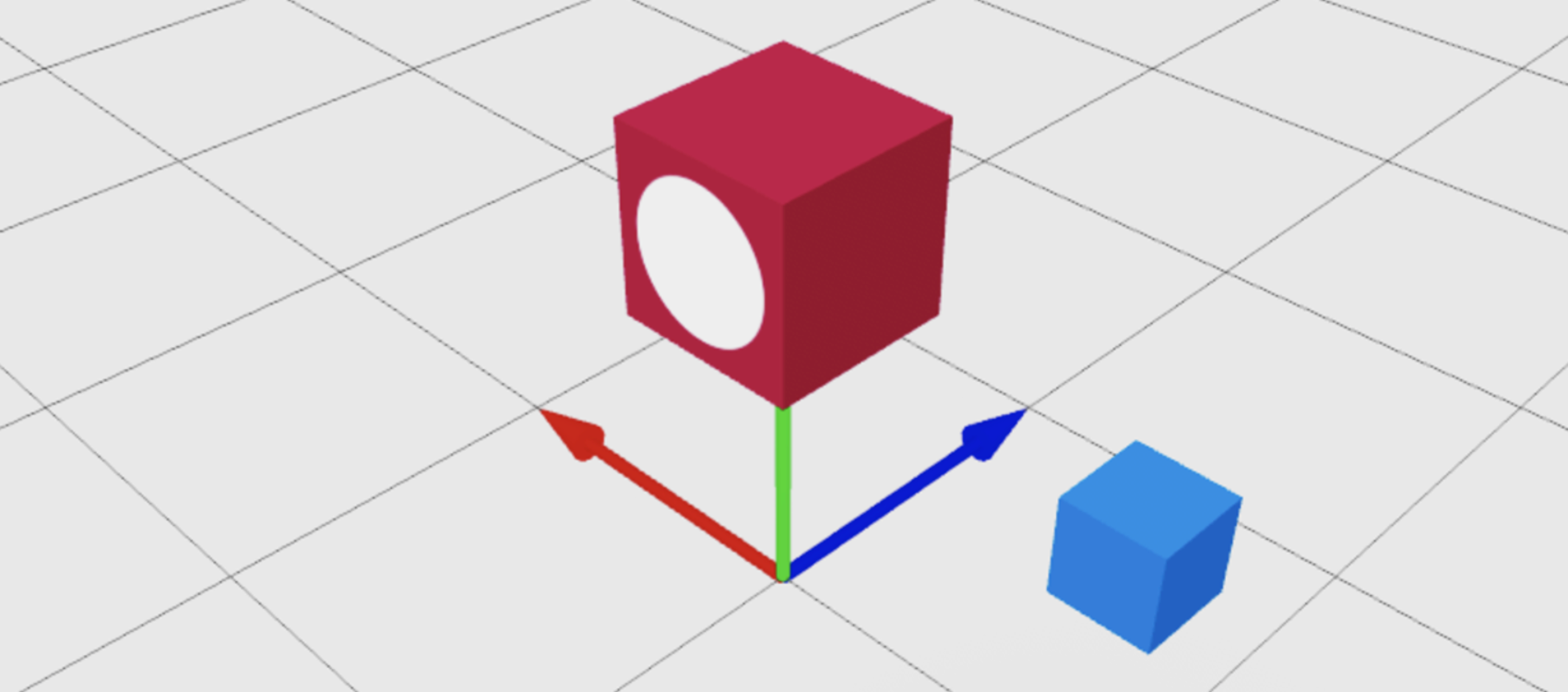
You can use the same technique to offset an object from the position of another object. In the following example, a Vector3 adds to a new CFrame created at the blue cube's position instead of the block's position.
local Workspace = game:GetService("Workspace")

local redBlock = Workspace.RedBlock
local blueCube = Workspace.BlueCube

redBlock.CFrame = CFrame.new(blueCube.Position) + Vector3.new(0, 2, 0)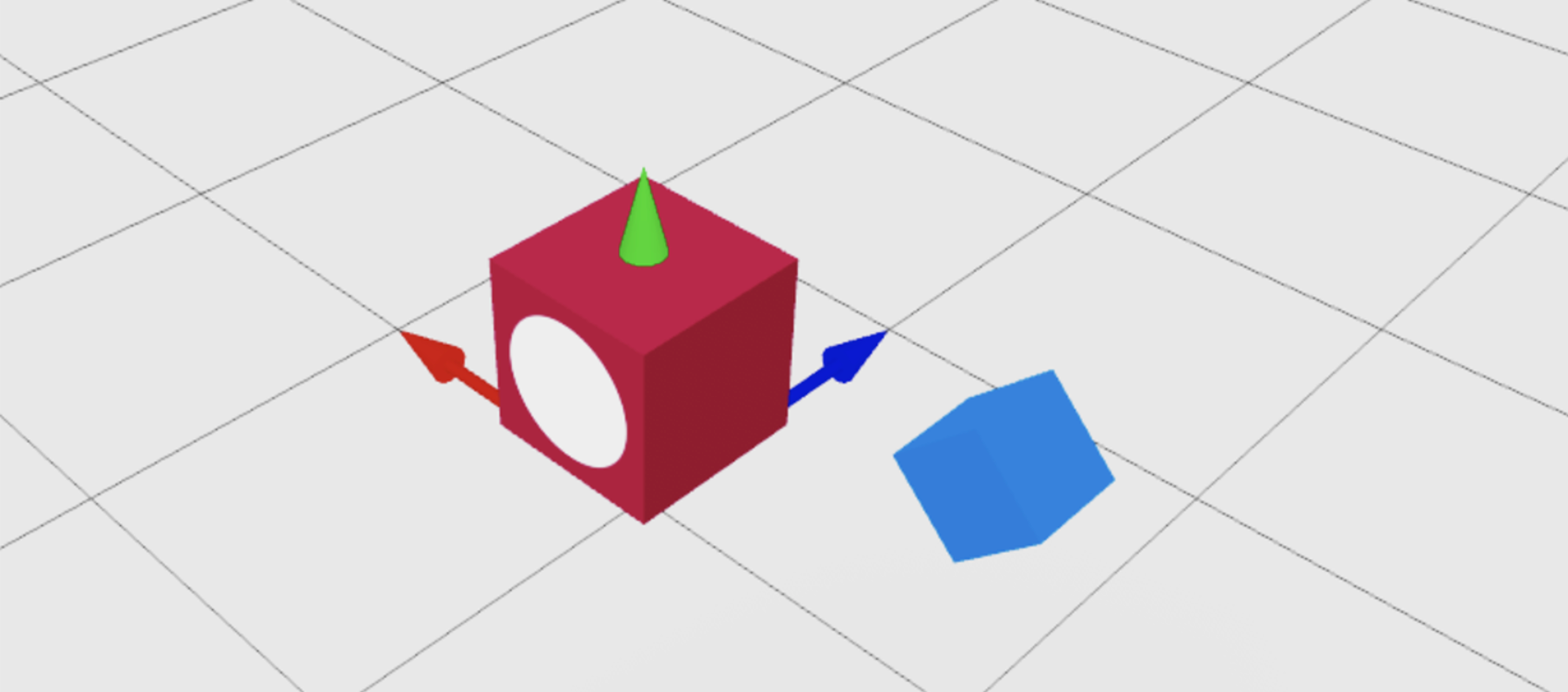
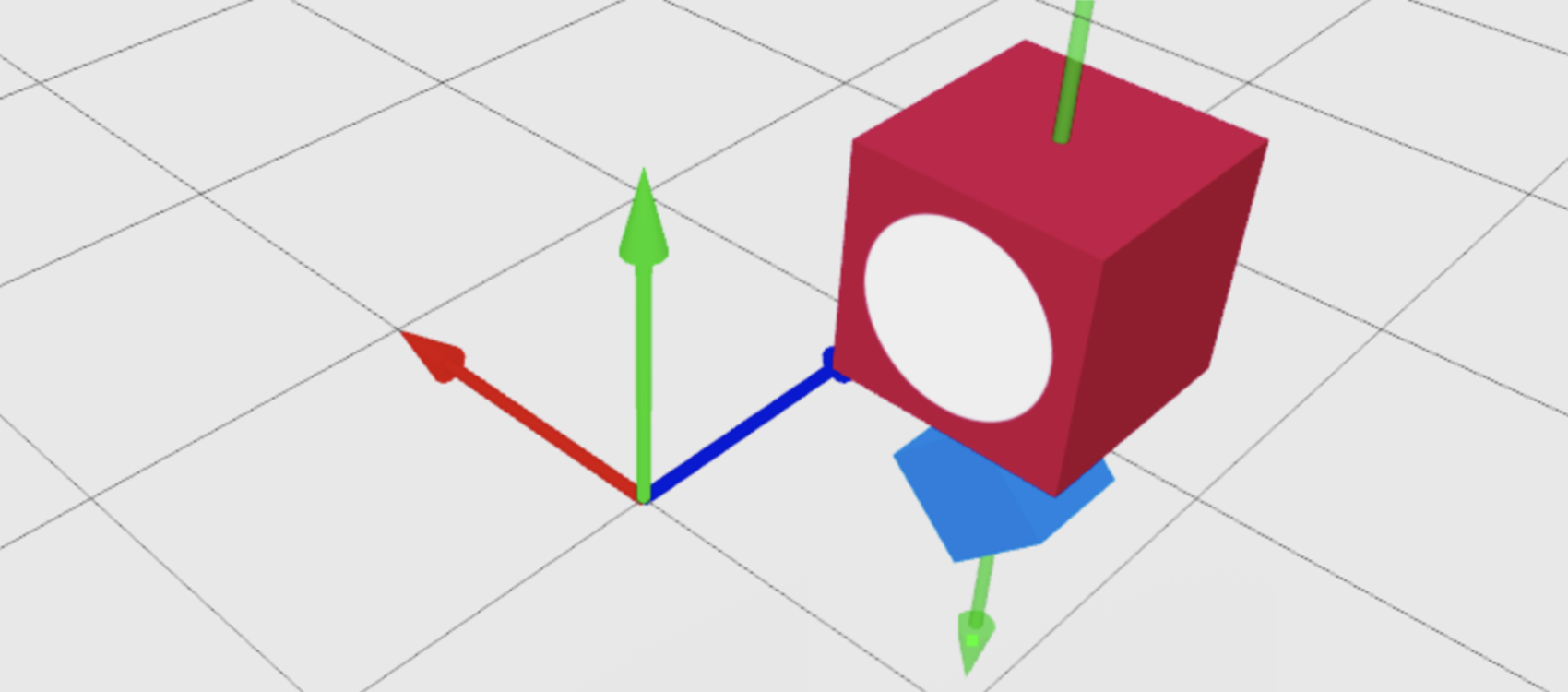
Dynamic CFrame orientation#
The CFrame.new() and CFrame.fromEulerAnglesXYZ() constructors reposition or rotate an object at a specific orientation within the world, but you sometimes can't rely on a fixed world position and rotation angle. For example:
- Placing a floating treasure directly in front of a player who may be standing anywhere in the world, facing any direction.
- Making a magical genie appear directly above a player's right shoulder.
In these cases, use CFrame methods instead of their constructors.
Relative position#
The CFrame:ToWorldSpace() function transforms an object's CFrame — respecting its own local orientation — to a new world orientation. This makes it ideal for offsetting a part relative to itself or another object, regardless of how it's currently positioned/rotated.
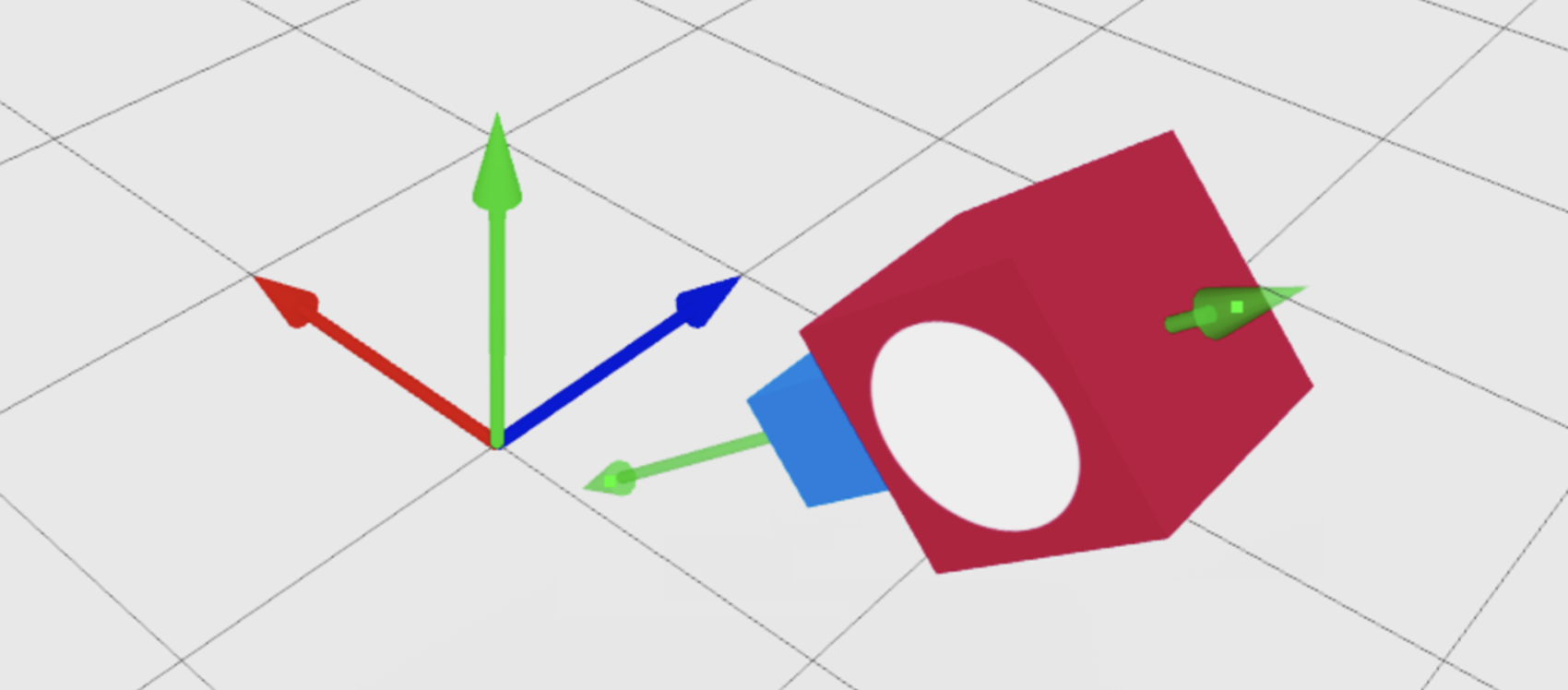
In the following example, the redBlock part offsets 2 studs relative to the Y axis of the blue cube (the green arrow pointing through it) and not relative to the global Y axis pointing straight up.
local Workspace = game:GetService("Workspace")

local redBlock = Workspace.RedBlock
local blueCube = Workspace.BlueCube

local offsetCFrame = CFrame.new(0, 2, 0)
redBlock.CFrame = blueCube.CFrame:ToWorldSpace(offsetCFrame)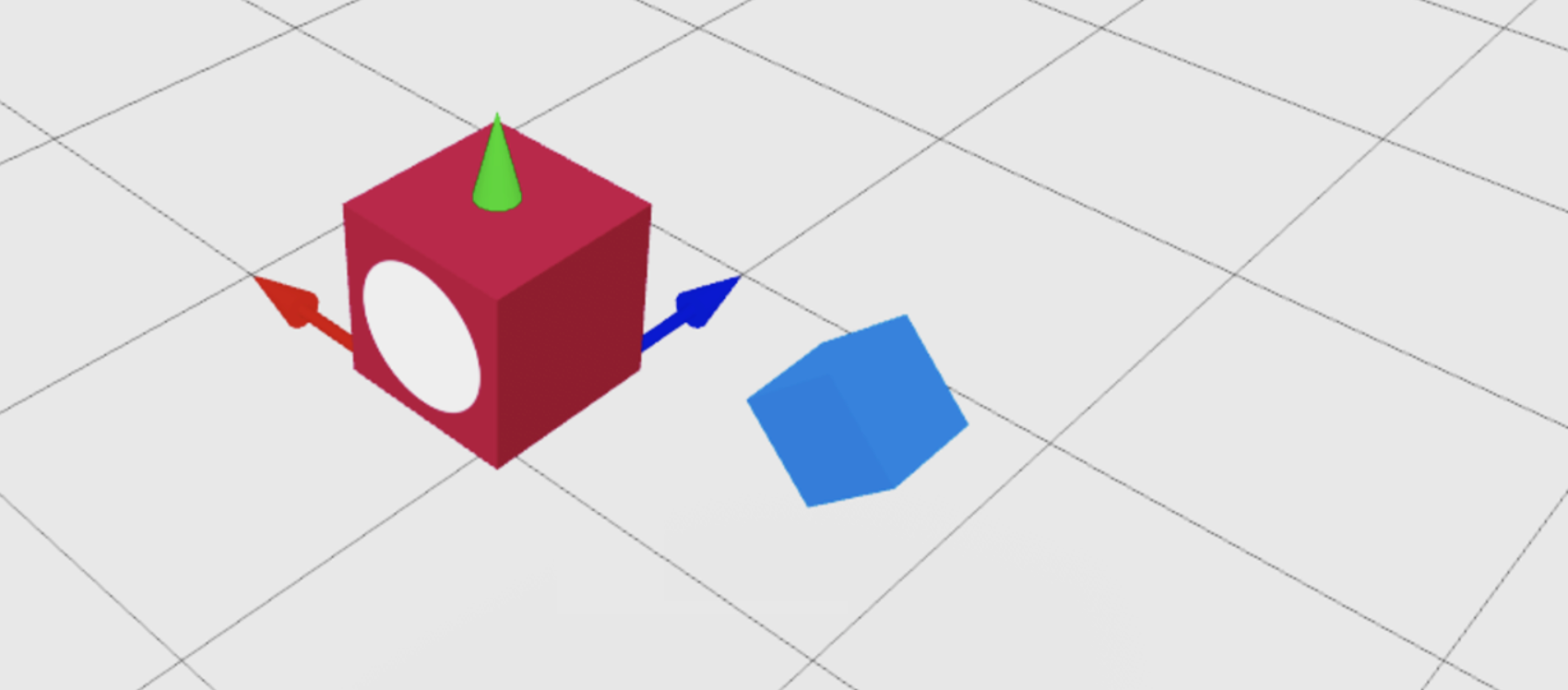
Relative rotation#
You can also use CFrame:ToWorldSpace() to rotate an object relative to itself. In the following example, the redBlock part rotates 70 degrees counterclockwise on its Y axis and 20 degrees clockwise on its Z axis.
local Workspace = game:GetService("Workspace")

local redBlock = Workspace.RedBlock

local rotatedCFrame = CFrame.fromEulerAnglesXYZ(0, math.rad(70), math.rad(20))
redBlock.CFrame = redBlock.CFrame:ToWorldSpace(rotatedCFrame)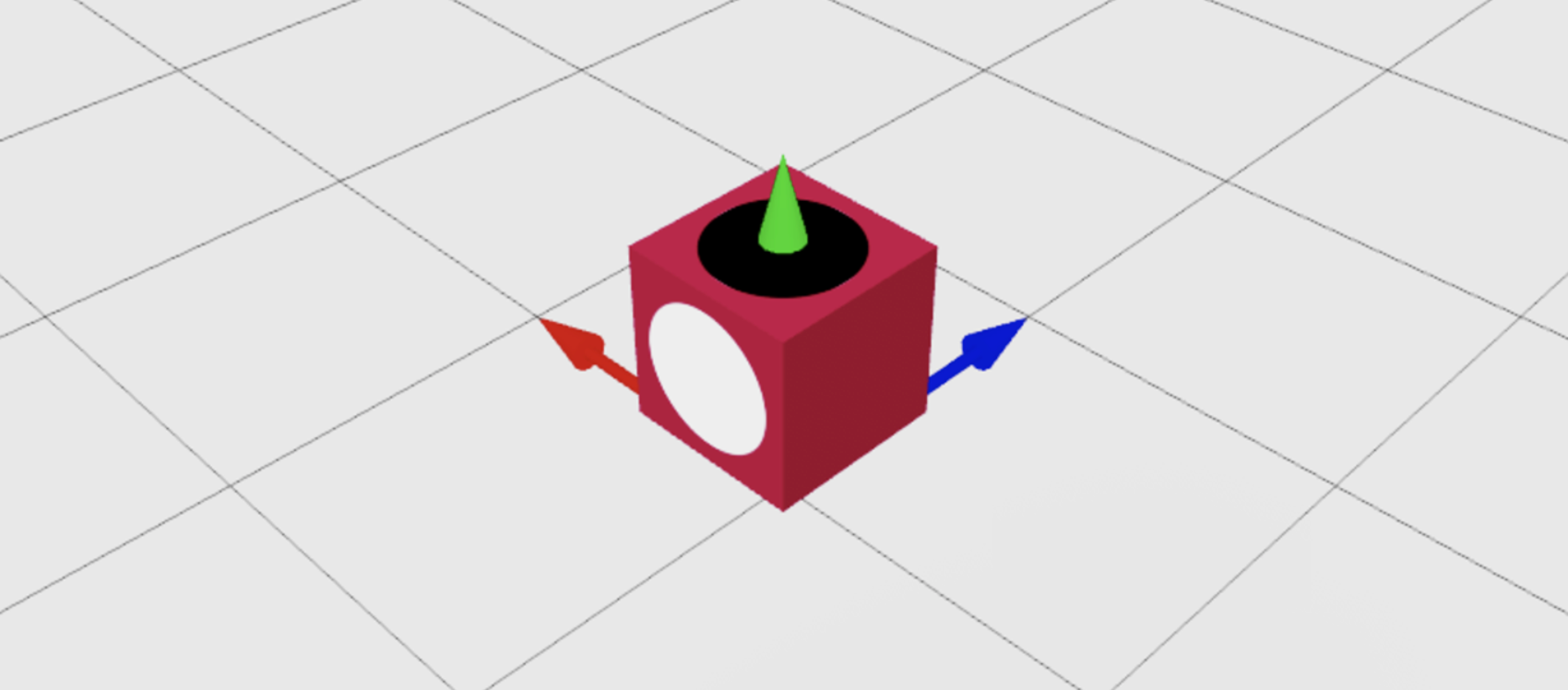
Face a specific surface toward a point#
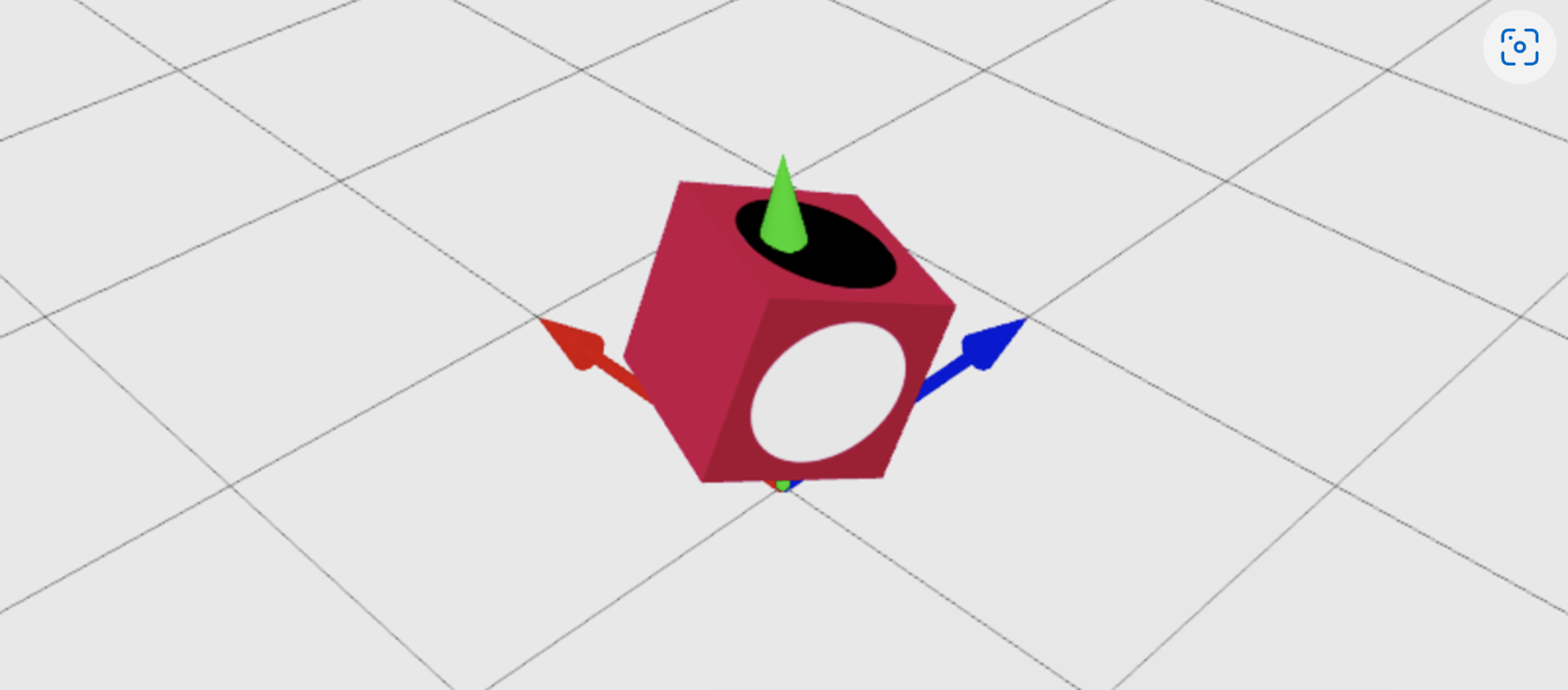
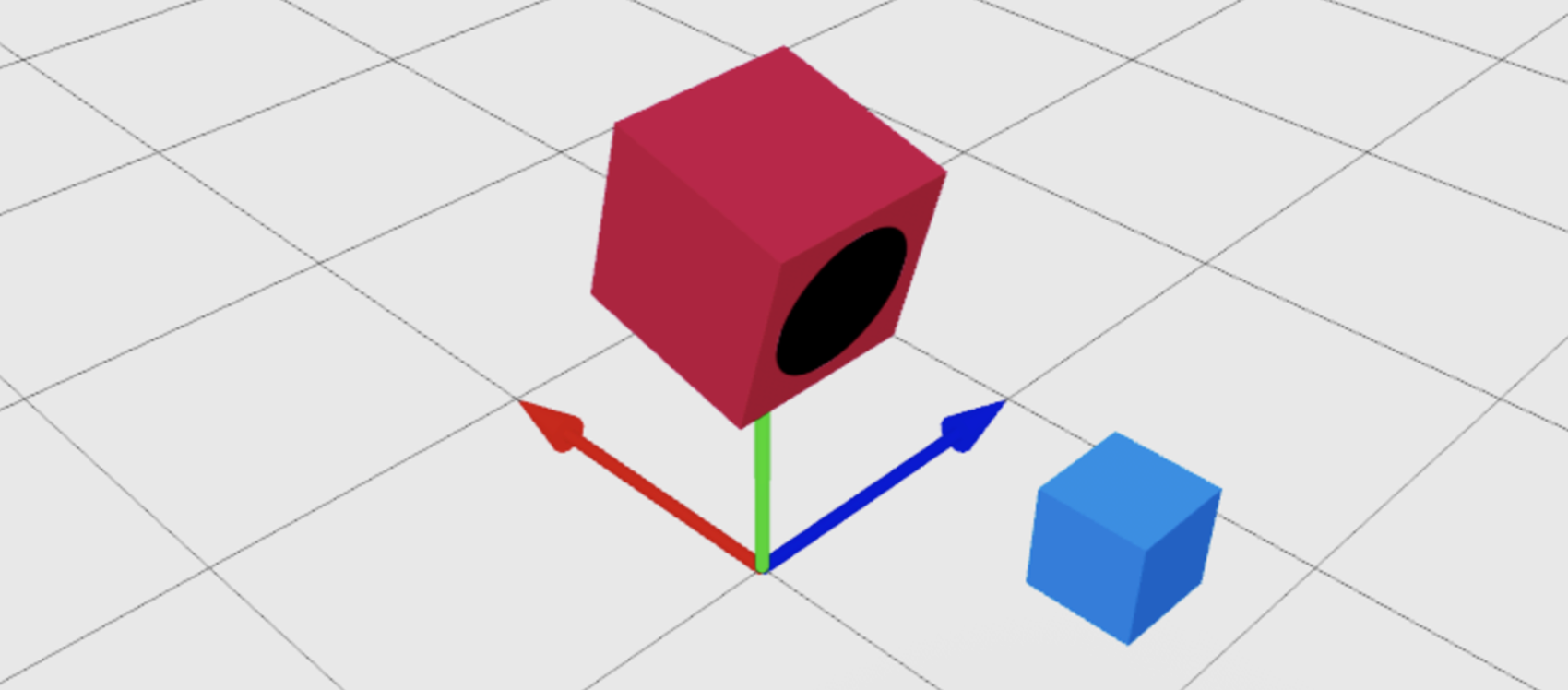
You can make the front of an object face another object by supplying a Vector3 point as the second parameter of CFrame.new(). You can also use relative rotation to make any face of the object point toward a Vector3 point. The following example performs two consecutive CFrame operations:
- Point the front surface, marked by the white circle, at the target.
- Rotate the
CFrameto make the top surface, marked by the black circle, point toward the target.
local Workspace = game:GetService("Workspace")

local redBlock = Workspace.RedBlock
local blueCube = Workspace.BlueCube

-- Point the red block's front surface at the blue cube
redBlock.CFrame = CFrame.lookAt(redBlock.Position, blueCube.Position)

-- Rotate CFrame relative to itself so that top surface (not front) points toward blue cube
local rotatedCFrame = CFrame.fromEulerAnglesXYZ(math.rad(-90), 0, 0)
redBlock.CFrame = redBlock.CFrame:ToWorldSpace(rotatedCFrame)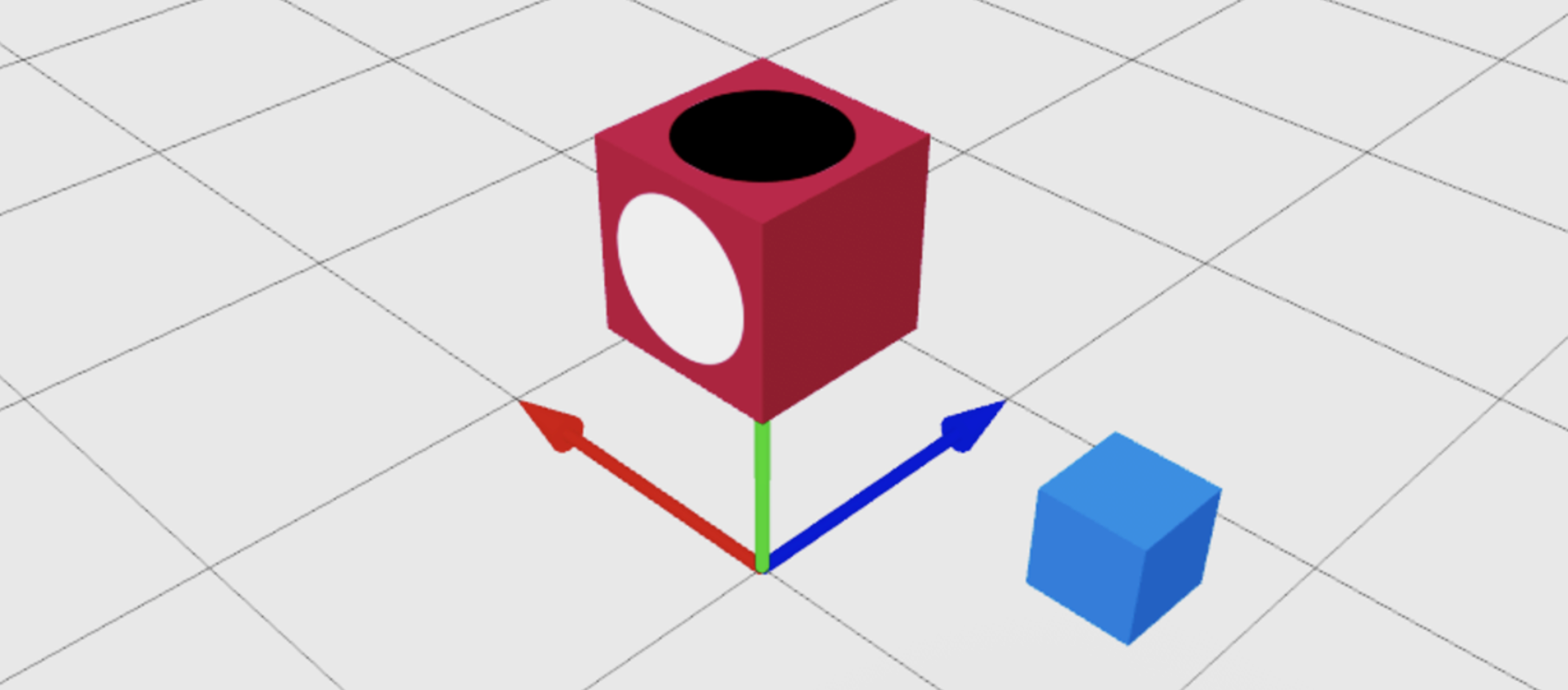
Find a point between points#
You can use linear interpolation, or lerp, to position a CFrame between two points. In the following example, the redBlock part repositions between the greenCube and cyanCube parts. The value of 0.7 places it 70% of the distance away from the green cube.
local Workspace = game:GetService("Workspace")

local redBlock = Workspace.RedBlock
local greenCube = Workspace.GreenCube
local cyanCube = Workspace.CyanCube

redBlock.CFrame = greenCube.CFrame:Lerp(cyanCube.CFrame, 0.7)