Materials
Materials determine objects' visual appearance and physical properties.
Roblox's materials are unlike materials on other platforms, in that their visual appearance and their physical properties reflect those of materials in the real world. For example, concrete is heavier than plastic and sinks faster in water. When you set the material of a part or terrain, Roblox simulates its physical material properties to make this behavior just work.
The Roblox Engine offers a range of base materials suitable to build many games, including various categories of metal, rock, and organic materials.
You can also create your own custom materials and apply them to parts or terrain. Custom materials have an additional adaptive materials behavior that lets you adapt any model to use your art style and custom materials, even if someone else created the model.
Apply materials#
You can quickly apply materials to parts through the Material widget. The Material Manager offers the same functionality and an additional "paint tool" application mode.
Material widget#
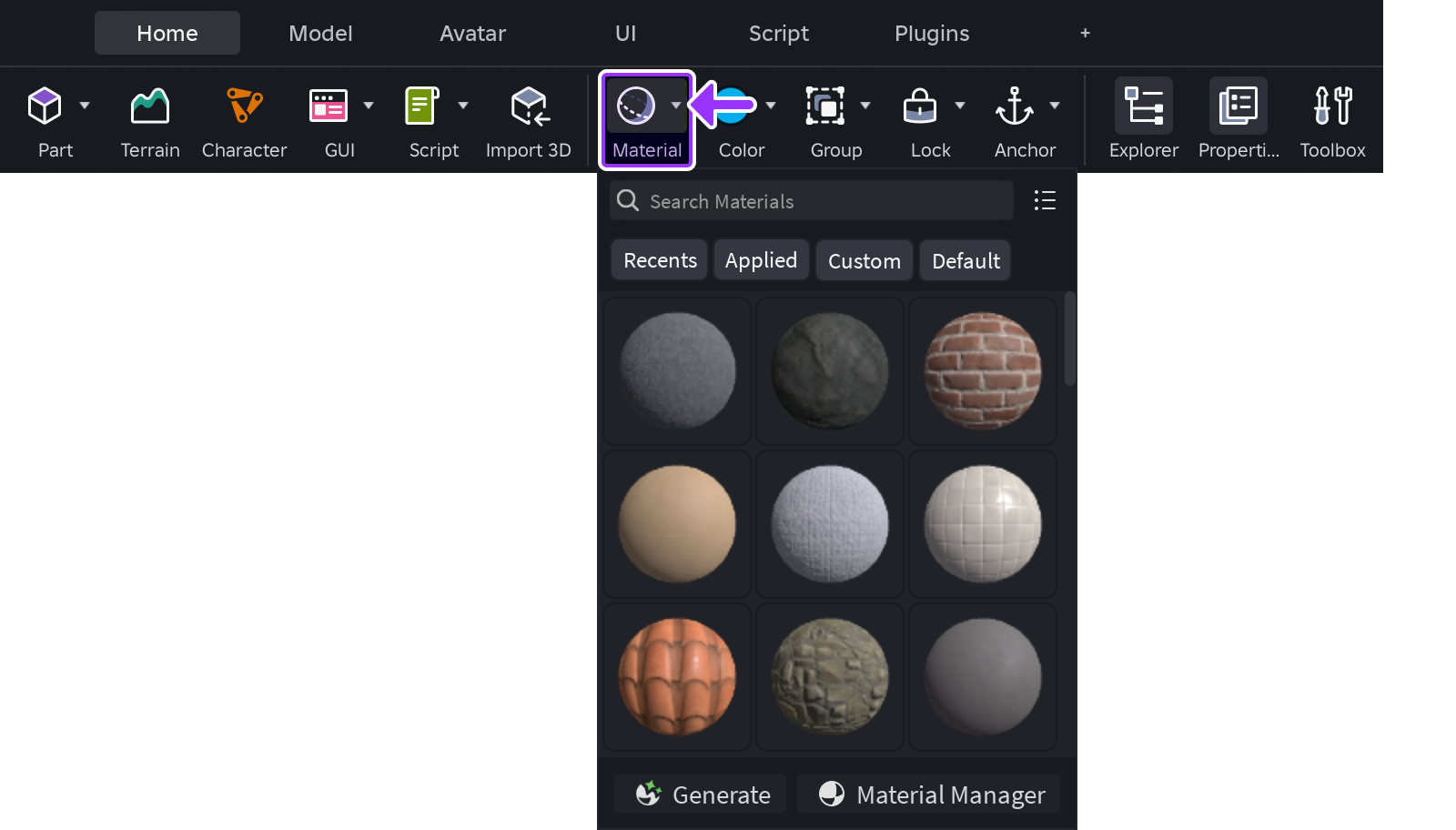
The Material widget is accessible from the Home or Model tab toolbars. Click‑holding over the small corner arrow on the button reveals a material picker. See Parts for more information.
Material Manager#
The Material Manager is accessible through Window ⟩ 3D ⟩ Material or from the Material widget's picker popup. From the manager window, you can apply materials to parts through the following workflows.
Apply to Selected
The default Material property for new Part instances is Plastic. To apply a different material to parts:
In the 3D viewport or Explorer, select one or more parts.
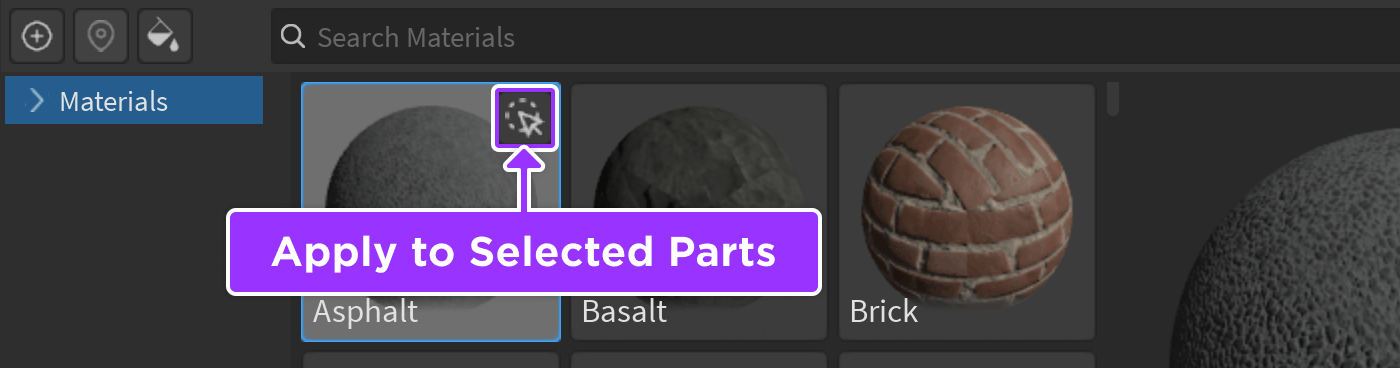
In the Material Manager palette, hover your mouse over the desired material (you don't need to select it) and click the Apply to Selected Parts button.
Paint Tool
You can also use a material as a painting tool that applies to parts:
In the Material Manager, select the material you want to apply.
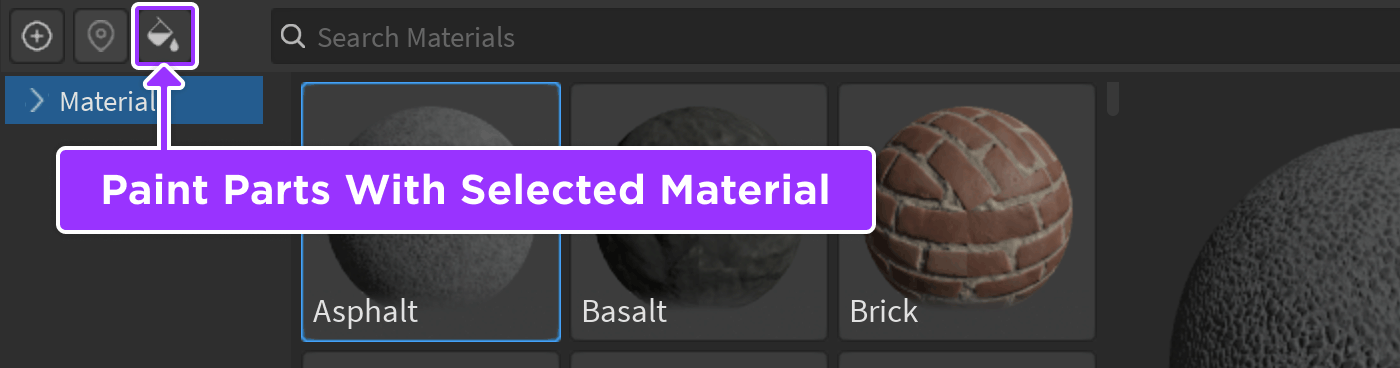
In the top-left corner, click the Paint Parts With Selected Material button to enable the material as a painting tool.
In the 3D viewport, hover over and click the parts that you want to apply the material to.
When you're done painting, click the button again to disable the tool.
Custom materials#
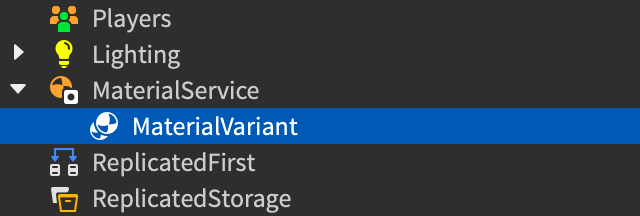
The Material Manager provides a user interface to interact with various aspects of MaterialService, including creating new custom materials and applying them to parts and terrain. Custom materials are represented by MaterialVariant instances within MaterialService.
You can apply custom materials per-part or globally to both parts and terrain, and you can fine-tune how custom materials apply to faces of terrain with TerrainDetail instances.
MaterialVariant and SurfaceAppearance instances both use PBR textures to customize the appearance of objects. The difference is that MaterialVariant is for customizing the appearance of reusable tileable material, whereas SurfaceAppearance is for customizing the visual appearance of a specific mesh with UV mapping. MaterialVariant instances also have physical properties that SurfaceAppearance instances don't.
Create custom materials#
You can edit all properties of a custom material in the Material Manager or through the properties of a MaterialVariant instance. You can also generate custom materials through the prompt‑based Material Generator.
To create a custom material in the Material Manager:
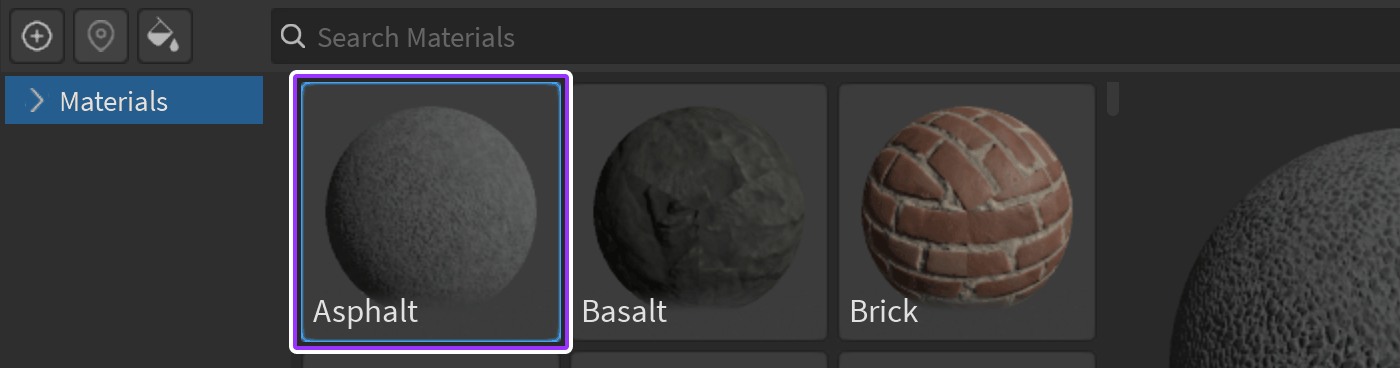
Click the base material from which your custom material will inherit physical properties. If you skip this step, the base material will be Plastic, but you can change it later.
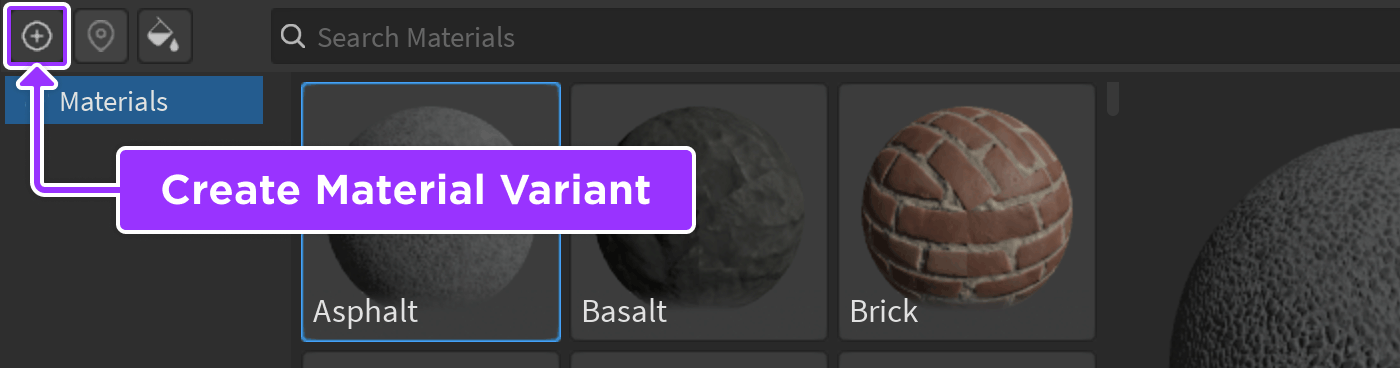
In the top-left corner, click Create Material Variant.
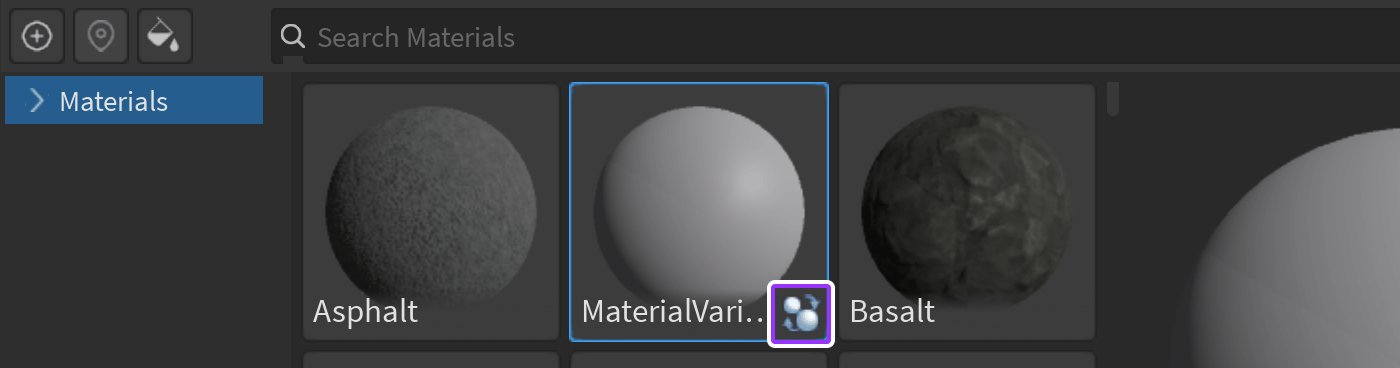
A new variant appears in the palette with an icon in the bottom-right corner, indicating it's a custom material.
In the inspector, rename your custom material to describe its purpose. You can change the name later, but if you do so after applying the material to parts, you'll need to re-apply it to those parts.
For each texture map option such as Color or Normal, paste an asset ID or import a new texture from your computer. Square textures work best. If you don't specify an asset for a texture map, that texture remains blank.
If desired, adjust the Studs Per Tile and Pattern values to change how the material looks.
If necessary, you can delete a custom material from the Material Manager by selecting it and clicking the Delete button below its preview globe. Alternatively, you can delete its associated MaterialVariant instance within MaterialService of the Explorer.
Apply custom materials#
For parts, you can use a custom material just like any other material, applying it to selected parts through the Material widget or the Material Manager.¹
You can also apply the new material to a part by setting its MaterialVariant property in the Properties window. In this case, Studio automatically sets its Material property to the base material you chose when creating the material.
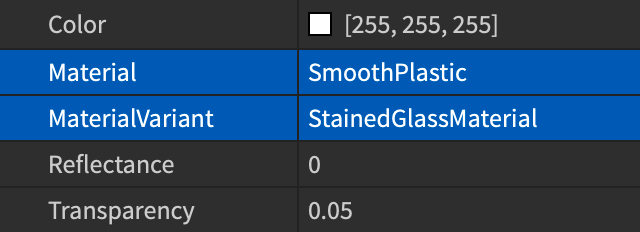
Note that if you rename a custom material after applying it to parts, those parts will not automatically use the custom material with the new name. This behavior allows for Adaptive Materials. If you want parts to continue using a custom material after you rename it, you'll need to re-apply the custom material.
Material overrides#
You can set a custom material as a material override to make its base material serve as a reference to the custom material. When you do so, Studio will use the custom material for both the textures and physical properties of any part or terrain that uses the custom material.
Material overrides are the only way to apply custom materials to terrain. Note also that the materials for terrain are global per place, so you can't apply multiple variants of the same base material to the terrain in a single place.
Set overrides#
To set a custom material as a material override in the Material Manager:
Click the custom material that you want to set as an override.
In the inspector, scroll down to Overrides and enable Set as Override.

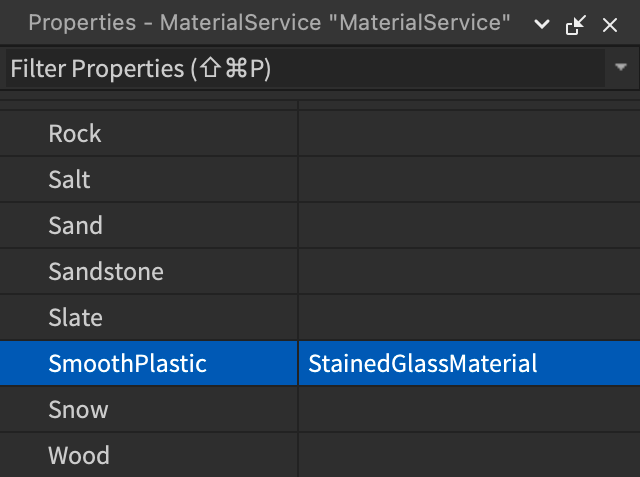
The new override appears as a property of MaterialService in the Properties window.
Terrain details#
By default, applying a custom material to parts or as an override applies that custom material as tiles across each face. For terrain, you can optionally configure TerrainDetail instances to customize the top, side, and bottom of terrain voxels using that custom material.
To customize the faces of terrain using a custom material:
In the palette of the Material Manager, click the custom material.
In the inspector, confirm that its Set as Override toggle is enabled.
In the Terrain Details section, click Create for each face you want to customize.
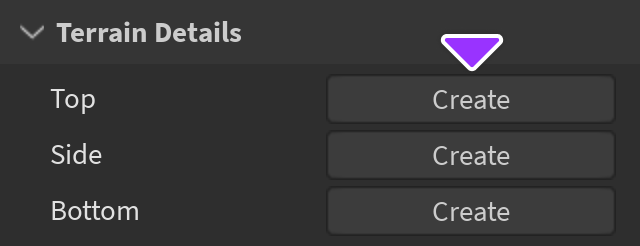
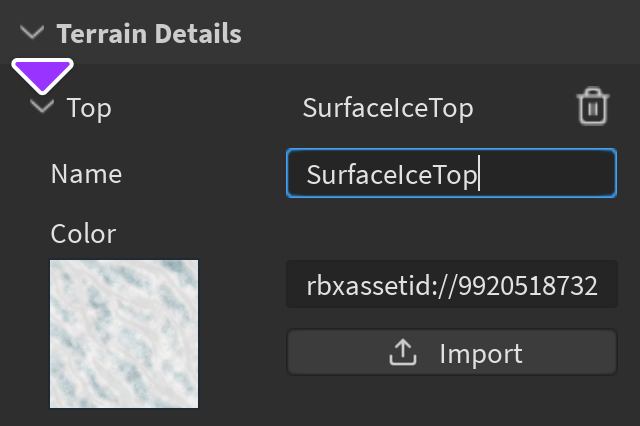
For each face you enable, expand the arrow to access and edit details such as its name, texture maps, studs per tile, and pattern.
Disable overrides#
You can disable an entire material override and all base materials that it's currently overriding, or you can disable the override for a specific base material.
Disable Entire Override
In the palette of the Material Manager, click a custom material that's being used as an override.
In the inspector, scroll down to Overrides and disable Set as Override.

Disable Override for Specific Material
In the palette of the Material Manager, click a base material which is being overridden by a custom material.
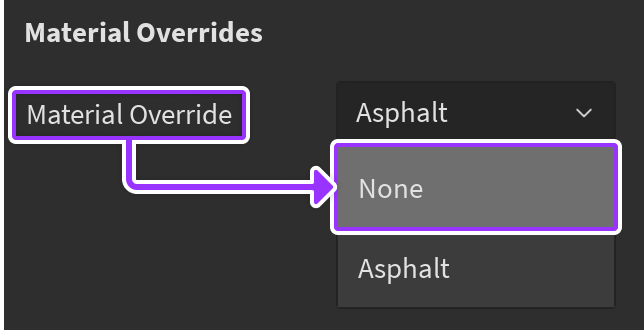
In the inspector, scroll down to Material Override and select None from the menu.
Physical properties#
All materials have built-in physical properties such as density, elasticity, and friction. Through the application of custom materials with unique physical properties, you can affect global material behavior for all parts and terrain which use the custom material, such as creating an extremely slippery variant of the Ice material.
When factoring physical properties, the engine prioritizes more granular per-part settings over material behaviors to determine the effective physical properties of a surface:

Custom physical properties of the specific part.

Custom physical properties of the part's custom material.

Custom physical properties of the material override of the part's material.

The default physical properties of the part's material.
Applying to Custom Materials
To set unique physical properties for any custom material and automatically apply them to all parts and terrain which use the material:
In the palette of the Material Manager, click the custom material.
In the inspector, scroll down to the Physics section and set custom physical properties as detailed in the
PhysicalPropertiesreference.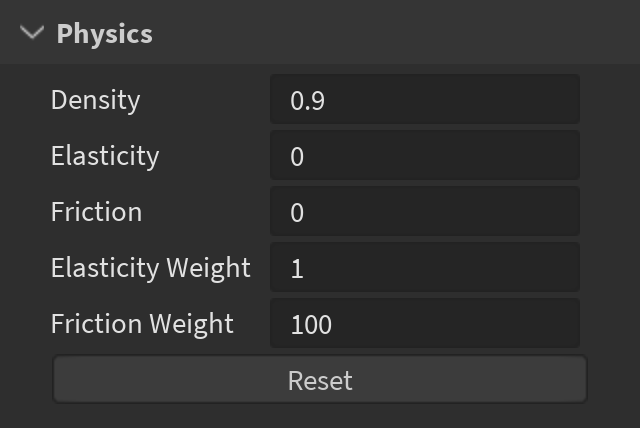
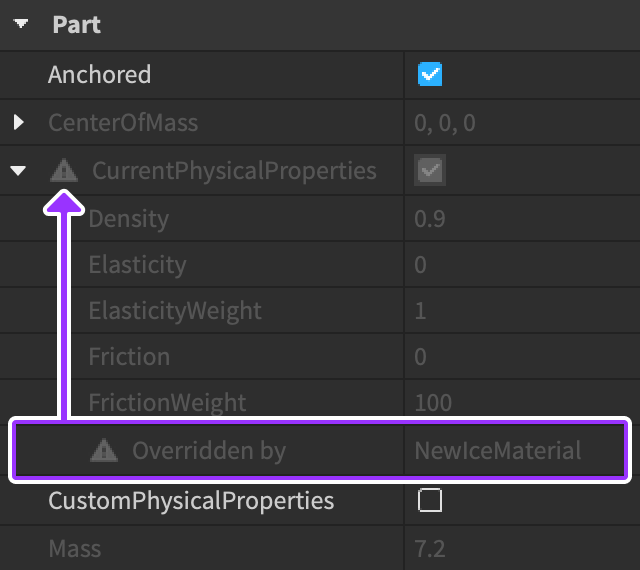
For any part that uses the custom material and does not have part-specific overrides, the CurrentPhysicalProperties branch in the Properties window reveals that its default physical properties are overridden by the custom material's properties.
Per-Part Overrides
If you need to override a part's custom material properties and set physical properties for that specific part, you can use its CustomPhysicalProperties toggle.
With the part selected, enable CustomPhysicalProperties in the Properties window.
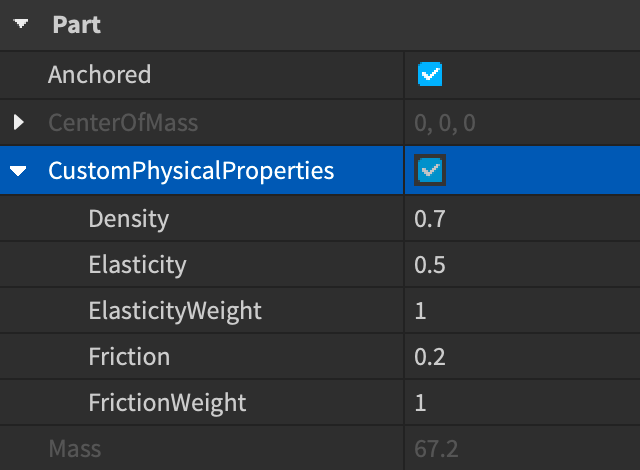
Set custom physical properties as detailed in the
PhysicalPropertiesreference.
Adaptive materials#
When you apply a custom material to a part, the part's Part.MaterialVariant property becomes the name of its MaterialVariant rather than its specific instance. This means that when you reuse the part in the same or a different place, as in a model or package, it's easier for you to adapt different custom materials to adjust the part's look. The adaptive behavior of custom materials has the following effects:
- If you create collections of custom materials with the same name but different textures, then you can quickly change the style of a place by changing which collection is a child of
MaterialService. - If you insert a model with parts that use a custom material, then you can modify its look by creating an instance of
MaterialVariantinMaterialServiceand renaming it to the same name as the previous custom material, rather than applying the new material to the parts in the model.
When you reuse custom materials in models and packages, each MaterialVariant instance must be in MaterialService for it to work.
- If you distribute a model to the Creator Store with a custom material, include the
MaterialVariantinstance in the model. For more information about distributing models to the Creator Store, see Distributing Assets. - If you insert a model from the Creator Store, look for any
MaterialVariantinstances and copy them toMaterialService. For more information about importing models from the Creator Store, see Creator Store. - If you want to use custom materials with packages, put the package in
MaterialService. For more information on packages, see Packages.
The Creator Store has a category called Materials for "material packs", models that contain only MaterialVariant, TerrainDetail, Folder, and Model instances. The Materials category is a way to promote and discover custom materials by other creators.
To make the most of adaptive materials, use a consistent naming convention for your MaterialVariant instances. For example, you can use PascalCase with the base material of the custom material as the first word, as in GrassWet, GrassDry, and GrassBurned.
Asset and property reference#
Base materials#
Shaders generate the look and feel of materials. The base material shaders work differently than the shader which MaterialVariant instances use, so you can't create custom materials that look exactly like base materials, but you can still create custom materials that use their textures. The following tables list the asset IDs for material details such as ColorMap and RoughnessMap.
Current Base
| Material | ColorMap | Normal | Metalness | Roughness |
|---|---|---|---|---|
Asphalt |
9930003046 |
9429449876 |
9429450346 |
|
Basalt |
9920482056 |
9438412214 |
9438412457 |
|
Brick |
9920482813 |
9438453152 |
9438453413 |
|
Cardboard |
14108651729 |
14108654002 |
14108654299 |
|
Carpet |
14108662587 |
14108663154 |
14108663726 |
|
CeramicTiles |
17429425079 |
17429425915 |
17429426100 |
17429426861 |
ClayRoofTiles |
18147681935 |
18147683410 |
18147684855 |
|
Cobblestone |
9919718991 |
9438457162 |
9438457470 |
|
Concrete |
9920484153 |
9466554006 |
9466554186 |
|
CorrodedMetal |
9920589327 |
9439548484 |
9439548749 |
9439556441 |
CrackedLava |
9920484943 |
9438508790 |
9438509046 |
|
DiamondPlate |
10237720195 |
9438583222 |
9438583347 |
9438583558 |
Fabric |
9920517696 |
9873280412 |
9873282563 |
|
Foil |
9466552117 |
9424786192 |
9424786272 |
9424786620 |
ForceField² |
||||
Glacier |
9920518732 |
9438812958 |
9438851286 |
|
Glass³ |
9438868521 |
7547304785 |
7547304892 |
|
Granite |
9920550238 |
9438882935 |
9438883109 |
|
Grass |
9920551868 |
9438955773 |
9438955997 |
|
Ground |
9920554482 |
9439043558 |
9439043765 |
|
Ice |
9920555943 |
9467301039 |
9467301203 |
|
LeafyGrass |
9920557906 |
9439080781 |
9439080950 |
|
Leather |
14108670073 |
14108670486 |
14108670748 |
|
Limestone |
9920561437 |
9439415191 |
9439415495 |
|
Marble |
9439430596 |
9439431240 |
9439431383 |
|
Metal |
9920574687 |
9873295432 |
9873318201 |
9873318890 |
Mud |
9920578473 |
9439509827 |
9439510012 |
|
Neon² |
||||
Pavement |
9920579943 |
9439519281 |
9439519532 |
|
Pebble |
9920581082 |
9439528644 |
9439537267 |
|
Plaster |
14108671255 |
14108671870 |
14108672378 |
|
Plastic² |
||||
Rock |
9920587470 |
9439538417 |
9439545859 |
|
RoofShingles |
119722544879522 |
77534750680073 |
129397260312247 |
|
Rubber |
14108673018 |
14108674698 |
14108674894 |
14108675142 |
Salt |
9920590225 |
9439565809 |
9439566688 | |
Sand |
9920591683 |
9439577084 |
9439577327 |
|
Sandstone |
9920596120 |
9439596530 |
9439596711 |
|
Slate |
9920599782 |
9439612514 |
9439612733 |
|
SmoothPlastic² |
||||
Snow |
9920620284 |
9439632006 |
9439632145 |
|
Wood |
9920625290 |
9439641376 |
9439648605 |
|
WoodPlanks |
9920626778 |
9439650689 |
9439658127 |
Pre-2022 Base
| Material | Color | Normal | Metalness | Roughness |
|---|---|---|---|---|
Brick |
7546648254 |
7546649654 |
7546650017 |
|
Cobblestone |
7546651802 |
7546652689 |
7546652892 |
|
Concrete |
7546653328 |
7546653707 |
7546653868 |
|
CorrodedMetal |
7547183598 |
7547181182 |
7547184321 |
7547184588 |
DiamondPlate |
7546654401 |
7546654536 |
7547162002 |
7547162137 |
Fabric |
7547100606 |
7547100915 |
7547101072 |
|
Foil |
7546644642 |
7546644903 |
7546644642 |
7546644963 |
Glass |
7547304577 |
7547304785 |
7547304892 |
|
Granite |
7547164400 |
7546654648 |
7547164660 |
|
Grass |
7547167347 |
7547168653 |
7547169207 |
|
Ice |
7546644642 |
7547171198 |
7547171276 |
|
Marble |
7547174345 |
7547176060 |
7547177213 |
|
Metal |
7547178395 |
7547287997 |
7547288112 |
7547179082 |
Pebble |
7547291174 |
7546645052 |
7547291306 |
|
Sand |
7547294684 |
7547294810 |
7547295087 |
|
Slate |
7547297050 |
7547297808 |
7547298051 |
|
Wood |
7547190453 |
7547190548 |
7547190619 |
7547303147 |
WoodPlanks |
7547301709 |
7547188159 |
7547188891 |
7547332869 |
Current Terrain
| Material | Terrain Face | Color | Normal | Roughness |
|---|---|---|---|---|
Asphalt |
Top | 9930003046 |
9429449876 |
9429450346 |
| Side | 9930005689 |
9429465046 |
9429466226 |
|
Basalt |
(all) | 9920482056 |
9438412214 |
9438412457 |
Brick |
(all) | 9920482813 |
9438453152 |
9438453413 |
Cobblestone |
(all) | 9919718991 |
9438457162 |
9438457470 |
Concrete |
(all) | 9920484153 |
9466554006 |
9466554186 |
CrackedLava |
(all) | 9920484943 |
9438508790 |
9438509046 |
Glacier |
Top | 9920518732 |
9438812958 |
9438851286 |
| Side | 9920520269 |
9438853412 |
9438853585 |
|
| Bottom | 9920521000 |
9438867267 |
9438867465 |
|
Grass |
Top | 9920551868 |
9438955773 |
9438955997 |
| Side | 9932815307 |
9438958337 |
9439010060 |
|
| Bottom | 9932815307 |
9439011893 |
9439012136 |
|
Ground |
(all) | 9920554482 |
9439043558 |
9439043765 |
Ice |
Top | 9920555943 |
9467301039 |
9467301203 |
| Side | 9920556722 |
9439071195 |
9439071371 |
|
LeafyGrass |
Top | 9920557906 |
9439080781 |
9439080950 |
| Side | 9932815307 |
9439151713 |
9439151929 |
|
| Bottom | 9932815307 |
9439151713 |
9439151929 |
|
Limestone |
Top | 9920561437 |
9439415191 |
9439415495 |
| Side | 9920562675 |
9439417923 |
9439418334 |
|
Mud |
(all) | 9920578473 |
9439509827 |
9439510012 |
Pavement |
Top | 9920579943 |
9439519281 |
9439519532 |
| Side | 9920580293 |
9439527387 |
9439527572 |
|
Rock |
(all) | 9920587470 |
9439538417 |
9439545859 |
Salt |
Top | 9920590225 |
9439565809 |
9439566688 |
| Side | 9920590689 |
9439568299 |
9439575868 |
|
Sand |
Top | 9920591683 |
9439577084 |
9439577327 |
| Side | 9920592270 |
9439586304 |
9439593887 |
|
Sandstone |
Top | 9920596120 |
9439596530 |
9439596711 |
| Side | 9920628274 |
9439605275 |
9439605506 |
|
Slate |
Top | 9920599782 |
9439612514 |
9439612733 |
| Side | 9920614158 |
9439615040 |
9439621979 |
|
Snow |
Top | 9920620284 |
9439632006 |
9439632145 |
| Side | 9920620898 |
9439639648 |
9439640077 |
|
WoodPlanks |
(all) | 9920626778 |
9439650689 |
9439658127 |