Micro gamepad input
Explains how to accept input from micro gamepads, such as TV remotes, which provide directional navigation and a small set of buttons.
Roblox experiences can receive input from micro gamepads, navigation-focused controllers that typically provide a directional pad and can include additional buttons. TV remotes are one type of micro gamepad; they commonly provide a directional pad, center button, and back button. Micro gamepads use the Gamepad1–Gamepad8 input slots and are represented as MicroGamepad when they are the player's preferred input.
TV remotes expose TV remote-specific keycodes, but their button events currently map to legacy gamepad keycodes before reaching experience code. Use the Input Action System or ContextActionService to bind actions to those legacy events.
Input type detection#
MicroGamepad is a future API for identifying TV remotes and other navigation-focused controllers. It is not currently set for these devices, so until runtime support is complete, check the supported keycodes for Gamepad1:
local UserInputService = game:GetService("UserInputService")

local function isMicroGamepadPreferred()
	local gamepad = Enum.UserInputType.Gamepad1
	if not UserInputService:GetGamepadConnected(gamepad) then
		return false
	end

	local supportsThumbstick1 = UserInputService:GamepadSupports(
		gamepad,
		Enum.KeyCode.Thumbstick1
	)
	local supportsThumbstick2 = UserInputService:GamepadSupports(
		gamepad,
		Enum.KeyCode.Thumbstick2
	)

	return not supportsThumbstick1 and not supportsThumbstick2
end
Gamepad1 is always the most preferred connected gamepad. If a player has only a TV remote, it occupies Gamepad1. If another gamepad is connected, that gamepad occupies Gamepad1 instead. Therefore, checking that Gamepad1 supports neither Thumbstick1 nor Thumbstick2 indicates that the currently preferred gamepad is a micro gamepad.
If you need to identify a TV remote specifically, check whether the preferred gamepad supports ButtonCenter in addition to checking its micro gamepad capabilities:
local UserInputService = game:GetService("UserInputService")

local function isTVRemotePreferred()
	return isMicroGamepadPreferred()
		and UserInputService:GamepadSupports(
			Enum.UserInputType.Gamepad1,
			Enum.KeyCode.ButtonCenter
		)
end
Reuse isMicroGamepadPreferred() in your action handlers instead of implementing device detection separately for each action system. Use isTVRemotePreferred() only when behavior must be specific to a TV remote rather than to micro gamepads generally.
Micro gamepad keycodes#
Micro gamepads can expose these navigation-oriented keycodes. TV remotes commonly support this set:
| Keycode | Meaning |
|---|---|
ButtonUp |
Move focus or selection up. |
ButtonDown |
Move focus or selection down. |
ButtonLeft |
Move focus or selection left. |
ButtonRight |
Move focus or selection right. |
ButtonCenter |
Confirm, select, or activate the focused item. |
ButtonBack |
Cancel, close, or return to the previous screen. |
These are example TV remote capabilities; experiences might encounter additional supported keycodes. See Legacy gamepad control schema for how these keycodes currently map to gamepad events.
Legacy gamepad control schema#
Until raw TV remote events are available, bind actions to the legacy keycodes generated by TV remote input. The mapping depends on the input context:
| TV remote keycode | Context | Current gamepad event | Common use |
|---|---|---|---|
ButtonCenter |
All contexts | ButtonA |
Select or jump. |
ButtonBack |
All contexts | ButtonB |
Go back, dismiss a dialog, or open the selector menu. |
ButtonUp, ButtonDown, ButtonLeft, ButtonRight |
Menu, selection mode, or virtual cursor | DPadUp, DPadDown, DPadLeft, DPadRight |
Navigate focus or selection. |
ButtonUp, ButtonDown |
Studio or experience with Classic Camera | Thumbstick1 |
Move the character. |
ButtonLeft, ButtonRight |
Studio or experience with Classic Camera | Thumbstick2 |
Rotate the camera. |
ButtonUp, ButtonDown, ButtonLeft, ButtonRight |
Studio or experience with Follow Camera | Thumbstick1 |
Move the character with an auto-rotated camera. |
Do not use legacy keycodes alone to identify a TV remote. The same keycodes can also come from a full gamepad.
Binding actions#
Choose the approach that matches your experience:
- Use the Input Action System (IAS) for new input architecture or a structured migration. IAS uses
InputContext,InputAction, andInputBindinginstances and action events such asPressedandReleased. - Use
ContextActionService(CAS) if your experience already relies onContextActionServicebindings.
Both examples below reuse the isMicroGamepadPreferred() helper from the input type detection section.
Option 1: Input Action System#
For example, create ConfirmOrJump and BackOrCancel actions with legacy ButtonA and ButtonB bindings:
local ReplicatedStorage = game:GetService("ReplicatedStorage")

-- Create these InputAction instances and bindings in Studio:
-- ReplicatedStorage.Inputs.NavigationContext.ConfirmOrJump -> ButtonA
-- ReplicatedStorage.Inputs.NavigationContext.BackOrCancel -> ButtonB
local navigationContext = ReplicatedStorage:WaitForChild("Inputs"):WaitForChild("NavigationContext")
local confirmOrJump = navigationContext:WaitForChild("ConfirmOrJump")
local backOrCancel = navigationContext:WaitForChild("BackOrCancel")

confirmOrJump.Pressed:Connect(function()
	if isMicroGamepadPreferred() then
		ActivateFocusedItem()
	else
		Jump()
	end
end)

backOrCancel.Pressed:Connect(function()
	if isMicroGamepadPreferred() then
		NavigateBack()
	else
		CancelGameplayAction()
	end
end)
For example, directional navigation actions can use DPadUp, DPadDown, DPadLeft, and DPadRight bindings and call focus-navigation functions only when isMicroGamepadPreferred() returns true. Use separate input contexts for navigation and gameplay so the same legacy button does not trigger both actions simultaneously.
Option 2: ContextActionService#
If your experience already uses CAS, keep the existing bindings and reuse the same capability check:
local ContextActionService = game:GetService("ContextActionService")

local function confirmOrJump(actionName, inputState)
	if inputState ~= Enum.UserInputState.Begin then
		return Enum.ContextActionResult.Pass
	end

	if isMicroGamepadPreferred() then
		ActivateFocusedItem()
	else
		Jump()
	end

	return Enum.ContextActionResult.Sink
end

ContextActionService:BindAction(
	"ConfirmOrJump",
	confirmOrJump,
	false,
	Enum.KeyCode.ButtonA
)
Use the same pattern for ButtonB and the D-pad bindings. Return Pass for input states you don't handle so other bound actions can still process them, and return Sink once you handle the input.
In the future, raw TV remote events will allow IAS or CAS actions to bind directly to ButtonUp, ButtonDown, ButtonLeft, ButtonRight, ButtonCenter, and ButtonBack, without legacy-keycode branching.
Designing UI for TV remote input#
- Provide a visible focus state for the selected item.
- Make every interactive item reachable with the four directional buttons.
- Use the center button for the primary action.
- Use the back button consistently to close, cancel, or return.
- Preserve focus when opening and closing menus.
- Use large controls and clear spacing for a 10-foot viewing experience.
Controller emulation#
Test on the target TV platform with a physical remote whenever possible. You can also emulate Android TV in Studio with the Device Emulator and Controller Emulator.
Selecting Android TV makes Studio render a TV-sized 1920×1080 viewport and enables a virtual TV Remote on Gamepad1. The remote is driven from the keyboard or mouse and follows the same input path as a connected TV remote.
To test TV remote input:
- Open Studio's Test menu, enable Device Emulator, and select the Android TV device in the Device Emulator.
- Open the Controller Emulator and select TV Remote from the controller picker. The TV Remote controller is available only when Android TV is selected in the Device Emulator.
- Use the displayed keyboard controls to send D-pad, center, and back input.
- Verify the resulting
InputBegan,InputChanged, and action events in your experience.
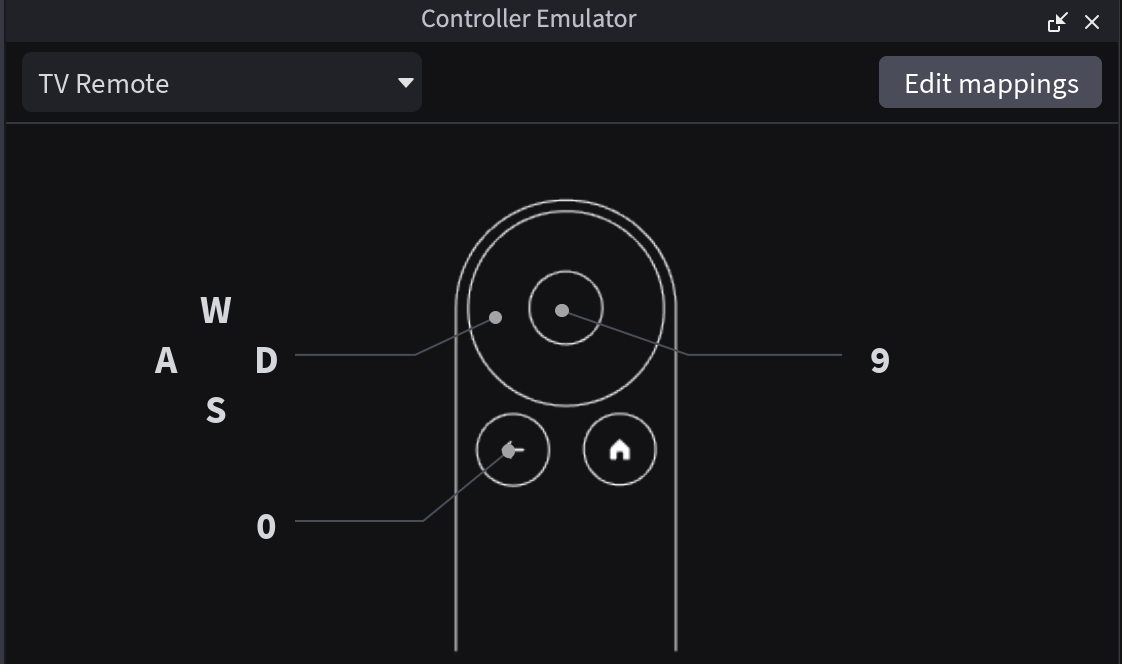
You can control the virtual remote with the keyboard or mouse using the displayed mappings. To view or change those mappings, use Edit mappings in the Controller Emulator; see Controller emulation for more details.