Customize the camera
Explains how to configure a game's camera settings.
Roblox's built-in camera powers a default third person mode and an optional first person mode, so you don't need to build your own following camera. For more customized scenarios, you can adjust the default properties in Camera or replace it entirely like for over-the-shoulder, isometric, and weapon scoping views.
Basic settings#
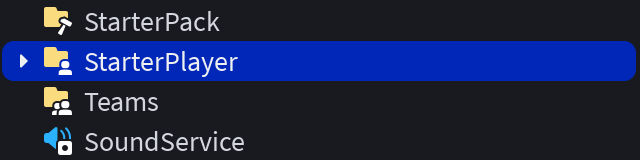
You can configure common camera settings directly within Studio's StarterPlayer object. These settings include zoom distance and various camera, occlusion, and movement modes.
In the Explorer window, select the StarterPlayer object.
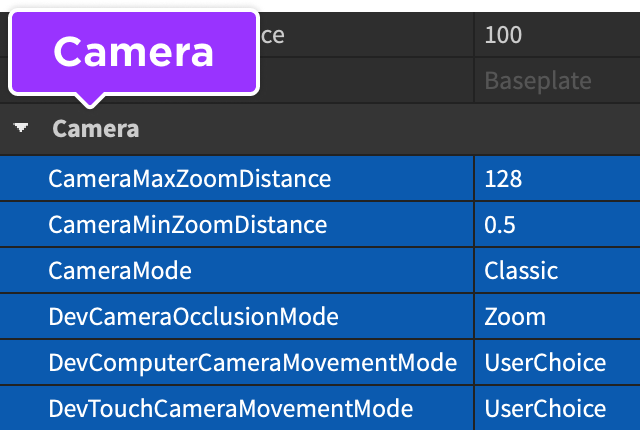
In the Properties window, scroll down to locate the Camera section. You can configure the following properties directly or through a script.
Zoom distance#
Together, CameraMaxZoomDistance and CameraMinZoomDistance set the range in which players can zoom the camera in respect to their player character. Setting a very high maximum such as 500 allows players to zoom the camera far out in space. If you want to lock the camera to a specific distance away from the character and prevent zooming, set both of these properties to the same value.
local Players = game:GetService("Players")

local player = Players.LocalPlayer

player.CameraMaxZoomDistance = 25
player.CameraMinZoomDistance = 50
Camera mode#
The CameraMode property sets the overall behavior of the camera between two options:
| Setting | Description |
|---|---|
| Classic | The classic Roblox third-person camera which can be zoomed into first-person. Allows players to zoom in and out (unless zoom is locked) and rotate the camera around their character. |
| LockFirstPerson | Locks the camera to first-person mode. When in this mode, all parts/elements of the player's character are invisible to them, except for equipped Tools. |
Occlusion mode#
The DevCameraOcclusionMode property controls camera behavior when the player cannot see their character, such as when it's obscured by a BasePart.
| Setting | Description |
|---|---|
| Zoom | If the player's character moves behind an object with Transparency lower than 0.25, the camera zooms in very close to the character so that it can be seen. Once the character moves back into a viewable position, the camera zooms back out. |
| Invisicam | If the player's character moves behind an object with Transparency lower than 0.75, the camera remains unmoved but the object becomes semi-transparent so that the character can be seen. Once the character moves back into a viewable position, the object returns to its normal opacity. |
Movement mode#
The DevComputerCameraMovementMode (computer) and DevTouchCameraMovementMode (phone/tablet) determine how the player can move the camera around.
| Setting | Description |
|---|---|
| UserChoice | The camera will move based on the player's in-game camera settings. |
| Classic | The camera remains at its zoom distance, tracking the player's character as it moves around the world. Players can also pitch the camera view up/down and orbit it around their character. |
| Follow | Similar to Classic but the camera may rotate slightly to face the player's character if they're moving in any direction that isn't parallel to the camera's facing direction. |
| Orbital | The camera remains at a fixed zoom distance and tracks the player's character as it moves around the world. Players can orbit the camera around their character but can't pitch the view up or down. |
| CameraToggle | Only functional on computers (not phones/tablets) through DevComputerCameraMovementMode. When the player clicks the right mouse button, the camera toggles between Classic mode and a "free look" mode where moving the mouse looks around the world. |
Script the camera#
Each player client has its own Camera object residing in the local Workspace, accessible through the Workspace.CurrentCamera property. You can override Roblox's default camera scripts by setting its CameraType to Scriptable and then, most commonly, control the camera through the following properties.
| Property | Description |
|---|---|
Camera.CFrame |
The CFrame of the camera. This is the most frequently used property for positioning and orienting a Scriptable camera in a game. |
Camera.FieldOfView |
The extent of the observable 3D space that can be seen on screen, measured between 1–120 degrees in the direction defined by Camera.FieldOfViewMode. Default is 70. |
Camera.CameraType |
Toggles between the various camera behaviors outlined in CameraType, some of which mimic the selectable movement modes. Setting this to Scriptable gives you full control of the camera. |
Camera.Focus |
The point in 3D space where the camera is looking. If you've set Camera.CameraType to Scriptable, you should update this property every frame because certain visuals are more detailed depending on how close they are to the focus point. |