Disable default UI
Explains the process of disabling Roblox's default user interface elements.
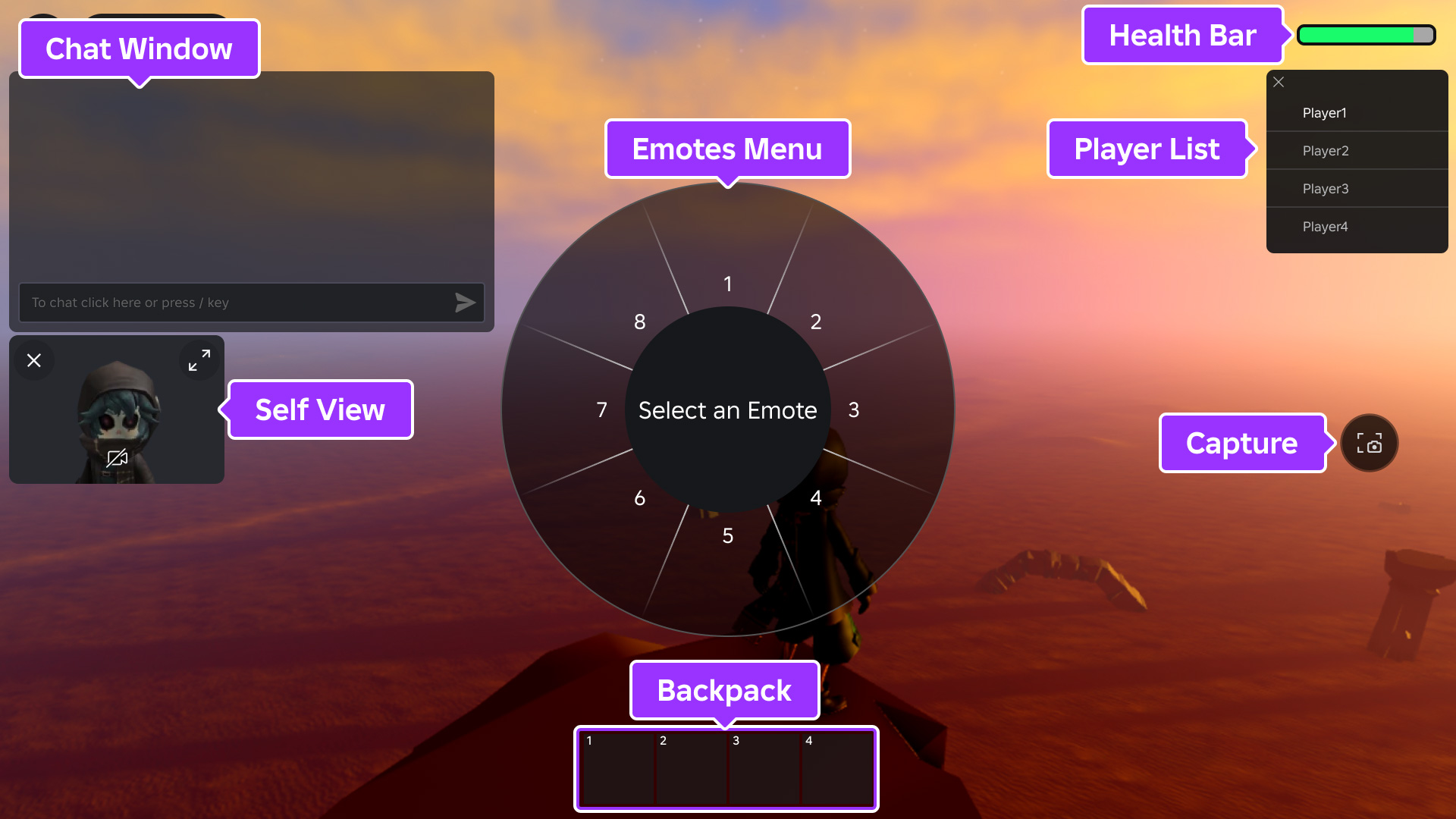
All Roblox games include several UI elements that are enabled by default. If you don't need any of these elements or if you want to replace them with your own creations, you can use the SetCoreGuiEnabled() method in a client‑side script with the associated CoreGuiType option.
| Default UI | Associated enum |
|---|---|
Dynamically updated Players list, commonly used as a leaderboard. |
CoreGuiType.PlayerList |
The character's Health bar. Does not appear if the character's Humanoid is at full health. |
CoreGuiType.Health |
The character's Backpack which contains in-game tools. Does not appear if there are no Tools in the backpack. |
CoreGuiType.Backpack |
| The text chat window. | CoreGuiType.Chat |
| Popup menu of character emotes. | CoreGuiType.EmotesMenu |
| A window displaying a player's perspective or view of their own character. Does not appear unless the player has enabled Self View from the Roblox menu. | CoreGuiType.SelfView |
| A capture screenshot button along the right side of the screen. Does not appear unless the player has enabled Captures from the Roblox menu. | CoreGuiType.Captures |
| The Avatar Switcher allows users to change their platform avatar. | CoreGuiType.AvatarSwitcher |
local StarterGui = game:GetService("StarterGui")

-- Disable default health bar and backpack
StarterGui:SetCoreGuiEnabled(Enum.CoreGuiType.Health, false)
StarterGui:SetCoreGuiEnabled(Enum.CoreGuiType.Backpack, false)
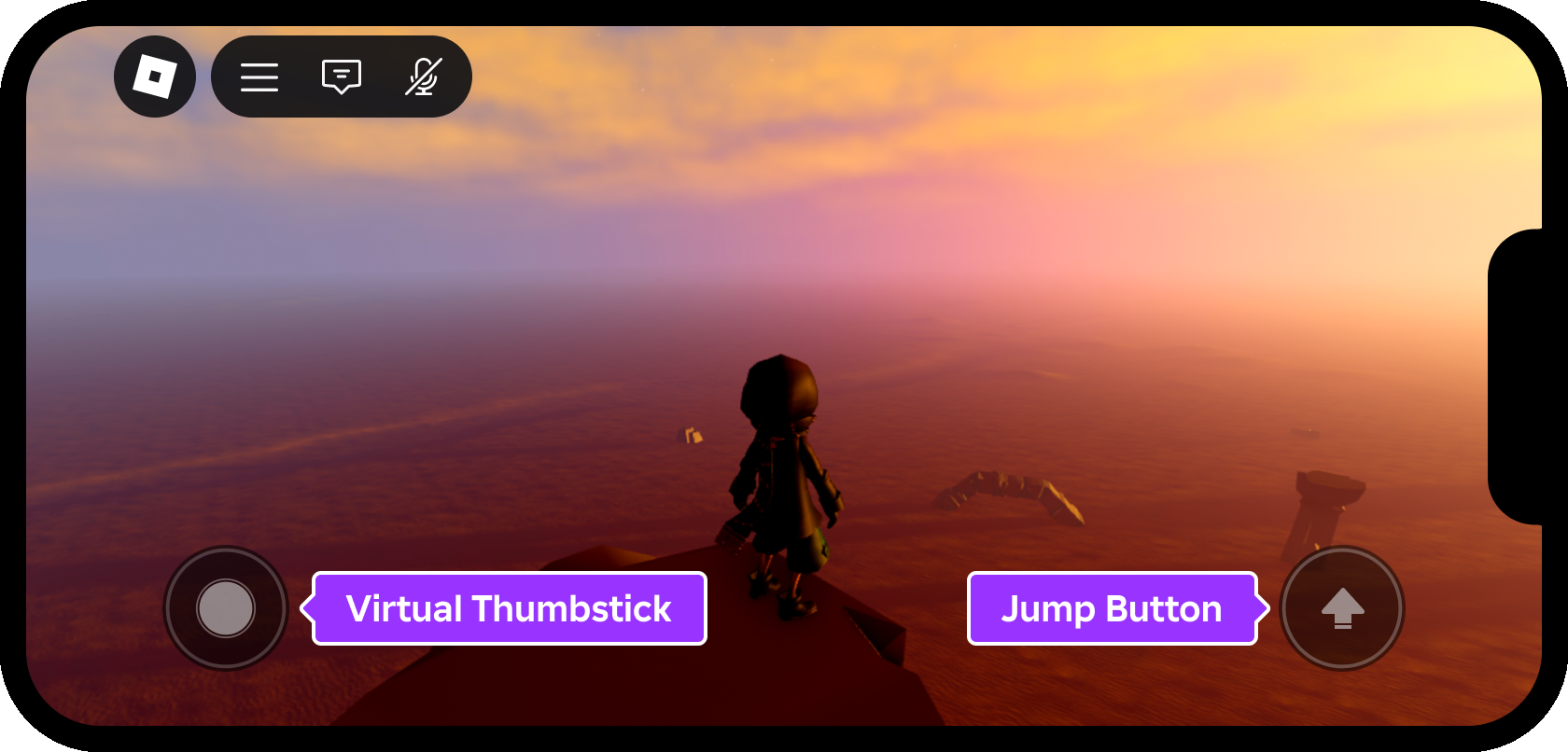
Additionally, devices with touch capabilities include a virtual thumbstick and a jump button by default. If desired, you can hide these elements by setting GuiService.TouchControlsEnabled to false in a client‑side script.
local GuiService = game:GetService("GuiService")

GuiService.TouchControlsEnabled = false