Proximity prompts
Proximity Prompts allow users to trigger actions when they approach objects in the 3D space.
ProximityPrompt objects
encourage user interaction to trigger an action when they approach in-game
objects such as doors, light switches, and buttons. Using this object, you can:
- Indicate what objects a user can interact with in the game.
- Display the action a user can take on the object, then trigger the action through user input such as pressing or holding a key.
- Display the correct input for all input types, such a keyboard, gamepad, and touchscreen keys.
See the Dungeon Delve sample place for the fully working proximity prompt examples shown in the video above.
Create proximity prompts#
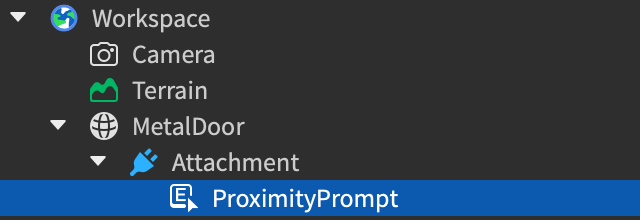
You must parent proximity prompts to the part, model, or attachment that you want a user to interact with. To add a proximity prompt to a BasePart, Model, or Attachment object:
In the Explorer window, hover over the
BasePart,Model, orAttachmentand click the ⊕ button. A contextual menu displays.From the menu, insert a ProximityPrompt.
Customize proximity prompts#
You can customize a proximity prompt based on how you want it to appear, when you want it to be visible, and what you want a user to do to trigger the action.
Appearance#
Proximity prompts need to communicate three things:
- The object that a user can interact with.
- The action that triggers when they interact with the proximity prompt.
- The key that a user must press or hold.
You can specify these through the following properties:
ObjectTextAn optional name for the object a user can interact with.ActionTextAn optional name for the action a user will trigger.KeyboardKeyCodeThe keyboard key a user must press or hold to trigger the action.GamepadKeyCodeThe gamepad key a user must press or hold to trigger the action.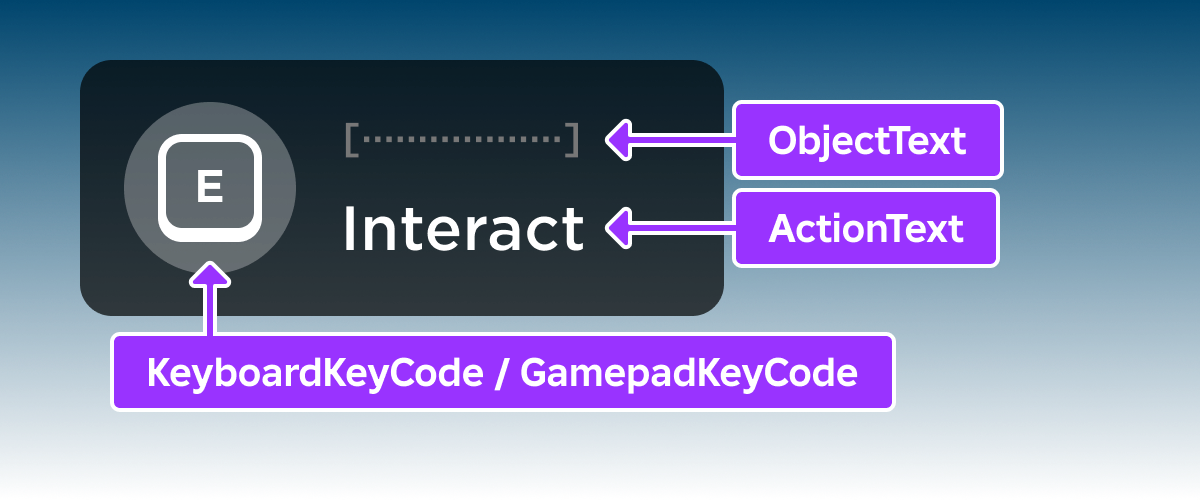
Visibility#
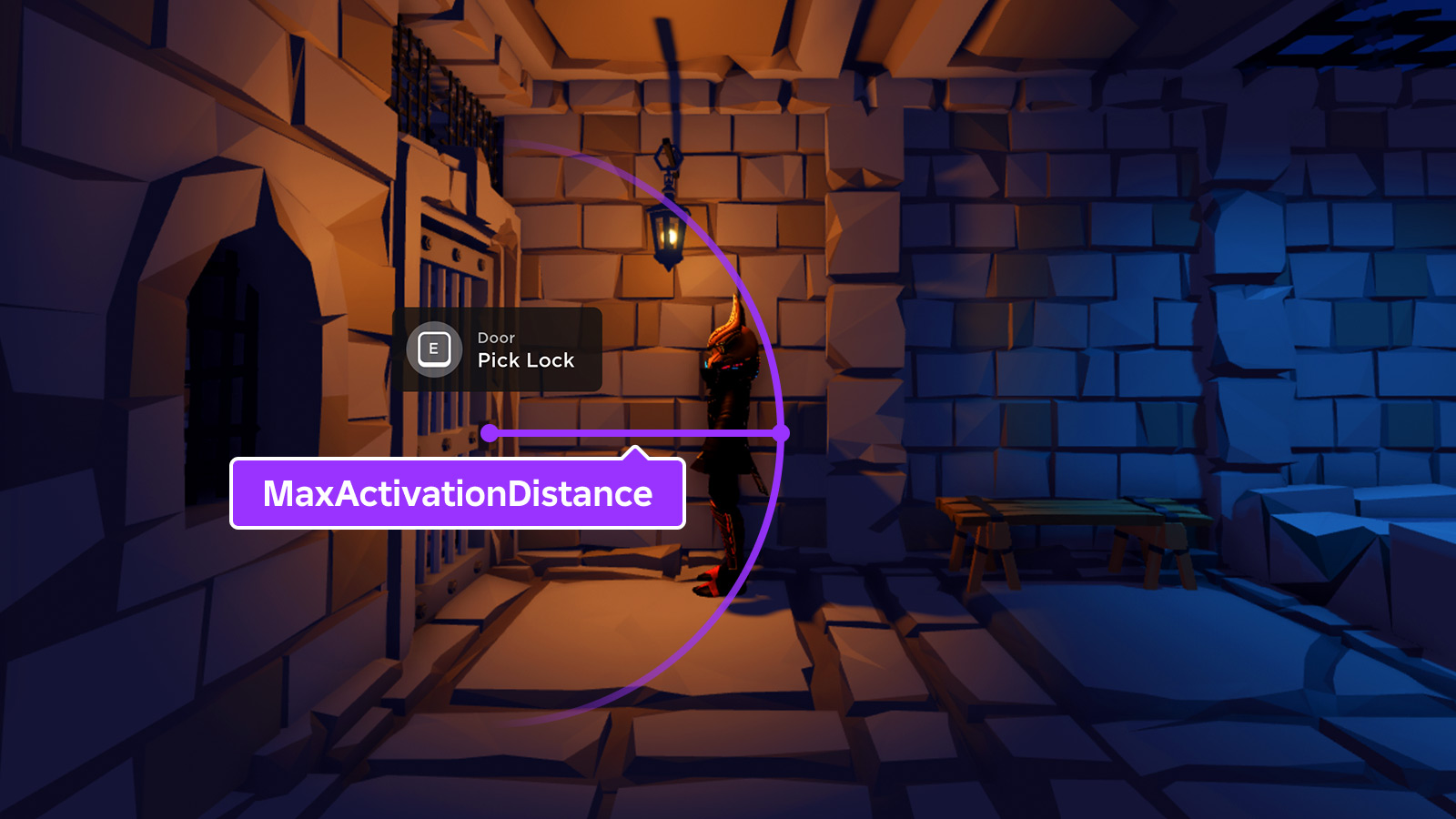
You can control when the proximity prompt is visible through its MaxActivationDistance, RequiresLineOfSight, and Exclusivity properties.
MaxActivationDistance#
The MaxActivationDistance property allows you to define the range from around the ProximityPrompt object that activates the visibility of the proximity prompt. Once a user's character enters that range, the proximity prompt becomes visible.
RequiresLineOfSight#
The RequiresLineOfSight property activates the visibility of the proximity prompt when there's a clear path from the camera to the ProximityPrompt object. By default, this property is set to true.
Exclusivity#
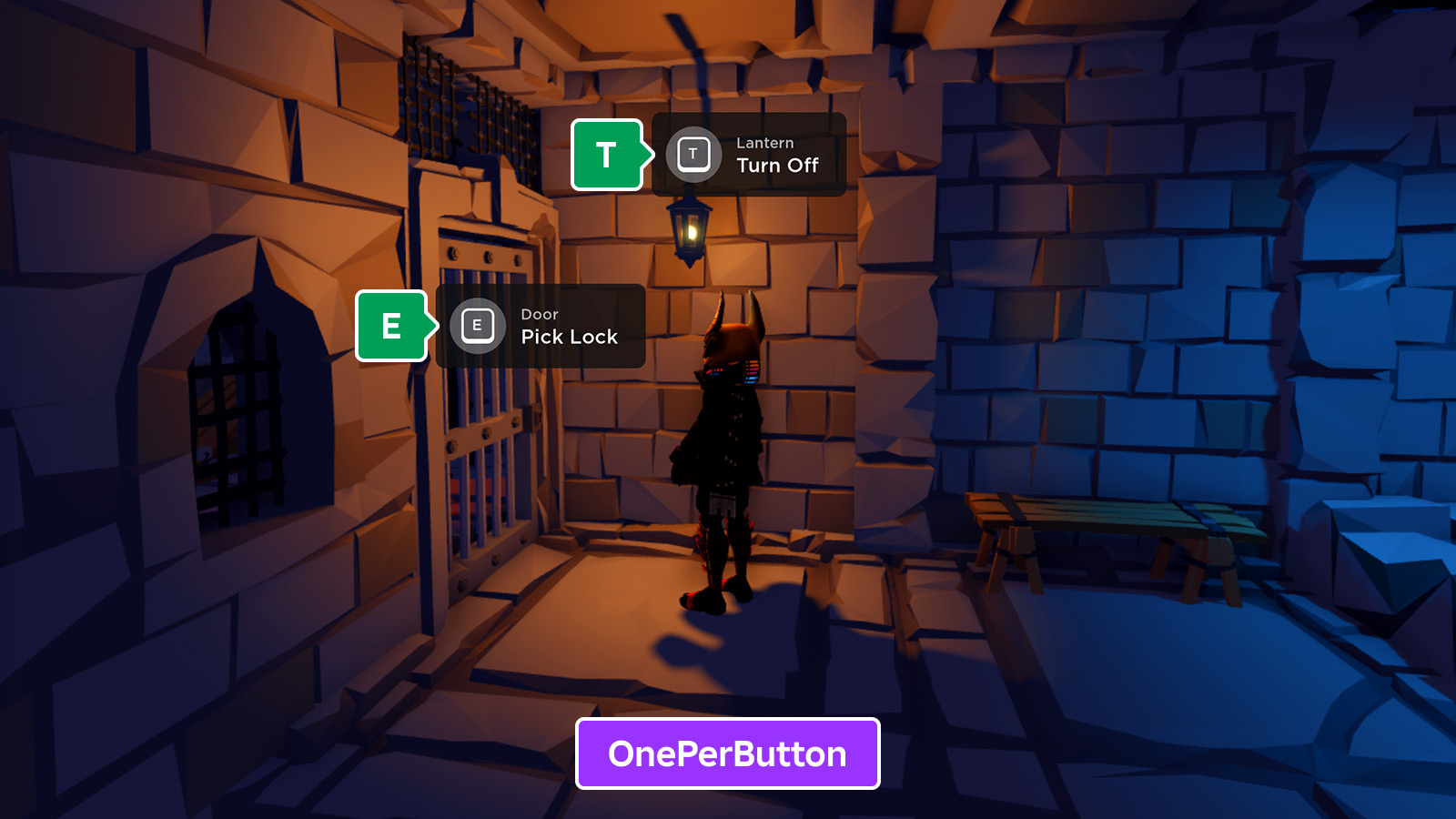
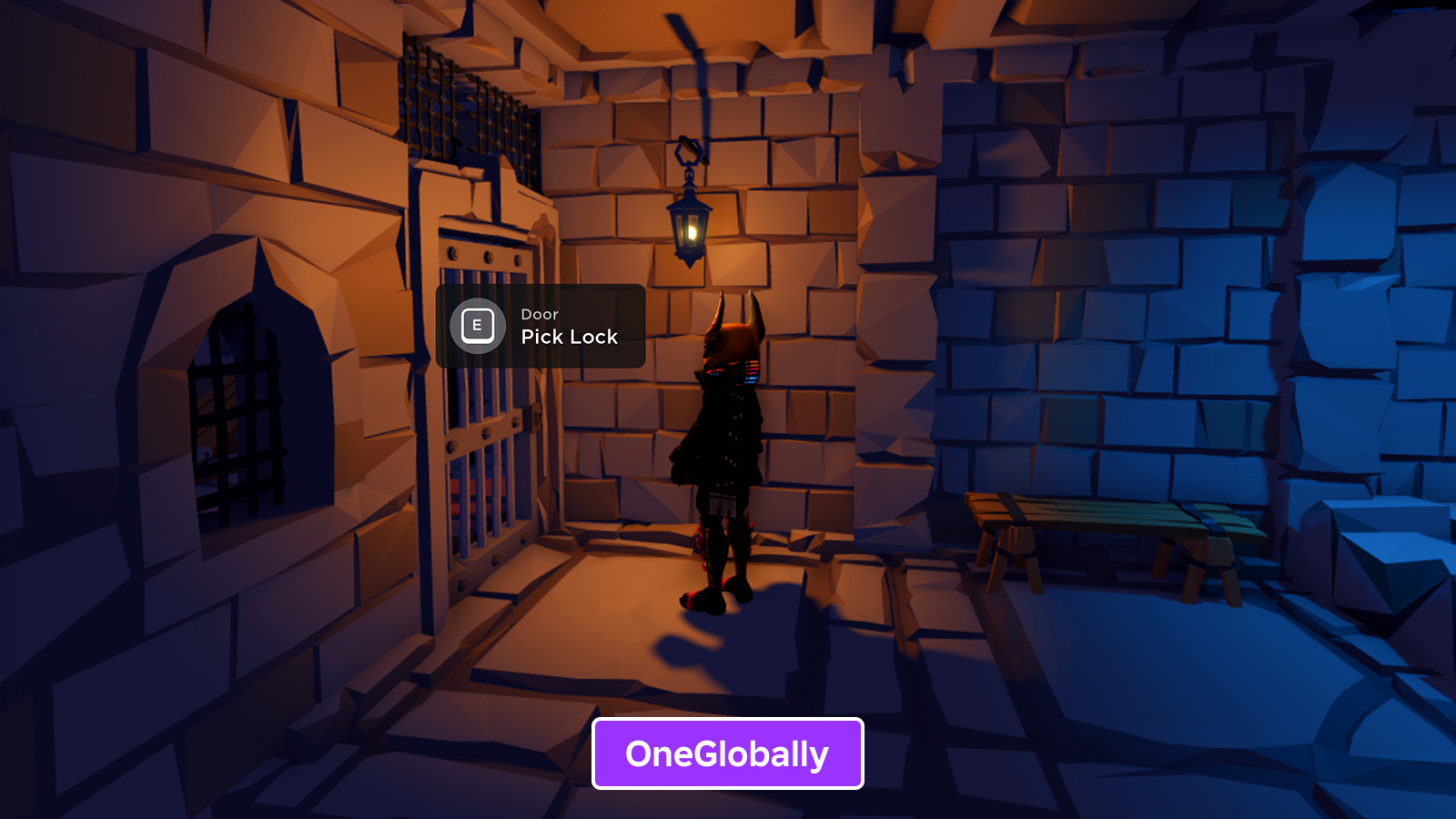
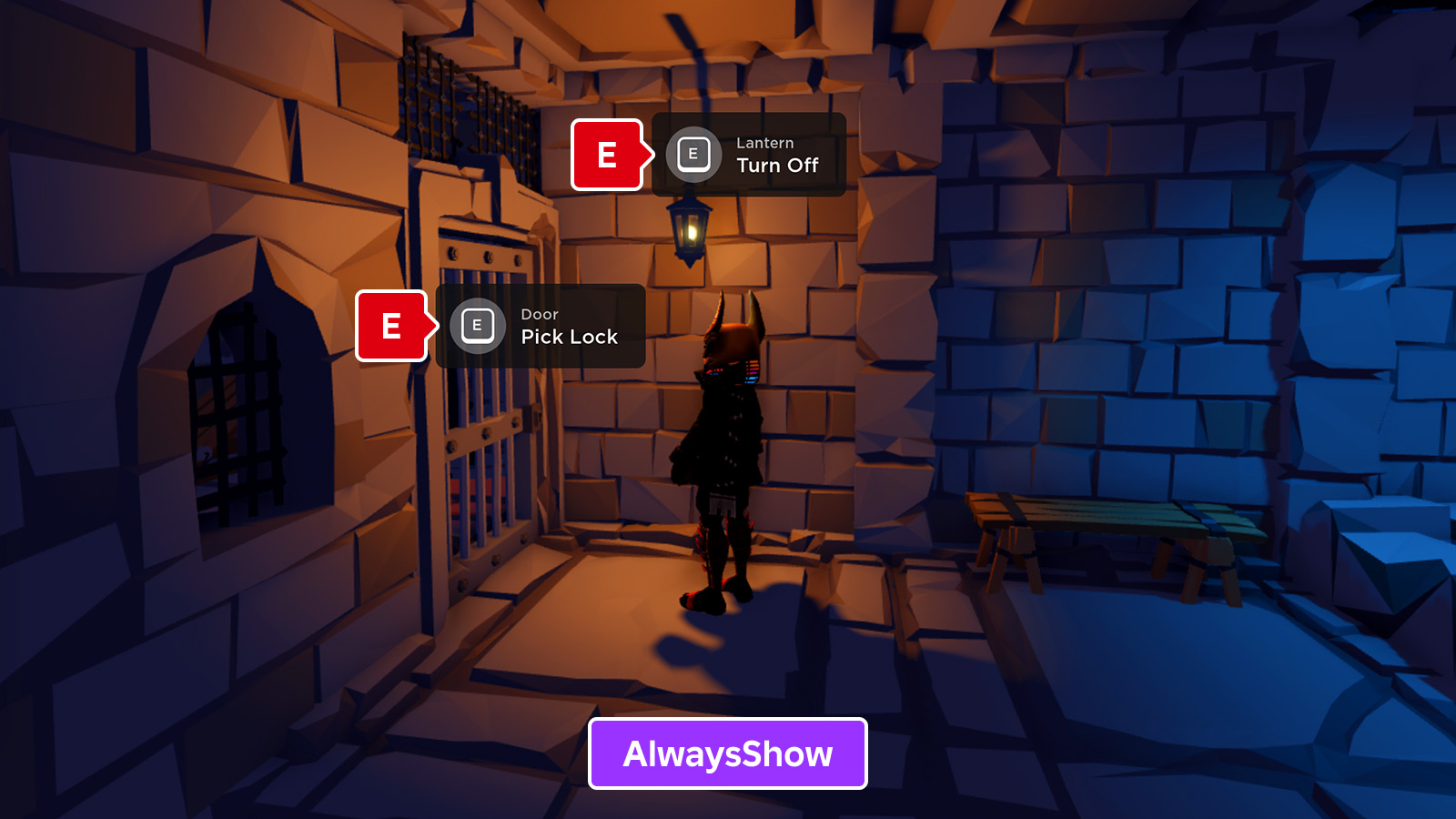
If a user's character is within range of multiple proximity prompts, each proximity prompt's visibility depends on which proximity prompt the camera is pointing at, as well as each proximity prompt's Exclusivity property value.
OnePerButton
OneGlobally
AlwaysShow
Interactivity#
You can customize how a user interacts with a proximity prompt through its HoldDuration and ClickablePrompt properties.
HoldDuration#
The HoldDuration property determines how many seconds a user has to press a key before the proximity prompt's action triggers. If this property has a value of 0, the proximity prompt's action triggers immediately.
ClickablePrompt#
The ClickablePrompt property specifies if a user can click on a proximity prompt to trigger its action. When set to true, a user can interact with the proximity prompt by directly clicking the proximity prompt or by pressing the specified key. When set to false, a user can only interact with the proximity prompt by pressing the specified key.
Note that if a user is using a phone or a tablet, they can always interact with the proximity prompt by directly clicking the proximity prompt regardless of the ClickablePrompt property's value.
Script proximity prompts#
You can connect to proximity prompt events either on the ProximityPrompt object itself or globally through ProximityPromptService. The ProximityPromptService allows you to manage all proximity prompt behavior from one location, preventing any need for duplicate code in your game.
| Event | Description |
|---|---|
PromptTriggered |
Fires when a player interacts with a proximity prompt (after the duration for a prompt with non-zero HoldDuration). |
PromptTriggerEnded |
Triggers when the player stops interacting with a proximity prompt. |
PromptButtonHoldBegan |
Fires when a player begins interacting with a proximity prompt with a non-zero HoldDuration value. |
PromptButtonHoldEnded |
Fires when a player stops interacting with a proximity prompt with a non-zero HoldDuration value. |
PromptShown |
Triggers in LocalScripts when a proximity prompt is made visible. |
PromptHidden |
Triggers in LocalScripts when a prompt is hidden. |
The following code sample includes a basic framework for using ProximityPromptService:
local ProximityPromptService = game:GetService("ProximityPromptService")

-- Detect when prompt is triggered
local function onPromptTriggered(promptObject, player)

end

-- Detect when prompt hold begins
local function onPromptHoldBegan(promptObject, player)

end

-- Detect when prompt hold ends
local function onPromptHoldEnded(promptObject, player)

end

-- Connect prompt events to handling functions
ProximityPromptService.PromptTriggered:Connect(onPromptTriggered)
ProximityPromptService.PromptButtonHoldBegan:Connect(onPromptHoldBegan)
ProximityPromptService.PromptButtonHoldEnded:Connect(onPromptHoldEnded)