Class
SurfaceAppearance
An object that allows developers to override the appearance of a MeshPart with advanced graphics options.
SurfaceAppearance objects let you override the appearance of a
MeshPart with advanced graphics options. Most notably, it can apply a
set of Physically‑Based Rendering (PBR) texture images, or maps, on a
single object. Combining multiple texture maps can more accurately simulate
color, roughness, and reflectivity in any lighting environment and can enhance
the visual elements of your assets and environment; see
PBR Textures for more details.
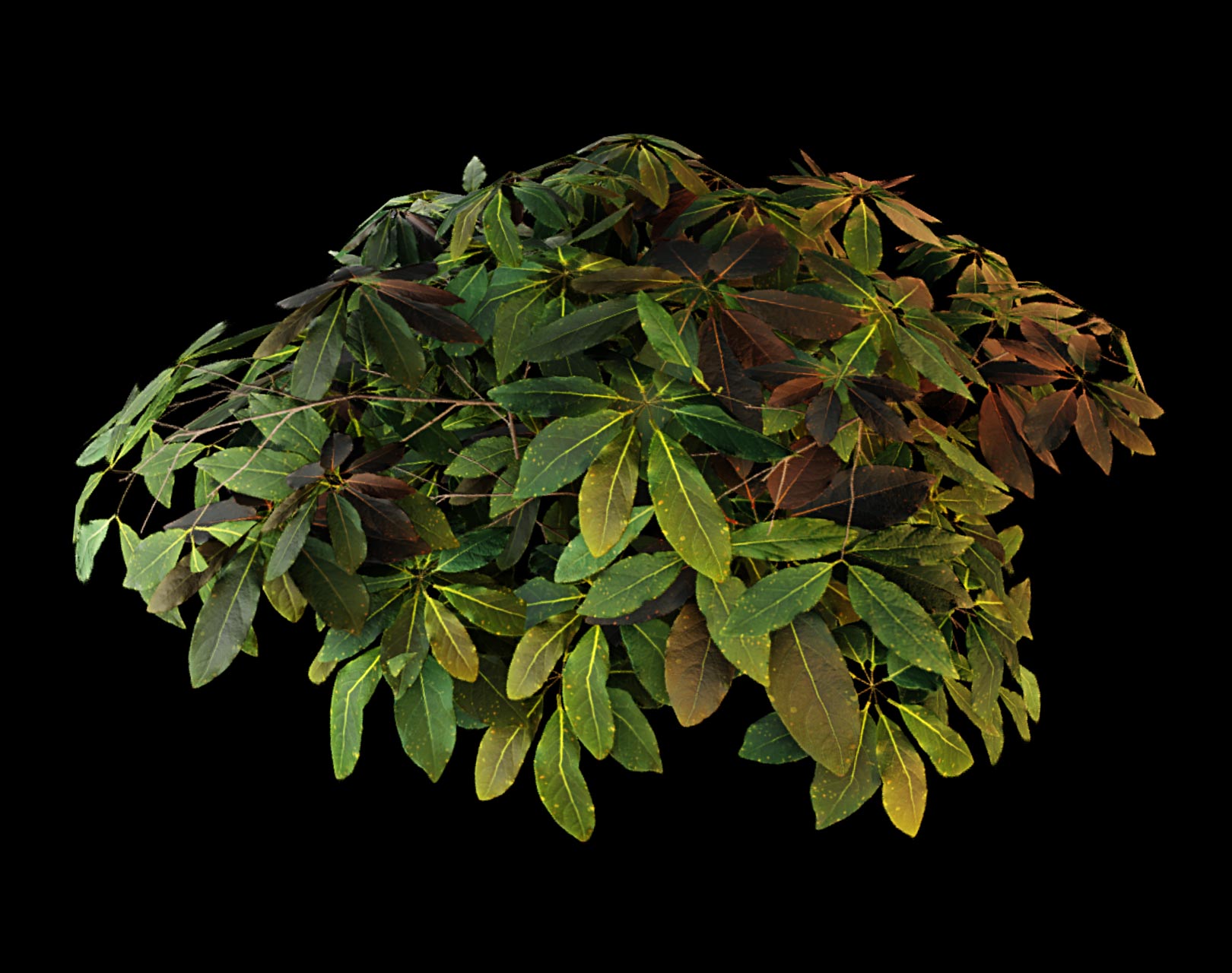
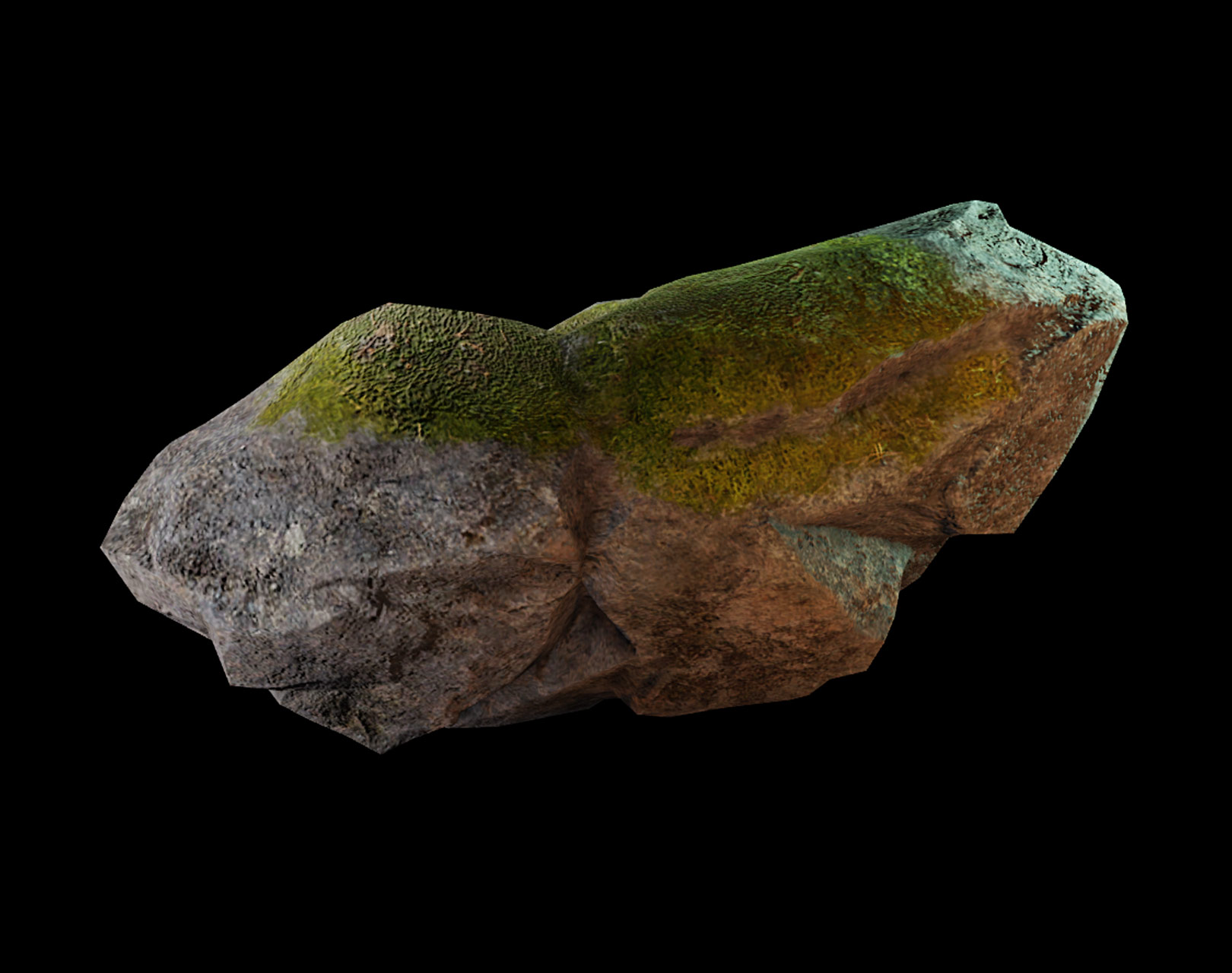
Appearance of this object on a MeshPart depends on the user's device
and graphics quality level. For best results, you may want to preview your
content with different quality level settings.
Note that most SurfaceAppearance properties cannot be modified by
scripts, as the necessary pre-processing is usually too expensive during
runtime.
Properties 15#
AlphaModeAlphaMode | Determines how the alpha channel of the SurfaceAppearance.ColorMap
is used.ReadSafe |
ColorColor3 | Applies a tint to your existing colormap. Set directly with color picker
or programmatically with Color3.ReadSafe |
ColorMapContentId | Determines the color and opacity of the surface.Read: PluginSecurityWrite: PluginSecurityReadSafe |
ColorMapContentContent | Content object that determines the color and opacity of the
surface.Write: PluginSecurityReadSafeHidden |
EmissiveMaskContentContent | Determines the emissivity across the surface.Write: PluginSecurityReadSafe |
EmissiveStrengthfloat | Determines the strength of emissive contribution.ReadSafe |
EmissiveTintColor3 | Determines the tinting color for emissive contribution.ReadSafe |
MetalnessMapContentId | Determines which parts of the surface are metal or non-metal.Read: PluginSecurityWrite: PluginSecurityReadSafe |
MetalnessMapContentContent | Content object that determines which parts of the surface are
metal or non-metal.Write: PluginSecurityReadSafeHidden |
NormalMapContentId | Modifies the lighting of the surface by adding bumps, dents, cracks, and curves.Read: PluginSecurityWrite: PluginSecurityReadSafe |
NormalMapContentContent | Content object that modifies the lighting of the surface by
adding bumps, dents, cracks, and curves.Write: PluginSecurityReadSafeHidden |
ResampleModeResamplerMode | Selects the texture resampling mode used for the surface's texture maps.ReadSafe |
RoughnessMapContentId | Determines the apparent roughness across the surface.Read: PluginSecurityWrite: PluginSecurityReadSafe |
RoughnessMapContentContent | Content object that determines the apparent roughness across
the surface.Write: PluginSecurityReadSafeHidden |
TexturePackContentContent | Engine-managed Content that stores the compressed runtime
texture data for the surface appearance.Read: RobloxScriptSecurityWrite: RobloxEngineSecurityReadSafe |
AlphaMode: AlphaMode#
ReadSafe
This property determines how the alpha channel of the
SurfaceAppearance.ColorMap is used.
When set to Transparency and the
MeshPart.Transparency is set to 0, opaque pixels in the
ColorMap will render as completely
opaque in the 3D scene. This combination works better with depth-based
effects and occlusion.
When set to Transparency and the
MeshPart.Transparency is set to at least 0.02, a different
blending method is used that can better represent smooth transparency
gradients and soft edges. This combination does not support all effects
and occlusion may not be perfect.
See here for more information.
Color: Color3#
ReadSafe
Applies a tint to your existing colormap. Set directly with color picker
or programmatically with Color3.
ColorMap: ContentId#
Read: PluginSecurityWrite: PluginSecurityReadSafe
This property determines the color and opacity of the surface. This
texture is sometimes called the albedo texture. The alpha channel of
this texture controls its opacity, which behaves differently based on the
SurfaceAppearance.AlphaMode setting.
See here for more information.
ColorMapContent: Content#
HiddenWrite: PluginSecurityReadSafe
A Content that determines the color and opacity of the surface
(sometimes called the albedo texture). The content can hold an
asset URI or a reference
to an EditableImage object.
The alpha channel of the texture controls its opacity, which behaves
differently based on the SurfaceAppearance.AlphaMode setting. It
defaults to an empty content, in which case no color map is applied.
Assigning an EditableImage is useful for dynamically generating or
modifying textures at runtime, such as in avatar customization and other
in-experience content creation workflows.
EmissiveMaskContent: Content#
Write: PluginSecurityReadSafe
This property determines the apparent emissivity across the surface. An emissive mask is a grayscale image where black pixels correspond to no emissivity, and white pixels correspond to full emissivity.
The emissive contribution gets added to total lighting contribution across
the surface, and the sum gets multiplied by the albedo texture, which
would be sampled from ColorMap if
provided.
EmissiveStrength: float#
ReadSafe
This value is a multiplier to control how strong the emissive contribution
is across the surface. If the final contribution of emissives goes beyond
supported dynamic range, it will get clamped; this could result in
emissive contribution appearing all white when using large emissive
strength values. Since this value is a multiplier, the maximum value to
prevent clamping depends on all of the other contributing values,
including EmissiveTint,
ColorMap and combined lighting
contribution.
EmissiveTint: Color3#
ReadSafe
This value is an RGB color for tinting emissive contribution.
MetalnessMap: ContentId#
Read: PluginSecurityWrite: PluginSecurityReadSafe
This property determines which parts of the surface are metal or non-metal. The metalness map is a grayscale image where black pixels correspond to non-metals and white pixels correspond to metals.
Metals only reflect light the same color as the metal, and they reflect much more light than non-metals. Most pixels in a metalness map will be either pure black or pure white, while values in between can be used to simulate dirt or grunge on top of an underlying metal area.
When Lighting.EnvironmentSpecularScale is 0, metalness has no
effect. For the most realistic reflections, it's recommended to set
Lighting.EnvironmentSpecularScale and
Lighting.EnvironmentDiffuseScale to 1, as well as
Lighting.Ambient and Lighting.OutdoorAmbient to
(0, 0, 0).
See here for more information.
MetalnessMapContent: Content#
HiddenWrite: PluginSecurityReadSafe
A Content that determines which parts of the surface are metal
or non-metal. The metalness map is a grayscale image where black pixels
correspond to non-metals and white pixels correspond to metals. The
content can hold an
asset URI or a reference
to an EditableImage object.
Metals only reflect light the same color as the metal, and they reflect much more light than non-metals. Most pixels in a metalness map will be either pure black or pure white, while values in between can be used to simulate dirt or grunge on top of an underlying metal area.
When Lighting.EnvironmentSpecularScale is 0, metalness has no
effect. Defaults to an empty content, in which case no metalness map is
applied.
NormalMap: ContentId#
Read: PluginSecurityWrite: PluginSecurityReadSafe
This property modifies the lighting of the surface by adding bumps, dents, cracks, and curves, without adding more polygons. The normal map is an RGB image that modifies the surface's normal vector used for lighting calculations. Its R, G, and B channels correspond to the X, Y, and Z components of the local surface vector respectively, and byte values of 0 and 255 for each channel correspond linearly to normal vector components of -1 and 1.016 respectively. This range is stretched slightly from -1 to 1 so that a byte value of 127 maps to exactly 0.
The normal vector's Z axis is always defined as the direction of the
underlying mesh's normal. A uniform (127, 127, 255) image translates to
a completely flat normal map where the normal is everywhere perpendicular
to the mesh surface; this format is referred to as a "tangent space"
normal map. Note that Roblox does not support world space or object space
normal maps.
Incorrectly flipped normal components can make bumps appear like indents. If you import a normal map and notice the lighting looks off, you may need to invert the G channel of the image. The X and Y axes of the tangent space frame correspond to the X and Y directions in the image after it's transformed by the mesh UVs. If you view your normal map in an image editor as if it were displayed on a surface, normals pointing towards the right side of the screen should appear more red, and normals pointing towards the top side of your screen should appear more green. The terms "DirectX format" and "OpenGL format" are sometimes used to describe whether the G channel of the normal map is inverted or not (Roblox expects the OpenGL format).
Roblox also expects imported meshes to include tangents. Modeling software may also refer to this as "tangent space" information. If you apply a normal map and it does not seem to make any visual difference, you may need to re-export your mesh along with its tangent information from the modeling software.
See here for more information.
NormalMapContent: Content#
HiddenWrite: PluginSecurityReadSafe
A Content that modifies the lighting of the surface by adding
bumps, dents, cracks, and curves, without adding more polygons. The normal
map is an RGB image that modifies the surface's normal vector used for
lighting calculations, where the R, G, and B channels
correspond to the X, Y, and Z components of the local surface
vector respectively. The content can hold an
asset URI or a reference
to an EditableImage object.
Roblox expects tangent-space normal maps in the "OpenGL format" (the G channel is not inverted), and imported meshes must include tangent information. Defaults to an empty content, in which case no normal map is applied.
ResampleMode: ResamplerMode#
ReadSafe
Determines how the surface's texture maps look when they are scaled. When
set to the default ResamplerMode.Default, the textures smooth out
using bilinear filtering when displayed larger or smaller than their size
in texture memory. When set to Pixelated,
the textures preserve the sharp edges of pixels using nearest-neighbor
filtering. Defaults to ResamplerMode.Default.
RoughnessMap: ContentId#
Read: PluginSecurityWrite: PluginSecurityReadSafe
This property determines the apparent roughness across the surface. The roughness map is a grayscale image where black pixels correspond to a maximally smooth surface, and white pixels correspond to a maximally rough surface.
Note that surface roughness works on a very small scale. Reflections on smooth surfaces are sharp and concentrated, while reflections on rough surfaces are more blurry and dispersed.
See here for more information.
RoughnessMapContent: Content#
HiddenWrite: PluginSecurityReadSafe
A Content that determines the apparent roughness across the
surface. The roughness map is a grayscale image where black pixels
correspond to a maximally smooth surface, and white pixels correspond to a
maximally rough surface. The content can hold an
asset URI or a reference
to an EditableImage object.
Surface roughness works on a very small scale. Reflections on smooth surfaces are sharp and concentrated, while reflections on rough surfaces are more blurry and dispersed. Defaults to an empty content, in which case no roughness map is applied.
TexturePackContent: Content#
Read: RobloxScriptSecurityWrite: RobloxEngineSecurityReadSafe
Managed by the engine and not intended to be set directly. A
Content that holds the compressed runtime texture data for the
surface appearance. It is the backing storage for
SurfaceAppearance.TexturePack: when the object is published, the
engine bakes its individual texture maps into a single texture pack asset
and stores the resulting reference here.
Requires elevated permissions to read (RobloxScript security) and is
writable only by the engine (RobloxEngine security). Defaults to an
empty content.
Inherited members#
Inherited from Instance 58
Properties (10)
Archivable, archivable, Capabilities, IsInSandbox, Name, Parent, PredictionMode, RobloxLocked, Sandboxed, UniqueId
Methods (39)
AddTag, children, ClearAllChildren, Clone, clone, Destroy, destroy, FindFirstAncestor, FindFirstAncestorOfClass, FindFirstAncestorWhichIsA, FindFirstChild, findFirstChild, FindFirstChildOfClass, FindFirstChildWhichIsA, FindFirstDescendant, GetActor, GetAttribute, GetAttributeChangedSignal, GetAttributes, GetChildren, getChildren, GetDebugId, GetDescendants, GetFullName, GetStyled, GetStyledPropertyChangedSignal, GetTags, HasTag, IsAncestorOf, IsDescendantOf, isDescendantOf, IsPropertyModified, QueryDescendants, Remove, remove, RemoveTag, ResetPropertyToDefault, SetAttribute, WaitForChild