Class
ScreenGui
Primary container of on-screen 2D user interface elements.
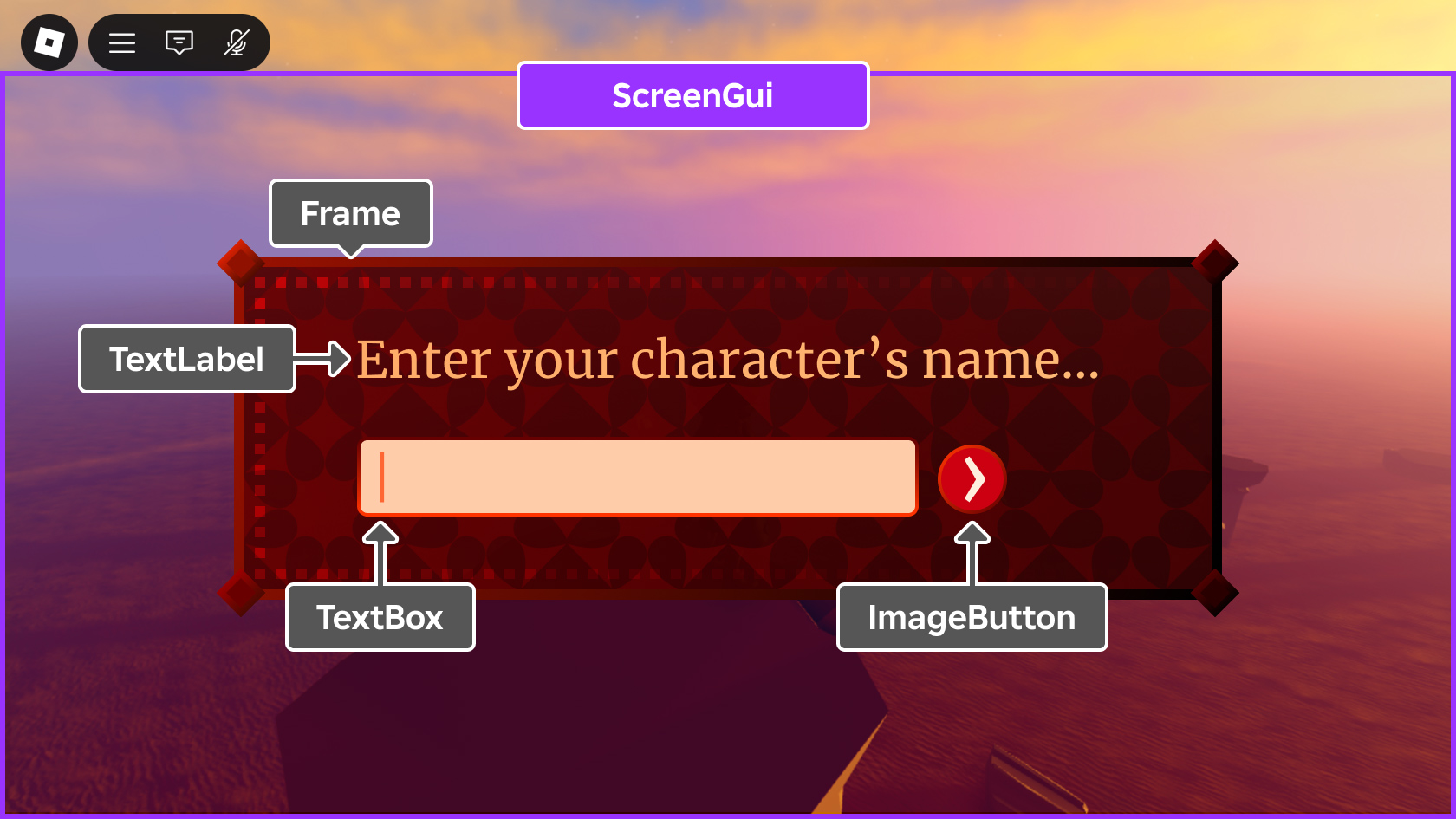
ScreenGui is a storage container for 2D GuiObjects
displayed on the user's screen. A ScreenGui only shows if parented to
a player's PlayerGui; parenting a ScreenGui to
StarterGui ensures it clones into each player's PlayerGui when
they join the experience and their character first spawns. See
On‑Screen UI Containers for further
details.
For performance improvements, the appearance of a ScreenGui is cached
until one of the following events occurs:
- A descendant is added to or removed from it.
- A property of a descendant changes.
- A property of the
ScreenGuiitself changes.
If any of these events occur, the ScreenGui appearance is recomputed
on the next frame it gets rendered.
Properties 5#
ClipToDeviceSafeAreaboolean | Whether to clip the contents of this ScreenGui to the device's
safe area.ReadSafe |
DisplayOrderint | Controls the Z-index order in which multiple ScreenGui containers
are drawn.ReadSafe |
IgnoreGuiInsetboolean | Determines whether the ScreenGui overflows into the range of
Roblox's core UI elements.ReadSafeNotReplicated |
SafeAreaCompatibilitySafeAreaCompatibility | Specifies whether automatic UI compatibility transformations are applied
to descendant "fullscreen" GuiObjects on displays with
screen cutouts.ReadSafe |
ScreenInsetsScreenInsets | Controls the safe area insets that are applied to the contents of the
ScreenGui.ReadSafe |
ClipToDeviceSafeArea: boolean#
ReadSafe
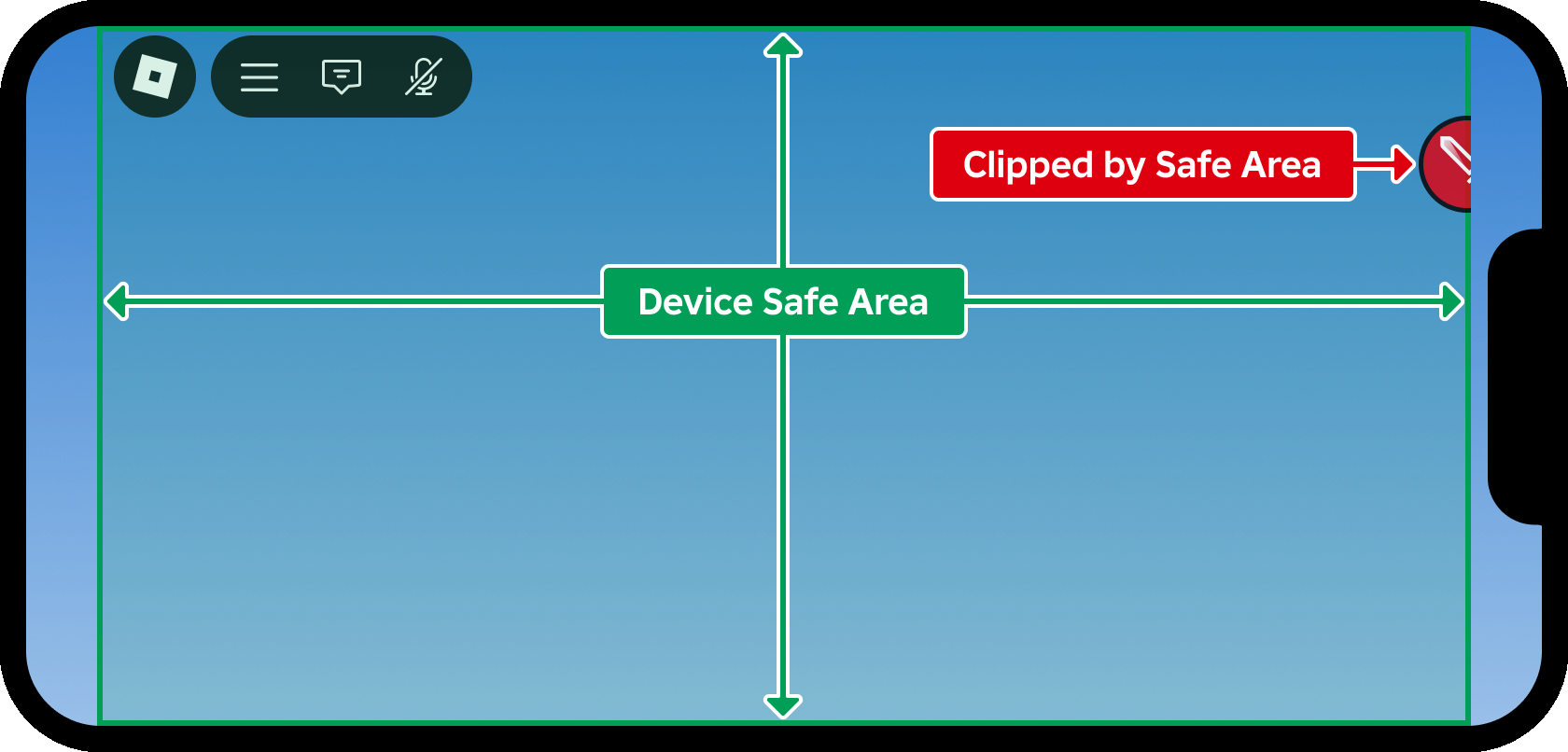
If this property is true, all GuiObject descendants of the
ScreenGui will be clipped to the device's safe area (see
ScreenInsets). The default is true to maintain backwards
compatibility of UI that is intentionally hidden offscreen, such as
objects that slide into view from a screen edge when they're needed.
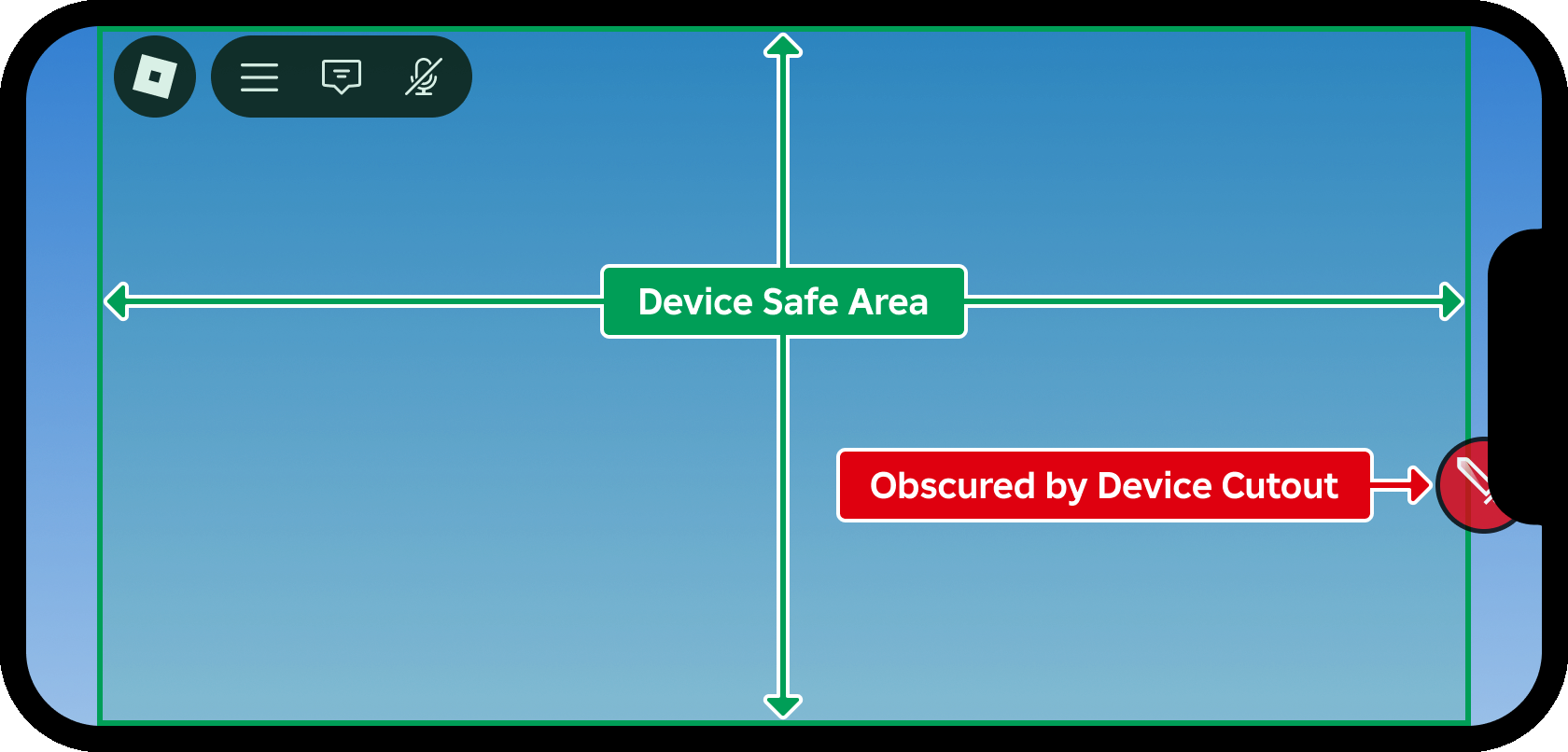
If this property is false, GuiObject descendants will not be
clipped to the device's safe area and may be obscured by the camera notch
or other screen cutouts.
Note that this property will be ignored if you set
ScreenInsets to None,
as doing so implies that you intentionally want to disregard the device's
safe insets.
DisplayOrder: int#
ReadSafe
This property controls the Z-index order in which multiple
ScreenGui containers are drawn. Those with a higher
DisplayOrder will be drawn on top of those
with a lower value.
IgnoreGuiInset: boolean#
NotReplicatedReadSafe
If this property is false (default),
ScreenInsets is set to
CoreUISafeInsets, effectively keeping its bounds below
the Roblox top bar core UI.
If this property is changed to true and
ScreenInsets is currently set to
CoreUISafeInsets,
ScreenInsets will be set to
DeviceSafeInsets.
See ScreenInsets for details on how screen
insets affect the contents of a ScreenGui.
SafeAreaCompatibility: SafeAreaCompatibility#
ReadSafe
This property specifies whether automatic UI compatibility transformations
are applied to descendant "fullscreen" GuiObjects of the
ScreenGui on displays with screen cutouts. Eligibility occurs if
the total area of the descendant GuiObject (including any applied
border or UIStroke) covers the device's safe area both
horizontally and vertically. See the SafeAreaCompatibility enum
reference for details.
The default value is FullscreenExtension in
order to automatically improve the appearance of UI that was authored for
screens without any cutouts. However, it's recommended that you avoid
fullscreen extensions for new work; instead, use the
ScreenInsets property to specify which
insets should be respected for different ScreenGui containers.
Note that descendant UI objects will continue to be clipped by the
device's safe area if
ClipToDeviceSafeArea is set to
true.
ScreenInsets: ScreenInsets#
ReadSafe
This property controls the safe area insets that are applied to the
contents of the ScreenGui.
The default of CoreUISafeInsets keeps all descendant
GuiObjects inside the core UI safe area, clear of the
Roblox top bar buttons and other screen cutouts like the device's camera
notch.
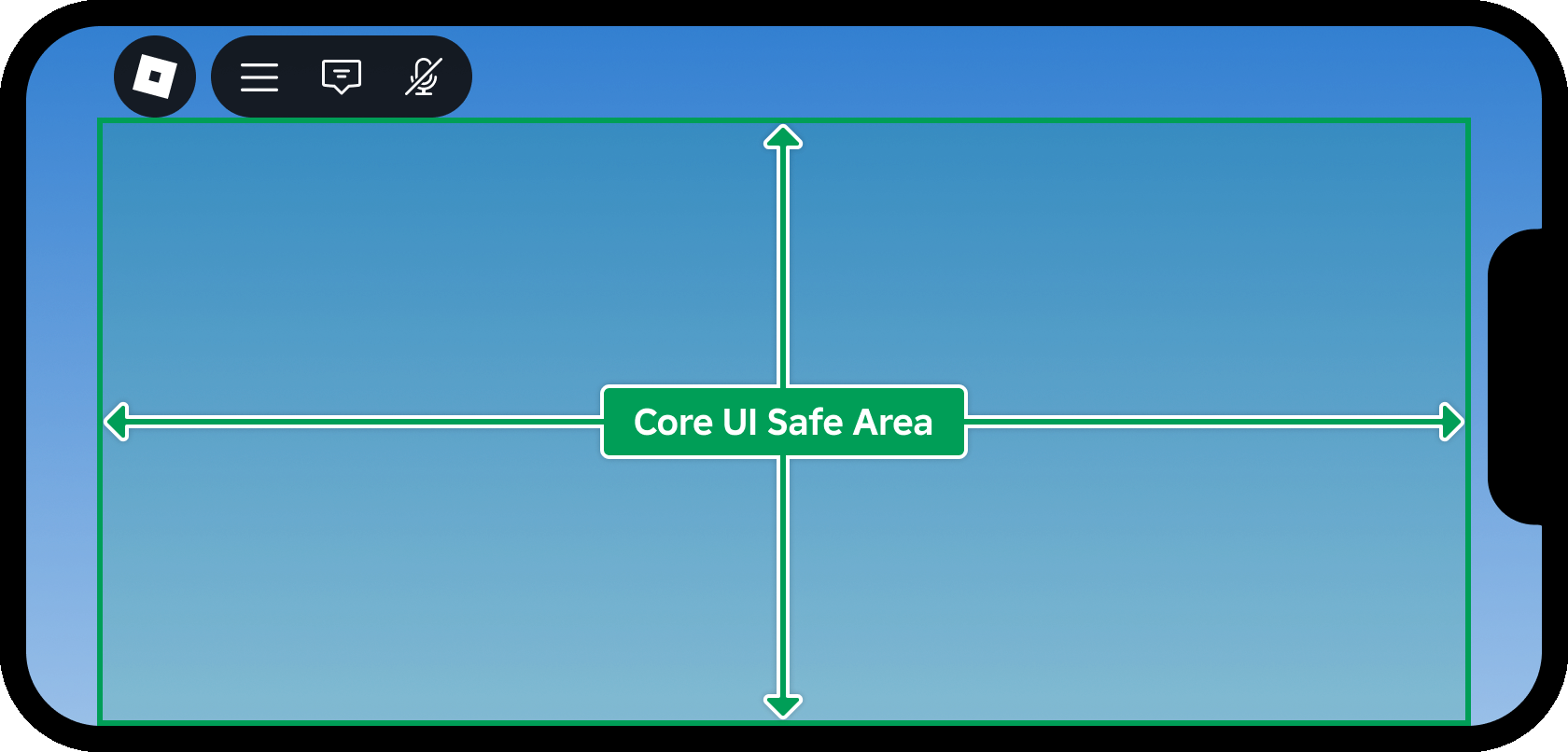
If you set this property to None, UI objects may be
obscured behind core UI objects or device cutouts like the camera notch.
As a result, you should only use None for a
ScreenGui that contains noninteractive content like background
images.
See On-Screen UI Containers for alternative examples.
Inherited members#
Inherited from GuiBase2d 12
Properties (11)
AbsolutePosition, AbsoluteRotation, AbsoluteSize, AutoLocalize, Localize, RootLocalizationTable, SelectionBehaviorDown, SelectionBehaviorLeft, SelectionBehaviorRight, SelectionBehaviorUp, SelectionGroup
Events (1)
Inherited from Instance 58
Properties (10)
Archivable, archivable, Capabilities, IsInSandbox, Name, Parent, PredictionMode, RobloxLocked, Sandboxed, UniqueId
Methods (39)
AddTag, children, ClearAllChildren, Clone, clone, Destroy, destroy, FindFirstAncestor, FindFirstAncestorOfClass, FindFirstAncestorWhichIsA, FindFirstChild, findFirstChild, FindFirstChildOfClass, FindFirstChildWhichIsA, FindFirstDescendant, GetActor, GetAttribute, GetAttributeChangedSignal, GetAttributes, GetChildren, getChildren, GetDebugId, GetDescendants, GetFullName, GetStyled, GetStyledPropertyChangedSignal, GetTags, HasTag, IsAncestorOf, IsDescendantOf, isDescendantOf, IsPropertyModified, QueryDescendants, Remove, remove, RemoveTag, ResetPropertyToDefault, SetAttribute, WaitForChild