Merch Booth
The Merch Booth module lets you sell avatar assets, passes, and products directly in a game.
The MerchBooth developer module lets you offer avatar assets, passes, and developer products for sale directly within your game. Players can browse items, preview assets on their own avatar, purchase items, and instantly use or equip them — all without leaving your game. This can help you monetize your game and gain revenue through the 40% affiliate fee associated with selling other creators' items.
To offer assets created by third parties in the merch booth, make sure Allow Third Party Sales is enabled from the Security section of Studio's Experience Settings window. If this setting is disabled, you will not be able to sell UGC assets created by other users.
Module usage#
Installation#
To use the MerchBooth module in a game:
From Studio's Window menu or Home tab toolbar, open the Toolbox and select the Creator Store tab.
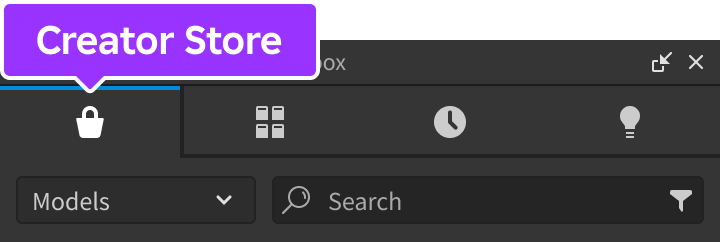
Make sure the Models sorting is selected, then click the See All button for Categories.
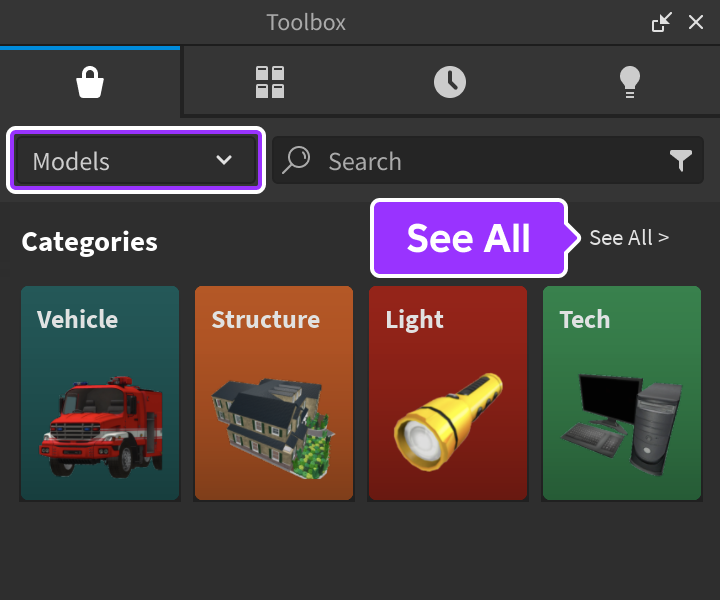
Locate and click the Packages tile.
Locate the Merch Booth module and click it, or drag-and-drop it into the 3D view.
In the Explorer window, move the entire MerchBooth model into
ReplicatedStorage. Upon running the game the module will begin running.
Configuration#
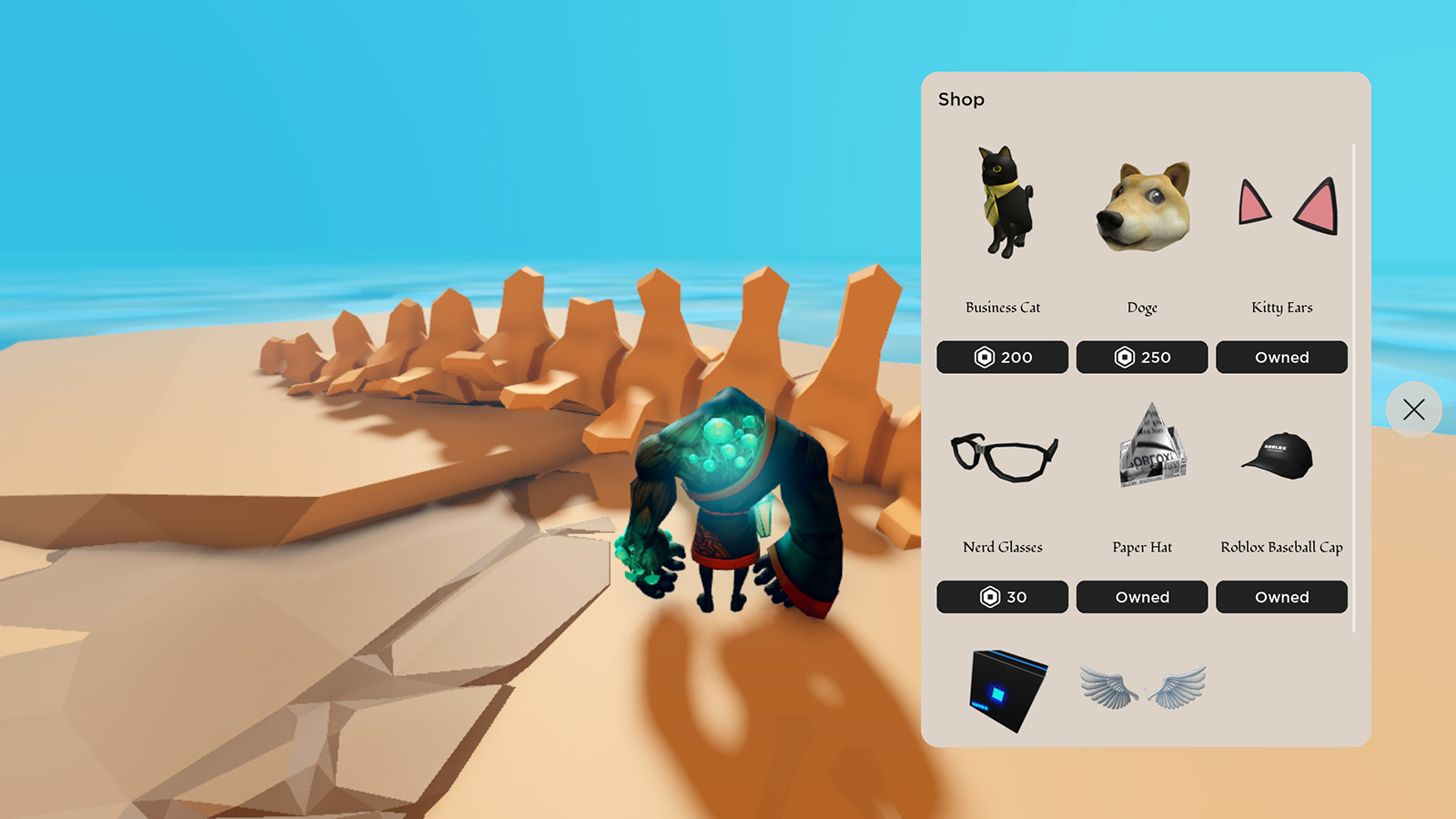
The module is preconfigured to work for most use cases, but it can be easily customized through the configure function. For example, to create a lighter theme and disable the default Filter button in the upper-left area of the catalog view:
In StarterPlayerScripts, create a new
LocalScriptand rename it to ConfigureMerchBooth.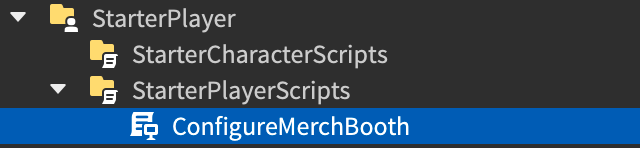
Paste the following code into the new script.
local ReplicatedStorage = game:GetService("ReplicatedStorage")

local MerchBooth = require(ReplicatedStorage.MerchBooth)

MerchBooth.configure({
    backgroundColor = Color3.fromRGB(220, 210, 200),
    textSize = 17,
    textFont = Enum.Font.Fondamento,
    textColor = Color3.fromRGB(20, 20, 20),
    useFilters = false
})
Add items#
What's a merch booth without merch? The following sections outline how to add avatar assets, passes, and developer products to your merch booth.
Avatar assets#
Items such as clothing and accessories must be added through their asset ID located on the item's detail page in the Avatar Shop.
Create a
Scriptwithin ServerScriptService and paste in the following code.local ReplicatedStorage = game:GetService("ReplicatedStorage") local MerchBooth = require(ReplicatedStorage.MerchBooth) local items = { } for _, assetId in items do local success, errorMessage = pcall(function() MerchBooth.addItemAsync(assetId) end) if not success then warn(errorMessage) end endCopy item asset IDs from their Avatar Shop website URL. For example, the ID of Roblox Baseball Cap is 607702162.

Paste each copied ID into a comma-delimited list within the
itemstable. By default, items appear in the catalog view in alphabetical order, but you can customize sorting using setCatalogSort.local ReplicatedStorage = game:GetService("ReplicatedStorage") local MerchBooth = require(ReplicatedStorage.MerchBooth) local items = { 607702162, -- Roblox Baseball Cap 4819740796, -- Robox 1374269, -- Kitty Ears 11884330, -- Nerd Glasses 10476359, -- Paper Hat } for _, assetId in items do local success, errorMessage = pcall(function() MerchBooth.addItemAsync(assetId) end) if not success then warn(errorMessage) end end
This example uses assets owned by the Roblox account, but a thriving marketplace of incredible community-made assets is available here.
Passes#
Adding passes requires pass IDs which can be located in the Creator Dashboard.
Create a
Scriptwithin ServerScriptService and paste in the following code.local ReplicatedStorage = game:GetService("ReplicatedStorage") local MerchBooth = require(ReplicatedStorage.MerchBooth) local items = { } for _, assetId in items do local success, errorMessage = pcall(function() MerchBooth.addItemAsync(assetId) end) if not success then warn(errorMessage) end endNavigate to the Creator Dashboard and select the game.
In the left column, under Monetization, select Passes.
Hover over a pass' thumbnail, click the ⋯ button, and select Copy Asset ID from the context menu.
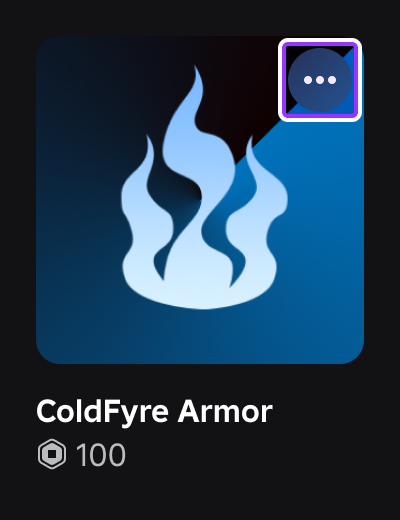
Paste each copied ID into a comma-delimited list within the
itemstable and includeInfoType.GamePassas the second parameter for addItemAsync to indicate that the items are passes. By default, items will appear in the catalog view in alphabetical order, but sorting can be customized via setCatalogSort.local ReplicatedStorage = game:GetService("ReplicatedStorage") local MerchBooth = require(ReplicatedStorage.MerchBooth) local items = { 4343758, -- ColdFyre Armor 28521575, -- Slime Shield } for _, assetId in items do local success, errorMessage = pcall(function() MerchBooth.addItemAsync(assetId, Enum.InfoType.GamePass) end) if not success then warn(errorMessage) end end
Developer Products#
Adding developer products requires product IDs which can be located in the Creator Dashboard.
Create a
Scriptwithin ServerScriptService and paste in the following code.local ReplicatedStorage = game:GetService("ReplicatedStorage") local MerchBooth = require(ReplicatedStorage.MerchBooth) local items = { } for _, assetId in items do local success, errorMessage = pcall(function() MerchBooth.addItemAsync(assetId) end) if not success then warn(errorMessage) end endNavigate to the Creator Dashboard and select the game.
In the left column, under Monetization, select Developer Products.
Hover over a product's thumbnail, click the ⋯ button, and select Copy Asset ID from the context menu.
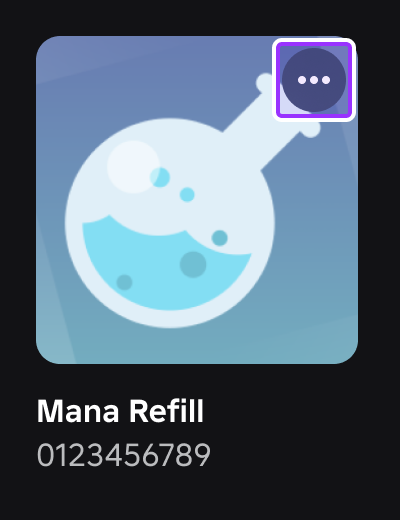
Paste each copied ID into a comma-delimited list within the
itemstable and includeInfoType.Productas the second parameter for addItemAsync to indicate that the items are developer products. By default, items appear in the catalog view in alphabetical order, but you can customize sorting using setCatalogSort.local ReplicatedStorage = game:GetService("ReplicatedStorage") local MerchBooth = require(ReplicatedStorage.MerchBooth) local items = { 1236602053, -- Mana Refill 1257880672, -- Healing Potion } for _, assetId in items do local success, errorMessage = pcall(function() MerchBooth.addItemAsync(assetId, Enum.InfoType.Product) end) if not success then warn(errorMessage) end end
Custom catalog button#
By default, a right-side catalog button lets players open the booth at any time.
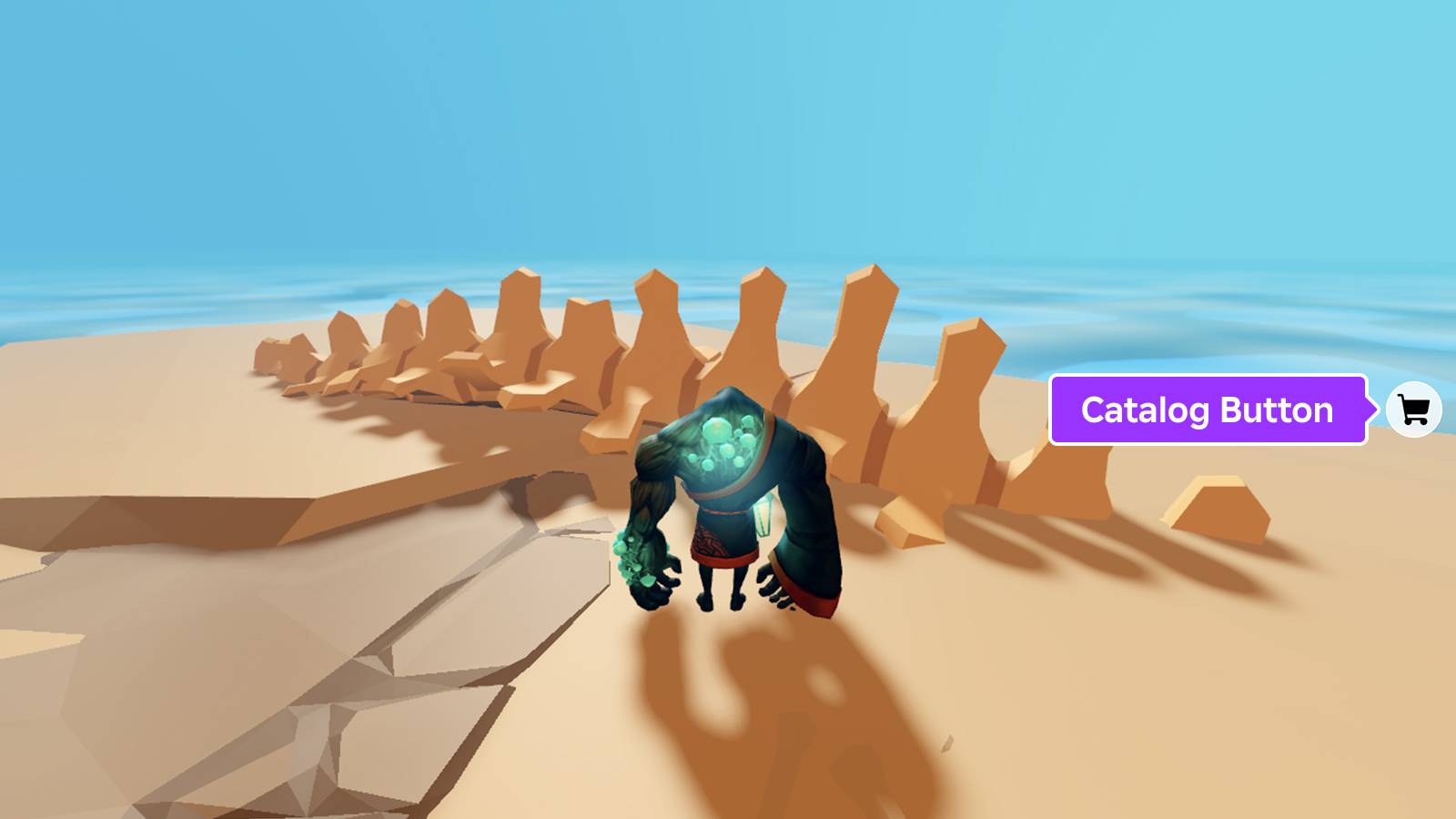
In some cases, it may be useful to remove this button and connect your own:
Create a new button as outlined in Buttons.
Create a
LocalScriptas a child of the button object.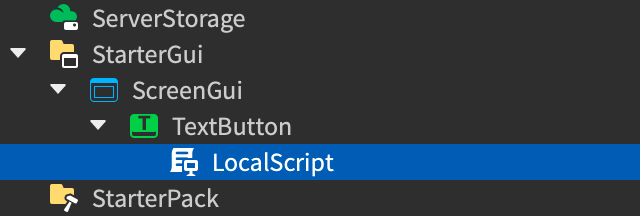
Paste the following code into the new script.
local ReplicatedStorage = game:GetService("ReplicatedStorage") local MerchBooth = require(ReplicatedStorage.MerchBooth) -- Remove the default catalog button MerchBooth.toggleCatalogButton(false) -- Connect the custom button script.Parent.Activated:Connect(function() MerchBooth.openMerchBooth() end)
Shoppable regions#
A helpful way to drive purchases in your game is to automatically show the merch booth when a player enters an area.
To create a shoppable region:
Create an
Anchoredblock that encompasses the detection region. Make sure the block is tall enough to collide with thePrimaryPartof character models (HumanoidRootPart by default).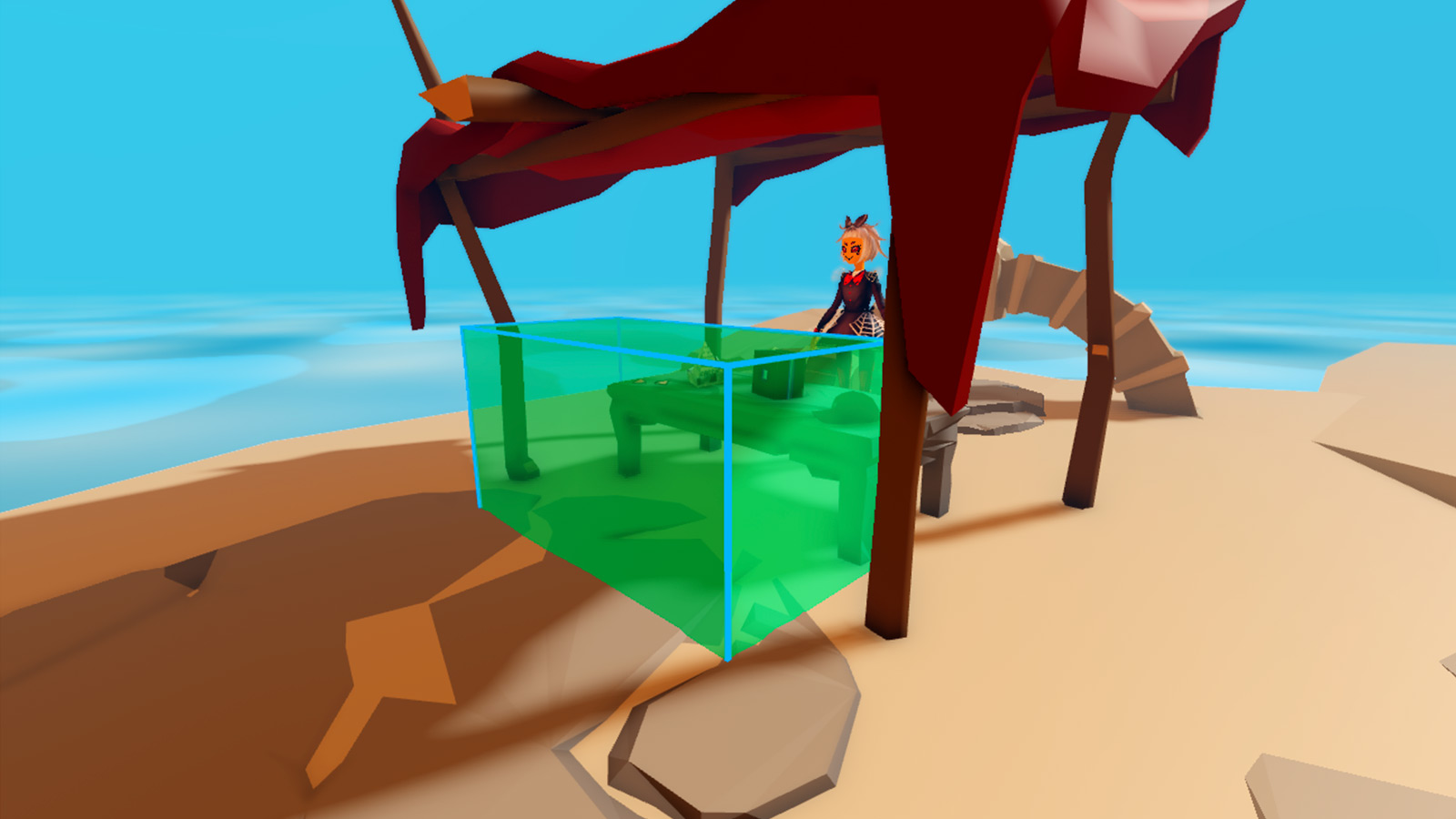
Block to detect when players approach the front of the shop counter Using the Tags section of the block's properties, apply the tag
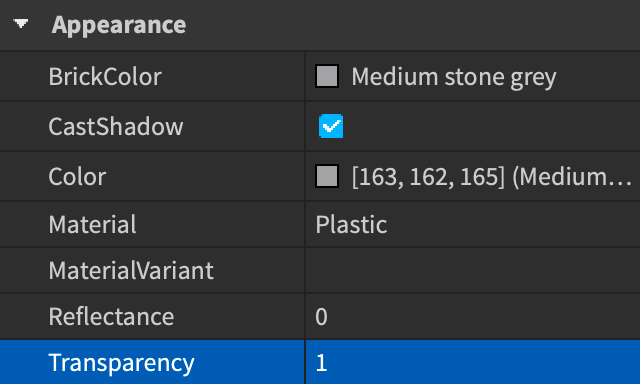
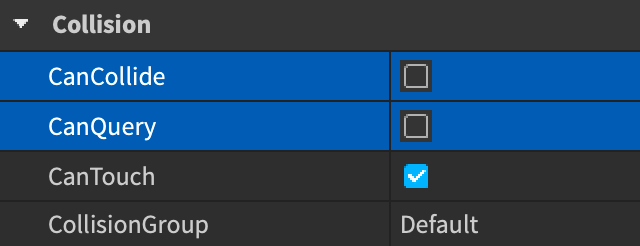
ShopRegionto the block so thatCollectionServicedetects it.Set the part's
Transparencyto the maximum to hide it from players in the game. Also disable itsCanCollideandCanQueryproperties so that objects do not physically collide with it and raycasts do not detect it.
Insert a new
LocalScriptunder StarterPlayerScripts.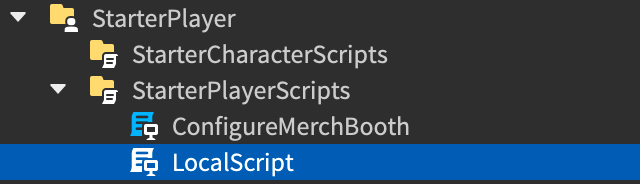
In the new script, paste the following code which uses the
TouchedandTouchEndedevents to detect when characters enter/leave the region and calls openMerchBooth and closeMerchBooth to open/close the booth GUI.local Players = game:GetService("Players") local ReplicatedStorage = game:GetService("ReplicatedStorage") local CollectionService = game:GetService("CollectionService") local MerchBooth = require(ReplicatedStorage.MerchBooth) -- Remove the default catalog button MerchBooth.toggleCatalogButton(false) local function setupRegion(region: BasePart) region.Touched:Connect(function(otherPart) local character = Players.LocalPlayer.Character if character and otherPart == character.PrimaryPart then MerchBooth.openMerchBooth() end end) region.TouchEnded:Connect(function(otherPart) local character = Players.LocalPlayer.Character if character and otherPart == character.PrimaryPart then MerchBooth.closeMerchBooth() end end) end -- Iterate through existing tagged shop regions for _, region in CollectionService:GetTagged("ShopRegion") do setupRegion(region) end -- Detect when non-streamed shop regions stream in CollectionService:GetInstanceAddedSignal("ShopRegion"):Connect(setupRegion)
Proximity prompts#
As an alternative to the 2D catalog view, you can add proximity prompts over in-game objects. This encourages players to discover items in the 3D environment, preview them on their own avatar, purchase them, and instantly equip them. See addProximityButton for details.
If a player has opened an item view through a proximity prompt, it automatically closes when the player moves further away from the prompt object than its activation distance. If you want to keep the booth open regardless of the player's distance from the prompt, set closeWhenFarFromPrompt to false in a configure call.
Change the equip effect#
By default, the merch booth shows a generic sparkle effect when a player equips an item from it. To change the effect, set particleEmitterTemplate to your own instance of a ParticleEmitter in a configure call.
local ReplicatedStorage = game:GetService("ReplicatedStorage")
local MerchBooth = require(ReplicatedStorage.MerchBooth)
local myParticleEmitter = Instance.new("ParticleEmitter")
myParticleEmitter.SpreadAngle = Vector2.new(22, 22)
myParticleEmitter.Lifetime = NumberRange.new(0.5, 1.5)
myParticleEmitter.Shape = Enum.ParticleEmitterShape.Sphere
myParticleEmitter.Transparency = NumberSequence.new(0, 1)
myParticleEmitter.RotSpeed = NumberRange.new(200, 200)
MerchBooth.configure({
particleEmitterTemplate = myParticleEmitter
})GUI visibility#
By default, the merch booth hides all ScreenGuis and CoreGuis when its UI appears, including the chat, leaderboard, and others included by Roblox. If you want to disable this behavior, set hideOtherUis to false in a configure call.
local ReplicatedStorage = game:GetService("ReplicatedStorage")
local MerchBooth = require(ReplicatedStorage.MerchBooth)
MerchBooth.configure({
hideOtherUis = false
})Character movement#
It can be advantageous to prevent a character from moving while they are in the merch booth. This can be done by setting disableCharacterMovement to true in a configure call.
local ReplicatedStorage = game:GetService("ReplicatedStorage")
local MerchBooth = require(ReplicatedStorage.MerchBooth)
MerchBooth.configure({
disableCharacterMovement = true
})API reference#
Types#
Item#
Items in the merch booth are represented by a dictionary with the following key-value pairs. Items can be gathered through the getItems function or the itemAdded event.
| Key | Type | Description |
|---|---|---|
assetId |
number | Catalog ID of the item, as passed to addItemAsync. |
title |
string | Item title as it appears in the catalog. |
price |
number | Item price in Robux. |
description |
string | Item description as it appears in the catalog. |
assetType |
string | String representing the item's accessory type. |
isOwned |
bool | Whether the current player owns the item. |
creatorName |
string | Item creator as shown in the catalog. |
creatorType |
CreatorType |
Creator type for the item. |
Enums#
MerchBooth.Controls#
Used along with setControlKeyCodes to customize the keys and gamepad buttons for interacting with the merch booth.
| Name | Summary |
|---|---|
ProximityPrompts |
Key and/or gamepad button to open the item view when proximity prompts are configured. |
OpenMerchBooth |
Key and/or gamepad button to open the merch booth. |
CloseMerchBooth |
Key and/or gamepad button to close the merch booth. |
Filter |
Key and/or gamepad button to use the default Filter pulldown in the upper-left area of the catalog view. |
ViewItem |
Key and/or gamepad button to open a specific merch booth item view. |
local ReplicatedStorage = game:GetService("ReplicatedStorage")
local MerchBooth = require(ReplicatedStorage.MerchBooth)
MerchBooth.setControlKeyCodes(MerchBooth.Controls.ProximityPrompts, {
keyboard = Enum.KeyCode.Q,
gamepad = Enum.KeyCode.ButtonL1
})Functions#
configure#
table)
Overrides default client-side configuration options through the following keys/values in the config table. This function can only be called from a LocalScript.
Appearance
| Key | Description | Default |
|---|---|---|
backgroundColor |
Main background color of the window (Color3). |
[0, 0, 0] |
cornerRadius |
Corner radius for the main window (UDim). |
(0, 16) |
cornerRadiusSmall |
Corner radius for elements inside the window (UDim). |
(0, 8) |
textFont |
Font of "main text" such as prices, descriptions, and other general info (Font). |
Gotham |
textSize |
Size of the main text. | 14 |
textColor |
Color of the main text (Color3). |
[255, 255, 255] |
secondaryTextColor |
Color used for some variations of the main text (Color3). |
[153, 153, 158] |
headerFont |
Font of the header text used for the window title (Font). |
GothamMedium |
headerTextSize |
Size of the header text used for the window title. | 18 |
titleFont |
Font of the title text used for item names on the item detail page (Font). |
GothamBold |
titleTextSize |
Size of the title text used for item names on the item detail page. | 28 |
buttonColor |
Background color for larger buttons in a clickable state, such as the main purchase button in item view (Color3). |
[255, 255, 255] |
buttonTextColor |
Text color for larger buttons in a clickable state, such as the main purchase button in item view (Color3). |
[0, 0, 0] |
secondaryButtonColor |
Background color for smaller buttons such as the price buttons in catalog view or the Try On button (Color3). |
[34, 34, 34] |
secondaryButtonTextColor |
Text color for smaller buttons such as the price buttons in catalog view or the Try On button (Color3). |
[255, 255, 255] |
inactiveButtonColor |
Background color for all buttons in an un-clickable state (Color3). |
[153, 153, 158] |
inactiveButtonTextColor |
Text color for all buttons in an un-clickable state (Color3). |
[255, 255, 255] |
particleEmitterTemplate |
Optional custom ParticleEmitter instance that appears and plays on equip. |
Proximity Prompts
| Key | Description | Default |
|---|---|---|
proximityButtonActivationDistance |
Maximum distance a player's character can be from the prompt adornee for the prompt to appear. | 10 |
proximityButtonExclusivity |
ProximityPromptExclusivity specifying which prompts can be shown at the same time. |
OnePerButton |
proximityButtonOffset |
Pixel offset applied to the prompt's UI (Vector2). |
(0, 0) |
proximityButtonPulseCount |
How many "pulses" occur around proximity buttons before stopping. | 3 |
Behavior
| Key | Description | Default |
|---|---|---|
useFilters |
Toggles on/off the Filter button shown in the catalog. | true |
disableCharacterMovement |
If true, prevents character from moving while the merch booth is open. |
false |
hideOtherUis |
If true, the merch booth hides all ScreenGuis and CoreGuis when its UI appears. |
true |
closeWhenFarFromPrompt |
If true and if the player has opened an item view through a proximity prompt, the merch booth will automatically close when the player moves further away from the prompt object than its activation distance. |
true |
local ReplicatedStorage = game:GetService("ReplicatedStorage")
local MerchBooth = require(ReplicatedStorage.MerchBooth)
MerchBooth.configure({
backgroundColor = Color3.fromRGB(255, 255, 255),
textSize = 16,
textFont = Enum.Font.Roboto,
textColor = Color3.fromRGB(20, 20, 20),
hideOtherUis = false,
})addItemAsync#
number, productType: InfoType, hideFromCatalog: boolean)
Asynchronously adds an item to the merch booth so that it's eligible for purchase in the game. assetId is the item's asset ID, productType is the item's InfoType enum, and hideFromCatalog can be used to hide the item in the catalog view.
See Adding Items for details, as usage varies slightly for assets versus game passes or developer products.
This function can only be called from a Script and it performs an asynchronous network call that may occasionally fail. As shown below, it's recommended that it be wrapped in LuaGlobals.pcall() to catch and handle errors.
local ReplicatedStorage = game:GetService("ReplicatedStorage")

local MerchBooth = require(ReplicatedStorage.MerchBooth)

local items = {
    607702162, -- Roblox Baseball Cap
    4819740796, -- Robox
    1374269, -- Kitty Ears
    11884330, -- Nerd Glasses
    10476359, -- Paper Hat
}

for _, assetId in items do
    local success, errorMessage = pcall(function()
        MerchBooth.addItemAsync(assetId)
    end)
    if not success then
        warn(errorMessage)
    end
endlocal ReplicatedStorage = game:GetService("ReplicatedStorage")
local MerchBooth = require(ReplicatedStorage.MerchBooth)
local items = {
4343758, -- ColdFyre Armor
28521575, -- Slime Shield
}
for _, assetId in items do
local success, errorMessage = pcall(function()
MerchBooth.addItemAsync(assetId, Enum.InfoType.GamePass)
end)
if not success then
warn(errorMessage)
end
endlocal ReplicatedStorage = game:GetService("ReplicatedStorage")
local MerchBooth = require(ReplicatedStorage.MerchBooth)
local items = {
1236602053, -- Mana Refill
1257880672, -- Healing Potion
}
for _, assetId in items do
local success, errorMessage = pcall(function()
MerchBooth.addItemAsync(assetId, Enum.InfoType.Product)
end)
if not success then
warn(errorMessage)
end
endgetItems#
table
Returns a dictionary representing all of the currently registered items. Each key is an item's asset ID as a string, and each key's value is an Item. This function can only be called from a Script.
local ReplicatedStorage = game:GetService("ReplicatedStorage")

local MerchBooth = require(ReplicatedStorage.MerchBooth)

local success, errorMessage = pcall(function()
	MerchBooth.addItemAsync(4819740796)
end)
if success then
	local items = MerchBooth.getItems()
	print(items)
endremoveItem#
number)
Unregisters an item previously added with addItemAsync, removing its tile in the catalog view and any proximity prompts assigned to it. This function can only be called from a Script.
local ReplicatedStorage = game:GetService("ReplicatedStorage")

local MerchBooth = require(ReplicatedStorage.MerchBooth)

local success, errorMessage = pcall(function()
	MerchBooth.addItemAsync(4819740796)
end)
if success then
	-- After some time, remove the item
	task.wait(5)
	MerchBooth.removeItem(4819740796)
endaddProximityButton#
BasePart|Model|Attachment, assetId: number)
Adds a proximity prompt over the given adornee that will trigger the display of an item's purchase view, given its asset ID. This can be used as an alternative to the 2D catalog view, encouraging players to discover items in the 3D environment.
Note that an item must be added via addItemAsync before a proximity button can be assigned to it. See also removeProximityButton to remove the proximity prompt from an object.
When implementing proximity prompts, you may want to remove the catalog button to eliminate its usage in opening the booth.
local ReplicatedStorage = game:GetService("ReplicatedStorage")
local Workspace = game:GetService("Workspace")

local MerchBooth = require(ReplicatedStorage.MerchBooth)

local success, errorMessage = pcall(function()
	MerchBooth.addItemAsync(4819740796)
end)
if success then
	local item = Workspace:FindFirstChild("Robox")
	if item then
		MerchBooth.addProximityButton(item, 4819740796)
	end
endremoveProximityButton#
BasePart|Model|Attachment)
Removes a proximity prompt generated through addProximityButton. This function can only be called from a Script.
local ReplicatedStorage = game:GetService("ReplicatedStorage")
local Workspace = game:GetService("Workspace")

local MerchBooth = require(ReplicatedStorage.MerchBooth)

local success, errorMessage = pcall(function()
	MerchBooth.addItemAsync(4819740796)
end)
if success then
	local item = Workspace:FindFirstChild("Robox")
	if item then
		MerchBooth.addProximityButton(item, 4819740796)
	end

	-- After some time, remove the prompt
	task.wait(5)
	MerchBooth.removeProximityButton(item)
endsetCatalogSort#
function): boolean
Sets the sorting function sortFunction to be used in the catalog view. The provided sorting function can use logic based on Item info such as price or title. This function can only be called from a LocalScript.
Here are some examples for sorting the catalog:
local ReplicatedStorage = game:GetService("ReplicatedStorage")

local MerchBooth = require(ReplicatedStorage.MerchBooth)

MerchBooth.setCatalogSort(function(a, b)
	return a.price < b.price
end)local ReplicatedStorage = game:GetService("ReplicatedStorage")
local MerchBooth = require(ReplicatedStorage.MerchBooth)
MerchBooth.setCatalogSort(function(a, b)
return a.price > b.price
end)local ReplicatedStorage = game:GetService("ReplicatedStorage")
local MerchBooth = require(ReplicatedStorage.MerchBooth)
MerchBooth.setCatalogSort(function(a, b)
return if a.price == b.price then a.title < b.title else a.price < b.price
end)setControlKeyCodes#
table)
Configures the key and button values for interactions with the merch booth. The first parameter must be a MerchBooth.Controls enum and the second parameter a table containing the keys keyboard and/or gamepad with corresponding KeyCode enums.
Enum (control) |
Default keyCodes Keys/Values |
|---|---|
MerchBooth.Controls.ProximityPrompts |
keyboard = Enum.KeyCode.Egamepad = Enum.KeyCode.ButtonY |
MerchBooth.Controls.OpenMerchBooth |
gamepad = Enum.KeyCode.ButtonY |
MerchBooth.Controls.CloseMerchBooth |
gamepad = Enum.KeyCode.ButtonB |
MerchBooth.Controls.Filter |
gamepad = Enum.KeyCode.ButtonX |
MerchBooth.Controls.ViewItem |
gamepad = Enum.KeyCode.ButtonA |
local ReplicatedStorage = game:GetService("ReplicatedStorage")

local MerchBooth = require(ReplicatedStorage.MerchBooth)

MerchBooth.setControlKeyCodes(MerchBooth.Controls.ProximityPrompts, {
	keyboard = Enum.KeyCode.Q,
	gamepad = Enum.KeyCode.ButtonL1,
})openMerchBooth#
Opens the merch booth window (if closed) and navigates to the catalog view. This function can only be called from a LocalScript.
local ReplicatedStorage = game:GetService("ReplicatedStorage")

local MerchBooth = require(ReplicatedStorage.MerchBooth)

local success, errorMessage = pcall(function()
	MerchBooth.addItemAsync(assetId)
end)
if not success then
	warn(errorMessage)
end

MerchBooth.openMerchBooth()openItemView#
number)
Navigates to the single item view of the given itemId, opening the merch booth window if it is currently closed. This function can only be called from a LocalScript.
local ReplicatedStorage = game:GetService("ReplicatedStorage")

local MerchBooth = require(ReplicatedStorage.MerchBooth)

local success, errorMessage = pcall(function()
	MerchBooth.addItemAsync(4819740796)
end)
if success then
	MerchBooth.openItemView(4819740796)
endtoggleCatalogButton#
boolean)
Toggles on/off the catalog button on the right side of the screen. This is useful when implementing a custom button or limiting the merch booth's appearance to regions or proximity prompts. Can only be called from a LocalScript.
local ReplicatedStorage = game:GetService("ReplicatedStorage")

local MerchBooth = require(ReplicatedStorage.MerchBooth)

MerchBooth.toggleCatalogButton(false)isMerchBoothOpen#
Tuple
Returns true if either the catalog or the item view is open. If the item view is open, the item's asset ID is returned as the second value. This function can only be called from a LocalScript.
local ReplicatedStorage = game:GetService("ReplicatedStorage")

local MerchBooth = require(ReplicatedStorage.MerchBooth)

local success, errorMessage = pcall(function()
	MerchBooth.addItemAsync(4819740796)
end)
if success then
	MerchBooth.openItemView(4819740796)

	local isOpen, itemId = MerchBooth.isMerchBoothOpen()
	print(isOpen, itemId)
endcloseMerchBooth#
Closes the merch booth window. This function can only be called from a LocalScript.
local ReplicatedStorage = game:GetService("ReplicatedStorage")

local MerchBooth = require(ReplicatedStorage.MerchBooth)

MerchBooth.closeMerchBooth()isMerchBoothEnabled#
boolean
This function may be used in tandem with setEnabled to check whether the merch booth is currently enabled or not. Can only be called from a LocalScript.
setEnabled#
boolean)
Sets whether the entire merch booth is enabled or not. When disabled, this function removes the entire UI, including proximity prompts, and disconnects all events. This function can only be called from a LocalScript.
local ReplicatedStorage = game:GetService("ReplicatedStorage")

local MerchBooth = require(ReplicatedStorage.MerchBooth)

local isEnabled = MerchBooth.isMerchBoothEnabled()
if isEnabled then
	MerchBooth.setEnabled(false)
endEvents#
itemAdded#
Fires when an item is added through addItemAsync. This event can only be connected in a Script.
| Parameters | |
|---|---|
assetId: number |
Item asset ID. |
itemInfo: table |
Dictionary of Item info such as price or title. |
local ReplicatedStorage = game:GetService("ReplicatedStorage")

local MerchBooth = require(ReplicatedStorage.MerchBooth)

MerchBooth.itemAdded:Connect(function(assetId, itemInfo)
	print("Item added with asset ID of", assetId)
	print(itemInfo)
end)itemRemoved#
Fires when an item is removed through removeItem. This event can only be connected in a Script.
| Parameters | |
|---|---|
assetId: number |
Item asset ID. |