Developer Products
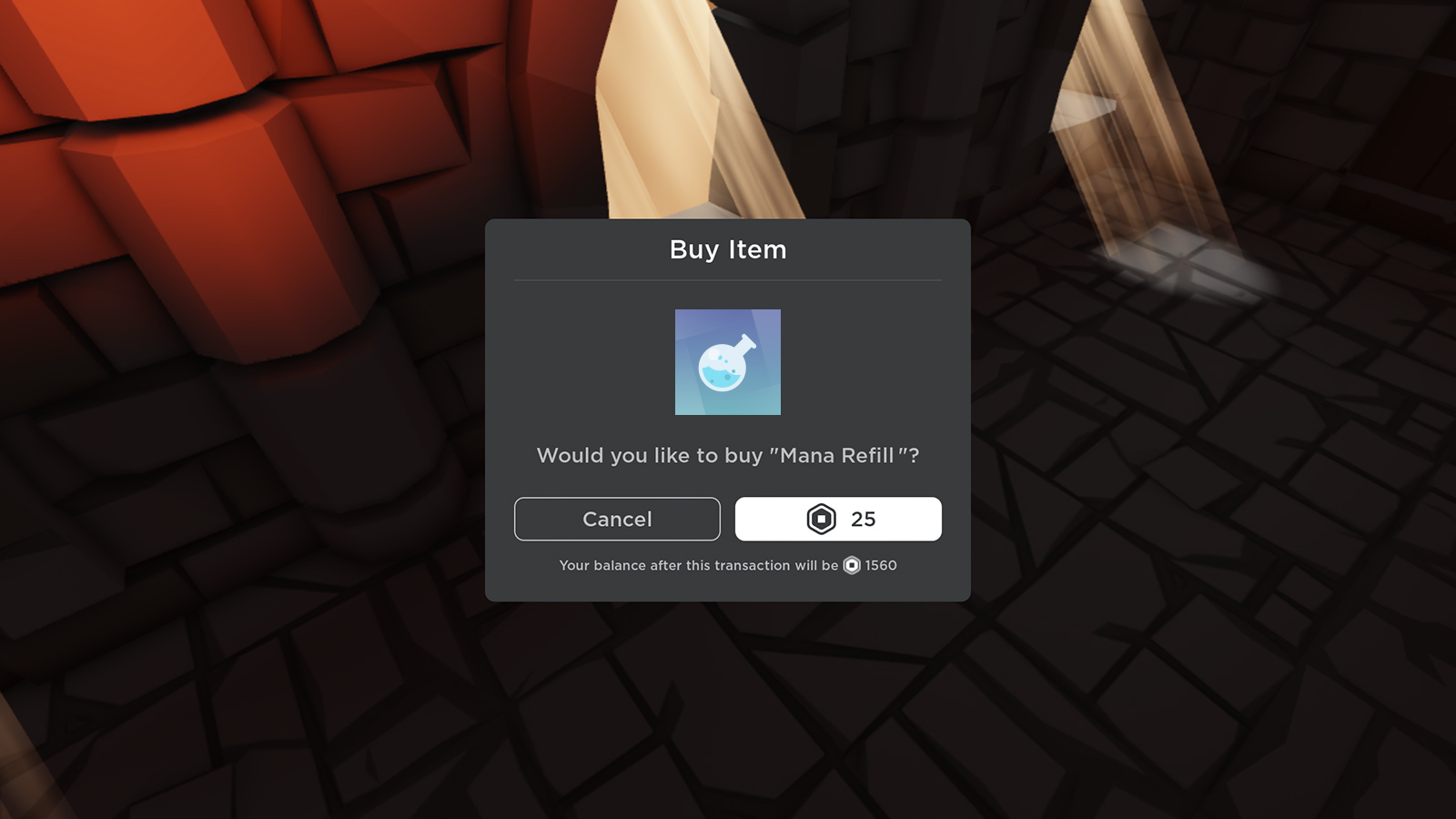
Developer Products let you charge users a Robux fee for items or abilities that they can access and use inside your game.
A developer product is an item or ability that a user can purchase more than once, such as in-game currency, ammo, or potions.
For items or abilities that a user should only purchase once, such as a special weapon or a permanent power-up, see Passes.
Create a developer product#
Before creating a developer product, make sure your game has been published and is accessible on Roblox.
To create a developer product:
- Go to Creations and select a game.
- Go to Monetization ⟩ Developer Products.
- Click Create developer product.
- Upload an image to display as the product icon. Make sure the image doesn't exceed 512x512 pixels, doesn't include important details outside of its circular boundaries, and is in
.jpg,.png, or.bmpformat. - Enter a name and a description for the product.
- Select a category for the product. The category is used to organize items in your in-game Shop.
- Set the product price in Robux. The minimum price is 1 Robux, and the maximum price is 1 billion Robux.
- Click Save Changes.
If you want to use the developer product as a randomized reward, review the randomized virtual item policy.
Get the developer product ID#
To use scripting, you need a developer product ID. To get the product ID:
Go to Monetization ⟩ Developer Products.
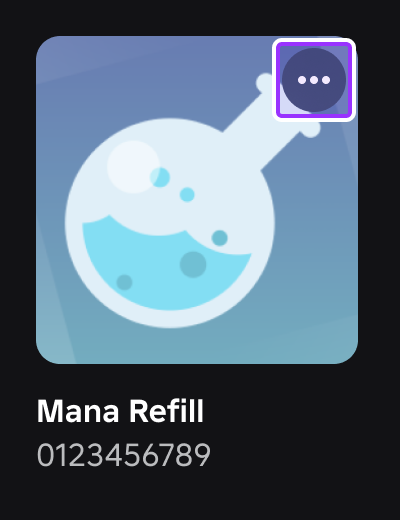
Hover over a product's thumbnail, click the ⋯ button, and select Copy Asset ID from the context menu.
Sell a developer product#
Starting May 30, 2026, cross-game developer product sales will be disabled. If your game relies on cross-game sales mechanics, we recommend integrating Robux transfers before this date to avoid service interruptions.
If you're using price optimization, make sure the script runs on the client so that users see personalized product prices.
Before selling developer products, make sure you are properly processing sales receipts and granting users their purchased products. To do so, you must:
- Use the
ProcessReceiptAPI to check purchase receipts.ProcessReceiptautomatically reads and acknowledges that a user has purchased a product outside of the game. - Validate each receipt for
User ID,Developer Product ID, and the receipt status. - If the receipt has a status of Open, grant the user the developer items they have purchased.
- Respond to the
ProcessReceiptAPI with a message acknowledging the receipt and validating that the purchased items were granted.
You can sell developer products in two ways:
Inside your game#
To implement and sell a developer product inside a game, call MarketplaceService functions.
Use GetProductInfo to retrieve information about a developer product, like name and price, and then to display that product to users. You can sell the product inside your game's marketplace, for example. For developer products, the second parameter must be InfoType.Product.
local MarketplaceService = game:GetService("MarketplaceService")

-- Replace the placeholder ID with your developer product ID
local productId = 000000

local success, productInfo = pcall(function()
	return MarketplaceService:GetProductInfo(productId, Enum.InfoType.Product)
end)

if success and productInfo then
	-- Display product information
	-- Replace the print statements with UI code to display the product
  print("Developer Product Name: " .. productInfo.Name)
  print("Price in Robux: " .. productInfo.PriceInRobux)
  print("Description: " .. productInfo.Description)
end
Use GetDeveloperProductsAsync to retrieve all developer products associated with your game. This function returns a Pages object that you can inspect and filter to build things like an in-game store or product list GUI.
local MarketplaceService = game:GetService("MarketplaceService")

local success, developerProducts = pcall(function()
	return MarketplaceService:GetDeveloperProductsAsync()
end)

if success and developerProducts then
	local firstPage = developerProducts:GetCurrentPage()
	for _, developerProduct in firstPage do
			-- Replace the print statement with UI code to display the product
			print(field .. ": " .. value)
	end
end
Use PromptProductPurchase to prompt product purchases inside your game. You can call this function when a user performs actions like pressing a button or talking to a vendor NPC.
local MarketplaceService = game:GetService("MarketplaceService")
local Players = game:GetService("Players")
local player = Players.LocalPlayer

-- Replace the placeholder ID with your developer product ID
local productId = 000000

local function promptProductPurchase()
    local success, errorMessage = pcall(function()
      MarketplaceService:PromptProductPurchase(player, productId)
    end)

    if success then
      print("Purchase prompt shown successfully")
		end
end
You can also combine functions inside a LocalScript. For example, you can create a UI element like a button or a vendor NPC, then use GetProductInfo() to connect an existing developer product to that element, check if the product is for sale, and use PromptProductPurchase() to prompt a purchase whenever the user clicks on it.
local MarketplaceService = game:GetService("MarketplaceService")
local Players = game:GetService("Players")

local player = Players.LocalPlayer
local button = script.Parent

-- Replace the placeholder ID with your developer product ID
local productId = 000000

	-- Gets product info when user clicks the UI button
button.MouseButton1Click:Connect(function()
	local success, productInfo = pcall(function()
		return MarketplaceService:GetProductInfo(productId, Enum.InfoType.Product)
	end)

	if success and productInfo then
		-- Checks if product is for sale
		if productInfo.IsForSale then
			print("This is for sale")
			-- Prompts product purchase
			MarketplaceService:PromptProductPurchase(player, productId)
		else
			-- Notifies product isn't for sale
			print("This product is not currently for sale.")
		end
	else
		print("Error retrieving product info: " .. tostring(productInfo))
	end
end)
Outside your game#
To enable developer product purchases outside your game, you must work with the ProcessReceipt API. After a user makes a purchase in the Store tab of your game details page, you must use ProcessReceipt to confirm their purchase and grant them their items once they enter your game.
Do not use the PromptProductPurchaseFinished event to process purchases. You must use the ProcessReceipt callback instead.
The firing of PromptProductPurchaseFinished does not mean that a user has successfully purchased an item.
Enable external sales#
Roblox surfaces your Listed developer products and game passes outside your game, including on the Roblox homepage, in search results, and on the post-purchase page after a player buys Robux. A player can buy your item and then join your game with it already granted.
To make a developer product eligible for external sales:
- In the Creator Hub, go to Monetization ⟩ Shop.
- Mark the developer product Listed.
- Confirm that you have implemented
ProcessReceiptcorrectly for the product.
Roblox checks your ProcessReceipt implementation on an ongoing basis. If an issue is detected, the developer product stops showing on surfaces outside your game until you fix it.
Game passes don't require a ProcessReceipt fix, but they must also be Listed to appear outside your game. We recommend adding a custom icon to each developer product so players can recognize it on external surfaces; if you don't add one, Roblox shows a default icon.
For more information about the ProcessReceipt API and its implementation, see the ProcessReceipt page.
Fix a flagged developer product#
If Roblox detects a ProcessReceipt issue with one of your Listed developer products, a banner appears in Creator Hub ⟩ Monetization ⟩ Shop that links to a report of the affected products. If none of your developer products need a fix, no banner or report appears.
To resolve a flagged developer product:
- Open the report from the banner. The report lists each Listed developer product that needs a
ProcessReceiptfix, along with its product name and product ID. - Open your game in Roblox Studio and fix the
ProcessReceiptimplementation for the flagged product. - Publish your game.
- In the report, select the fixed products and click Mark as fixed.
Fixed products leave the report and become eligible to appear outside your game again.
A flagged developer product only loses eligibility to appear outside your game. Players can still buy it through your existing in-game purchase flows while it's flagged.
Limitations#
- To be sold outside your game, a developer product must be Listed and have
ProcessReceiptimplemented correctly. - Unlisted developer products never appear in the Shop or outside your game.
- Selling a developer product outside your game doesn't change your standard earnings or purchase handling.
Frequently asked questions#
You only see a banner if Roblox detects a Listed developer product that needs a ProcessReceipt fix. If you don't see a banner, no action is needed.
No. The ProcessReceipt report only applies to developer products. Both Listed developer products and game passes can be surfaced and sold outside your game.
No. External sales give players additional places to find and buy your items. Your purchase handling and standard earnings are unchanged.
Handle a developer product purchase#
After a user purchases a developer product, you must handle and record the transaction. To do this, use a Script within ServerScriptService using the ProcessReceipt function.
For more information about the ProcessReceipt API and its implementation, see the ProcessReceipt page.
local MarketplaceService = game:GetService("MarketplaceService")
local Players = game:GetService("Players")

local productFunctions = {}

-- Example: product ID 123123 brings the user back to full health
productFunctions[123123] = function(receipt, player)
	local character = player.Character
	local humanoid = character and character:FindFirstChildWhichIsA("Humanoid")

	if humanoid then
		humanoid.Health = humanoid.MaxHealth
		-- Indicates a successful purchase
		return true
	end
end

-- Example: product ID 456456 awards 100 gold coins to the user
productFunctions[456456] = function(receipt, player)
	local leaderstats = player:FindFirstChild("leaderstats")
	local gold = leaderstats and leaderstats:FindFirstChild("Gold")

	if gold then
		gold.Value += 100
		return true
	end
end

local function processReceipt(receiptInfo)
	local userId = receiptInfo.PlayerId
	local productId = receiptInfo.ProductId

	local player = Players:GetPlayerByUserId(userId)
	if player then
		-- Gets the handler function associated with the developer product ID and attempts to run it
		local handler = productFunctions[productId]
		local success, result = pcall(handler, receiptInfo, player)
		if success then
			-- The user has received their items
			-- Returns "PurchaseGranted" to confirm the transaction
			return Enum.ProductPurchaseDecision.PurchaseGranted
		else
			warn("Failed to process receipt:", receiptInfo, result)
		end
	end

	-- The user's items couldn't be awarded
	-- Returns "NotProcessedYet" and tries again next time the user joins the game
	return Enum.ProductPurchaseDecision.NotProcessedYet
end

-- Sets the callback
-- This can only be done once by one server-side script
MarketplaceService.ProcessReceipt = processReceipt
The receiptInfo table passed to the ProcessReceipt() callback function contains detailed information about the purchase, like the ID of the purchased product, the user who made the purchase, and the currency they used.
receiptInfo also contains the exact Robux amount the user paid for the product, even if you're running a price optimization test and showing different users different prices.
The functions for handling each product ID must return true for the transaction to be successful. If they don't, the product will not be awarded to the user who purchased it.
Although Roblox itself does not record the purchase history of developer products by specific users, you can request to download sales data. If you want to track user-specific purchase history, it's your responsibility to store the data.
Personalize your in-game store#
You can use product intelligence APIs to sort and recommend developer products to users. Personalizing your in-game store helps surface the most relevant items to each user, boosting engagement and revenue. By tailoring developer products to user preferences, you can improve their discovery, increase conversion rates, and unlock new monetization opportunities.
Rank developer products for sale#
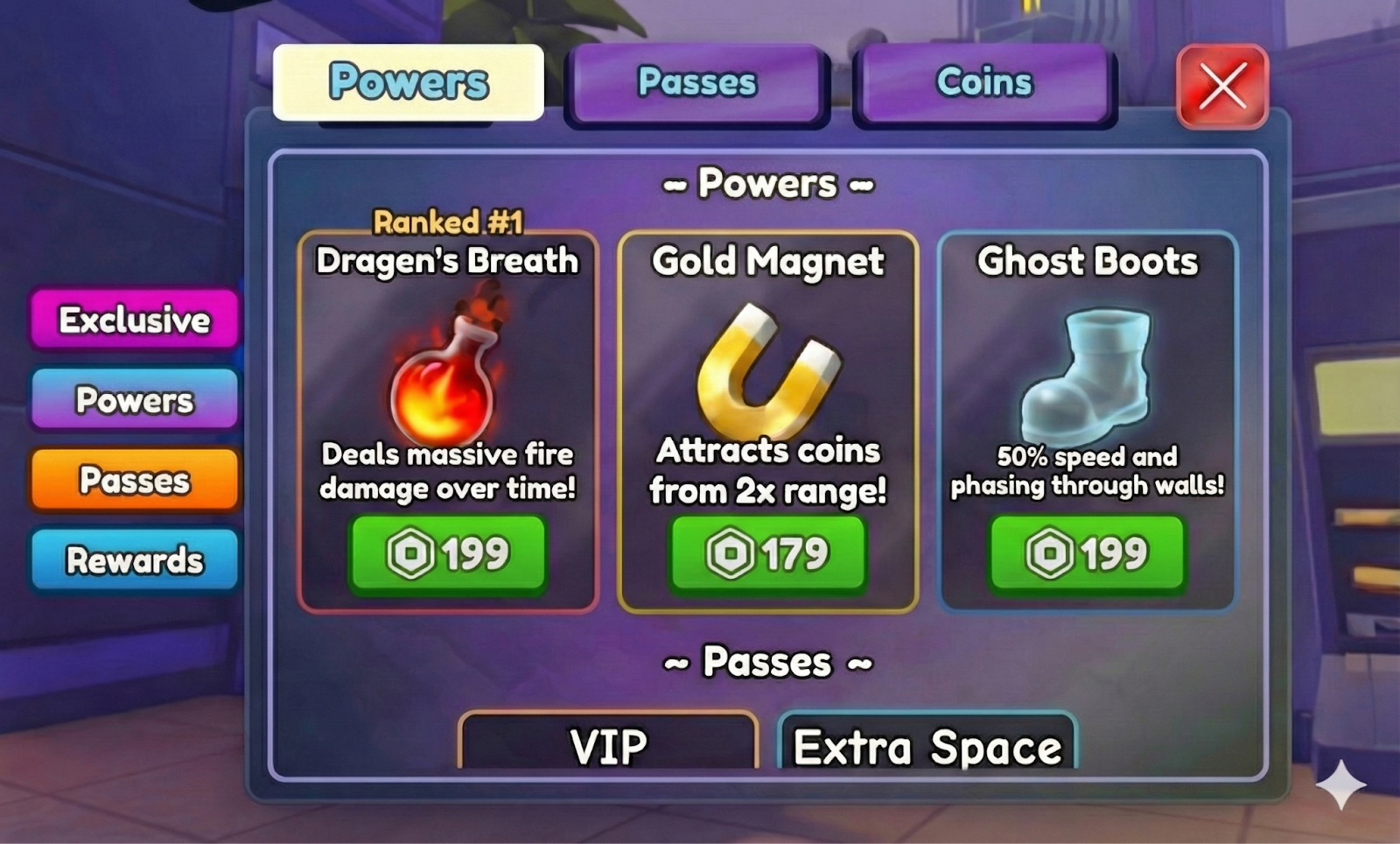
RankProductsAsync takes in a list of product IDs and returns a personalized ordered list of those products. You can use this method to provide your users with personalized item recommendations in your in-game store.
Because RankProductsAsync has a strict rate limit, you should load recommendations once at game join instead of calling it repeatedly.
local MarketplaceService = game:GetService("MarketplaceService")

-- Create an array of products you want to rank
local productIdentifiers = {
    {InfoType = Enum.InfoType.GamePass, Id = 123},
    {InfoType = Enum.InfoType.Product, Id = 456},
    {InfoType = Enum.InfoType.Product, Id = 789}
}

-- Make a protected call to handle errors
local success, rankedProducts = pcall(function()
    return MarketplaceService:RankProductsAsync(productIdentifiers)
end)

if not success then
    error("Failed to rank products")
end

-- Load the returned items into the store
for i, rankedItem in ipairs(rankedProducts) do
    local productIdentifier = rankedItem.ProductIdentifier
    local productInfo = rankedItem.ProductInfo
    -- ...
    -- Logic to add products into store
end
Display your top developer products#
If your game has had no item sales in the past 28 days, RecommendTopProductsAsync returns an empty list. At least one purchase within the last 28 days is required for this API to generate recommendations.
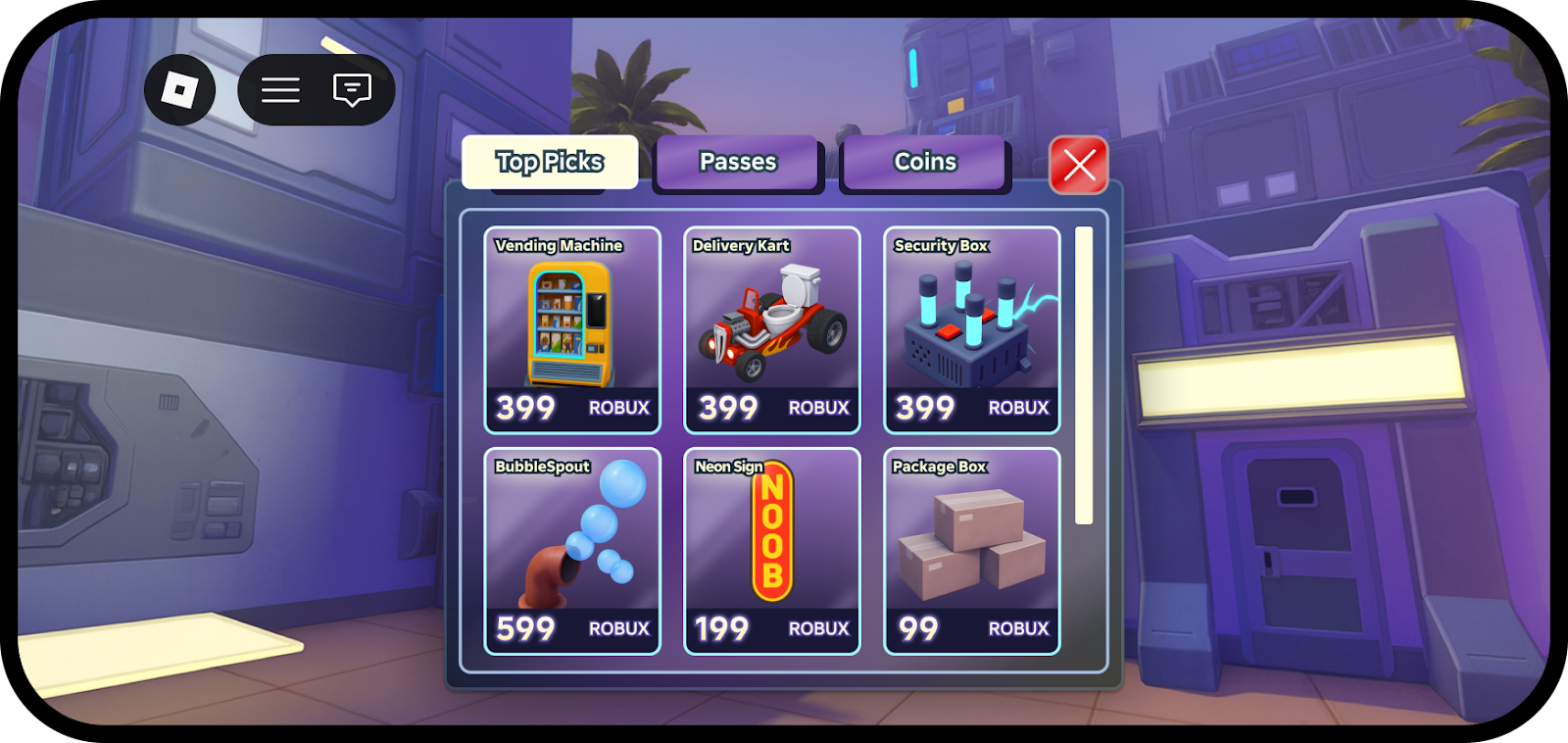
RecommendTopProductsAsync takes an array of InfoType values and returns up to 50 items a user is most likely to engage with and purchase. You can use this method to create a "Top Picks" section in your in-game store.
If no recommendations can be determined, RecommendTopProductsAsync returns 0 items.
In rare cases, calls to the ranking model can be slow. To help prevent added lately for users, we recommend using task.spawn to make the call to RecommendTopProducts non-blocking.
local MarketplaceService = game:GetService("MarketplaceService")

-- Create an array of product types you want to include in the recommendations -- This example includes both passes and developer products
local productTypes = {Enum.InfoType.GamePass, Enum.InfoType.Product}

-- Make a protected call to handle errors
local success, topRankedItems = pcall(function()
    return MarketplaceService:RecommendTopProductsAsync(productTypes)
end)

if not success then
    error("Failed to rank products")
end

-- Load the returned items into the store
-- Make sure to filter out any ineligible items from topRankedItems such as developer products the user can no longer purchase
for i, rankedItem in ipairs(topRankedItems) do
    local productIdentifier = rankedItem.ProductIdentifier
    local productInfo = rankedItem.ProductInfo
    -- ...
    -- Logic to add products into store
end
Developer product analytics#
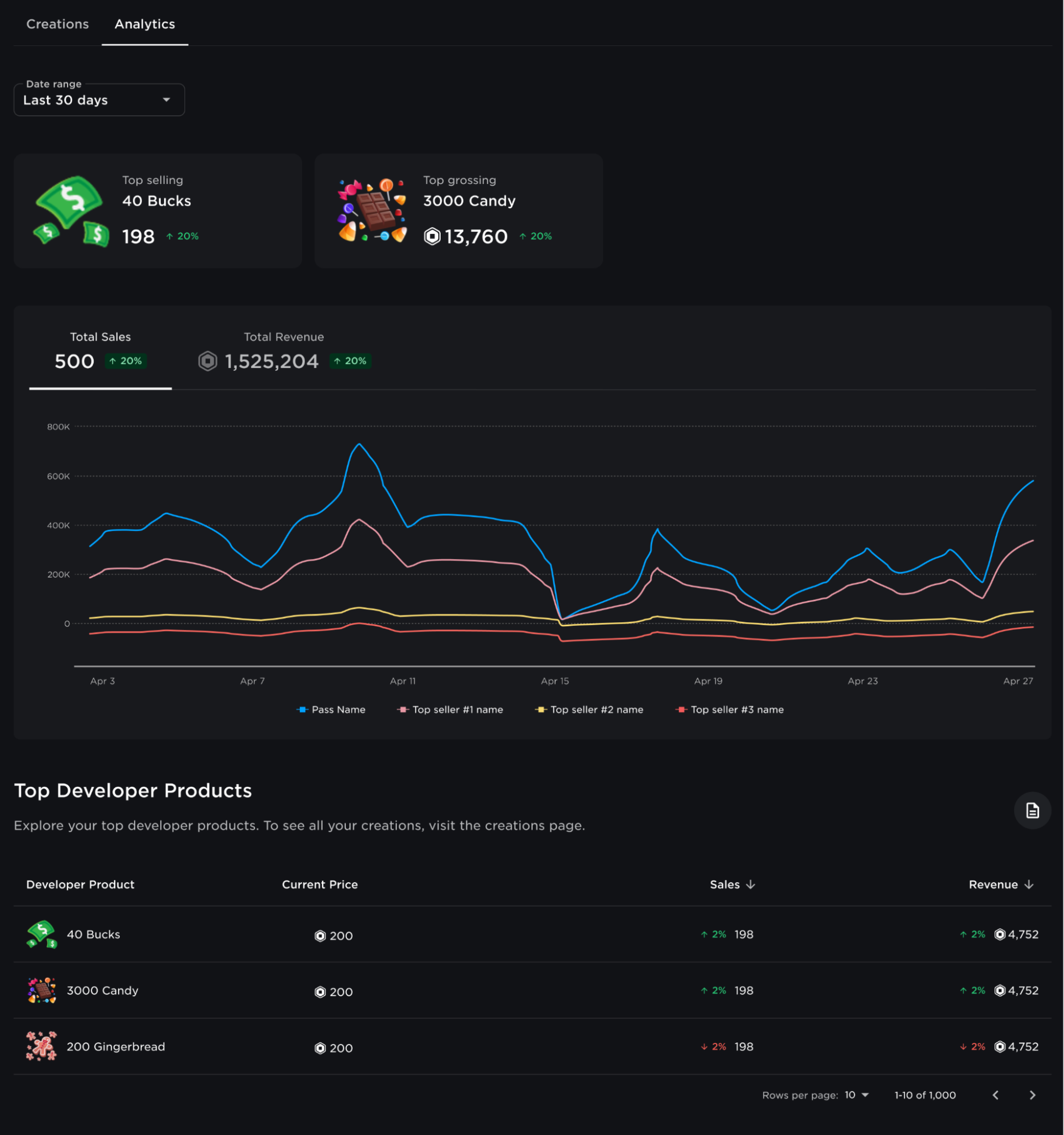
Use developer product analytics to analyze the success of individual products, identify trends, and forecast potential future earnings.
With analytics, you can:
- View your top developer products over a selected time period.
- Showcase up to eight top-selling items on a time-series graph to analyze overall sales and net revenue.
- Monitor your catalog and sort items by sales and net revenue.
To access developer product analytics:
- Go to Creations and select a game.
- Go to Monetization ⟩ Developer Products.
- Select the Analytics tab.