Accessibility guidelines
Explains the practice of designing products and services to be usable by people with disabilities.
Accessibility is the practice of designing products and services to be usable by people with disabilities. Recent stats cite that over 26% of people have some type of disability, so making your Roblox game accessible can help you reach a wider audience.
Text size#
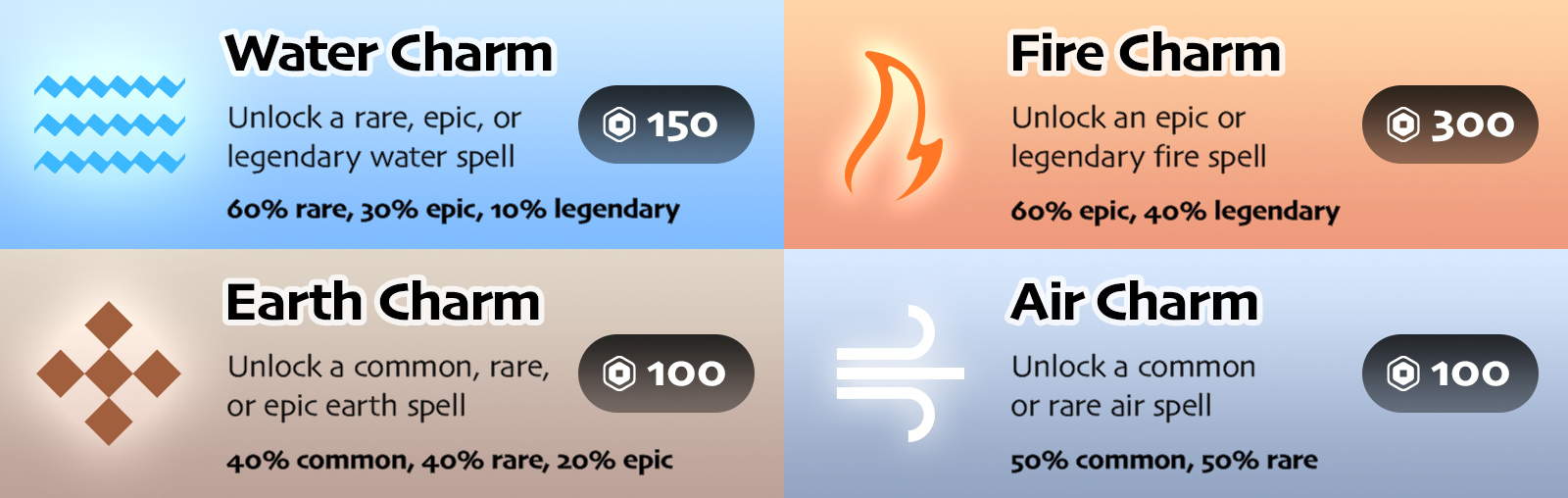
Players may find it difficult to read small text. Compare the following in-game shop menu with a blur applied, simulating what it might look like to somebody with impaired vision.
Sighted
Low Vision
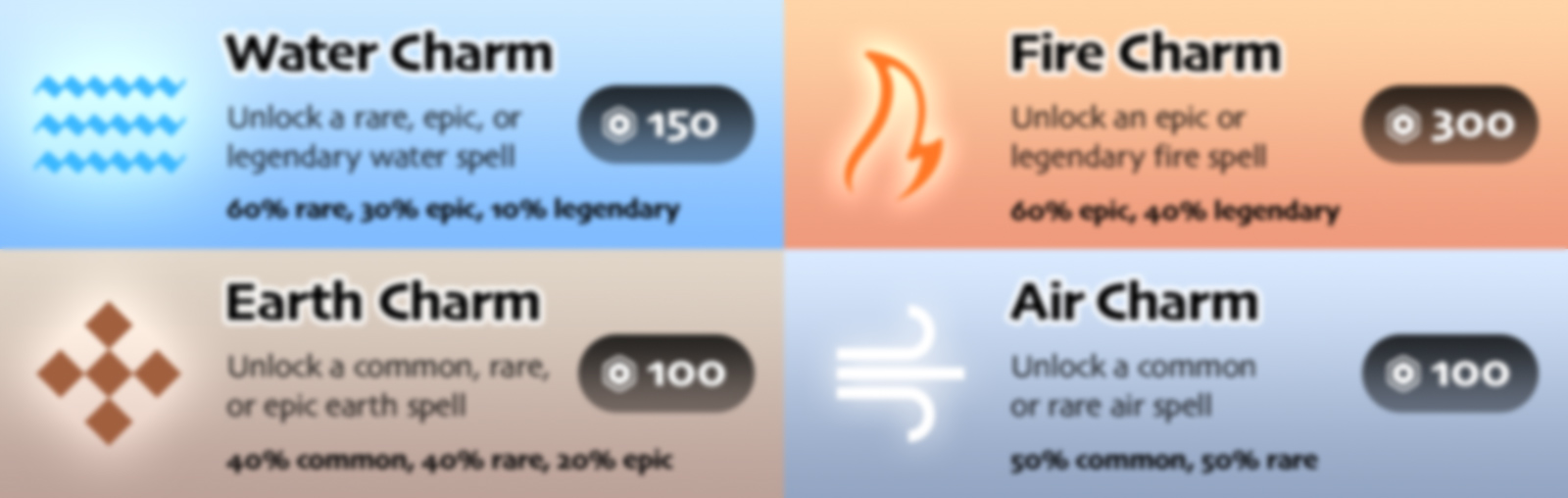
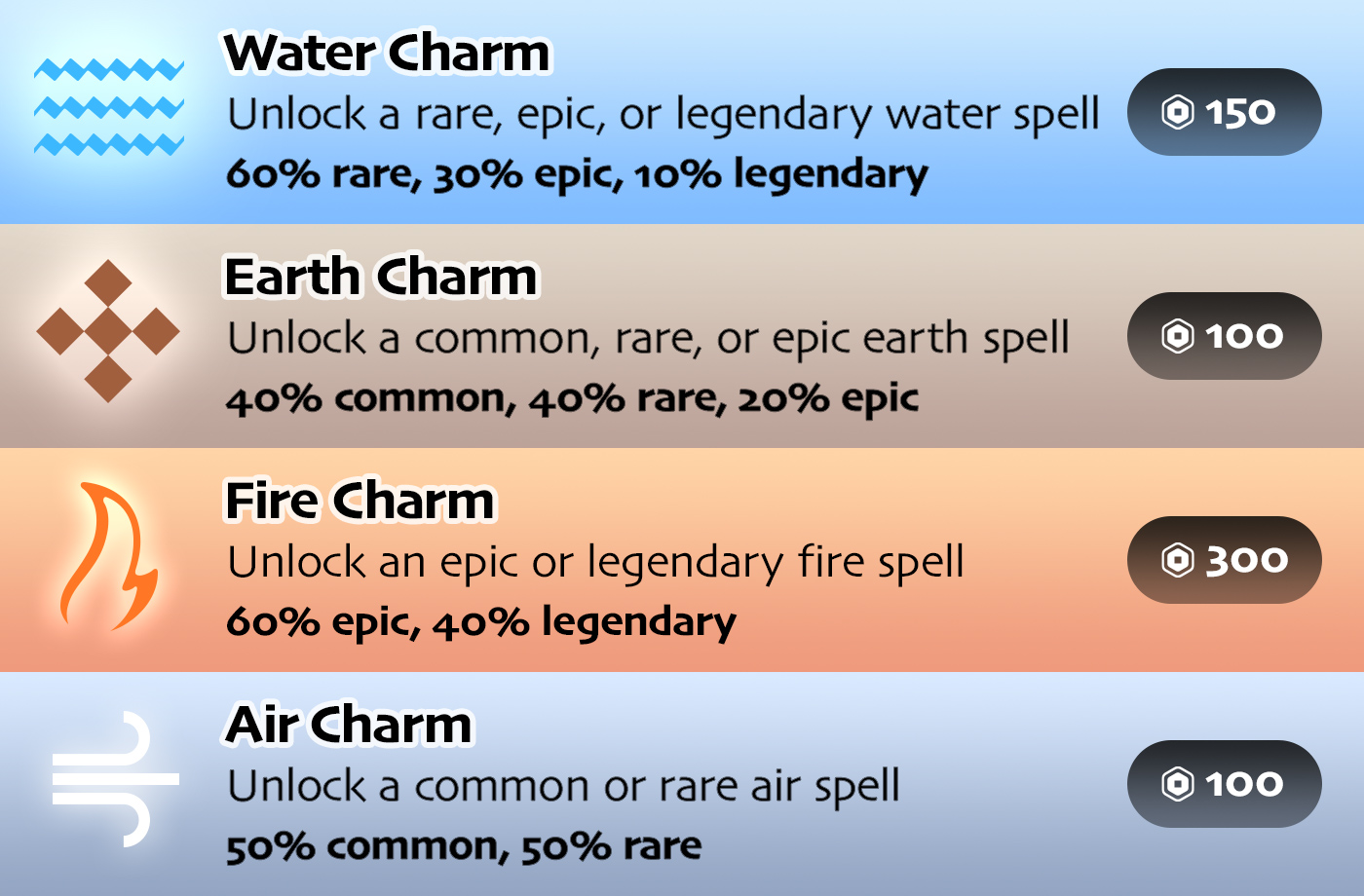
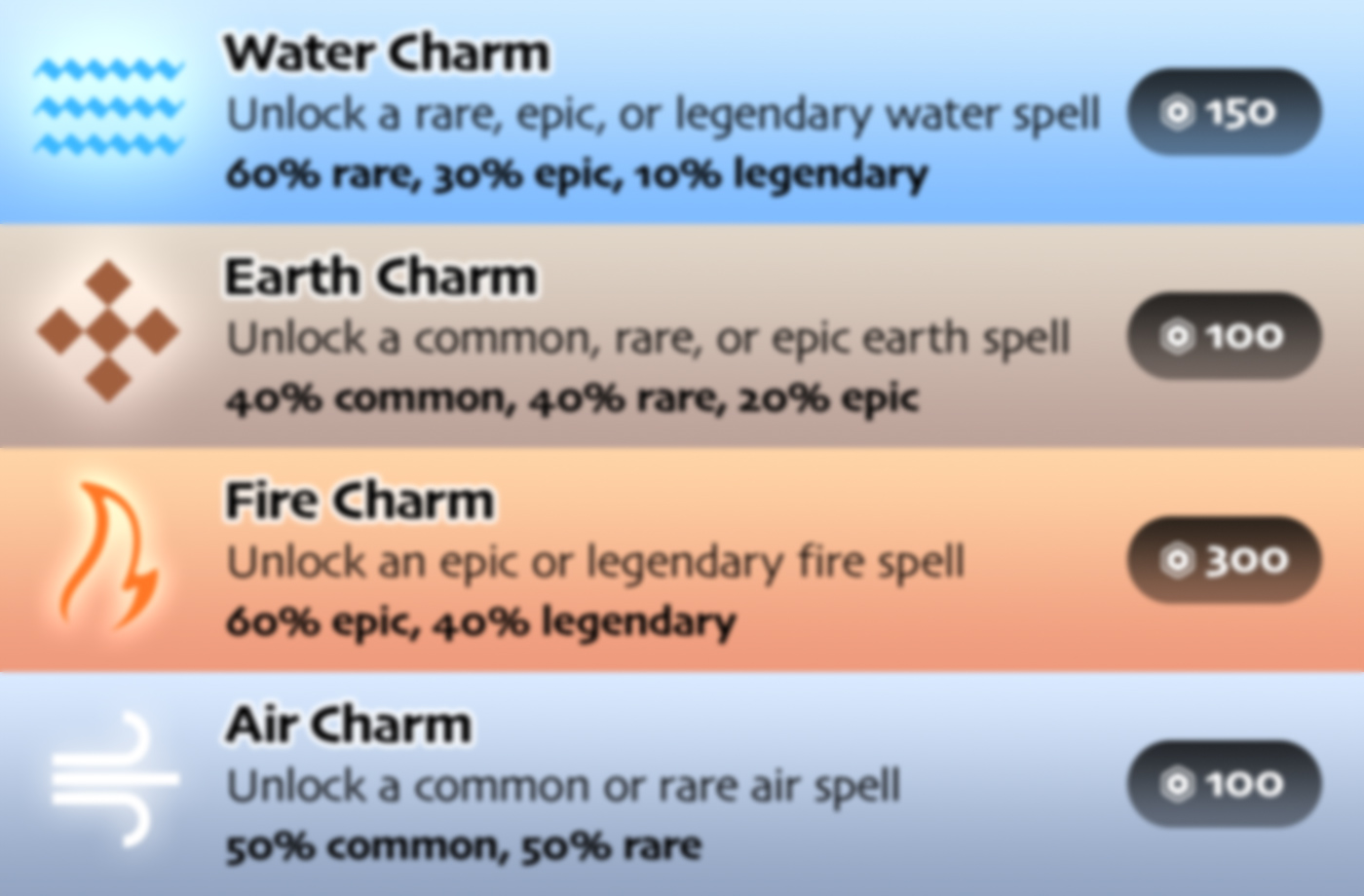
If you increase the size of the smaller font labels, it will be clearer to most players.
Sighted
Low Vision
Color contrast#
Players might find it difficult to read light text on a light background, or dark text on a dark background. To improve accessibility, it's recommended that you pick text and background colors with sufficient color contrast.
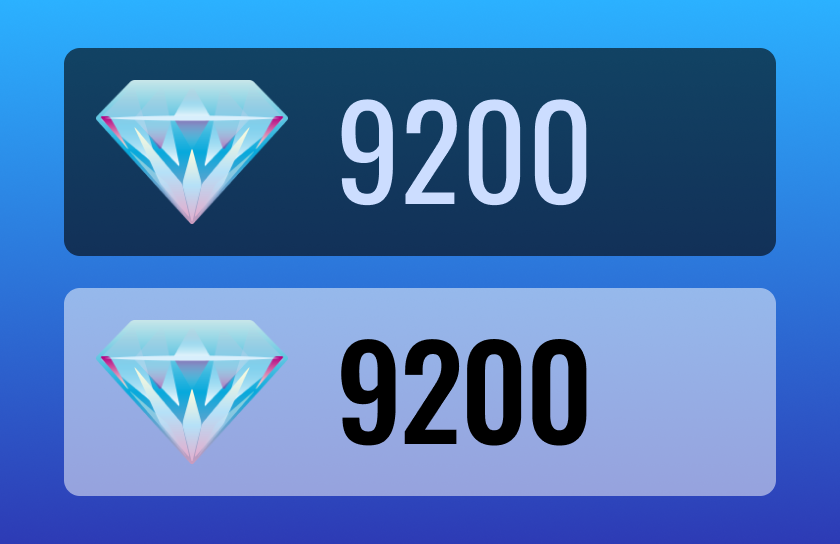
High contrast
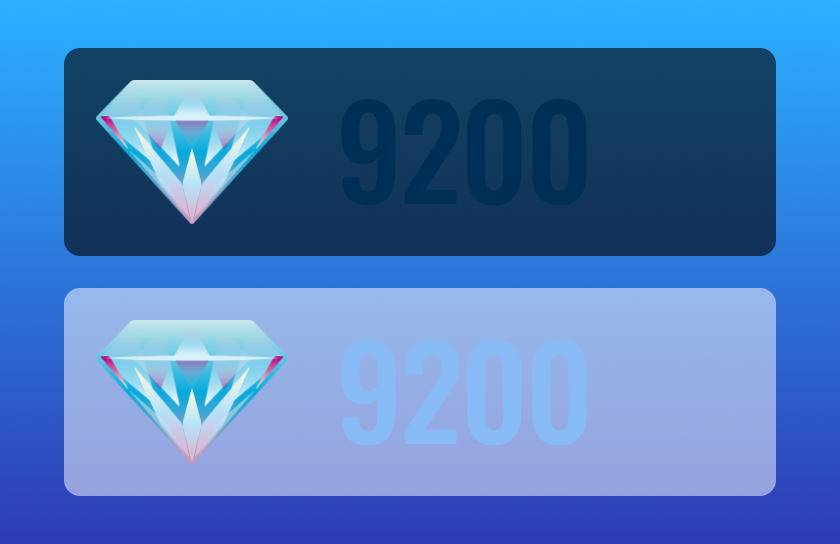
Low contrast
Color non-reliance#
Over 5% of people in the world have some form of color blindness. Although it's rare for someone to see only in black and white, imagine viewing a game in grayscale:
No Color Blindness
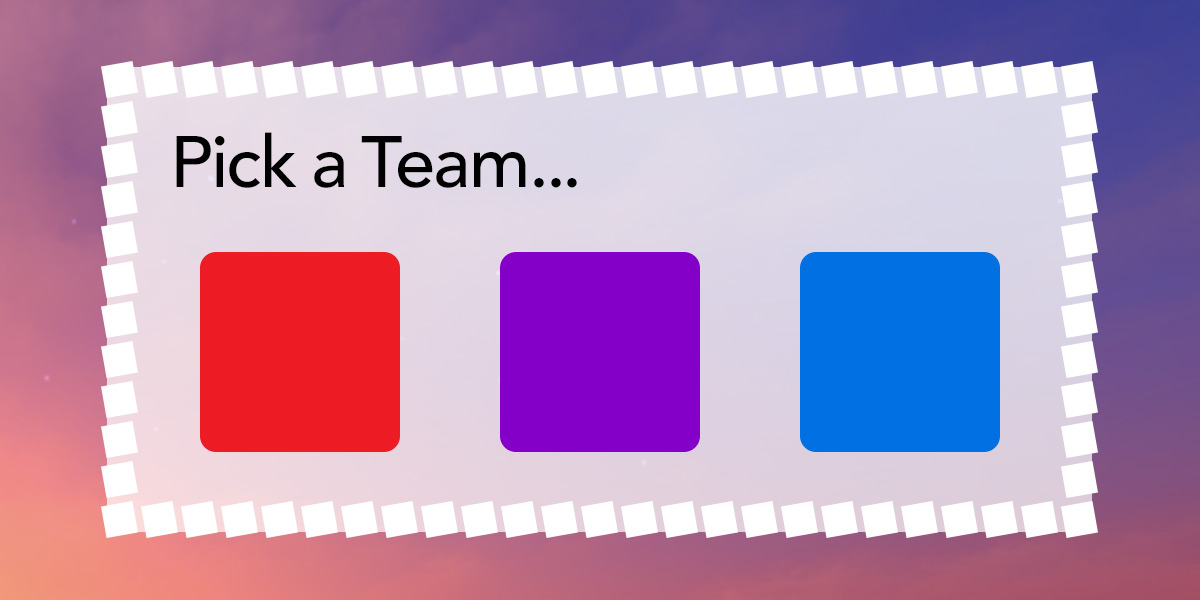
Color Blindness

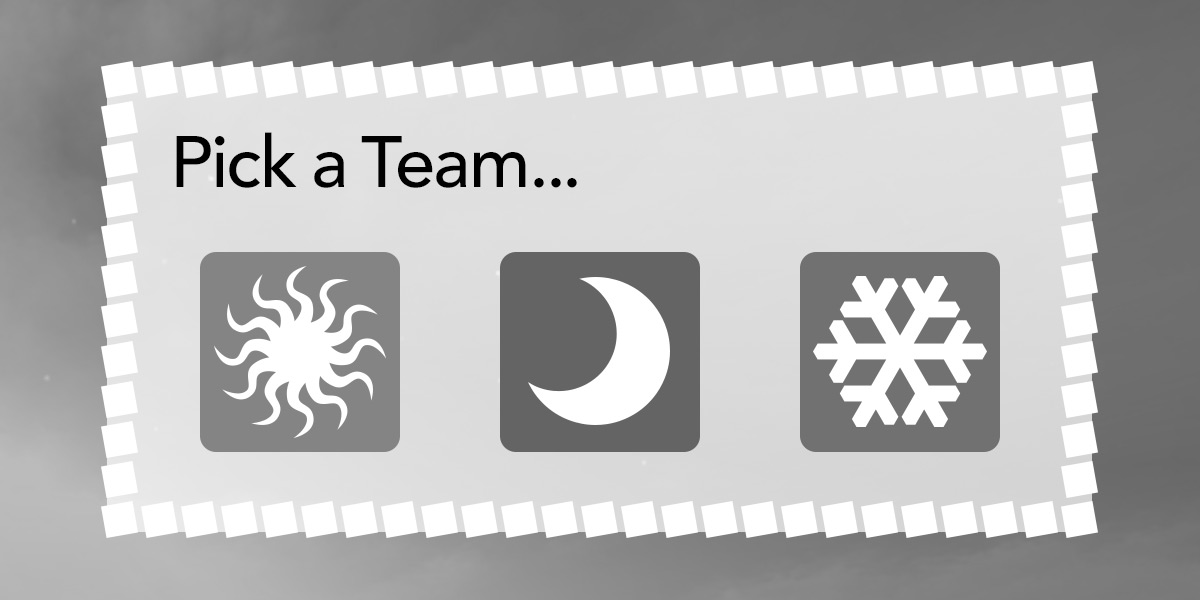
By modifying the image to use different symbols alongside colors, more players can tell the difference in gameplay and in other contexts:
No Color Blindness
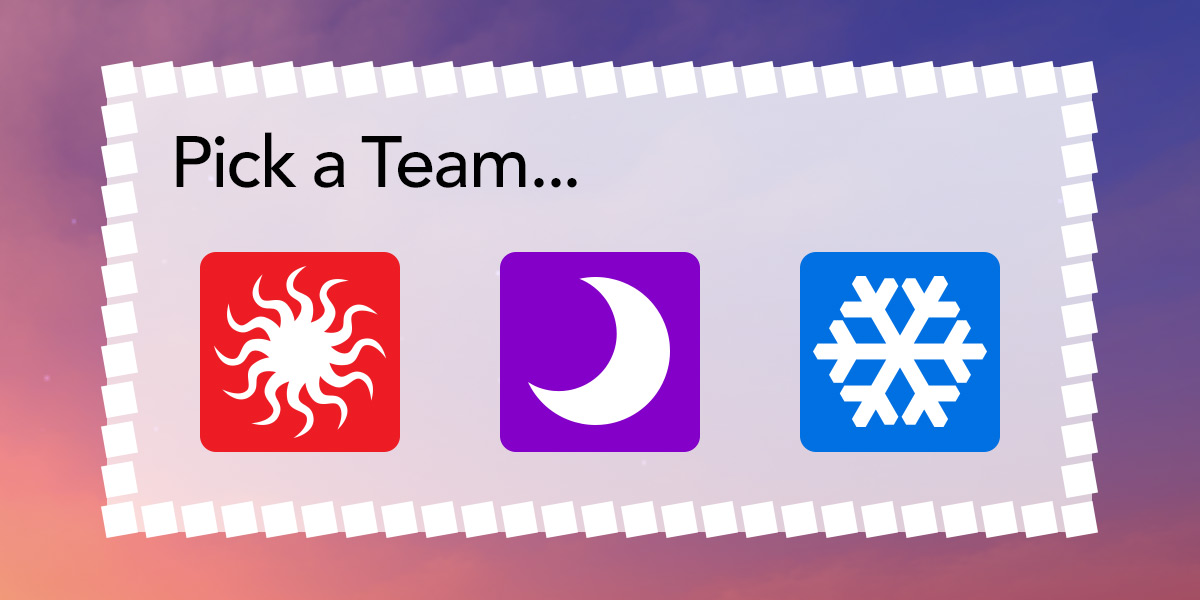
Color Blindness
Sound non-reliance#
Sound is an excellent addition for immersive games, but hearing-impaired players or anyone who turns their volume off will be confused by in-game events that are only conveyed with sound.
Consider the following scene where a ringing phone is signalled only by sound, and then signalled with both sound and visual aids.
Player preferences#
Various visual settings are available to players from the Roblox and in-game Settings menus, including preferred transparency, preferred text size, and reduced motion. For optimal accessibility, your user interface should accommodate each.
Preferred transparency#
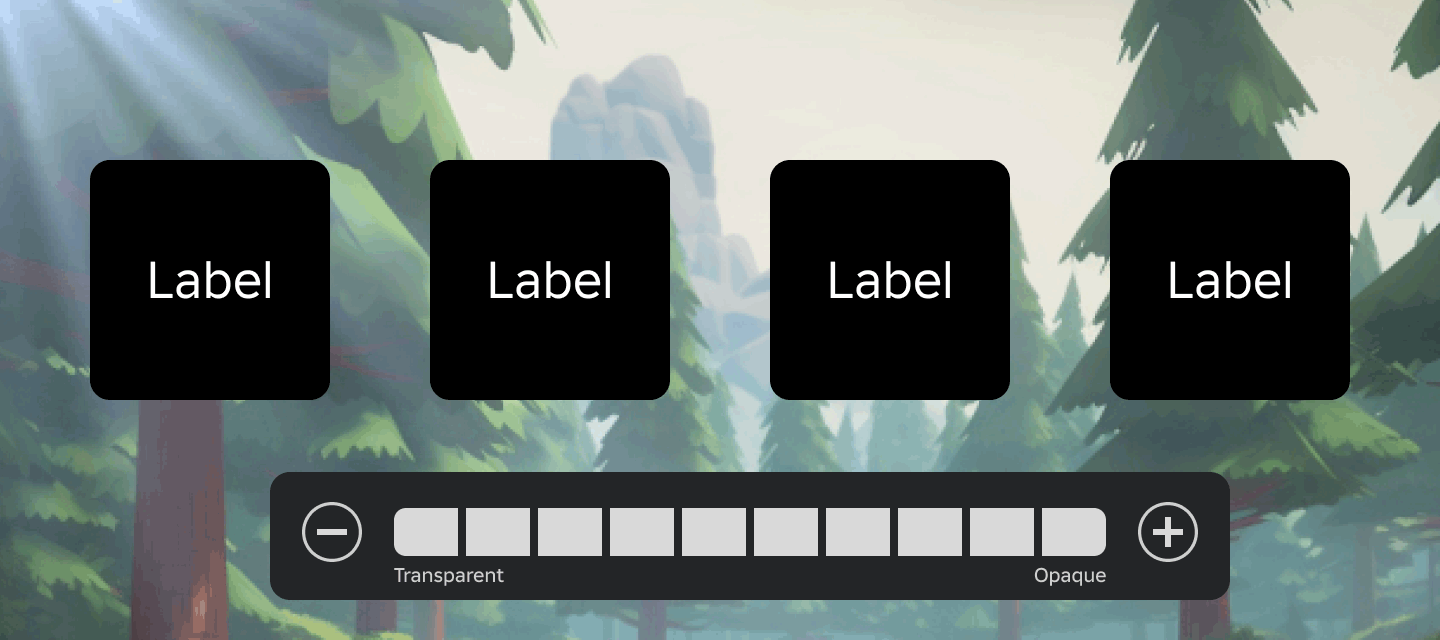
The Background Transparency setting maps to the GuiService.PreferredTransparency property. A value of 1 indicates the player prefers the default background transparency, while a value of 0 indicates the player prefers fully opaque (non‑transparent) background transparency for improved readability and contrast.
Multiplying a UI element's BackgroundTransparency with PreferredTransparency is the recommended way to use this setting; backgrounds will become more opaque as PreferredTransparency approaches 0.
Using the tagging system, apply a tag of
TransparentBackto all UI items withBackgroundTransparencysuch asTextLabelsorFrames.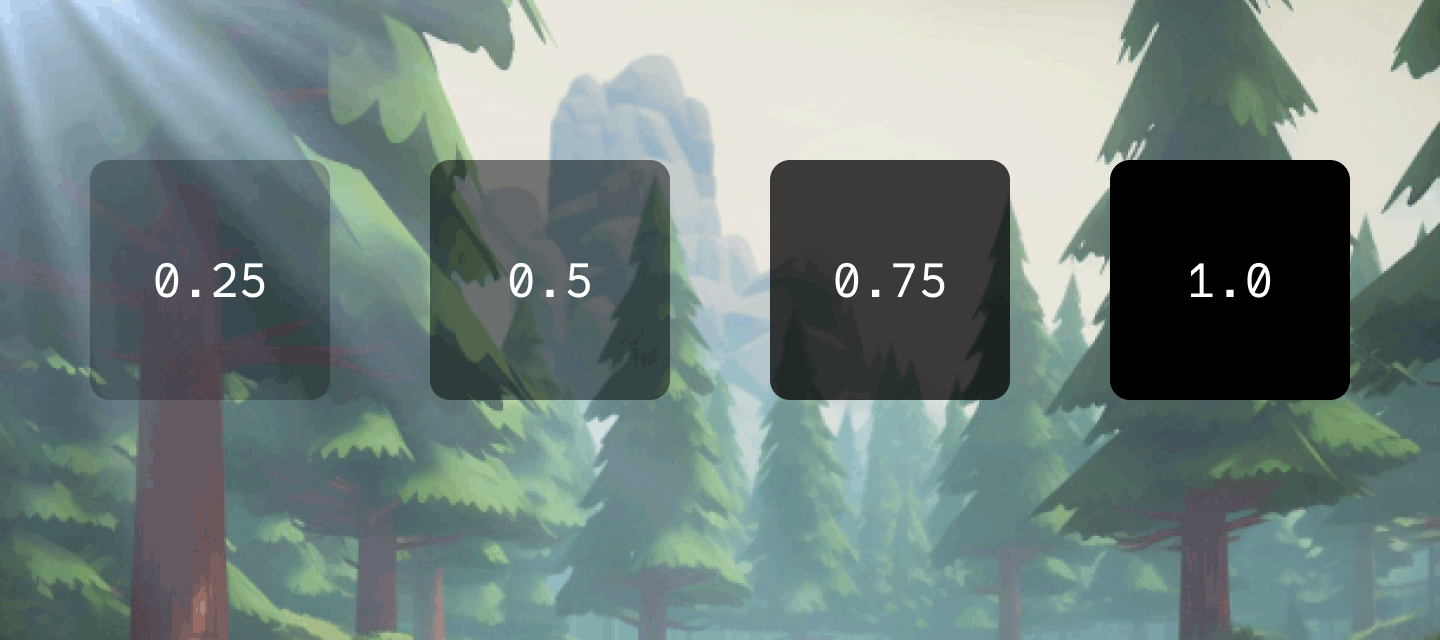
Four TextLabelelements with varyingBackgroundTransparencylevelsPaste the following code into a
LocalScriptwithinStarterPlayerScripts.```lua title="Dynamic Adjustment for Preferred Transparency" local GuiService = game:GetService("GuiService") local CollectionService = game:GetService("CollectionService")
local TAG = "TransparentBack"
local transparentBackObjects = {}
local function onInstanceAdded(object) if object.BackgroundTransparency then local defaultTransparency = object.BackgroundTransparency transparentBackObjects[object] = defaultTransparency object.BackgroundTransparency = defaultTransparency * GuiService.PreferredTransparency end end
local function onInstanceRemoved(object) transparentBackObjects[object] = nil end
-- Store initial tagged instances for _, object in CollectionService:GetTagged(TAG) do onInstanceAdded(object) end
-- Detect when tagged instance is added or removed CollectionService:GetInstanceAddedSignal(TAG):Connect(onInstanceAdded) CollectionService:GetInstanceRemovedSignal(TAG):Connect(onInstanceRemoved)
-- When in-game setting is changed, adjust tagged instances GuiService:GetPropertyChangedSignal("PreferredTransparency"):Connect(function() for object, defaultTransparency in transparentBackObjects do object.BackgroundTransparency = defaultTransparency * GuiService.PreferredTransparency end end) ```
Playtest the game, open the Settings menu, and adjust Background Transparency. The tagged UI elements should update between their default
BackgroundTransparencyand fully opaque.
Default
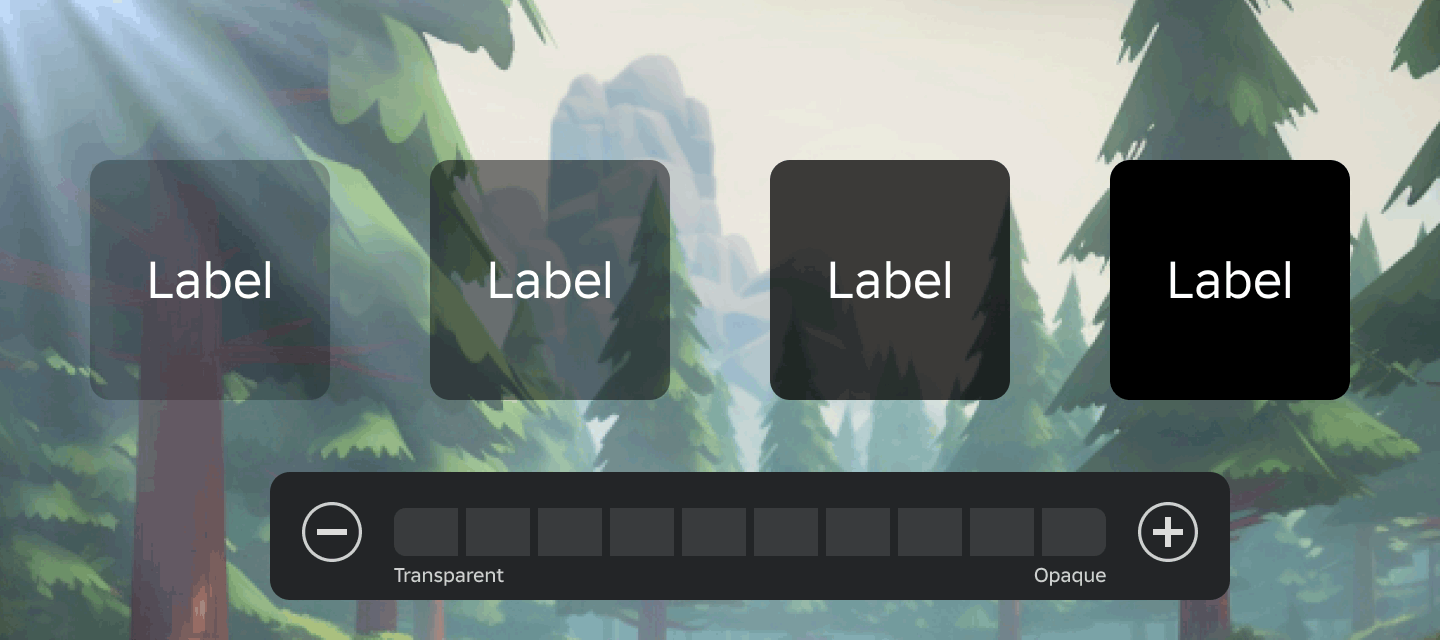
50% More Opaque
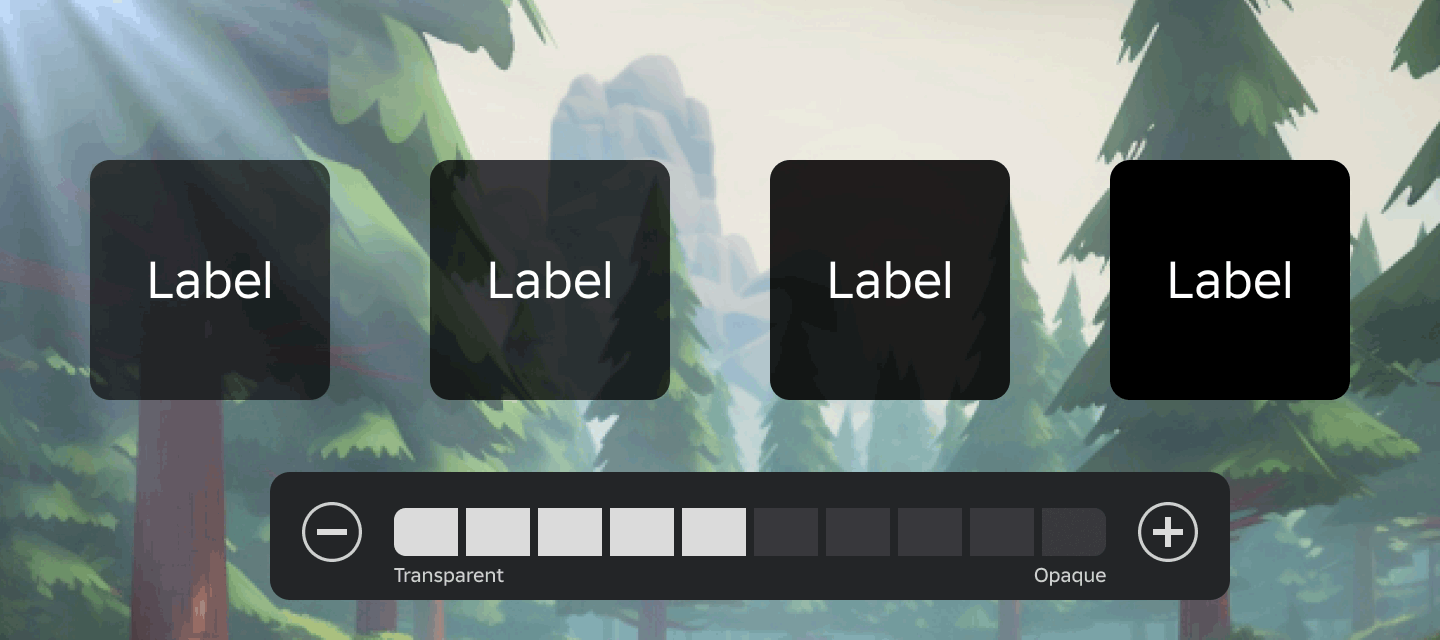
Fully Opaque
Preferred text size#
The Text Size setting maps to the GuiService.PreferredTextSize property which defaults to Medium. Players can choose to increase text size through the engine's font rendering pipeline to Large, Larger, or Largest.
When working with UI elements, note the following behaviors:
Text that is constrained to a minimum and/or maximum size through a
UITextSizeConstraintwill not shrink below or expand above the setMinTextSize/MaxTextSize, regardless of the player's text size setting.When
TextScaledis enabled for aTextLabelorTextButton, the element's text will not be scaled by thePreferredTextSizevalue.UI elements with
AutomaticSizeenabled will shrink/grow asPreferredTextSizedecreases/increases (element bounds will resize to fit the resized text).When
TextWrappedis enabled for aTextLabelorTextButton, the element's text will wrap to additional lines asPreferredTextSizeincreases, within limits of the element's absolute size.The results returned by
TextService:GetTextSize()andTextService:GetTextBoundsAsync()honor changes related toPreferredTextSize.
Reduced motion#
The Reduce Motion toggle maps to the GuiService.ReducedMotionEnabled property. A value of true indicates the player wants motion effects through UI animations/tweens to be reduced or completely removed.
A basic approach to removing motion from UI tweens is to set the Time parameter of a TweenInfo to 0 when ReducedMotionEnabled is true, effectively making the UI object snap to its target instantly.
local GuiService = game:GetService("GuiService")
local Players = game:GetService("Players")
local TweenService = game:GetService("TweenService")

local player = Players.LocalPlayer
local playerGui = player.PlayerGui
local menuUI = playerGui:WaitForChild("MenuUI")

-- Use tween time of 0.75 seconds unless reduced motion is enabled
local TWEEN_TIME = if GuiService.ReducedMotionEnabled then 0 else 0.75
local tweenInfo = TweenInfo.new(TWEEN_TIME, Enum.EasingStyle.Cubic, Enum.EasingDirection.Out)

local tween = TweenService:Create(menuUI.SettingsFrame, tweenInfo, {Position = UDim2.fromScale(0.5, 0.5)})

tween:Play()
Alternatively to instant snapping, you can handle ReducedMotionEnabled with more distinct true/false logic. For example, the following LocalScript uses motion tweening by default, but switches to fade‑in for players who enable reduced motion, resulting in a more elegant transition without positional movement.
local GuiService = game:GetService("GuiService")
local Players = game:GetService("Players")
local TweenService = game:GetService("TweenService")

local player = Players.LocalPlayer
local playerGui = player.PlayerGui
local menuUI = playerGui:WaitForChild("MenuUI")

-- Create a canvas group to tween all children uniformly
local canvasGroup = Instance.new("CanvasGroup")
canvasGroup.Size = UDim2.fromScale(1, 1)
canvasGroup.BackgroundTransparency = 1
canvasGroup.Parent = menuUI

-- Add children to canvas group
menuUI.SettingsFrame.Parent = canvasGroup

local tweenInfo = TweenInfo.new(0.75, Enum.EasingStyle.Cubic, Enum.EasingDirection.Out)
local tween

-- Use fading tween for reduced motion, or a motion tween otherwise
if GuiService.ReducedMotionEnabled then
	-- Initially set canvas group to fully transparent (invisible)
	canvasGroup.GroupTransparency = 1
	-- Fade in canvas group
	tween = TweenService:Create(canvasGroup, tweenInfo, {GroupTransparency = 0})
else
	-- Initially set canvas group off screen
	canvasGroup.Position = UDim2.fromScale(0, -1)
	-- Move canvas group on screen
	tween = TweenService:Create(canvasGroup, tweenInfo, {Position = UDim2.fromScale(0, 0)})
end

tween:Play()
Volume controls#
Different sounds playing at the same time can be overwhelming, distracting, or difficult to distinguish. Providing users with volume controls for different "groups" of audio such as sound effects, music, and speech lets them customize their game and focus on what they need to.
Consider the following example of a very noisy game where the user is able to modify music and sound effect volumes separately.